































Table of Contents
- Key Points
- Taking Control of Your AMD Drivers
- Summary Table
- Benefits and Drawbacks of AMD Driver Rollbacks
- FAQ
- Related Questions



Taking Control of Your AMD Drivers
Understanding the Need for Driver Management
While many users rely on automatic updates for their drivers, these updates aren't always beneficial. A new AMD driver can sometimes introduce bugs or compatibility issues with older hardware or software. For gamers, this can mean reduced performance in favorite titles, graphical glitches, or even Game crashes. It's crucial to have the knowledge and tools to manage your AMD drivers, including the ability to revert to a previous version if needed. This is why mastering AMD driver management is important. This guide will focus on providing a simple path to solve this common problem.
Preventing Automatic AMD Driver Updates
Before making any driver changes, it's essential to disable automatic driver updates. The AMD Radeon Software Adrenalin Edition often defaults to automatically installing the latest drivers, which can undo your efforts to revert to a specific version. To prevent this, follow these steps:
- Open the AMD Radeon Software. You can find it by searching for 'AMD' in the Windows search bar or by using the shortcut Alt+R.
- Click the gear icon for 'Settings'.
- Navigate to the 'System' tab.
- Find the 'Software and Driver' Section.
- Disable the “Check for updates” setting by toggling it to “Manual.”
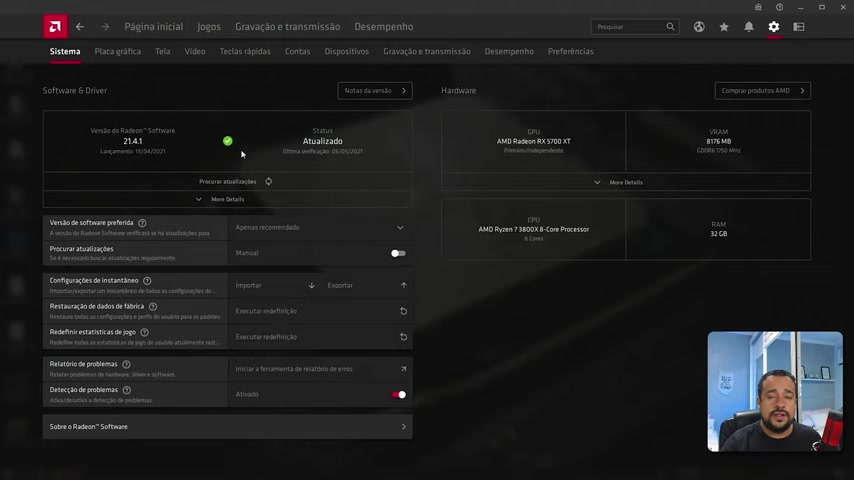
By disabling automatic updates, you gain control over when and how your drivers are installed. This allows you to maintain system stability and avoid unwanted driver changes. Make sure the ‘Automatic Updates” section shows disabled or manual as a status.
It’s important to note the driver version and status, so that we know that we successfully disabled automatic updates for our AMD drivers.
Using Display Driver Uninstaller (DDU) for a Clean Uninstall
Display Driver Uninstaller (DDU) is a third-party utility that completely removes graphics drivers from your system. Unlike the standard uninstall process, DDU eliminates all traces of the driver, including registry keys, files, and folders. This ensures a clean slate for installing an older driver. Here's how to use DDU:
-
Download DDU: Download from Guru3D the latest version.
-
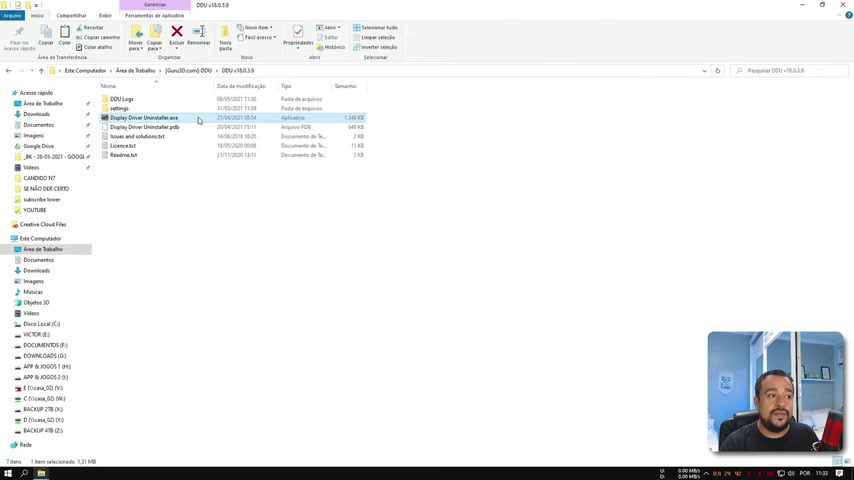
Extract DDU: Extract the contents of the downloaded DDU zip file to a folder on your desktop.
-
Run DDU: Execute Display Driver Uninstaller.
-
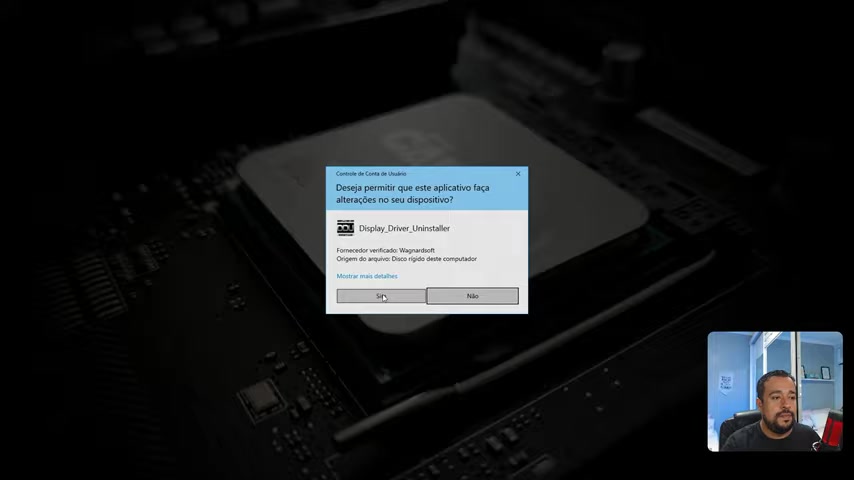
Safe Mode is required: Select ‘Safe Mode recommended”. When running the program. DDU works best in Safe Mode, which prevents Windows from interfering with the uninstallation process. Choose ‘OK’ to proceed safely. Take note - PIN will NOT work when running in Safe Mode.
-
Choose Your Device Type: Select 'GPU' and ‘AMD Radeon.'
-
Run the Uninstaller: Choose 'Clean and Restart' to completely remove the drivers and restart your computer.
DDU is an essential tool for AMD driver management because this ensures the complete removal of the current drivers before installing new drivers. In situations where you just want to remove an old AMD driver, you would not select safe mode in order to skip past the PIN message. Note that for PIN login, “Your SENHA Windows is necessary! PIN not function in safe mode. Save immediately se you a perdeu ou nao sabe!” The tool does a great job of removing files, folders and registry keys that are typically left behind with AMD software. You can use DDU on Guru3D or access it inside the Google Drive Folder.
Finding and Downloading Older AMD Drivers
Once you've successfully removed the existing AMD driver, it's time to find and download the older version you want to revert to. Here are the options discussed:
- AMD Support Website: The official AMD support website is a reliable source for downloading drivers. Navigate to AMD support section and then the download area.
- Google Community: A google drive shared folder is shown, making users choose which driver suits them for older hardware. There is a version control log, to know the specifics.
-
Using Google Search: You can always use google search. Just input the version of the driver you want, and download it from there. I.E. 'Adrenalin 20.11.2.'
Remember to cross-reference versions that will properly suit your needs. When googling, it is important to cross reference a list of websites. You can always use Google to get the latest Drivers and information. Just put in the relevant version of the AMD driver you are looking for. For example, the Adrenalin 20.11.2 AMD driver
.
Alternate Driver Search: Guru3D
For experienced users who want to stay current, Guru3D offers a robust option. First, it shows the latest drivers being released on the market. The site offers driver information and performance reviews, offering good information on what is currently on the market for AMD cards. They also do tests and have categories for all AMD driver types. These forums help offer a better understanding for any new driver. Just navigate to the Download Section.
Installing Your Selected AMD Driver
After downloading the older driver, it's time to install it. Follow these steps:
- Extract Files - You need to extract the AMD driver from its ZIP to another file location, I.E. your Desktop.
- Start .exe file - Once you extract the file, the next step is to execute the .exe to start the driver install.
- Follow Prompts - When the installer is done, you can proceed using the prompts that the AMD driver software shows to set preferences and finish with the AMD driver install.
- That's it! You have successfully installed an older AMD driver.
After the Installation
With this successful install, this means that you now have successfully downgraded. It is important to make sure this happened properly by navigating to your setting and going to Display Settings to ensure the video card is functioning. If you have done all the steps previously shown, you are free to enjoy your games.







Most people like






























Report
Please select a reason for reporting
- 13 Reasons to Switch from Snapchat to Text Messaging
- 7 Powerful Speech to Text Apps to Boost Productivity
- 10 Best Speech to Text Tools for Effortless Transcription
- 13 Free Tools to Easily Transcribe Audio to Text
- 15 Surprising Ways Google's Speech-to-Text Boosts Productivity
- 7 Best Free Online Audio to Text Transcription Tools
- 9 Tips to Transcribe Speech to Text Faster and Better
- 13 Best Speech to Text Software for Windows 10 in 2023
- 7 Tips for Choosing the Best Transcriber for Audio to Text
- 11 Reasons Why Dragon Speech-to-Text Apps are Game-Changers
- 6 Secrets to Enhance Your Speech to Text Transcription
- 6 Brilliant Ways to Boost Productivity with Talk-to-Text on Your MacBook
- 6 Ways Transcription Software Converts Audio to Text
- 8 Tips to Transcribe Speech to Text Like a Pro
- 6 Reasons IBM Watson Speech to Text is a Game-Changer
- 14 Powerful Ways Talk-to-Text Improves Your Workflow
- 12 Top Windows Speech-to-Text Software for Efficient Transcription
- 12 Game-Changing Benefits of Apple's Speech to Text Technology
- 9 Powerful Use Cases for AWS Speech to Text Technology
- 10 Easy Steps to Transcribe YouTube Videos to Text
- transcription audio en texte
- online audio transcription
- free audio file transcription
- free ai audio transcription
- audio transcription service
- audio transcription online free
- audio transcription free online
- audio to transcription software
- audio and transcript
- ai audio transcription free
- voice recording to text converter
- translate voice recording to text
- record voice to text
- audio recording to text converter
- voice recording and transcription
- chatgpt voice to text
- gmail voice to text
- speech to text reader
- speech to text ai free
- speech to talk
- How SEO and Marketing Dashboards Empower Agencies to Drive Results
- How to Use AI Tools to Find Internal Linking Opportunities Across a Business Website
- Discover Your Perfect Haircut with AI Hairstyle Apps
- Free Reputation Calculator Tools: How They're Adapting to Score AI Visibility, Not Just Rankings
- Design Professional Flyers for Free on Your Phone
- Best Free Flyer Maker Apps for Android: Design Like a Pro
- How to Know If Your Business Is Ready for an AI Customer Service Agent
- Revolutionizing Storytelling: From Novels to Screenplays with AI
- Create Engaging Animated Explainer Videos with a Free AI Tool
- Stop Multi-Subscribing: Benchmark Top AI Visual Models in One Canvas
- Frame to Video Review: A Practical Look at Turning Two Still Frames Into Motion
- NVIDIA NIM: Revolutionizing Supply Chain Data Analysis with AI
- Top AI Tools That Help Brands Stand Out Offline (Not Just Online)
- Top 5 Cold Email Software: Maximize Your Outreach in 2025
- Magic School AI: Revolutionizing Quiz & Assessment Generation
- Create Your Own Email Bot and Automate Your Email Tasks
- Beyond Pure Prompts: Optimizing Production with 'Text With Reference' Generation
- Stop Using Boring TTS: My Honest Deep Dive Into VideoAI and the Hunt for the Perfect Custom Voices
- AI & Elections: Defending Democracy Against Misinformation
- Navigating Political Discourse: AI, Deepfakes, and Reality Checks

Copyright ©2026 toolify