































Table of Contents
- Key Points
- Understanding Genshin Impact Performance
- Advanced Optimization Techniques
- How to Monitor System Resource Usage
- Cost Consideration
- Pros and Cons of Optimizing Genshin Impact
- Maximizing Genshin Impact Performance Through Optimization
- Scenarios for Optimal Performance
- Frequently Asked Questions
- Related Questions



Understanding Genshin Impact Performance
Factors Affecting Genshin Impact Performance
Several factors contribute to Genshin Impact's performance. These include your CPU, GPU, RAM, and storage. A powerful CPU and GPU are essential for handling the game's complex calculations and rendering detailed graphics. Sufficient RAM ensures smooth multitasking and prevents stuttering. A fast SSD or NVMe drive can significantly reduce loading times. Beyond hardware, the Game's settings, operating system configurations, and driver versions all play a role.
The game resolution greatly impacts the performance and visual fidelity. Choosing a high resolution, while delivering sharper images, puts a strain on the GPU as it has to render more pixels. A lower resolution reduces the pixel load, providing a smoother experience at the cost of clarity. Other settings like shadow quality, visual effects, and environment detail can significantly affect the load on your system resources.
To achieve optimal Genshin Impact performance, it's crucial to find the sweet spot between visual fidelity and stable framerates. This involves understanding how each graphics setting impacts your system and adjusting them to suit your hardware capabilities. We will cover the optimal in-game setting in a module below.
In-Game Graphics Settings Optimization
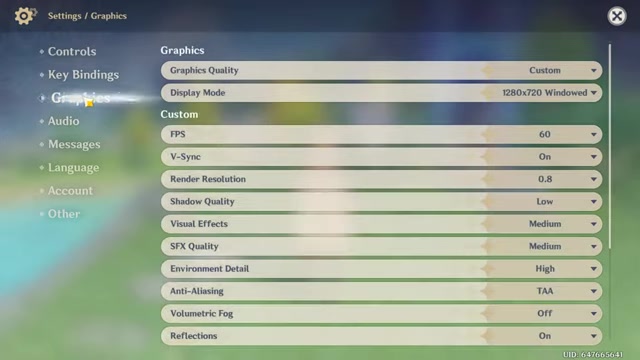
The first step in optimizing Genshin Impact involves tweaking the in-game graphics settings. These settings allow you to fine-tune the game's visuals to suit your hardware. Here's a breakdown of the key settings and how they impact performance:
-
Graphics Quality: This is the master setting. If you set it to "Custom", then it will allow you to configure the following sub-options. If you set it to the other values, it will change all the sub options accordingly.
-
Display Mode: The display mode determines if the game is rendered in full-screen or in windowed mode. Generally, full-screen mode offers slightly better performance as it eliminates the overhead of rendering the desktop environment. However, in some cases, windowed mode may offer better stability. You should test the game in different modes for which is better.
-
Resolution: Lowering the resolution can significantly boost FPS. If you are facing a lot of lags, consider setting this value to the lowest setting, or experiment with the different settings until you find the balance.
-
Shadow Quality: Shadows can be very demanding. Set this to "Low" or "Lowest** to gain a noticeable performance boost.
-
Visual Effects: Reducing visual effects, such as bloom and particle effects, can also improve performance. Set it to "Medium" or "Low".
-
SFX Quality: Setting SFX to "Medium" or "Low" can help reduce CPU load without drastically impacting the game's audio experience.
-
Environment Detail: High environment detail increases the complexity of the scene, putting extra stress on the GPU. Consider lowering this setting to gain performance.
-
Anti-Aliasing: Disabling or lowering anti-aliasing can improve performance. The video recommend TAA settings.
-
Volumetric Fog: Disabling volumetric fog can significantly boost FPS, especially in areas with dense fog effects. Make sure this value is set to "Off" to increase performance.
-
Reflections: Disabling reflections can significantly boost FPS.
-
Motion Blur: Motion Blur is more of a preference, if you like having motion blur, leave this setting to "On", if you want the extra performance, set this value to "Off"
-
Bloom: Bloom adds a glow to bright objects. Setting this value to "On" or "Off" is more a preference and is up to you to test for best performance
-
Crowd Density: Reducing crowd density can help improve performance, especially in crowded areas.
-
Co-Op Teammate Effects: If you have friends playing with you and would like to see the effects, feel free to turn this on. However, if you want the extra performance boost, keep this setting to off
-
Subsurface Scattering: Setting this to "Medium" or "Off" can improve performance a lot.
-
Anisotropic Filtering: It is recommended to set the value to 4x. You may set it to a higher value if the game is running smoothly, but there won't be a visible difference to the quality of the image
Optimizing Crow Density for Enhanced Performance
For the best Genshin Impact experience, consider setting the crowd density to 'High'. This setting directly impacts the number of non-playable characters (NPCs) rendered in the game world. While a lower density can improve performance on less powerful hardware, it also diminishes the richness and vibrancy of the game world. Experiment with this setting to strike a balance between fluidity and immersion.
How to Monitor System Resource Usage
Using Task Manager and Performance Monitoring Software
Monitoring your system's resource usage is essential for identifying performance bottlenecks and optimizing Genshin Impact. The Windows Task Manager provides basic resource monitoring capabilities, including CPU, GPU, memory, and disk usage. To access Task Manager, press Ctrl + Shift + Esc or search for "Task Manager" in the Windows search bar.
However, for more detailed information, you can use dedicated performance monitoring software such as:
- MSI Afterburner:
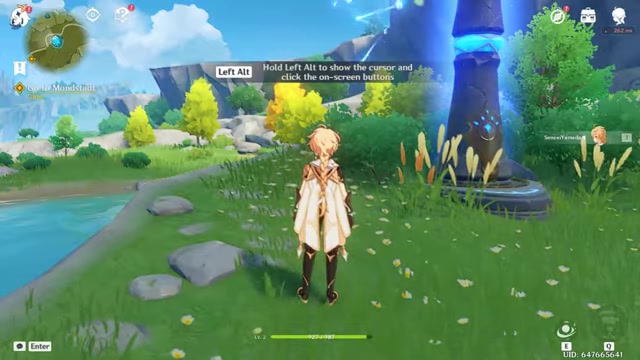
A popular tool that provides real-time monitoring of GPU temperature, clock speeds, and usage. It also allows you to overclock your GPU for additional performance.
- FPS Monitor: Allows you to see CPU temperatures, CPU power, FPS, frame time, and other important information.
By monitoring these resources, you can identify which components are limiting your game's performance and adjust the settings accordingly. For example, if your GPU usage is consistently at 100%, it indicates that your GPU is the bottleneck and that you may need to lower graphics settings to improve FPS.
To show FPS Monitor overlay while in game, you must hold Left Alt key. To modify or disable this setting, you can adjust them within the FPS Monitor configuration panel.






Most people like































Report
Please select a reason for reporting
- 13 Reasons to Switch from Snapchat to Text Messaging
- 7 Powerful Speech to Text Apps to Boost Productivity
- 10 Best Speech to Text Tools for Effortless Transcription
- 13 Free Tools to Easily Transcribe Audio to Text
- 15 Surprising Ways Google's Speech-to-Text Boosts Productivity
- 7 Best Free Online Audio to Text Transcription Tools
- 9 Tips to Transcribe Speech to Text Faster and Better
- 13 Best Speech to Text Software for Windows 10 in 2023
- 7 Tips for Choosing the Best Transcriber for Audio to Text
- 11 Reasons Why Dragon Speech-to-Text Apps are Game-Changers
- 6 Secrets to Enhance Your Speech to Text Transcription
- 6 Brilliant Ways to Boost Productivity with Talk-to-Text on Your MacBook
- 6 Ways Transcription Software Converts Audio to Text
- 8 Tips to Transcribe Speech to Text Like a Pro
- 6 Reasons IBM Watson Speech to Text is a Game-Changer
- 14 Powerful Ways Talk-to-Text Improves Your Workflow
- 12 Top Windows Speech-to-Text Software for Efficient Transcription
- 12 Game-Changing Benefits of Apple's Speech to Text Technology
- 9 Powerful Use Cases for AWS Speech to Text Technology
- 10 Easy Steps to Transcribe YouTube Videos to Text
- transcription audio en texte
- online audio transcription
- free audio file transcription
- free ai audio transcription
- audio transcription service
- audio transcription online free
- audio transcription free online
- audio to transcription software
- audio and transcript
- ai audio transcription free
- voice recording to text converter
- translate voice recording to text
- record voice to text
- audio recording to text converter
- voice recording and transcription
- chatgpt voice to text
- gmail voice to text
- speech to text reader
- speech to text ai free
- speech to talk
- Meshy AI: How to Create 3D Models from Text and Images
- How SEO and Marketing Dashboards Empower Agencies to Drive Results
- How to Use AI Tools to Find Internal Linking Opportunities Across a Business Website
- Discover Your Perfect Haircut with AI Hairstyle Apps
- Free Reputation Calculator Tools: How They're Adapting to Score AI Visibility, Not Just Rankings
- Design Professional Flyers for Free on Your Phone
- Best Free Flyer Maker Apps for Android: Design Like a Pro
- How to Know If Your Business Is Ready for an AI Customer Service Agent
- Revolutionizing Storytelling: From Novels to Screenplays with AI
- Create Engaging Animated Explainer Videos with a Free AI Tool
- Meshy AI: How to Create 3D Models from Text and Images
- ASOMobile Helps Teams Benchmark App Store Screenshots Against Competitors
- How to Match LMS Software With Your Organization's Training Plan
- Revolutionizing Email Marketing Agency with AI
- How to Convert BTC to HNT
- Unleashing the Power of AI: Cognizant's Roadmap for Transformation
- Frame to Video Review: A Practical Look at Turning Two Still Frames Into Motion
- NVIDIA NIM: Revolutionizing Supply Chain Data Analysis with AI
- Top AI Tools That Help Brands Stand Out Offline (Not Just Online)
- Top 5 Cold Email Software: Maximize Your Outreach in 2025

Copyright ©2026 toolify