































Table of Contents
- Key Points
- Getting Started with Local AI Coding
- Customizing and Enhancing Your AI Coding Workflow
- Step-by-Step: Setting Up Your Local AI Coding Environment
- Comparing Costs: Free vs. Paid AI Coding Assistants
- Advantages and Disadvantages
- Key Features
- Unlocking Your Potential: Use Cases for Local AI Coding
- Frequently Asked Questions
- Related Questions


Getting Started with Local AI Coding
Introducing Ollama: Your Local AI Model Manager
To begin your journey into the world of local AI coding, the first step is to install Ollama. This powerful tool acts as a local model manager, allowing you to download and run various open-source AI models directly on your machine. Ollama supports macOS, Linux, and Windows (as a preview), making it accessible to a wide range of developers.
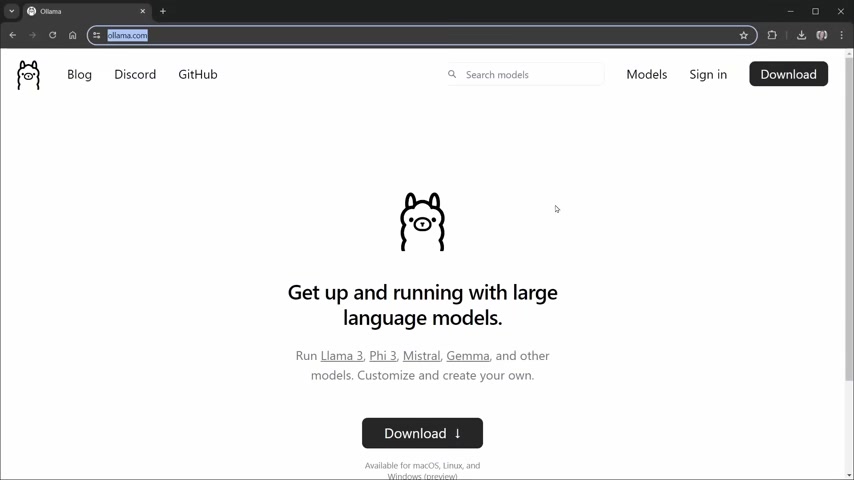
Downloading and installing Ollama is straightforward: visit the Ollama website and download the appropriate version for your operating system. For Windows users, note that the Windows version is currently in preview, so you may need to restart your machine after installation for it to be recognized at the command line. To verify the installation, open a terminal and type ollama --help. This should display a list of available commands, confirming that Ollama is correctly set up.
Once Ollama is installed, you can start exploring different AI models. Navigate to the Ollama website, where you can search for various models. Consider factors like model size and performance when selecting a model, as these can impact the speed and accuracy of your coding assistance. For example, CodeQwen is a powerful model at just 4.2 GB, providing a good balance between size and performance. Once you've found a model that meets your needs, you can download it using the command line.
Remember that while larger models may offer better accuracy, they also require more computational resources. Smaller models, on the other hand, are more resource-efficient and can still provide valuable coding assistance. Choose the model that best fits your hardware capabilities and project requirements. To run an AI, type in “ollama run codegwen”
Continue: Seamless AI Integration into VS Code
Now it's time to integrate the Continue extension into VS Code. This extension acts as an open-source AI autocompletion tool, bridging the gap between your code editor and the local AI models managed by Ollama. Continue supports VS Code and JetBrains, offering a seamless AI coding experience within your preferred IDE.
Installing Continue is as simple as searching for it in the VS Code extensions marketplace and clicking install. Once installed, you'll see a splash screen with a few recommendations.
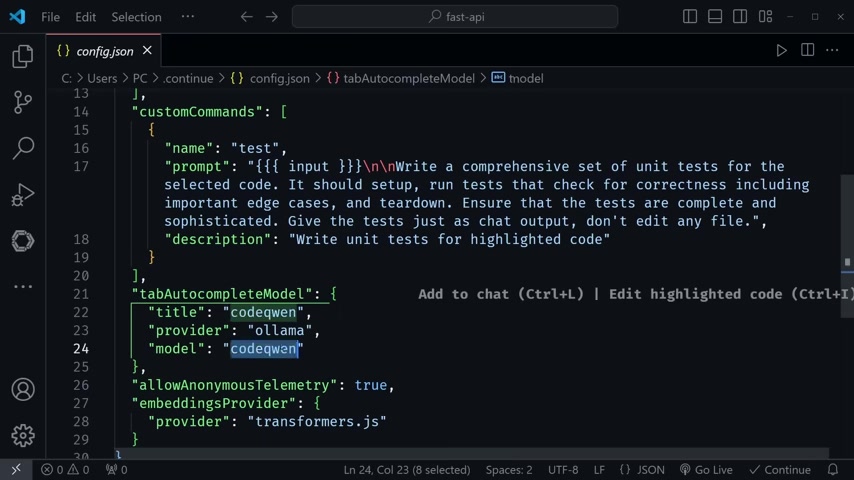
To configure Continue to use Ollama and your preferred AI model, you need to modify the config.json file. The Continue configuration is under the setting tab. After selecting Continue, you need to modify the configuration to have the CodeQwen. You might be able to choose CodeQwen as an Auto detect.
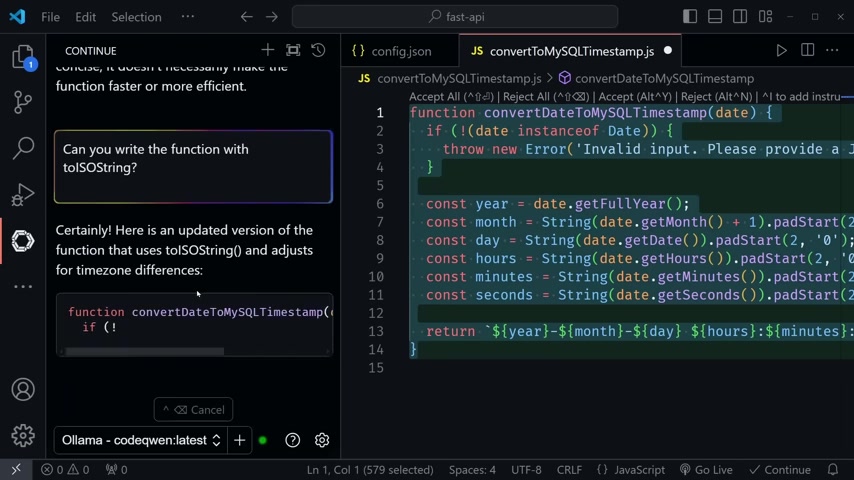
With Ollama and Continue configured, you're now ready to experience the power of local AI coding assistance in VS Code. You can now generate code, complete code snippets, and ask questions directly within your IDE, all powered by the local AI models running on your machine.
Comparing AI Models: the EvalPlus Leaderboard
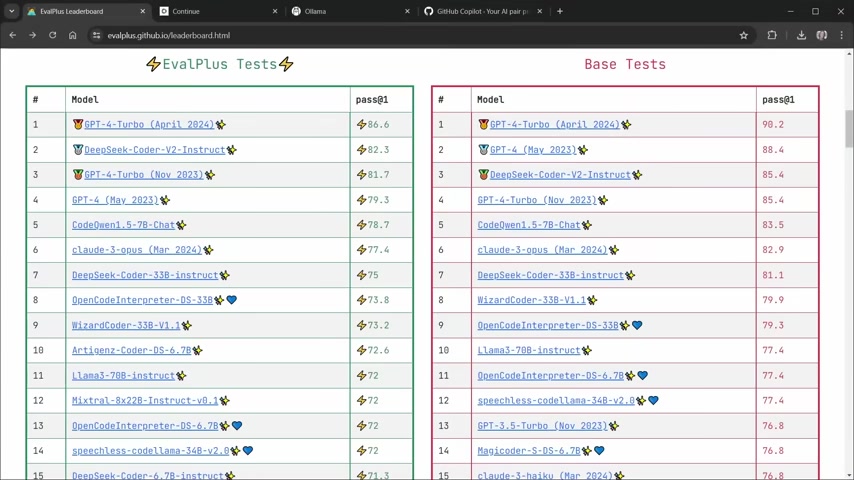
To make informed decisions about which AI models to use, it's essential to have access to reliable performance benchmarks. That's where the EvalPlus Leaderboard comes in. This valuable resource compares the performance of various open-source and paid AI models on coding tasks, providing insights into their strengths and weaknesses.
By consulting the EvalPlus Leaderboard, you can identify models that excel in specific coding areas, such as code generation or bug detection. This allows you to choose models that are best suited for your particular project needs. Remember that the leaderboard is constantly updated as new models are released, so it's worth checking back periodically for the latest information.
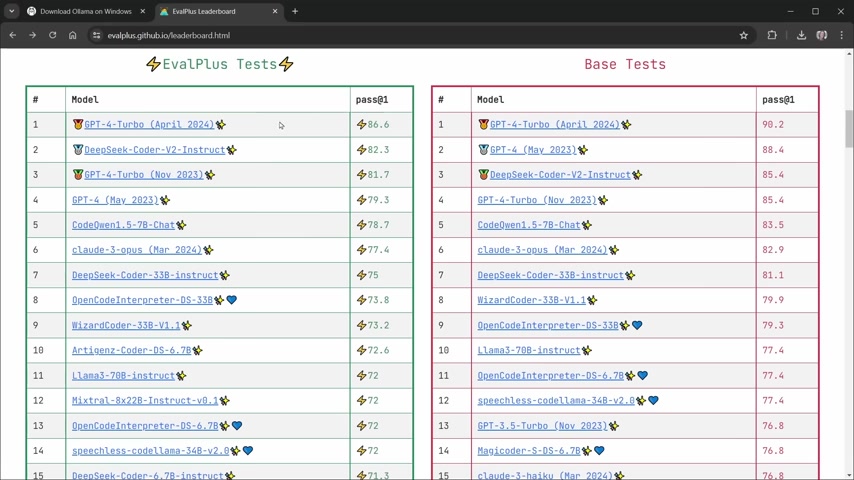
It's worth noting that some open-source models can achieve performance levels that are comparable to or even better than those of paid models like GitHub Copilot. This opens up opportunities for developers to access high-quality coding assistance without incurring subscription fees. For example, CodeQwen is a very close in ratings to other AI. It is also only 4.2 GB.
Customizing and Enhancing Your AI Coding Workflow
Custom Commands for Tailored Coding Assistance
The Continue extension offers a powerful feature that allows you to define custom commands, tailoring the AI's assistance to your specific needs. By creating custom commands, you can automate repetitive tasks, enforce coding standards, and generate code snippets that are specific to your project's requirements.
To define a custom command, you need to modify the config.json file and add a new entry to the customCommands section. Each custom command consists of a name, a prompt, and a description. The name is what you’ll type in the chat, The Prompt defines the instructions you want the AI to execute, and the description provides a brief explanation of what the command does. To implement this, add what you want the function to do in the Description.
Step-by-Step: Setting Up Your Local AI Coding Environment
Step 1: Installing Ollama
First, head over to ollama.com

and download the latest version for your operating system (macOS, Linux, or Windows preview). Once the download is complete, follow the installation instructions provided on the website.
Step 2: Verifying Ollama Installation
After installation, verify that Ollama is working correctly by opening your terminal or command prompt and typing ollama --help. This command should display a list of available Ollama commands, confirming that the installation was successful. If the command is not recognized, try restarting your computer, especially on Windows, as this may be necessary for the system to recognize the new installation.
Step 3: Installing the Continue Extension in VS Code
Open Visual Studio Code. Go to the Extensions view by clicking on the Extensions icon in the Activity Bar on the side of the window, or by pressing Ctrl+Shift+X (Cmd+Shift+X on macOS). In the Extensions view, search for Continue. Find the Continue extension and click the Install button to add it to your VS Code installation.
Step 4: Configuring Continue with Ollama
Locate and open the Continue configuration file config.json. Open the command palette with Ctrl+Shift+P (Cmd+Shift+P on macOS) and type Continue: Open Config. Modify it, to have CodeQwen for both the title and Model.
Comparing Costs: Free vs. Paid AI Coding Assistants
GitHub Copilot Pricing
GitHub Copilot offers different pricing tiers depending on individual or business use. As of 2025, these are the typical pricing structures:
-
Copilot Individual: $10 USD per month or $100 USD per year
-
Copilot Business: $19 USD per user/month
-
Copilot Enterprise: $39 USD per user/month
Continue and Open Source Models: Free Alternative
Continue, paired with open-source models like CodeQwen, offers a completely free alternative to GitHub Copilot. There are no subscription fees, and you have full control over the AI models and data used in your coding environment. This makes it a highly cost-effective solution for both individual developers and organizations.








Most people like































Report
Please select a reason for reporting
- 13 Reasons to Switch from Snapchat to Text Messaging
- 7 Powerful Speech to Text Apps to Boost Productivity
- 10 Best Speech to Text Tools for Effortless Transcription
- 13 Free Tools to Easily Transcribe Audio to Text
- 15 Surprising Ways Google's Speech-to-Text Boosts Productivity
- 7 Best Free Online Audio to Text Transcription Tools
- 9 Tips to Transcribe Speech to Text Faster and Better
- 13 Best Speech to Text Software for Windows 10 in 2023
- 7 Tips for Choosing the Best Transcriber for Audio to Text
- 11 Reasons Why Dragon Speech-to-Text Apps are Game-Changers
- 6 Secrets to Enhance Your Speech to Text Transcription
- 6 Brilliant Ways to Boost Productivity with Talk-to-Text on Your MacBook
- 6 Ways Transcription Software Converts Audio to Text
- 8 Tips to Transcribe Speech to Text Like a Pro
- 6 Reasons IBM Watson Speech to Text is a Game-Changer
- 14 Powerful Ways Talk-to-Text Improves Your Workflow
- 12 Top Windows Speech-to-Text Software for Efficient Transcription
- 12 Game-Changing Benefits of Apple's Speech to Text Technology
- 9 Powerful Use Cases for AWS Speech to Text Technology
- 10 Easy Steps to Transcribe YouTube Videos to Text
- transcription audio en texte
- online audio transcription
- free audio file transcription
- free ai audio transcription
- audio transcription service
- audio transcription online free
- audio transcription free online
- audio to transcription software
- audio and transcript
- ai audio transcription free
- voice recording to text converter
- translate voice recording to text
- record voice to text
- audio recording to text converter
- voice recording and transcription
- chatgpt voice to text
- gmail voice to text
- speech to text reader
- speech to text ai free
- speech to talk
- How SEO and Marketing Dashboards Empower Agencies to Drive Results
- How to Use AI Tools to Find Internal Linking Opportunities Across a Business Website
- Discover Your Perfect Haircut with AI Hairstyle Apps
- Free Reputation Calculator Tools: How They're Adapting to Score AI Visibility, Not Just Rankings
- Design Professional Flyers for Free on Your Phone
- Best Free Flyer Maker Apps for Android: Design Like a Pro
- How to Know If Your Business Is Ready for an AI Customer Service Agent
- Revolutionizing Storytelling: From Novels to Screenplays with AI
- Create Engaging Animated Explainer Videos with a Free AI Tool
- Stop Multi-Subscribing: Benchmark Top AI Visual Models in One Canvas
- ASOMobile Helps Teams Benchmark App Store Screenshots Against Competitors
- How to Match LMS Software With Your Organization's Training Plan
- Revolutionizing Email Marketing Agency with AI
- How to Convert BTC to HNT
- Unleashing the Power of AI: Cognizant's Roadmap for Transformation
- Frame to Video Review: A Practical Look at Turning Two Still Frames Into Motion
- NVIDIA NIM: Revolutionizing Supply Chain Data Analysis with AI
- Top AI Tools That Help Brands Stand Out Offline (Not Just Online)
- Top 5 Cold Email Software: Maximize Your Outreach in 2025
- Magic School AI: Revolutionizing Quiz & Assessment Generation

Copyright ©2026 toolify