































Table of Contents
- Key Points
- Integrating AI Chatbots with WordPress
- Step-by-Step Guide: Installing and Configuring the AI Engine Plugin
- Understanding OpenAI API Key Pricing
- Weighing the AI Engine Plugin: Pros and Cons
- Key Features of the AI Engine Plugin
- Use Cases for AI-Powered Chatbots
- Frequently Asked Questions
- Related Questions



Step-by-Step Guide: Installing and Configuring the AI Engine Plugin
Step 1: Accessing the WordPress Dashboard
Begin by logging into your WordPress website's dashboard. This is your central hub for managing all aspects of your website, including plugins, themes, and content. Once logged in, navigate to the 'Plugins' section in the left-HAND menu. This is where you can add, activate, and manage plugins on your WordPress site.
Step 2: Adding the AI Engine Plugin
Within the 'Plugins' section, click on 'Add New'. This will take you to the WordPress plugin directory, where you can search for new plugins to install. In the search bar, type 'AI Engine' and press enter. The AI Engine plugin should appear in the search results. Click on the 'Install Now' button next to the AI Engine plugin to begin the installation process.
Step 3: Activating the AI Engine Plugin
After the AI Engine plugin has finished installing, the 'Install Now' button will change to an 'Activate' button. Click on 'Activate' to enable the plugin on your WordPress website. Once activated, you will see the AI Engine plugin listed in your installed plugins and a new menu item, 'Meow Apps', will appear in your dashboard menu.
Step 4: Navigating to the AI Engine Settings
In your WordPress dashboard, find the 'Meow Apps' menu item and hover over it. A submenu will appear, including 'AI Engine'. Click on 'AI Engine' to access the plugin's settings page. This page is where you'll configure the chatbot and connect it to your OpenAI account to implement ChatGPT.
Step 5: Configuring Chatbot Settings
On the AI Engine settings page, ensure that the 'Chatbot' option is enabled. This activates the chatbot functionality on your website. You can also enable other features, such as 'forms,' depending on your specific requirements. Be sure that you are using the basic free plugin version and don't have any pro options enabled before moving on.
Step 6: Connecting to OpenAI with an API Key
To connect your chatbot to OpenAI's ChatGPT, you'll need an API key. Navigate to the 'Settings' tab within the AI Engine plugin. Locate the 'OpenAI' section and click on the 'OpenAI Account' link. This will take you to the OpenAI platform where you can create an account (if you don't already have one) and generate an API key. Please be aware that using the OpenAI API is not free, and you'll need to set up a paid account and add funds to cover your usage costs. Once an account has been created, you can retrieve your specific API key to finish building your AI chatbot.
Step 7: Obtaining and Entering Your OpenAI API Key
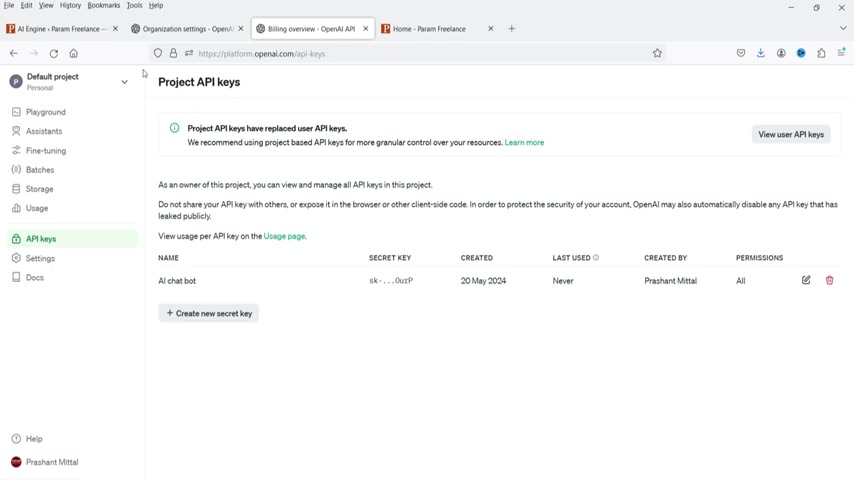
After creating an OpenAI account and setting up billing, navigate to the API keys section within your OpenAI dashboard. Generate a new secret key and copy it. Return to the AI Engine settings page in your WordPress dashboard and paste the API key into the 'API Key' field. Press enter to save. The plugin should automatically save the settings, so be sure to take time to verify that the settings are saved to ensure future functionality.
Step 8: Customizing Chatbot Appearance
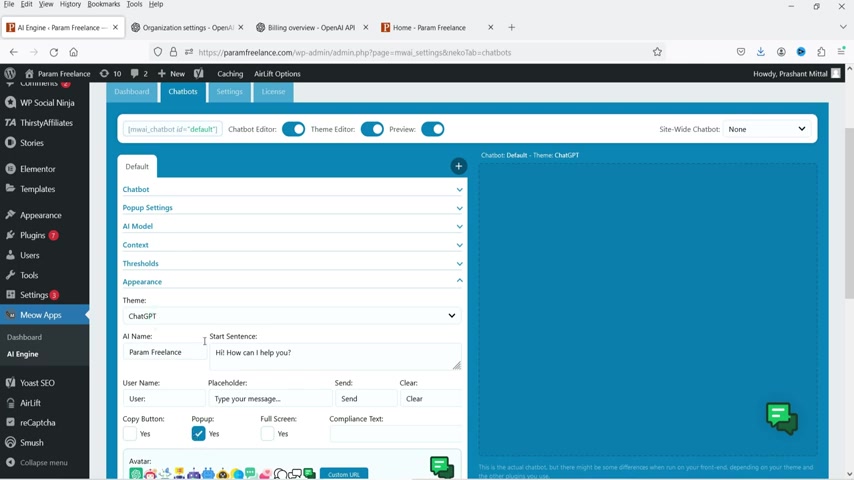
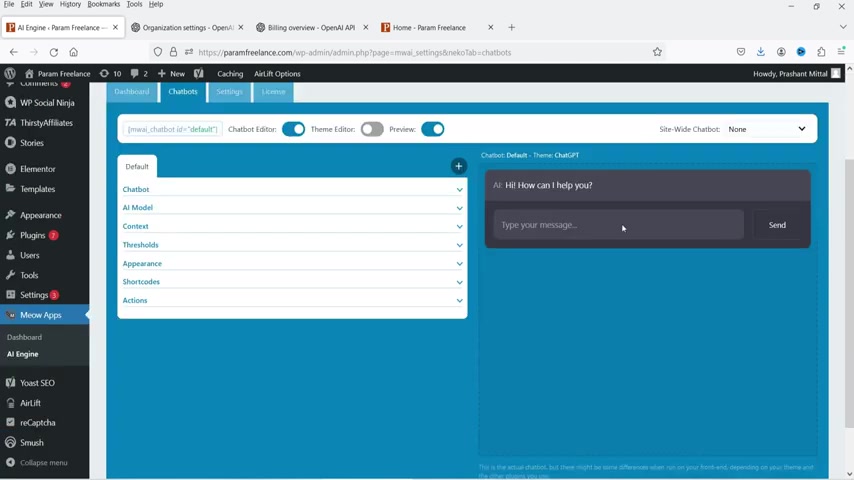
To tailor the chatbot's appearance to match your website's design, navigate to the 'Chatbots' tab. Here, you can customize various aspects of the chatbot, such as the AI name, start sentence, and avatar. You can set the position of the chatbot icon on the page. The AI Model settings allow you to define the behavior of the chatbot. Remember to preview your changes to ensure they Align with your design preferences. The settings you choose to customize for your chatbot is up to you.
Step 9: Implementing the Chatbot Using a Shortcode
The AI Engine plugin uses a shortcode to embed the chatbot on your website. On the 'Chatbots' tab, locate the shortcode and copy it. Navigate to the page or post where you want to display the chatbot and paste the shortcode into the content area. If you're using Elementor, drag and drop a shortcode widget to your desired location and paste the AI Engine shortcode there. Finally, update the page or post to make the chatbot visible to your visitors.
Understanding OpenAI API Key Pricing
Token Limits and Usage Costs
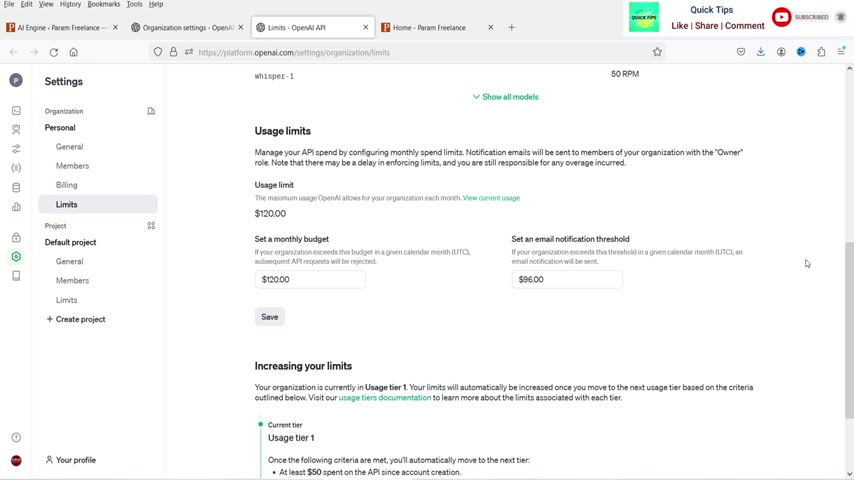
While the AI Engine plugin itself is free, using OpenAI's ChatGPT requires a paid API key. OpenAI's pricing is based on token usage, where tokens represent pieces of text. The more your chatbot is used, the more tokens are consumed, and the higher the cost. You can set monthly budgets and email notification thresholds to manage your spending.
You can find a table listing common models and token prices in the table below.
Rate Limits and Model Options
It's also important to be aware of the rate limits associated with different OpenAI models. Rate limits dictate how many requests you can make per minute (RPM) and can impact the responsiveness of your chatbot. Consider starting with a smaller budget and monitoring your usage to optimize your spending. In addition, you can also consult the table below for rate limits and token prices.
OpenAI Pricing Details
Below you will find a breakdown of common AI Models, rate limits and token prices:
Detailed OpenAI Pricing and Rate Limits
Here's a table detailing models, token limits, rate limits, and other key information to help you plan your AI chatbot integration with WordPress:
OpenAI Pricing Table
| Model | Token Limits | Request and Other Limits | Batch Queue Limits |
|---|---|---|---|
| gpt-4o | 30,000 TPM | 500 RPM | 90,000 TPD |
| gpt-3.5-turbo | 60,000 TPM | 500 RPM | 2,000,000 TPD |
| gpt-4 | 10,000 TPM | 500 RPM | 1,000,000 TPD |
| text-embedding-3-small | 10,000,000 TPM | 5 images per minute | 30,000,000 TPD |


Most people like






































Report
Please select a reason for reporting
- 13 Reasons to Switch from Snapchat to Text Messaging
- 7 Powerful Speech to Text Apps to Boost Productivity
- 10 Best Speech to Text Tools for Effortless Transcription
- 13 Free Tools to Easily Transcribe Audio to Text
- 15 Surprising Ways Google's Speech-to-Text Boosts Productivity
- 7 Best Free Online Audio to Text Transcription Tools
- 9 Tips to Transcribe Speech to Text Faster and Better
- 13 Best Speech to Text Software for Windows 10 in 2023
- 7 Tips for Choosing the Best Transcriber for Audio to Text
- 11 Reasons Why Dragon Speech-to-Text Apps are Game-Changers
- 6 Secrets to Enhance Your Speech to Text Transcription
- 6 Brilliant Ways to Boost Productivity with Talk-to-Text on Your MacBook
- 6 Ways Transcription Software Converts Audio to Text
- 8 Tips to Transcribe Speech to Text Like a Pro
- 6 Reasons IBM Watson Speech to Text is a Game-Changer
- 14 Powerful Ways Talk-to-Text Improves Your Workflow
- 12 Top Windows Speech-to-Text Software for Efficient Transcription
- 12 Game-Changing Benefits of Apple's Speech to Text Technology
- 9 Powerful Use Cases for AWS Speech to Text Technology
- 10 Easy Steps to Transcribe YouTube Videos to Text
- transcription audio en texte
- online audio transcription
- free audio file transcription
- free ai audio transcription
- audio transcription service
- audio transcription online free
- audio transcription free online
- audio to transcription software
- audio and transcript
- ai audio transcription free
- voice recording to text converter
- translate voice recording to text
- record voice to text
- audio recording to text converter
- voice recording and transcription
- chatgpt voice to text
- gmail voice to text
- speech to text reader
- speech to text ai free
- speech to talk
- ChatGPT Knows Ford. It Just Doesn't Quote Ford
- Meshy AI: How to Create 3D Models from Text and Images
- How SEO and Marketing Dashboards Empower Agencies to Drive Results
- How to Use AI Tools to Find Internal Linking Opportunities Across a Business Website
- Discover Your Perfect Haircut with AI Hairstyle Apps
- Free Reputation Calculator Tools: How They're Adapting to Score AI Visibility, Not Just Rankings
- Design Professional Flyers for Free on Your Phone
- Best Free Flyer Maker Apps for Android: Design Like a Pro
- How to Know If Your Business Is Ready for an AI Customer Service Agent
- Revolutionizing Storytelling: From Novels to Screenplays with AI
- Can an eSIM Plan Save You Time During Travel Setup?
- AI Video Editor Review: A Hands-On Look at Prompt-Based Video Editing
- Keep Characters Consistent Across Scenes With Image-to-Video AI
- How to Convert BTC to HNT
- ProxyWing DuckDuckGo Proxy Review: Plans, Setup and Who It Is For
- ChatGPT Knows Ford. It Just Doesn't Quote Ford
- Automate Lead Generation: A Comprehensive Guide with AI Agents
- Revideo.io: The Future of Reverse Video Search Technology
- Revolutionizing Email Marketing Agency with AI
- Breaking the Character Drift Dilemma: A Practical Test of Smart Shot

Copyright ©2026 toolify