































Table of Contents
- Key Points
- Getting Started with Your Story Generator
- Enhancing Your Story Generator
- How to Use the Story Generator App
- Pros and Cons of Building a Story Generator with Python
- FAQ
- Related Questions


Getting Started with Your Story Generator
Setting up Your Hugging Face Account and Space
To begin this exciting project, you'll need an account on Hugging Face. Hugging Face is a leading platform for AI models, datasets, and collaboration. Creating an account is free and grants you access to a wealth of resources.
- Sign Up/Log In: Navigate to Hugging Face and create an account or log in if you already have one.
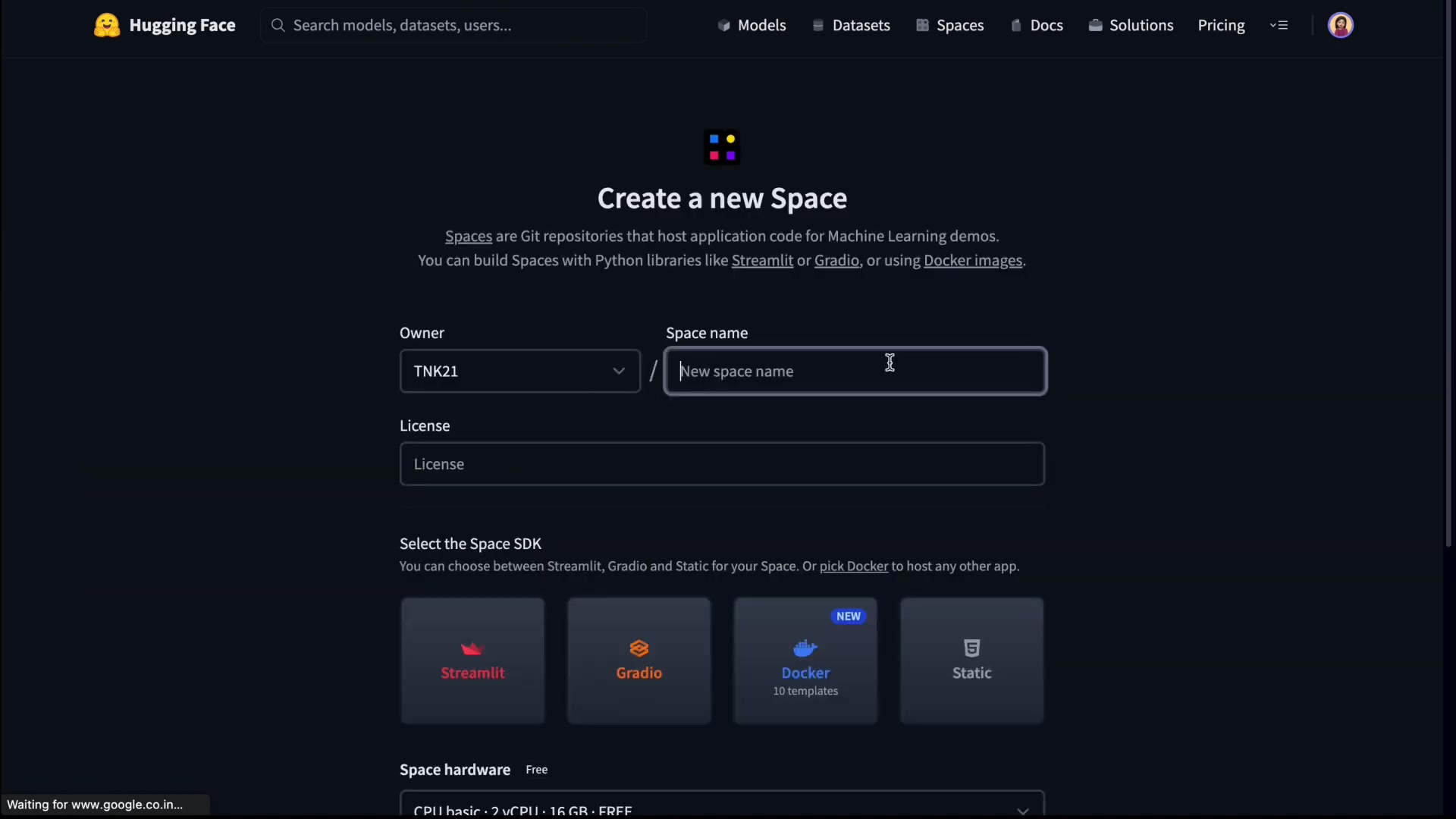
- Create a New Space: Once logged in, look for the 'Spaces' tab on the top navigation bar. Spaces are like mini-repositories specifically designed to host and showcase ML applications. Click on 'Spaces' then 'Create new Space'.
- Space Configuration:
- Give your space a descriptive name like 'StoryGenerator'
.
- Select Gradio as the SDK. Gradio provides a simple and intuitive way to build web interfaces for your machine learning models.
- Decide whether you want your space to be public or private. Private spaces are only accessible to you, while public spaces can be viewed by anyone.
- Give your space a descriptive name like 'StoryGenerator'
- Complete Creation: Click 'Create Space' to initiate the creation process. Hugging Face will set up a Git repository for your space, where you can manage your project files.
Creating the requirements.txt File
The requirements.txt file is crucial for specifying the Python libraries needed for your project. This file ensures that all dependencies are installed correctly when your application is deployed on Hugging Face. Here’s how to create it:
-
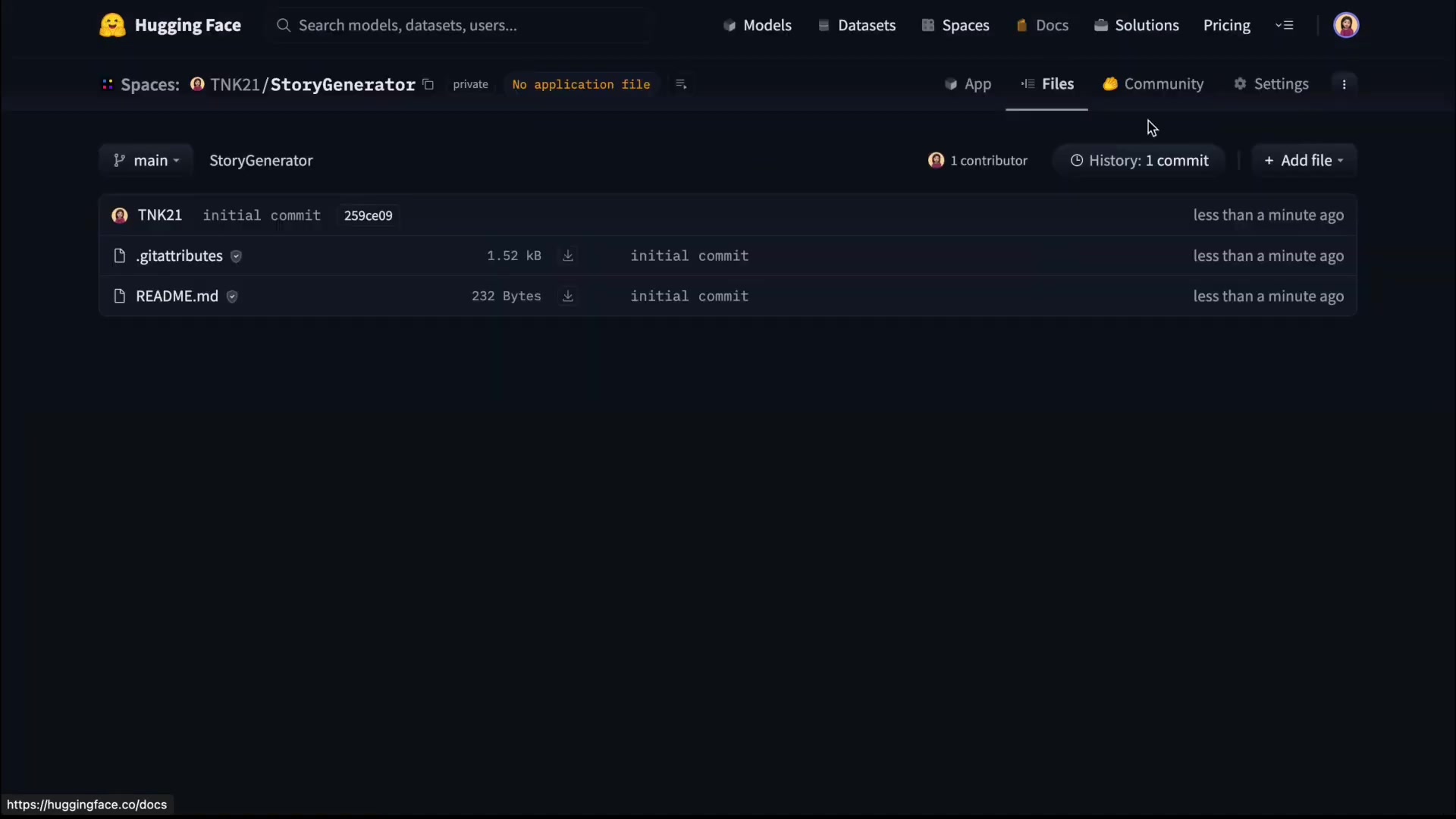
Navigate to the 'Files' Tab: Within your newly created space, find the 'Files' tab.
-
Add a New File: Click on 'Add file' and select 'Create new file'.
-
Name the File: Name the file
requirements.txt. It’s crucial to get the name correct, as this is the standard file recognized for dependency management. -
Specify Dependencies: In the file editor, list the necessary libraries, each on a new line. For this project, you will need the following:
gradiotransformerstensorflow
-
Commit Changes: Once you've added the dependencies, scroll down to the bottom and click 'Commit new file to main'. This saves the
requirements.txtfile to your repository. This ensures that the Gradio, Transformers, and TensorFlow libraries will be installed in your Hugging Face Space .
Diving into the Python Code (app.py)
Now, let's get into the core of the story generator: the Python code. This code defines the logic for generating stories using a pre-trained language model. You'll be creating a file named app.py to house this code.
-
Access App Creation Link: Navigate to the 'App' section of your Hugging Face Space. Scroll down and find the link prompting you to create the
app.pyfile directly in your browser.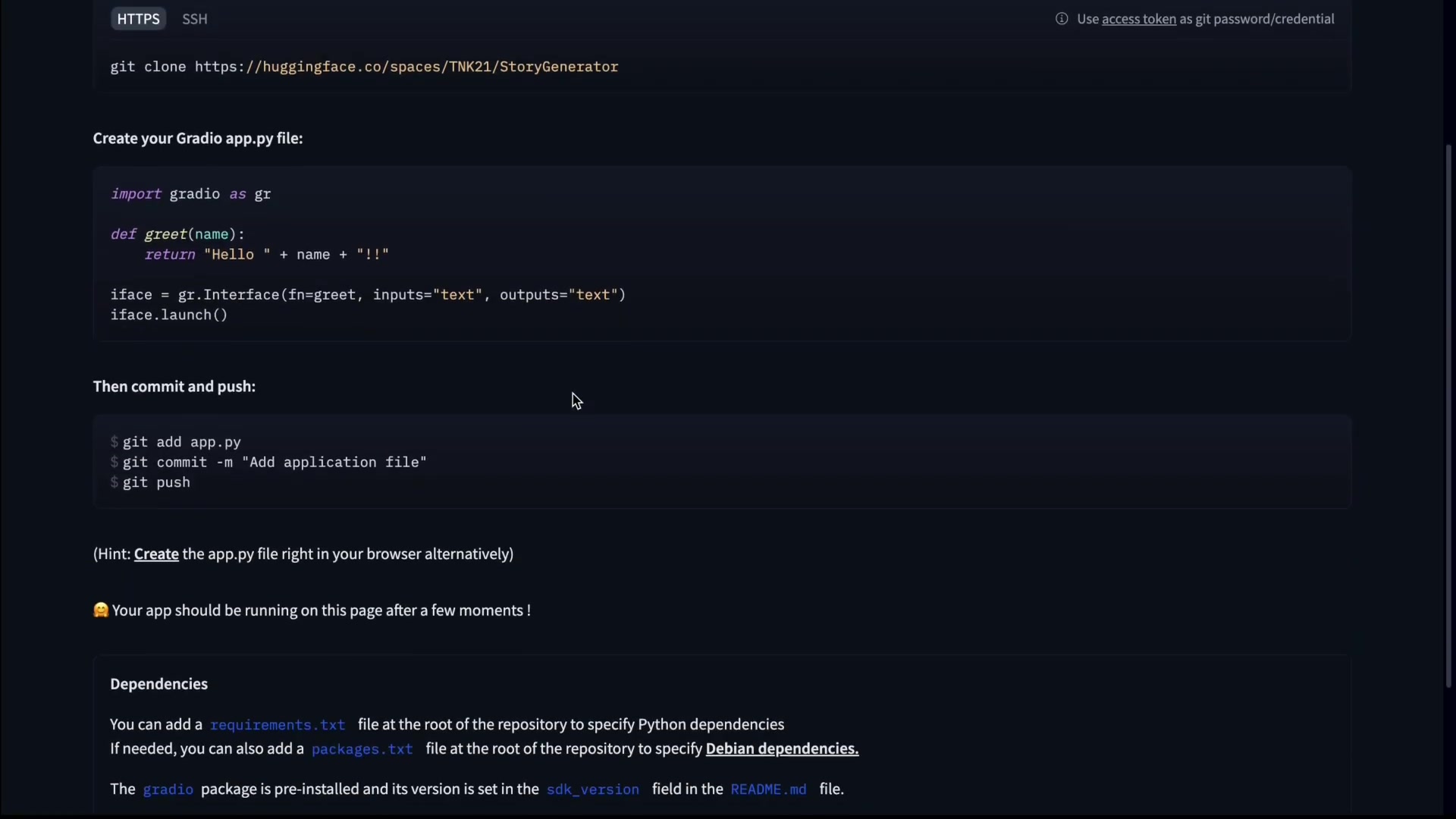
-
Initialize the File: Click the link to open the editor for the
app.pyfile. This is where you will write the Python code that powers your story generator. -
Import Necessary Libraries : The first step is to import the libraries you'll be using. Here’s the code you’ll need:
import gradio as gr from transformers import pipelinegradio: This imports the Gradio library, which is essential for building the user interface.transformers: This imports the pipeline function from the Transformers library. This pipeline simplifies using pre-trained models from Hugging Face.
-
Load the Text Generation Model:
text_generator = pipeline('text-generation', model='gpt2')- This line loads the GPT-2 model for text generation. GPT-2 is a powerful pre-trained language model capable of generating coherent and creative text.
The
pipelinefunction simplifies model usage by handling all the complexities of loading, preprocessing, and generating text. You are specifying that the task istext-generationand the model to use isgpt2. -
Define the Story Generation Function: Now, let’s create a function that will generate the story based on a given Prompt and WORD count:
def generate_story(prompt, word_count):
    max_length = word_count + len(prompt.split())
    generated_text = text_generator(prompt, max_length=max_length, num_return_sequences=1)[0]['generated_text']
    return generated_text
generate_story(prompt, word_count): This function takes two arguments:promptis the starting text for the story, andword_countis the desired length of the generated text.max_length: This calculates the maximum length of the generated text, adding theword_countto the length of the prompt to ensure the story is roughly the desired length.text_generator(prompt, max_length=max_length, num_return_sequences=1): This calls the text generation pipeline, passing the prompt and the maximum length. Thenum_return_sequences=1argument specifies that only one sequence (story) should be returned.return generated_text: This returns the generated story.
-
Define Example Inputs: For user convenience, you can define example prompts and word counts.
example_inputs = [ ["Once upon a time, in a magical forest, there was a curious rabbit named Oliver.", 100], ["Amidst the hustle and bustle of a busy city, there lived a lonely street musician.", 150], ["On a distant planet, explorers discovered an ancient alien artifact buried in the sand.", 200], ["Hidden in the attic of an old house, a forgotten journal revealed a family secret.", 250], ["In a futuristic world, a brilliant scientist invented a time-traveling device.", 300], ["Deep in the ocean, an underwater explorer encountered a mysterious and ancient creature.", 350] ]- This creates a list of example prompts and their corresponding word counts, which can be easily used within the Gradio interface.
-
Create the Gradio Interface: Use Gradio to define the user interface for your story generator.
iface = gr.Interface( fn=generate_story, inputs=[ gr.Textbox(label="Prompt"), gr.Slider(minimum=50, maximum=500, default=100, label="Word Count") ], outputs="text", title="Story Generator with Word Count", description="Enter a prompt and select the word count to generate a story.", examples=example_inputs ) iface.launch()gr.Interface(...): This creates a Gradio interface, linking thegenerate_storyfunction to the UI elements.fn=generate_story: This specifies the function that will be called when the user interacts with the interface.inputs: This defines the input components: a text box for the prompt and a slider for the word count.outputs: This specifies that the output will be displayed as text.titleanddescription: These add a title and description to your interface, making it more user-friendly.examples: This integrates the example inputs, allowing users to quickly see how the story generator works.iface.launch(): Finally, this line launches the Gradio interface, making it accessible in your Hugging Face Space.
-
Commit the Code: Save and commit the changes to the
app.pyfile, similar to how you committed therequirements.txtfile.





Most people like

































Report
Please select a reason for reporting
- 13 Reasons to Switch from Snapchat to Text Messaging
- 7 Powerful Speech to Text Apps to Boost Productivity
- 10 Best Speech to Text Tools for Effortless Transcription
- 13 Free Tools to Easily Transcribe Audio to Text
- 15 Surprising Ways Google's Speech-to-Text Boosts Productivity
- 7 Best Free Online Audio to Text Transcription Tools
- 9 Tips to Transcribe Speech to Text Faster and Better
- 13 Best Speech to Text Software for Windows 10 in 2023
- 7 Tips for Choosing the Best Transcriber for Audio to Text
- 11 Reasons Why Dragon Speech-to-Text Apps are Game-Changers
- 6 Secrets to Enhance Your Speech to Text Transcription
- 6 Brilliant Ways to Boost Productivity with Talk-to-Text on Your MacBook
- 6 Ways Transcription Software Converts Audio to Text
- 8 Tips to Transcribe Speech to Text Like a Pro
- 6 Reasons IBM Watson Speech to Text is a Game-Changer
- 14 Powerful Ways Talk-to-Text Improves Your Workflow
- 12 Top Windows Speech-to-Text Software for Efficient Transcription
- 12 Game-Changing Benefits of Apple's Speech to Text Technology
- 9 Powerful Use Cases for AWS Speech to Text Technology
- 10 Easy Steps to Transcribe YouTube Videos to Text
- transcription audio en texte
- online audio transcription
- free audio file transcription
- free ai audio transcription
- audio transcription service
- audio transcription online free
- audio transcription free online
- audio to transcription software
- audio and transcript
- ai audio transcription free
- voice recording to text converter
- translate voice recording to text
- record voice to text
- audio recording to text converter
- voice recording and transcription
- chatgpt voice to text
- gmail voice to text
- speech to text reader
- speech to text ai free
- speech to talk
- How to Use AI Tools to Find Internal Linking Opportunities Across a Business Website
- Discover Your Perfect Haircut with AI Hairstyle Apps
- Free Reputation Calculator Tools: How They're Adapting to Score AI Visibility, Not Just Rankings
- Design Professional Flyers for Free on Your Phone
- Best Free Flyer Maker Apps for Android: Design Like a Pro
- How to Know If Your Business Is Ready for an AI Customer Service Agent
- Revolutionizing Storytelling: From Novels to Screenplays with AI
- Create Engaging Animated Explainer Videos with a Free AI Tool
- Stop Multi-Subscribing: Benchmark Top AI Visual Models in One Canvas
- Best Seedance 2.5 API Provider: Every Price on the Market, Checked at Source
- Top AI Social Media Management Tools: Automate Your Content Strategy
- Free AI Text to Video Generator: Create Stunning Videos from Text
- Discover 17 ChatGPT Alternatives: A Comprehensive Comparison
- Character.AI vs. Janitor AI: Which AI Chat Platform Reigns Supreme?
- Top Virtual Assistant Companies in 2026: Reviews, Pricing, and Plans Compared
- Unveiling FaceCheck.ID: Revolutionizing Reverse Image Searches with AI
- 11 Best AI Dialers in 2026: Features, Pricing, Pros and Cons
- How I Direct Consistent AI Clips: A Hands-On Guide to Multi-Model Generation
- A Realistic Review of the Photo Generator Image Tool
- Playwright MCP Server: Automated Web Testing with Agent Mode

Copyright ©2026 toolify