































Table of Contents
- Key Points
- Developing an OCR Vision AI System with Open Source Technologies
- Focusing on File Drop Functionality
- How to Automate File Processing with CRON Jobs
- Advantages and Disadvantages of Open Source OCR Vision AI
- FAQ
- Related Questions


Developing an OCR Vision AI System with Open Source Technologies
Understanding the OCR Vision AI Concept
Optical Character Recognition (OCR) Vision AI is revolutionizing how we interact with digital content. By integrating artificial intelligence with OCR technology, systems can now not only extract text from images but also interpret and respond to it. These applications have vast potential across various sectors, from automating document processing to enhancing user experiences with smart chat-bots. The core concept involves training AI models to recognize characters and Patterns within images, then converting these visuals into readable text that can be analyzed and used for further actions.
Overview of the Chat-bot Vision AI Application
The chat-bot vision AI application serves as a practical demonstration of OCR Vision AI capabilities. Imagine a system where users can upload an image, and the chat-bot extracts text, understands the content, and provides Relevant responses or actions. This could be as simple as reading a snippet of text and performing a Google search or as complex as analyzing a legal document and answering specific questions.
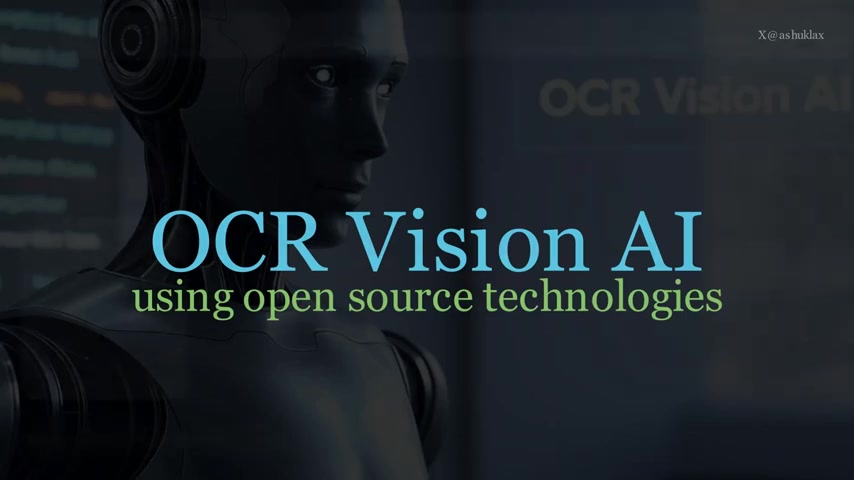
The key components of such an application include:
- User Interface: For uploading images and interacting with the chat-bot.
- OCR Engine: To extract text from the uploaded image.
- AI Model: Trained to understand the extracted text and generate responses.
- Backend Logic: To orchestrate the entire process.
High-Level Solution Architecture Diagram
Let's delve into the solution architecture required to build this ambitious application. Visualizing the different components and their interactions is essential for a successful development process.
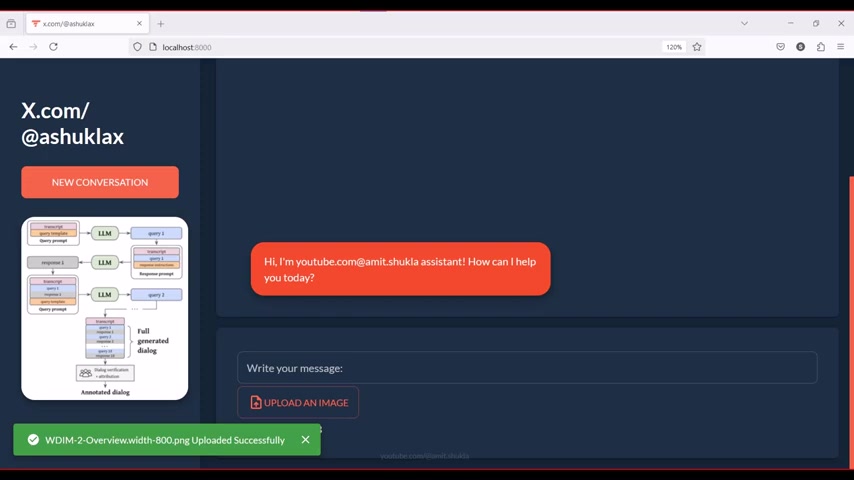
The architecture can be broken down into several key modules:
- File Drop: The starting point where users upload images.
- OCR Processing: Utilizing services like Azure Document Service or Tesseract OCR to extract text.
- AI Engine: Leveraging AI models such as Oracle Vision AI or OtherVisionAPI for content understanding.
- Question and Answer (Q&A) Agent: Processing user queries based on the extracted content.
- Conversation AI Agent: Handling the chat-bot aspect of the application.
- Databases: Storing extracted text, vector embeddings, and conversational data.
These components work together in a pipeline to transform raw image data into actionable insights, providing users with a seamless and intelligent chat-bot experience.
Focusing on File Drop Functionality
Importance of File Drop Functionality
The file drop functionality is the initial interface point for users interacting with the OCR Vision AI system.
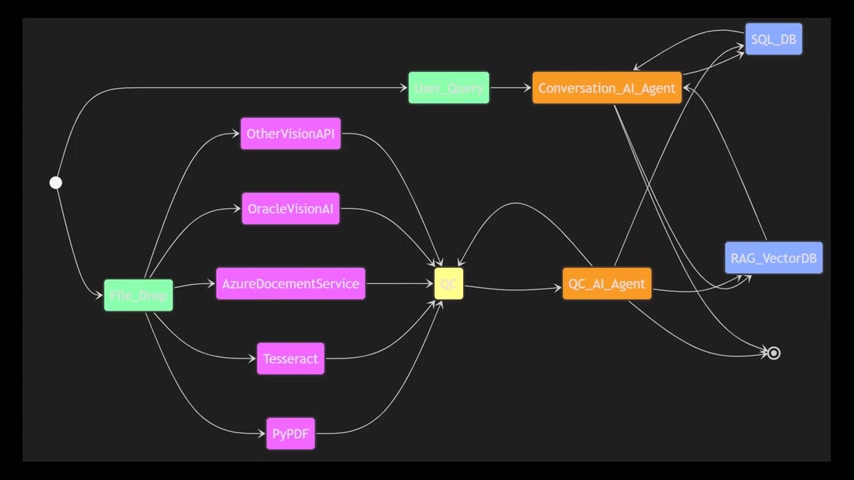
It is the method through which users supply image-based data for processing. A well-designed file drop feature enhances the overall user experience. This module involves several key aspects:
- User Interface: Easy to use drag-and-drop or upload mechanisms.
- File Type Validation: Ensuring the system accepts only supported image formats.
- File Size Limits: Managing the size of uploaded files to prevent system overload.
- Feedback Mechanisms: Providing visual cues for successful uploads or errors.
A seamless file drop experience is crucial for encouraging user engagement and efficient data processing. To make sure that the users would not leave your website because of the lack of file drop functionality, it's important to make the experience as smooth and safe as possible.
Architecture Details Recap
Before diving into the file drop implementation, let's Recap the key components we covered in the earlier post to keep the big picture in mind. Remember, these components need to integrate seamlessly to function efficiently.
- File Drop: Accepts image uploads from users.
- OCR Processing: Extracts text from the images using various APIs and engines.
- AI Engine: Interprets the extracted text and generates responses.
- Q&A and Conversation Agents: Manage user interactions and provide intelligent answers.
- Databases: Store relevant data for future reference and analysis.
Now, armed with this knowledge, let’s zoom in on the file drop component and explore how to bring it to life.





Most people like


































Report
Please select a reason for reporting
- 13 Reasons to Switch from Snapchat to Text Messaging
- 7 Powerful Speech to Text Apps to Boost Productivity
- 10 Best Speech to Text Tools for Effortless Transcription
- 13 Free Tools to Easily Transcribe Audio to Text
- 15 Surprising Ways Google's Speech-to-Text Boosts Productivity
- 7 Best Free Online Audio to Text Transcription Tools
- 9 Tips to Transcribe Speech to Text Faster and Better
- 13 Best Speech to Text Software for Windows 10 in 2023
- 7 Tips for Choosing the Best Transcriber for Audio to Text
- 11 Reasons Why Dragon Speech-to-Text Apps are Game-Changers
- 6 Secrets to Enhance Your Speech to Text Transcription
- 6 Brilliant Ways to Boost Productivity with Talk-to-Text on Your MacBook
- 6 Ways Transcription Software Converts Audio to Text
- 8 Tips to Transcribe Speech to Text Like a Pro
- 6 Reasons IBM Watson Speech to Text is a Game-Changer
- 14 Powerful Ways Talk-to-Text Improves Your Workflow
- 12 Top Windows Speech-to-Text Software for Efficient Transcription
- 12 Game-Changing Benefits of Apple's Speech to Text Technology
- 9 Powerful Use Cases for AWS Speech to Text Technology
- 10 Easy Steps to Transcribe YouTube Videos to Text
- transcription audio en texte
- online audio transcription
- free audio file transcription
- free ai audio transcription
- audio transcription service
- audio transcription online free
- audio transcription free online
- audio to transcription software
- audio and transcript
- ai audio transcription free
- voice recording to text converter
- translate voice recording to text
- record voice to text
- audio recording to text converter
- voice recording and transcription
- chatgpt voice to text
- gmail voice to text
- speech to text reader
- speech to text ai free
- speech to talk
- How to Use AI Tools to Find Internal Linking Opportunities Across a Business Website
- Discover Your Perfect Haircut with AI Hairstyle Apps
- Free Reputation Calculator Tools: How They're Adapting to Score AI Visibility, Not Just Rankings
- Design Professional Flyers for Free on Your Phone
- Best Free Flyer Maker Apps for Android: Design Like a Pro
- How to Know If Your Business Is Ready for an AI Customer Service Agent
- Revolutionizing Storytelling: From Novels to Screenplays with AI
- Create Engaging Animated Explainer Videos with a Free AI Tool
- Stop Multi-Subscribing: Benchmark Top AI Visual Models in One Canvas
- Best Seedance 2.5 API Provider: Every Price on the Market, Checked at Source
- Top AI Social Media Management Tools: Automate Your Content Strategy
- Free AI Text to Video Generator: Create Stunning Videos from Text
- Discover 17 ChatGPT Alternatives: A Comprehensive Comparison
- Character.AI vs. Janitor AI: Which AI Chat Platform Reigns Supreme?
- Top Virtual Assistant Companies in 2026: Reviews, Pricing, and Plans Compared
- Unveiling FaceCheck.ID: Revolutionizing Reverse Image Searches with AI
- 11 Best AI Dialers in 2026: Features, Pricing, Pros and Cons
- How I Direct Consistent AI Clips: A Hands-On Guide to Multi-Model Generation
- A Realistic Review of the Photo Generator Image Tool
- Playwright MCP Server: Automated Web Testing with Agent Mode

Copyright ©2026 toolify