































Table of Contents
- Key Points
- Converting PDF Math Equations to Editable Word Format
- Advanced Techniques for Equation Conversion
- Step-by-Step Guide to Converting Simple Equations
- Software Pricing Considerations
- Pros and Cons of Different Conversion Methods
- Key Features to Look For in Conversion Software
- Practical Use Cases for Converting Math Equations
- Frequently Asked Questions
- Related Questions



Converting PDF Math Equations to Editable Word Format
The Challenge of Direct Copy-Pasting
One of the initial approaches many users try when attempting to extract math equations from a PDF is direct copy-pasting. However, this method often results in improperly formatted or unreadable equations in the Word document. The issue arises because PDFs typically treat text and equations as static elements, and the formatting is not always preserved when transferred to a different environment like Word. Direct copy-pasting can lead to symbols being replaced by gibberish, fractions appearing incorrectly, and general misrepresentation of the intended mathematical expressions. This is especially problematic when dealing with complicated equations involving various symbols, superscripts, and subscripts. Understanding these limitations is the first step in adopting a more effective conversion strategy. The goal is to convert PDF math equations into a format suitable for editable Word documents ensuring integrity and accuracy.
Leveraging the Snapshot Tool in PDF Readers
A more reliable method for transferring math equations from a PDF to an editable WORD document involves using the 'snapshot' tool available in most PDF readers, including Adobe Acrobat Reader. This tool allows you to select a specific area of the PDF, effectively capturing it as an image
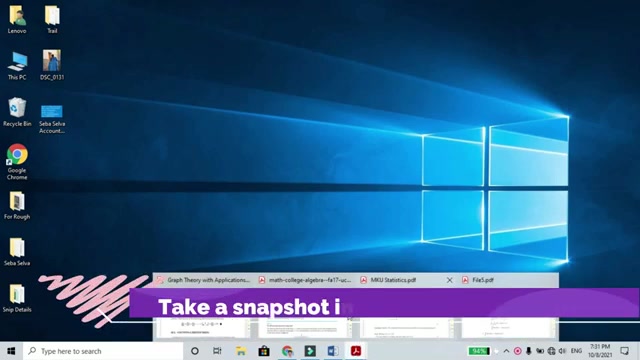
. This approach is beneficial because it accurately preserves the visual representation of the equation. Here's how to use it:
- Open the PDF: Start by opening the PDF document containing the math equations you need to convert.
- Select the Snapshot Tool: In Adobe Acrobat Reader, you can find the Snapshot Tool under 'Edit' then 'Take a Snapshot'. Other PDF readers may have a similar tool with slightly different naming or location.
- Capture the Equation: Carefully draw a rectangle around the math equation you want to copy. Ensure that all parts of the equation are fully enclosed within the selected area to avoid any missing elements.
- Copy to Clipboard: Once you release the mouse button, the selected area is automatically copied to your clipboard.
This method is a more precise way of extracting equations compared to direct copy-pasting, as it captures the exact visual representation of the equation, avoiding common formatting errors. This snapshot approach is a key step towards creating accurate editable Word documents from PDF math equations.
Pasting Equations as Math and Text in Word
After capturing the equation using the snapshot tool, the next step is to paste it into your Word document
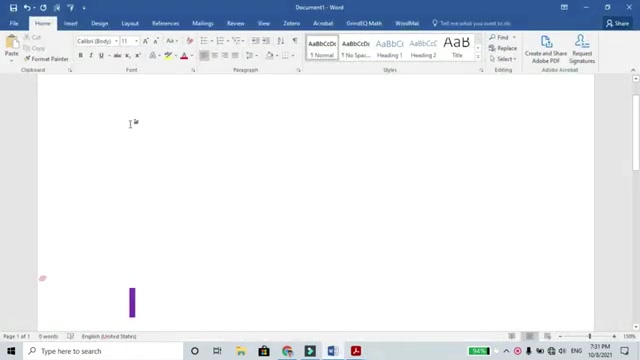
. However, simply pasting the image as a standard picture will not allow you to edit the equation. To make the equation editable, you should use Word’s 'Paste as Math and Text' option. This special pasting option converts the image into an editable equation object within Word. Here’s how to do it:
- Open Microsoft Word: Open the Word document where you want to insert the equation.
- Position the Cursor: Place the Cursor where you want the equation to appear.
- Use Paste Special: Right-click in the document and select 'Paste Special'.
- Select 'Paste as Math and Text': In the Paste Special dialog box, choose 'MathML' or 'Office Math Markup Language' from the list of formats. This tells Word to interpret the copied data as a math equation.
- Paste: Click 'OK' to paste the equation.
By using the 'Paste as Math and Text' option, you are ensuring that the equation is converted into an editable format within Word. This allows you to modify the equation, change symbols, and adjust formatting as needed. This step is crucial for anyone looking to create easily editable Word documents from PDF math equations.
Addressing Complex Equation Conversions
While the snapshot and 'Paste as Math and Text' method works well for many equations, complex equations can sometimes pose a challenge
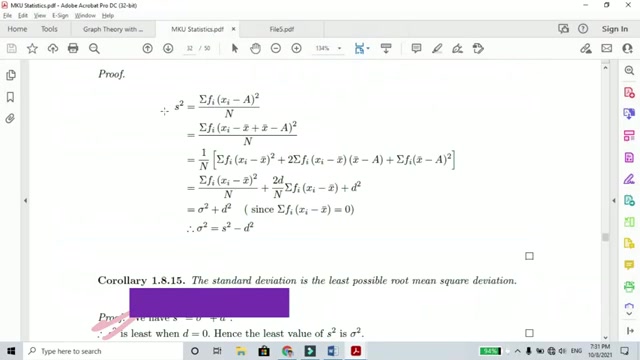
. These equations often involve nested fractions, integrals, summations, and other advanced mathematical notations. When converting such equations, it's essential to ensure that all elements are accurately represented in Word. Here are a few strategies to address complex equation conversions:
- Manual Adjustment: After pasting the equation, carefully review it to identify any elements that were not converted correctly. Manually adjust these elements using Word's equation editor.
- Equation Editor Tools: Utilize Word's built-in equation editor to reconstruct parts of the equation that are problematic. This tool allows you to insert various mathematical symbols and structures, ensuring the equation is represented accurately.
- Third-Party Software: Consider using specialized equation conversion software designed to handle complex mathematical expressions. These tools often provide more advanced conversion algorithms and can accurately Translate even the most intricate equations.
- Verify with Original PDF: Always compare the converted equation with the original equation in the PDF to ensure that no information is lost or misrepresented during the conversion process.
By paying close attention to detail and employing these strategies, you can effectively convert even the most complex PDF math equations into editable Word documents. This ensures that your mathematical content remains accurate and accessible.
Verifying and Comparing Converted Equations for Accuracy
Accuracy is paramount when dealing with mathematical equations. After converting equations from PDF to Word, it is crucial to verify and compare the converted equations with the original source to ensure no errors were introduced during the process
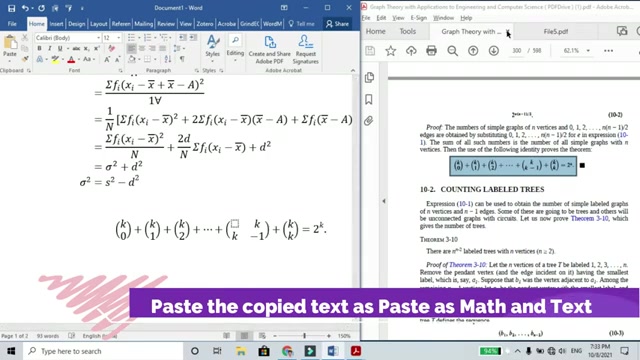
. Here’s a detailed approach:
- Side-by-Side Comparison: Open the PDF document and the Word document side by side on your screen. This allows you to visually compare the equations in real-time.
- Check Symbols and Notation: Carefully examine all symbols, superscripts, subscripts, and mathematical notations. Ensure they are correctly represented in the Word document.
- Verify Structure: Confirm that the overall structure of the equation is preserved, including the placement of fractions, integrals, summations, and other complex elements.
- Use Word's Equation Tools: Utilize Word's equation editor to make any necessary corrections. This tool allows you to precisely adjust the equation to match the original.
- Proofread Thoroughly: Proofread the entire document to catch any subtle errors that may have been missed during the initial conversion.
By taking these steps, you can ensure that the converted PDF math equations in your editable Word documents are accurate and reliable, maintaining the integrity of your mathematical content.
Understanding Font Considerations for Math Text
Fonts play a significant role in the readability and professional appearance of mathematical equations in Word documents . Different fonts can affect how symbols and mathematical notations are displayed. When converting equations from PDF to Word, it's essential to choose a font that supports the necessary mathematical characters. Here are some Font considerations for math text:
- Cambria Math: This font is specifically designed for mathematical equations and is included with Microsoft Office. It provides excellent support for a wide range of mathematical symbols and notations.
- Latin Modern Math: A free and open-source font that offers comprehensive support for mathematical typesetting.
- Arial Unicode MS: A widely available Unicode font that includes many mathematical symbols, making it a suitable choice for displaying equations.
When converting equations, make sure the font used in your Word document is compatible with mathematical symbols. If some characters appear incorrectly, try changing the font to one of the recommended options. This attention to detail ensures that the PDF math equations in your editable Word documents are visually clear and professionally presented.



Most people like































Report
Please select a reason for reporting
- 13 Reasons to Switch from Snapchat to Text Messaging
- 7 Powerful Speech to Text Apps to Boost Productivity
- 10 Best Speech to Text Tools for Effortless Transcription
- 13 Free Tools to Easily Transcribe Audio to Text
- 15 Surprising Ways Google's Speech-to-Text Boosts Productivity
- 7 Best Free Online Audio to Text Transcription Tools
- 9 Tips to Transcribe Speech to Text Faster and Better
- 13 Best Speech to Text Software for Windows 10 in 2023
- 7 Tips for Choosing the Best Transcriber for Audio to Text
- 11 Reasons Why Dragon Speech-to-Text Apps are Game-Changers
- 6 Secrets to Enhance Your Speech to Text Transcription
- 6 Brilliant Ways to Boost Productivity with Talk-to-Text on Your MacBook
- 6 Ways Transcription Software Converts Audio to Text
- 8 Tips to Transcribe Speech to Text Like a Pro
- 6 Reasons IBM Watson Speech to Text is a Game-Changer
- 14 Powerful Ways Talk-to-Text Improves Your Workflow
- 12 Top Windows Speech-to-Text Software for Efficient Transcription
- 12 Game-Changing Benefits of Apple's Speech to Text Technology
- 9 Powerful Use Cases for AWS Speech to Text Technology
- 10 Easy Steps to Transcribe YouTube Videos to Text
- transcription audio en texte
- online audio transcription
- free audio file transcription
- free ai audio transcription
- audio transcription service
- audio transcription online free
- audio transcription free online
- audio to transcription software
- audio and transcript
- ai audio transcription free
- voice recording to text converter
- translate voice recording to text
- record voice to text
- audio recording to text converter
- voice recording and transcription
- chatgpt voice to text
- gmail voice to text
- speech to text reader
- speech to text ai free
- speech to talk
- Meshy AI: How to Create 3D Models from Text and Images
- How SEO and Marketing Dashboards Empower Agencies to Drive Results
- How to Use AI Tools to Find Internal Linking Opportunities Across a Business Website
- Discover Your Perfect Haircut with AI Hairstyle Apps
- Free Reputation Calculator Tools: How They're Adapting to Score AI Visibility, Not Just Rankings
- Design Professional Flyers for Free on Your Phone
- Best Free Flyer Maker Apps for Android: Design Like a Pro
- How to Know If Your Business Is Ready for an AI Customer Service Agent
- Revolutionizing Storytelling: From Novels to Screenplays with AI
- Create Engaging Animated Explainer Videos with a Free AI Tool
- Meshy AI: How to Create 3D Models from Text and Images
- ASOMobile Helps Teams Benchmark App Store Screenshots Against Competitors
- How to Match LMS Software With Your Organization's Training Plan
- Revolutionizing Email Marketing Agency with AI
- How to Convert BTC to HNT
- Unleashing the Power of AI: Cognizant's Roadmap for Transformation
- Frame to Video Review: A Practical Look at Turning Two Still Frames Into Motion
- NVIDIA NIM: Revolutionizing Supply Chain Data Analysis with AI
- Top AI Tools That Help Brands Stand Out Offline (Not Just Online)
- Top 5 Cold Email Software: Maximize Your Outreach in 2025

Copyright ©2026 toolify