































Table of Contents
- Key Points
- Introduction to No-Code Discord Bot Creation
- Advanced Customization Options
- Step-by-Step Guide to Creating a Discord Bot with Shapes.inc
- Advantages and Disadvantages of Using Shapes.inc
- Frequently Asked Questions
- Related Questions


Introduction to No-Code Discord Bot Creation
The Appeal of Discord Bots
Discord bots significantly enhance server functionality, providing automated moderation, Music playback, welcome messages, and interactive games. Historically, creating these bots required coding knowledge, placing them out of reach for many server owners. However, the rise of no-code platforms has democratized bot creation, empowering anyone to build custom bots tailored to their server's needs. These platforms offer intuitive interfaces, pre-built commands, and easy customization, allowing users to create sophisticated bots without the complexities of coding.
Challenges with Traditional Discord Bot Tutorials
Traditional Discord bot tutorials often involve providing source code that needs to be hosted to keep the bot running.
This can be challenging for users unfamiliar with hosting services or coding environments. Many tutorials also become outdated quickly, as Discord's API and bot development tools evolve. Bots created via these older methods may not be consistently online, requiring manual intervention to restart them. This creates a need for a more reliable, user-friendly solution that ensures bots remain active and functional without constant maintenance. This Tutorial provides the right guidance.
Step-by-Step Guide to Creating a Discord Bot with Shapes.inc
Step 1: Creating a Discord Application
The first step in creating your Discord bot is to create an application through the Discord Developer Portal.
This application will serve as the foundation for your bot.
- Access the Discord Developer Portal: Go to the Discord Developer Portal in your web browser.
- Create a New Application: Click on 'New Application' to start the process.
- Name Your Application: Enter a name for your application, such as 'MyAwesomeBot,' and agree to the terms of service.
- Create the Application: Click on 'Create' to finalize the application creation.
- Installation Settings:
- Navigate to the 'Installation' section.
- Scroll down to 'Guild Install'.
- Under 'Scopes', select 'bot'.
- Set Permissions – choose 'Administrator' for full control, or leave it blank for limited permissions. Click 'Save Changes'.
- Bot Settings:
- Go to the 'Bot' section.
- Enable the 'Message Content Intent' option. This is essential for your bot to read and respond to messages. The other options are optional.
- Click 'Save Changes'.
- Generate a Bot Token:
- Scroll up and click on 'Reset Token'.
- Confirm the reset and copy the token. Important: Save this token in a secure location, as it is required to activate your bot.
Step 2: Signing Up and Configuring Shapes.inc
Now that you have a Discord application, you need to set up Shapes.inc to control your bot’s functionality.
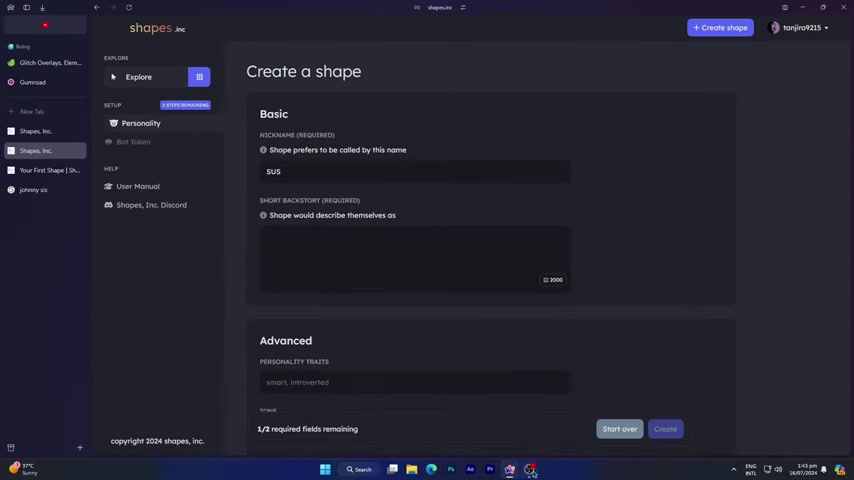
- Visit Shapes.inc: Go to the Shapes.inc website.
- Sign In with Discord: Click on 'Sign In with Discord' and authorize the application using your Discord account.
- Create a Shape:
- Click 'Create Shape' to begin setting up your bot.
- Enter a nickname for your shape – this will appear on your bot's homepage.
- Create a short backstory for your shape, describing how it will introduce itself. This helps define your bot’s personality.
- Customize Advanced Settings:
- Adjust personality traits, tone, and other preferences to refine your bot's character.
- Specify what your bot likes and dislikes to guide its responses.
- Set conversational goals, such as making users laugh or providing helpful information.
- Connect Your Bot:
- Navigate to the 'Bot Token' section.
- Paste your Discord bot token into the provided field.
- Click 'Activate Shape' to bring your bot online.
- Add to Server: Click 'Add to Server' and select the Discord server you want to add the bot to. Authorize the bot to join your server.
Step 3: Customizing Your Bot’s Profile and Behavior
With your bot up and running, you can further customize its profile and behavior to suit your server's needs.
- Customize Profile:
- Go to 'Advanced Settings' and select 'Profile'.
- Add an avatar and banner to personalize your bot’s appearance.
- Edit the 'About Me' section, ensuring you include the Shapes.inc Discord server link.
- Set your bot's status (e.g., online, do not disturb) and activity type (e.g., streaming, playing).
- Adjust Free Will Settings:
- Navigate to the 'Free Will' section.
- Enable direct messages to allow private chats with your bot.
- Enable reactions and choose favorite emojis to enhance message interactions.
- Add keywords of interest to guide your bot's responses.
- Modify the 'Free Will Instructions' to customize how your bot replies to messages.
- Set Up Knowledge Base:
- In the 'Knowledge' section, add links to relevant websites (e.g., Wikipedia) to provide your bot with additional information sources. This will allow your bot to gather more accurate information about the topic at hand.
- Enable AI Image Generation:
- Go to the 'Image Engine' section and enable the feature to allow your bot to generate images from text prompts. This adds a creative dimension to your bot's capabilities.
Step 4: Using Your Discord Bot
Now that your bot is configured, you can start using it within your Discord server.
- Activate the Bot:
- In your Discord server, type
/activateto activate the bot in the current channel. This tells the bot to start responding to messages.
- In your Discord server, type
- Interact with the Bot:
- Send a message in the channel and watch your bot respond. The bot will follow the personality and instructions you’ve configured in Shapes.inc.
- Experiment with Commands:
- Type
/to see a list of available commands, including/askfor general questions and/imaginefor image generation (if enabled). - Customize your bot with
/config. - Troubleshoot with
/debug. - Enable free will mode with
/freewillto allow bot respond without being pinged.
- Type





Most people like
































Report
Please select a reason for reporting
- 13 Reasons to Switch from Snapchat to Text Messaging
- 7 Powerful Speech to Text Apps to Boost Productivity
- 10 Best Speech to Text Tools for Effortless Transcription
- 13 Free Tools to Easily Transcribe Audio to Text
- 15 Surprising Ways Google's Speech-to-Text Boosts Productivity
- 7 Best Free Online Audio to Text Transcription Tools
- 9 Tips to Transcribe Speech to Text Faster and Better
- 13 Best Speech to Text Software for Windows 10 in 2023
- 7 Tips for Choosing the Best Transcriber for Audio to Text
- 11 Reasons Why Dragon Speech-to-Text Apps are Game-Changers
- 6 Secrets to Enhance Your Speech to Text Transcription
- 6 Brilliant Ways to Boost Productivity with Talk-to-Text on Your MacBook
- 6 Ways Transcription Software Converts Audio to Text
- 8 Tips to Transcribe Speech to Text Like a Pro
- 6 Reasons IBM Watson Speech to Text is a Game-Changer
- 14 Powerful Ways Talk-to-Text Improves Your Workflow
- 12 Top Windows Speech-to-Text Software for Efficient Transcription
- 12 Game-Changing Benefits of Apple's Speech to Text Technology
- 9 Powerful Use Cases for AWS Speech to Text Technology
- 10 Easy Steps to Transcribe YouTube Videos to Text
- transcription audio en texte
- online audio transcription
- free audio file transcription
- free ai audio transcription
- audio transcription service
- audio transcription online free
- audio transcription free online
- audio to transcription software
- audio and transcript
- ai audio transcription free
- voice recording to text converter
- translate voice recording to text
- record voice to text
- audio recording to text converter
- voice recording and transcription
- chatgpt voice to text
- gmail voice to text
- speech to text reader
- speech to text ai free
- speech to talk
- How to Use AI Tools to Find Internal Linking Opportunities Across a Business Website
- Discover Your Perfect Haircut with AI Hairstyle Apps
- Free Reputation Calculator Tools: How They're Adapting to Score AI Visibility, Not Just Rankings
- Design Professional Flyers for Free on Your Phone
- Best Free Flyer Maker Apps for Android: Design Like a Pro
- How to Know If Your Business Is Ready for an AI Customer Service Agent
- Revolutionizing Storytelling: From Novels to Screenplays with AI
- Create Engaging Animated Explainer Videos with a Free AI Tool
- Stop Multi-Subscribing: Benchmark Top AI Visual Models in One Canvas
- Best Seedance 2.5 API Provider: Every Price on the Market, Checked at Source
- Top AI Social Media Management Tools: Automate Your Content Strategy
- Free AI Text to Video Generator: Create Stunning Videos from Text
- Discover 17 ChatGPT Alternatives: A Comprehensive Comparison
- Character.AI vs. Janitor AI: Which AI Chat Platform Reigns Supreme?
- Top Virtual Assistant Companies in 2026: Reviews, Pricing, and Plans Compared
- Unveiling FaceCheck.ID: Revolutionizing Reverse Image Searches with AI
- 11 Best AI Dialers in 2026: Features, Pricing, Pros and Cons
- How I Direct Consistent AI Clips: A Hands-On Guide to Multi-Model Generation
- A Realistic Review of the Photo Generator Image Tool
- Playwright MCP Server: Automated Web Testing with Agent Mode

Copyright ©2026 toolify