































Table of Contents



Designing a Location-Sharing App Icon
Getting Started with Illustrator CC
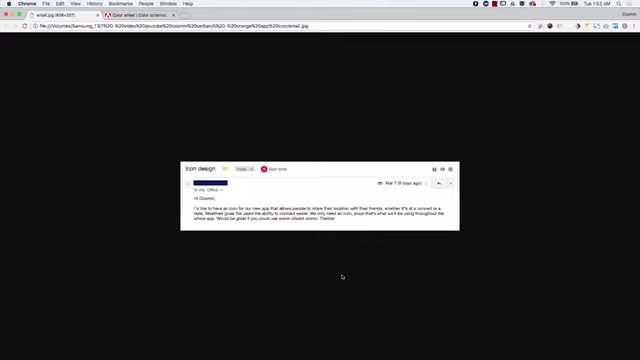
This Tutorial focuses on icon design using Adobe Illustrator CC, the go-to software for vector graphics. We aim to craft a visually compelling icon for a new app that lets users share their location with friends. The app's function is to make connecting at events, concerts, or dates easier.
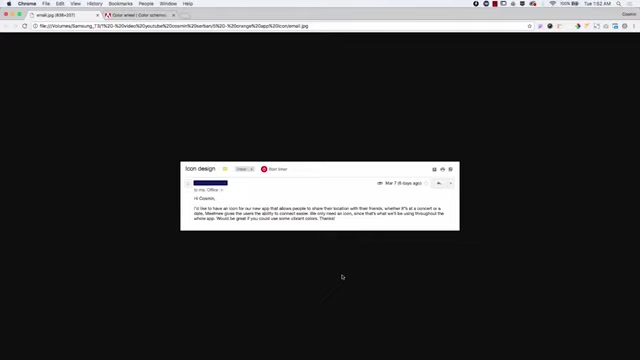
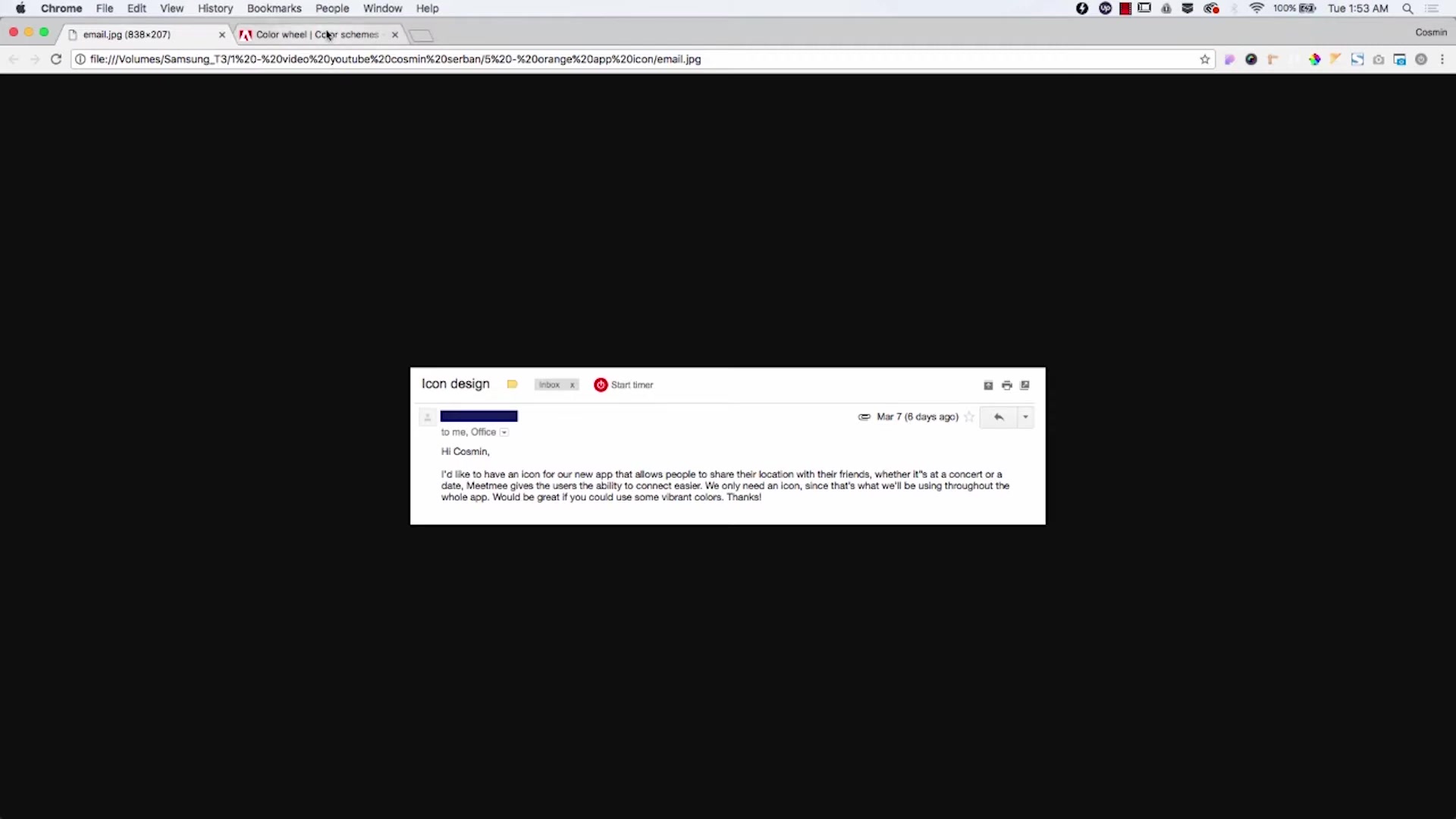
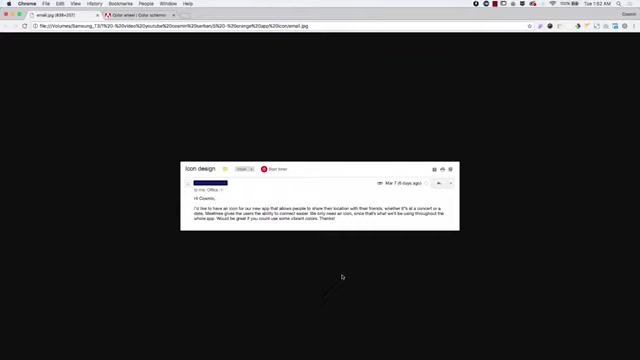
The email request emphasizes using vibrant colors throughout the whole app, which we will explore using color schemes from Adobe Color.
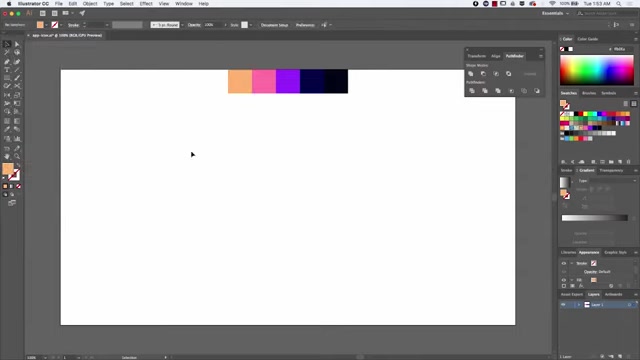
Before diving in, the first step is opening Illustrator CC and preparing the artboard. Ensure you have the latest version to access the most current features. Also make sure that you have your swatches panel ready with the colours needed. You can copy and paste your color scheme's hex codes.
Choosing a Vibrant Color Palette
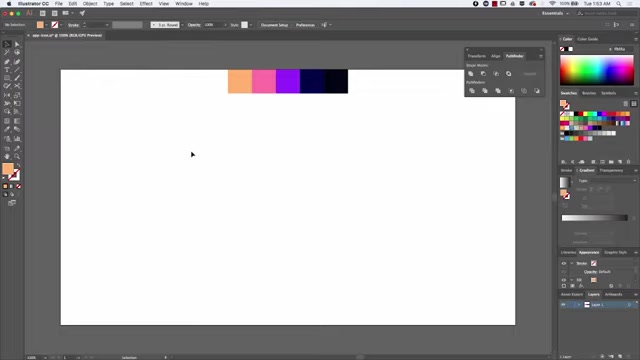
To follow the email's request, our icon needs vibrant colors. This is where Adobe Color comes into play. This tool helps to pick a vibrant color scheme. A custom color palette is selected to integrate eye-catching colours that align with the app's theme.
The goal is to create a scheme that feels energetic and inviting to the app’s users. The color selections included orange, pink, purple and navy.
Setting Up the Grid System
To create a balanced and symmetrical icon, a grid system is used in Illustrator.
This ensures precision and consistency across the design. You can enable this using the grid and snap to grid functionality. This step helps to create a visually harmonious and technically accurate icon.
Crafting the Location Pin Shape
Since the app revolves around location sharing, incorporating a location pin shape is a natural choice. Create a circle using the ellipse tool and then use the direct selection tool to modify the bottom anchor point.
This forms the iconic teardrop shape of a location pin. Refine the handles on the sides of the pin to maintain symmetry and smooth curves.
Incorporating the 'M' Letterform
To integrate the app's name, Meet Me, an abstract 'M' is created. This letter is incorporated subtly to avoid clutter but to make it easy for users to make the association with the app itself. Start by making a rectangle element with some rounded corners, then duplicate it. By using the reflect tool, you can position this element on the side of the location pin.
Adding Depth with Gradient
One way to give any kind of flat illustration depth is using a gradient. By clicking on the gradient tool, Illustrator can generate a gradient based on colors in the artwork's color scheme. This will help to make the illustration appear dimensional and pleasing to the eye.
Experimenting with Linear gradient types, and playing with the angle of the gradient by using the gradient tool is how you can make this part of the logo work for you.
Clipping Mask for a Clean Finish
To trim elements outside the main shape, Clipping Masks are used. This ensures the icon remains clean and contained. Any sections that exceed outside of the icon will be hidden with a clipping mask.
Refining Corners for a Softer Look
Use the direct selection tool to refine the corners of the M shape. Drag the corner widgets to create smooth, rounded edges. Doing so creates a friendly and approachable look for the icon.
Applying a Subtle Shadow for Emphasis
To make the icon stand out more on the app users' screen, apply a subtle drop shadow to create a better distinction for the icon with its background.
This is done through the effects menu and adjusting the blur and opacity. Subtle offsets, and the correct opacity value for the shadow is important for making the logo not appear distorted in any way. By keeping the shadow opacity subtle, but the colors vibrant, we keep both the requests of the original email.




Most people like


































Report
Please select a reason for reporting
- 13 Reasons to Switch from Snapchat to Text Messaging
- 7 Powerful Speech to Text Apps to Boost Productivity
- 10 Best Speech to Text Tools for Effortless Transcription
- 13 Free Tools to Easily Transcribe Audio to Text
- 15 Surprising Ways Google's Speech-to-Text Boosts Productivity
- 7 Best Free Online Audio to Text Transcription Tools
- 9 Tips to Transcribe Speech to Text Faster and Better
- 13 Best Speech to Text Software for Windows 10 in 2023
- 7 Tips for Choosing the Best Transcriber for Audio to Text
- 11 Reasons Why Dragon Speech-to-Text Apps are Game-Changers
- 6 Secrets to Enhance Your Speech to Text Transcription
- 6 Brilliant Ways to Boost Productivity with Talk-to-Text on Your MacBook
- 6 Ways Transcription Software Converts Audio to Text
- 8 Tips to Transcribe Speech to Text Like a Pro
- 6 Reasons IBM Watson Speech to Text is a Game-Changer
- 14 Powerful Ways Talk-to-Text Improves Your Workflow
- 12 Top Windows Speech-to-Text Software for Efficient Transcription
- 12 Game-Changing Benefits of Apple's Speech to Text Technology
- 9 Powerful Use Cases for AWS Speech to Text Technology
- 10 Easy Steps to Transcribe YouTube Videos to Text
- transcription audio en texte
- online audio transcription
- free audio file transcription
- free ai audio transcription
- audio transcription service
- audio transcription online free
- audio transcription free online
- audio to transcription software
- audio and transcript
- ai audio transcription free
- voice recording to text converter
- translate voice recording to text
- record voice to text
- audio recording to text converter
- voice recording and transcription
- chatgpt voice to text
- gmail voice to text
- speech to text reader
- speech to text ai free
- speech to talk
- ChatGPT Knows Ford. It Just Doesn't Quote Ford
- Meshy AI: How to Create 3D Models from Text and Images
- How SEO and Marketing Dashboards Empower Agencies to Drive Results
- How to Use AI Tools to Find Internal Linking Opportunities Across a Business Website
- Discover Your Perfect Haircut with AI Hairstyle Apps
- Free Reputation Calculator Tools: How They're Adapting to Score AI Visibility, Not Just Rankings
- Design Professional Flyers for Free on Your Phone
- Best Free Flyer Maker Apps for Android: Design Like a Pro
- How to Know If Your Business Is Ready for an AI Customer Service Agent
- Revolutionizing Storytelling: From Novels to Screenplays with AI
- Your Business Data Could Be Worth Up to $4M. Find Out Without Uploading a Single File.
- Can an eSIM Plan Save You Time During Travel Setup?
- AI Video Editor Review: A Hands-On Look at Prompt-Based Video Editing
- Keep Characters Consistent Across Scenes With Image-to-Video AI
- How to Convert BTC to HNT
- ProxyWing DuckDuckGo Proxy Review: Plans, Setup and Who It Is For
- ChatGPT Knows Ford. It Just Doesn't Quote Ford
- Automate Lead Generation: A Comprehensive Guide with AI Agents
- Revideo.io: The Future of Reverse Video Search Technology
- Revolutionizing Email Marketing Agency with AI

Copyright ©2026 toolify