































Table of Contents
- Key Points
- Designing Inter-Style Posters: A Comprehensive Guide
- Understanding Prompts in AI Image Generation
- Step-by-Step Guide: Creating an Inter-Style Poster
- Advantages and Disadvantages of AI-Assisted Poster Design
- Frequently Asked Questions
- Related Questions


Designing Inter-Style Posters: A Comprehensive Guide
Setting Up Your Canvas: Creating a New Document
The first step in designing any poster is setting up your canvas.
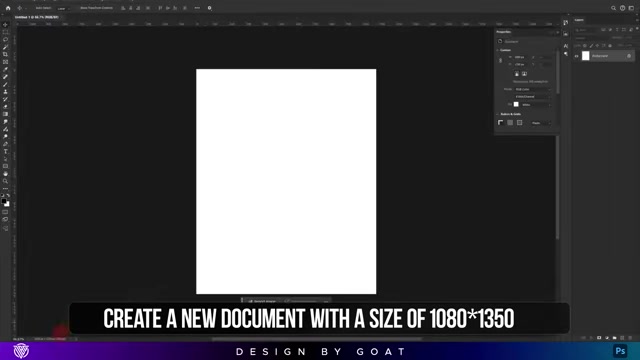
This involves creating a new document with specific Dimensions suitable for your intended purpose. For this Tutorial, we'll be using a size of *1080 1350 pixels**. This resolution is ideal for social media sharing and ensures your poster looks crisp and clear on various devices. Ensure the color mode is set to RGB for vibrant colors. Once you've configured these settings, create the document in your preferred design software, such as Adobe Photoshop. This will serve as the foundation for your inter-style poster.
Key steps:
- Open Adobe Photoshop.
- Navigate to 'File' > 'New'.
- Set the width to 1080 pixels and the Height to 1350 pixels.
- Confirm the color mode is RGB.
- Click 'Create' to generate your new document.
Harnessing AI Power: Image Generation with Krea.ai
Now that your canvas is ready, it's time to generate the core visual elements for your poster.
We'll be using Krea.ai, an AI-powered platform that allows you to create images from text prompts. Krea.ai's 'Flux' tool is particularly useful for generating high-quality, unique visuals based on your descriptions. This greatly simplifies the design process, allowing you to explore various styles and concepts quickly. The power of the AI Image Generator enables users to create multiple images from text and download your favorite one to work on further in editing software like Adobe Photoshop.
Descriptive Prompts:
The key to getting the most out of Krea.ai lies in crafting effective prompts. A well-written Prompt should clearly describe the scene, style, and elements you want in your image. For example, the prompts used in this video are:
- Bared, while the eagle extends its razor-sharp talons, ready to strike. The winds howl through the canyon as the earth trembles beneath these legendary beasts, locked in a battle as old as time itself.
- A massive blue serpent with shimmering scales and piercing eyes is engaged in an intense battle with a colossal eagle, the snake coiling and striking with razor sharp talons, ready to strike. The winds howl through the canyon as Dust and debris swirl around them, emphasizing the epic nature of their clash in the background, remnants of an ancient battleground or a mythical arena add to the legendary atmosphere of this fierce encounter.
Remember, the more descriptive you are, the better the AI can understand and generate the image you envision.
Enhancing Your AI-Generated Image
Once you've generated an image that aligns with your vision, it's time to enhance its quality and visual appeal.
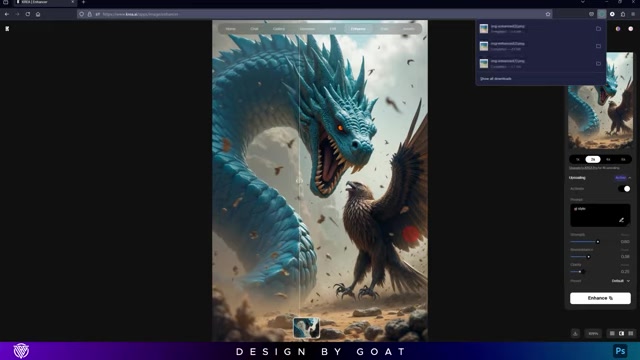
Krea.ai offers an 'Enhance' tool that leverages AI to upscale and refine your image. This is particularly useful for improving the Clarity and detail of AI-generated visuals, which may sometimes lack sharpness. With the enhance tool you can adjust different variables including: Unspilling Action *Prompt Additionally, Krea.ai allows you to refine the aesthetics of your images using an “AI Style” enhancement, and the “strength” and “clarity” can be adjusted to tailor to any desired look. By using the AI style enhance tool, your image will undergo AI to improve your images, and you can upscale by 2X or 4X. The AI enhancer is an invaluable step to creating great visuals. By using Krea.ai's enhance tool and copying your image you can paste it to your Photoshop canvas, and continue to the next steps.
Integrating Team Logos and Text in Photoshop
Now that you have an enhanced and visually appealing image on your Photoshop canvas, it's time to integrate team logos and text to personalize your poster. Start by gathering high-resolution logos for the teams involved – Milano and Lazio in this example. You can easily find these logos through a quick Google search.
Next, strategically position the logos on your poster.
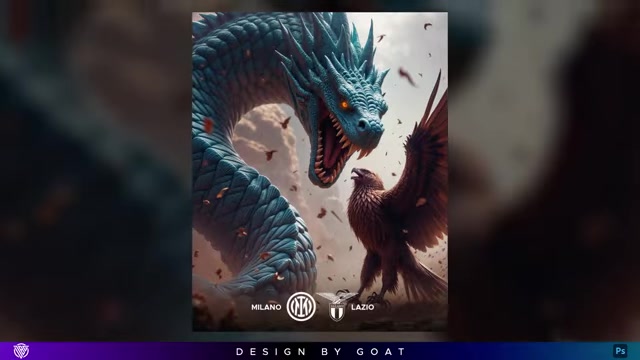
Consider the composition and overall design to ensure they complement the visuals without overshadowing them. In this tutorial, the logos are placed at the bottom of the poster, creating a balanced and visually appealing layout.
Adding text is the final step in personalizing your poster. Use the text tool in Photoshop to add team names, match details, or any other Relevant information. Choose fonts and colors that Align with the overall style and branding of the teams. Remember to keep the text concise and easy to read, ensuring it effectively communicates the intended message.
Here is a list of steps to create a polished inter-style poster:
- Gather high-resolution logos for the teams.
- Position the logos strategically at the bottom of the poster.
- Add team names and match details using the text tool.
- Choose fonts and colors that complement the poster's style.
- Ensure the text is concise and easy to read.
Understanding Prompts in AI Image Generation
Crafting Effective Prompts for AI Image Generation
Crafting effective prompts is crucial when using AI image generation tools. A well-written prompt can significantly influence the quality and relevance of the generated image. Here are some tips for crafting prompts that yield the best results:
- Be Specific: The more specific you are in your prompt, the better the AI can understand your vision. Include details about the subject, setting, style, and mood you want to convey.
- Use Descriptive Language: Use vivid and descriptive language to paint a clear picture for the AI. Describe colors, textures, lighting, and any other elements that contribute to the overall aesthetic.
- Experiment with Keywords: Experiment with different keywords and phrases to see how they impact the generated image. Try synonyms, related terms, and different combinations to explore various possibilities.
- Iterate and Refine: Don't be afraid to iterate on your prompts based on the results you get. Analyze the generated images and adjust your prompts accordingly to fine-tune the outcome.
- Consider Style and Composition: Specify the desired style, such as realistic, artistic, or abstract. Also, think about the composition and framing of the image, and include details about camera angles, perspective, and overall layout.
- Add Emotional Cues: Including emotional cues in your prompts can help the AI capture the desired mood or atmosphere. Use words that convey feelings, such as excitement, tension, or tranquility.
By following these tips, you can maximize the effectiveness of AI image generation tools and create visuals that align with your creative vision.
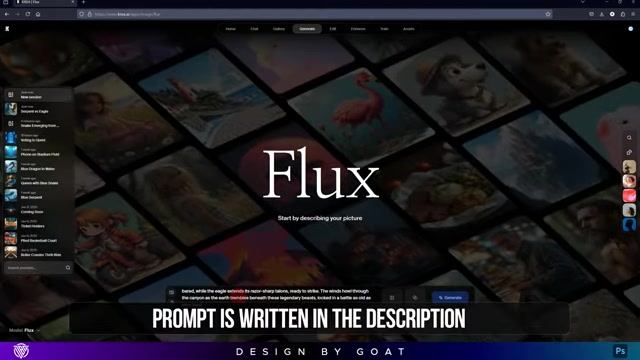
The prompts used to generate the visuals in this video were:
- "Bared, while the eagle extends its razor-sharp talons, ready to strike. The winds howl through the canyon as the earth trembles beneath these legendary beasts, locked in a battle as old as time itself."
- "A massive blue serpent with shimmering scales and piercing eyes is engaged in an intense battle with a colossal eagle, the snake coiling and striking with razor sharp talons, ready to strike. The winds howl through the canyon as dust and debris swirl around them, emphasizing the epic nature of their clash in the background, remnants of an ancient battleground or a mythical arena add to the legendary atmosphere of this fierce encounter."





Most people like
































Report
Please select a reason for reporting
- 13 Reasons to Switch from Snapchat to Text Messaging
- 7 Powerful Speech to Text Apps to Boost Productivity
- 10 Best Speech to Text Tools for Effortless Transcription
- 13 Free Tools to Easily Transcribe Audio to Text
- 15 Surprising Ways Google's Speech-to-Text Boosts Productivity
- 7 Best Free Online Audio to Text Transcription Tools
- 9 Tips to Transcribe Speech to Text Faster and Better
- 13 Best Speech to Text Software for Windows 10 in 2023
- 7 Tips for Choosing the Best Transcriber for Audio to Text
- 11 Reasons Why Dragon Speech-to-Text Apps are Game-Changers
- 6 Secrets to Enhance Your Speech to Text Transcription
- 6 Brilliant Ways to Boost Productivity with Talk-to-Text on Your MacBook
- 6 Ways Transcription Software Converts Audio to Text
- 8 Tips to Transcribe Speech to Text Like a Pro
- 6 Reasons IBM Watson Speech to Text is a Game-Changer
- 14 Powerful Ways Talk-to-Text Improves Your Workflow
- 12 Top Windows Speech-to-Text Software for Efficient Transcription
- 12 Game-Changing Benefits of Apple's Speech to Text Technology
- 9 Powerful Use Cases for AWS Speech to Text Technology
- 10 Easy Steps to Transcribe YouTube Videos to Text
- transcription audio en texte
- online audio transcription
- free audio file transcription
- free ai audio transcription
- audio transcription service
- audio transcription online free
- audio transcription free online
- audio to transcription software
- audio and transcript
- ai audio transcription free
- voice recording to text converter
- translate voice recording to text
- record voice to text
- audio recording to text converter
- voice recording and transcription
- chatgpt voice to text
- gmail voice to text
- speech to text reader
- speech to text ai free
- speech to talk
- How to Use AI Tools to Find Internal Linking Opportunities Across a Business Website
- Discover Your Perfect Haircut with AI Hairstyle Apps
- Free Reputation Calculator Tools: How They're Adapting to Score AI Visibility, Not Just Rankings
- Design Professional Flyers for Free on Your Phone
- Best Free Flyer Maker Apps for Android: Design Like a Pro
- How to Know If Your Business Is Ready for an AI Customer Service Agent
- Revolutionizing Storytelling: From Novels to Screenplays with AI
- Create Engaging Animated Explainer Videos with a Free AI Tool
- Stop Multi-Subscribing: Benchmark Top AI Visual Models in One Canvas
- Best Seedance 2.5 API Provider: Every Price on the Market, Checked at Source
- Top AI Social Media Management Tools: Automate Your Content Strategy
- Free AI Text to Video Generator: Create Stunning Videos from Text
- Discover 17 ChatGPT Alternatives: A Comprehensive Comparison
- Character.AI vs. Janitor AI: Which AI Chat Platform Reigns Supreme?
- Top Virtual Assistant Companies in 2026: Reviews, Pricing, and Plans Compared
- Unveiling FaceCheck.ID: Revolutionizing Reverse Image Searches with AI
- 11 Best AI Dialers in 2026: Features, Pricing, Pros and Cons
- How I Direct Consistent AI Clips: A Hands-On Guide to Multi-Model Generation
- A Realistic Review of the Photo Generator Image Tool
- Playwright MCP Server: Automated Web Testing with Agent Mode

Copyright ©2026 toolify