































Table of Contents
- Key Points
- Unlocking Optical Illusions in Adobe Illustrator
- Exploring Further Text Design Techniques in Adobe Illustrator
- Step-by-Step Guide: Creating the Optical Illusion Text Effect
- The Benefits and Challenges
- Frequently Asked Questions
- Related Questions



Unlocking Optical Illusions in Adobe Illustrator
What are Optical Illusions and Why Use Them?
Optical illusions, also known as visual illusions, are phenomena where the eye perceives an image differently than it is physically represented. These illusions can play with color, light, patterns, and perspective to trick the brain into seeing something that isn't quite there. Using optical illusions in design can add depth, intrigue, and a unique visual signature to your work. They grab attention and can be highly effective in logos, branding, and various marketing materials. In essence, they make your design memorable and thought-provoking.
Why should designers consider leveraging optical illusions? They are powerful tools for:
- Captivating Attention: They are inherently engaging and can stop viewers in their tracks.
- Enhancing Memorability: Unique visual effects make your design stand out.
- Creating a Unique Identity: They give your brand a distinctive and creative edge.
- Adding Depth: They can add layers of meaning and visual complexity.
- Pushing Creative Boundaries: They force designers to think outside the box.
Incorporating an optical illusion can turn a regular design into an extraordinary one. The key is to use them thoughtfully, ensuring they enhance rather than distract from the core message.
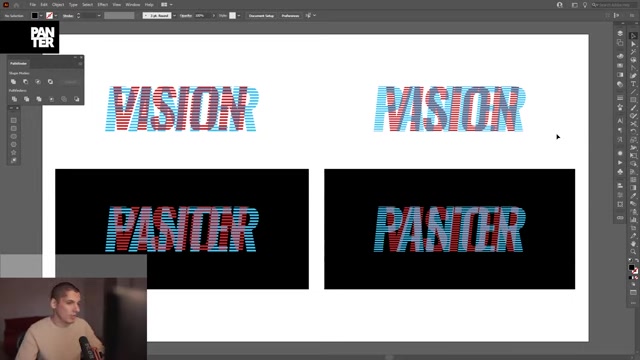
Check out how zooming out and manipulating text makes the WORD Panter come to life!
The Inspiration Behind the Effect: Old-School Cool
Many modern designers draw inspiration from historical styles, especially design techniques once common but now less frequently used. This project is inspired by old-school design seen in vintage promotional materials and early Graphic Design. Think about the designs associated with Hoonigan, known for their edgy, vintage-inspired graphics. This approach revisits these forgotten techniques, revamping them with modern digital tools. It's all about blending the charm and ingenuity of the past with contemporary design capabilities, offering a unique blend that attracts attention and showcases creativity. This helps create a look that is both Novel and familiar, appealing to a broad audience.
Let's see where Hoonigan's creativity takes us in modern designs, and it's all about blending charm with contemporary design capabilities.
Essential Tools for Creating Optical Illusions in Adobe Illustrator
Before diving into the steps, let's equip ourselves with the necessary tools in Adobe Illustrator. Familiarity with these tools is essential for executing the project effectively:
- Type Tool: For inputting and manipulating text.
- Line Segment Tool: For creating precise lines to form the illusionary effect.
- Shape Builder Tool: For merging or removing parts of overlapping shapes.
- Stroke Panel: For adjusting the thickness and style of lines.
- Pathfinder Panel: For uniting or subtracting different shapes.
- Expand Function: Converting text to editable outlines.
- Grouping (Ctrl+G): Organizing elements for easier manipulation.
With these tools at your disposal, you're ready to start building your optical illusion with confidence. As the designer mentioned it, the importance is to know how these tools work to manipulate the optical design.
Choosing the Right Typeface and Font
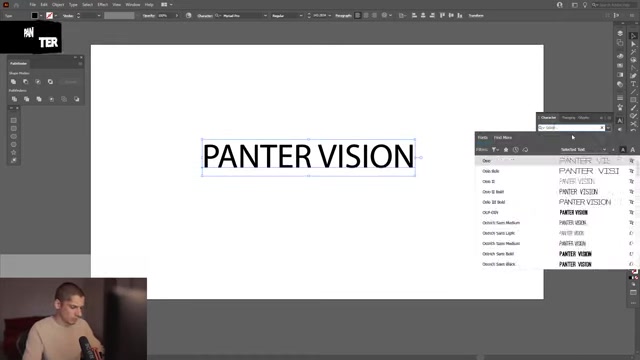
Choosing the right font is an important step as the typeface itself can support or weaken the illusion. A bold, italicized Font often works best because it provides substantial shapes and dynamic angles that enhance the effect. For this guide, we’re using Oswald, which is available for free download.
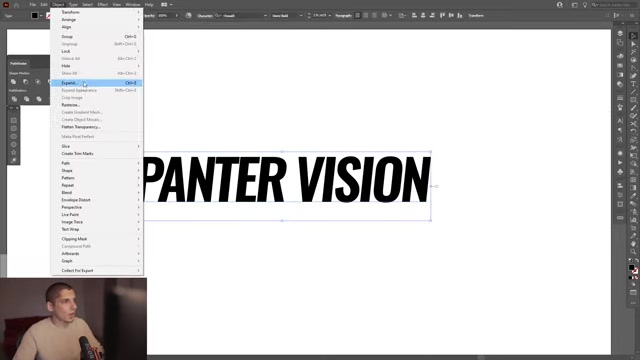
Here’s why a bold, italic typeface works:
- Visual Impact: Bold fonts stand out and grab attention.
- Dynamic Angles: Italics add a sense of movement and visual interest.
- Substantial Shapes: Thicker letterforms provide more surface for the illusion.
- Versatility: It works well with various design applications.
Feel free to research other fonts that fit your project's aesthetic, but make sure they meet the same criteria. This is the beauty of modern designs where you can explore endless possibilities.





Most people like






































Report
Please select a reason for reporting
- 13 Reasons to Switch from Snapchat to Text Messaging
- 7 Powerful Speech to Text Apps to Boost Productivity
- 10 Best Speech to Text Tools for Effortless Transcription
- 13 Free Tools to Easily Transcribe Audio to Text
- 15 Surprising Ways Google's Speech-to-Text Boosts Productivity
- 7 Best Free Online Audio to Text Transcription Tools
- 9 Tips to Transcribe Speech to Text Faster and Better
- 13 Best Speech to Text Software for Windows 10 in 2023
- 7 Tips for Choosing the Best Transcriber for Audio to Text
- 11 Reasons Why Dragon Speech-to-Text Apps are Game-Changers
- 6 Secrets to Enhance Your Speech to Text Transcription
- 6 Brilliant Ways to Boost Productivity with Talk-to-Text on Your MacBook
- 6 Ways Transcription Software Converts Audio to Text
- 8 Tips to Transcribe Speech to Text Like a Pro
- 6 Reasons IBM Watson Speech to Text is a Game-Changer
- 14 Powerful Ways Talk-to-Text Improves Your Workflow
- 12 Top Windows Speech-to-Text Software for Efficient Transcription
- 12 Game-Changing Benefits of Apple's Speech to Text Technology
- 9 Powerful Use Cases for AWS Speech to Text Technology
- 10 Easy Steps to Transcribe YouTube Videos to Text
- transcription audio en texte
- online audio transcription
- free audio file transcription
- free ai audio transcription
- audio transcription service
- audio transcription online free
- audio transcription free online
- audio to transcription software
- audio and transcript
- ai audio transcription free
- voice recording to text converter
- translate voice recording to text
- record voice to text
- audio recording to text converter
- voice recording and transcription
- chatgpt voice to text
- gmail voice to text
- speech to text reader
- speech to text ai free
- speech to talk
- Meshy AI: How to Create 3D Models from Text and Images
- How SEO and Marketing Dashboards Empower Agencies to Drive Results
- How to Use AI Tools to Find Internal Linking Opportunities Across a Business Website
- Discover Your Perfect Haircut with AI Hairstyle Apps
- Free Reputation Calculator Tools: How They're Adapting to Score AI Visibility, Not Just Rankings
- Design Professional Flyers for Free on Your Phone
- Best Free Flyer Maker Apps for Android: Design Like a Pro
- How to Know If Your Business Is Ready for an AI Customer Service Agent
- Revolutionizing Storytelling: From Novels to Screenplays with AI
- Create Engaging Animated Explainer Videos with a Free AI Tool
- Revideo.io: The Future of Reverse Video Search Technology
- Revolutionize Learning: Discover Quizzes AI for Engaging Interactive Quizzes
- Revolutionizing Email Marketing Agency with AI
- Breaking the Character Drift Dilemma: A Practical Test of Smart Shot
- Meshy AI: How to Create 3D Models from Text and Images
- ASOMobile Helps Teams Benchmark App Store Screenshots Against Competitors
- How to Match LMS Software With Your Organization's Training Plan
- How to Convert BTC to HNT
- Unleashing the Power of AI: Cognizant's Roadmap for Transformation
- Frame to Video Review: A Practical Look at Turning Two Still Frames Into Motion

Copyright ©2026 toolify