































Table of Contents
- Key Points
- Crafting Q-Style Characters with AI: A Comprehensive Guide
- Additional Tips for Stunning Q-Style Characters
- Step-by-Step Guide to Generating Q-Style Characters
- Advantages and Limitations
- FAQ
- Related Questions


Crafting Q-Style Characters with AI: A Comprehensive Guide
What are Q-Style Characters?
Q-style characters, often called Chibi, are a Stylized form of character design characterized by large heads, small bodies, and exaggerated features. They are widely popular in anime, manga, and various forms of digital art. These characters Evoke a sense of cuteness and Charm, making them ideal for various creative projects.
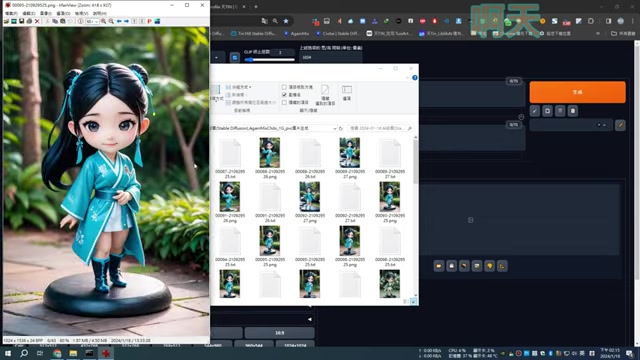
Using AI Tools like Stable Diffusion gives artists unprecedented power to generate these characters with precision and artistic Flair.
Setting Up Stable Diffusion for Q-Style Character Generation
To begin, ensure you have Stable Diffusion properly installed. This Tutorial uses Stable Diffusion v1.7.0, though other versions may work with adjustments.
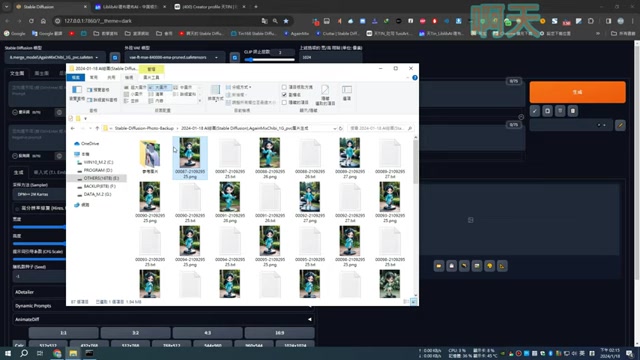
Familiarize yourself with the user interface, particularly the Prompt areas, sampling settings, and ControlNet options. The core parameters such as sampler (DPM++ 2M Karras), steps (20), CFG Scale (7) and seed (-1) are set at the beginning.
Key components for generating Q-style characters:
- Stable Diffusion v1.7.0: The primary image generation software.
- IP Adapter: A ControlNet component to guide the character's design from reference images.
- ControlNet: A neural network structure to control the image generation process.
- LoRA Models: Optional, to fine-tune stylistic aspects of the generated characters.
Basic Prompt Engineering for Q-Style Characters
Prompt engineering is crucial for guiding Stable Diffusion toward the desired Q-style. Start with basic positive prompts like “best quality, masterpiece, extremely detailed, black eyes, black hair, full body”. These prompts set the foundation for a high-quality, detailed image. Then you add 'chibi' into the prompt for the desired Q-Style character.
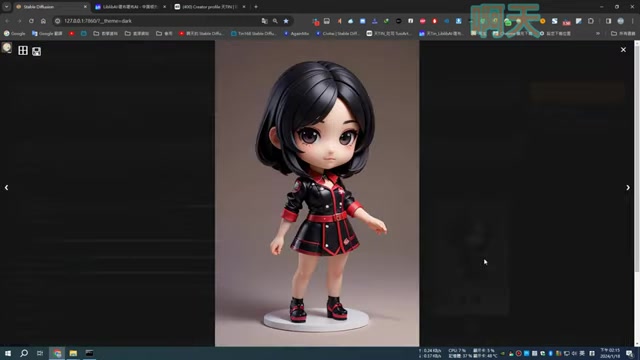
You can add negative prompts such as “low quality, low quality, poor quality, worst quality” to mitigate undesirable traits.
Example Prompts:
- Positive: “best quality, masterpiece, extremely detailed, black eyes, black hair, full body, chibi”
- Negative: “low quality, low quality, poor quality, worst quality, grayscale, bad anatomy”
Integrating IP Adapter for Character Design
IP Adapters offer a robust way to inject stylistic elements from reference images into your generated characters. To use IP Adapters, enable ControlNet and select 'IP-Adapter'. The presenter uses 6 images as reference. Load a suitable model such as 'ip-adapter-plus-face_sd15', and set the preprocessor to 'ip-adapter_clip_sd15'.
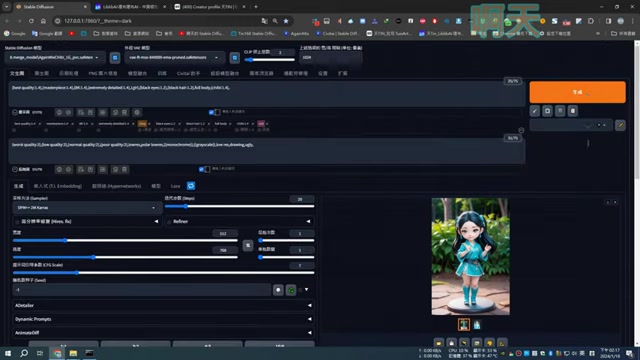
Parameter Settings:
- ControlNet Enabled: On
- Control Type: IP-Adapter
- Model: ip-adapter-plus-face_sd15
- Preprocessor: ip-adapter_clip_sd15
Advanced Control with ControlNet
ControlNet provides even more granular control over the generated image. The presenter enables ControlNet and utilizes the IP-Adapter to guide character design and overall image composition.
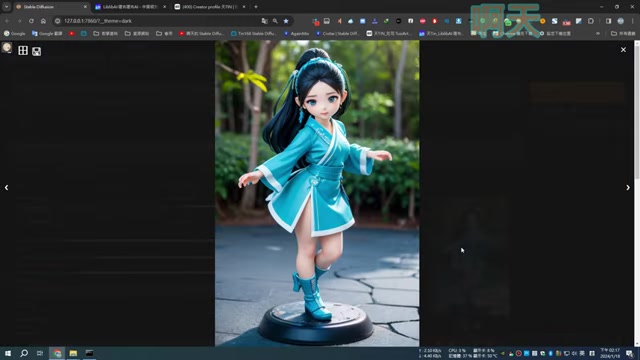
Different preprocessors and models yield different outcomes, giving artists a wider range of stylistic options. Using multiple reference photos help diversify the generated images.
To gain an even better understanding of how ControlNet works you can refer to the following:
| Control Type | Model | Preprocessor |
|---|---|---|
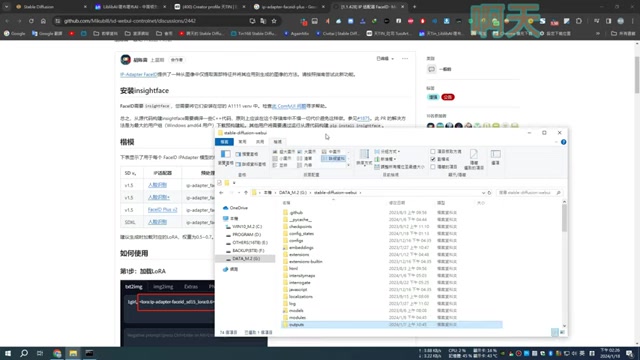
| IP-Adapter | ip-adapter-faceid_sd15 | ip-adapter_faceid_sd15 |
| IP-Adapter Plus | ip-adapter-plus_sd15 | ip-adapter_clip_sd15 |
| IP-Adapter Plus Face | ip-adapter-plus-face_sd15 | ip-adapter_clip_sd15 |
Fine-Tuning with LoRA Models
LoRA (Low-Rank Adaptation) models allow fine-tuning the style of the generated characters. You could load a LoRA model specifically designed for a certain aesthetic such as ancient chinese. Note that certain IP Adapters require a LoRA to be used, such as the FaceID model. Explore different LoRAs to find the perfect stylistic complement to your Q-style character. The LoRA models should be downloaded from trusted sources to avoid any compromised files. Using the appropriate LoRA, will add style to your generated images.
Optimizing Resolution and Sampling Steps
Achieving the right balance of resolution and sampling steps is vital for the final image quality. Initially, it is recommended to work with smaller image sizes (e.g., 512x512 or 512x768) to iterate quickly.
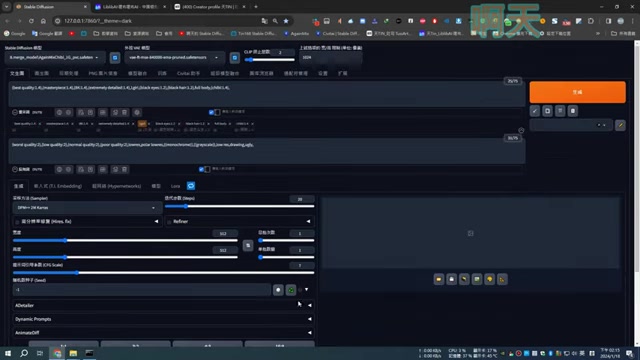
Once satisfied, you can increase the resolution using the ‘High Resolution fix’ setting in Stable Diffusion. Sampling steps also influence the final image; a range of 20-30 steps usually provides a good balance between quality and rendering time.
- Initial Image Size: 512x512 or 512x768
- Sampling Steps: 20-30
- High Resolution Fix: Enabled for upscaling
Generating Varied Characters with Different Prompts
One of the strengths of Stable Diffusion is its ability to generate diverse characters by simply altering the prompts. By changing the gender, style of clothing, or environment, you can create an array of unique Q-style characters.
For instance, you can generate a male character in traditional Chinese attire, or a female character in a modern outfit. Experiment with various combinations to explore the full potential of the AI.
Creative Variations:
- Changing Genders (Girl -> Boy)
- Altering Styles of Clothing (Suit -> Traditional Robes)
- Adjusting Hair and Eye Colors (Black Hair, Black Eyes)
- Adding Accessories (Hats, Jewelry)
Additional Tips for Stunning Q-Style Characters
Crafting Intricate Details
For even more exquisite details, consider utilizing additional Stable Diffusion extensions like ADetailer. This extension enhances specific areas such as faces and eyes, providing a finer level of control over the character’s features. Experiment with different settings in ADetailer to discover what works best for your specific style.
- ADetailer: Enhances facial and eye details
- Settings: Experiment with different settings to find optimal results for your chosen style
Blending Realism with Stylization
Achieving a balance between realism and stylization is key to creating compelling Q-style characters.
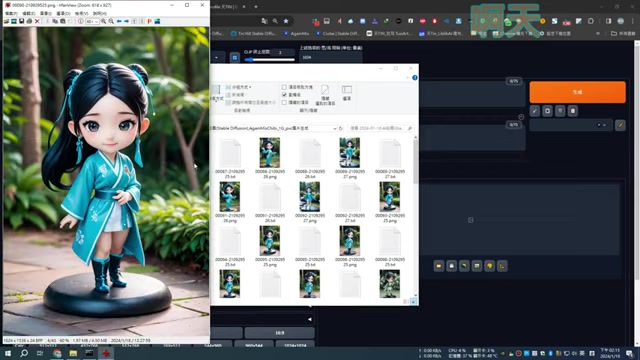
Carefully select reference images that Blend realistic elements (such as clothing and environment) with stylized features (like hair and eyes). This approach helps generate images that are both visually appealing and artistically intriguing.
Troubleshooting Common Issues
During the generation process, you may encounter common issues such as distorted features or low-quality rendering. Verify that all necessary models are loaded and correctly configured. Double-check prompt syntax to avoid errors, and adjust sampling settings as needed. If issues persist, consult Stable Diffusion forums for guidance from experienced users.





Most people like































Report
Please select a reason for reporting
- 13 Reasons to Switch from Snapchat to Text Messaging
- 7 Powerful Speech to Text Apps to Boost Productivity
- 10 Best Speech to Text Tools for Effortless Transcription
- 13 Free Tools to Easily Transcribe Audio to Text
- 15 Surprising Ways Google's Speech-to-Text Boosts Productivity
- 7 Best Free Online Audio to Text Transcription Tools
- 9 Tips to Transcribe Speech to Text Faster and Better
- 13 Best Speech to Text Software for Windows 10 in 2023
- 7 Tips for Choosing the Best Transcriber for Audio to Text
- 11 Reasons Why Dragon Speech-to-Text Apps are Game-Changers
- 6 Secrets to Enhance Your Speech to Text Transcription
- 6 Brilliant Ways to Boost Productivity with Talk-to-Text on Your MacBook
- 6 Ways Transcription Software Converts Audio to Text
- 8 Tips to Transcribe Speech to Text Like a Pro
- 6 Reasons IBM Watson Speech to Text is a Game-Changer
- 14 Powerful Ways Talk-to-Text Improves Your Workflow
- 12 Top Windows Speech-to-Text Software for Efficient Transcription
- 12 Game-Changing Benefits of Apple's Speech to Text Technology
- 9 Powerful Use Cases for AWS Speech to Text Technology
- 10 Easy Steps to Transcribe YouTube Videos to Text
- transcription audio en texte
- online audio transcription
- free audio file transcription
- free ai audio transcription
- audio transcription service
- audio transcription online free
- audio transcription free online
- audio to transcription software
- audio and transcript
- ai audio transcription free
- voice recording to text converter
- translate voice recording to text
- record voice to text
- audio recording to text converter
- voice recording and transcription
- chatgpt voice to text
- gmail voice to text
- speech to text reader
- speech to text ai free
- speech to talk
- How SEO and Marketing Dashboards Empower Agencies to Drive Results
- How to Use AI Tools to Find Internal Linking Opportunities Across a Business Website
- Discover Your Perfect Haircut with AI Hairstyle Apps
- Free Reputation Calculator Tools: How They're Adapting to Score AI Visibility, Not Just Rankings
- Design Professional Flyers for Free on Your Phone
- Best Free Flyer Maker Apps for Android: Design Like a Pro
- How to Know If Your Business Is Ready for an AI Customer Service Agent
- Revolutionizing Storytelling: From Novels to Screenplays with AI
- Create Engaging Animated Explainer Videos with a Free AI Tool
- Stop Multi-Subscribing: Benchmark Top AI Visual Models in One Canvas
- Top 5 Cold Email Software: Maximize Your Outreach in 2025
- Magic School AI: Revolutionizing Quiz & Assessment Generation
- Create Your Own Email Bot and Automate Your Email Tasks
- Beyond Pure Prompts: Optimizing Production with 'Text With Reference' Generation
- Stop Using Boring TTS: My Honest Deep Dive Into VideoAI and the Hunt for the Perfect Custom Voices
- AI & Elections: Defending Democracy Against Misinformation
- Navigating Political Discourse: AI, Deepfakes, and Reality Checks
- Detecting Political Bias in News Articles: A Powerful AI Algorithm
- AI Bias Unveiled: Political Leanings in ChatGPT & Beyond
- Revolutionize Learning: Discover Quizzes AI for Engaging Interactive Quizzes

Copyright ©2026 toolify