































Table of Contents
- Key Points
- Designing Custom Wallpapers with Canva
- Adding Finishing Touches for a Professional Look
- Step-by-Step Guide to Creating a Radha Rani Desktop Wallpaper [t:16]
- Pros and Cons of Using Canva for Wallpaper Design
- Frequently Asked Questions
- Related Questions


Designing Custom Wallpapers with Canva
Getting Started with Canva Wallpaper Design
Canva offers a wide range of templates and tools to design wallpapers that reflect your individual style and preferences. To begin, navigate to the Canva website and log in or create a new account. Once logged in, you can choose from a variety of pre-designed templates or start with a blank canvas to build your wallpaper from scratch.
Selecting the Right Template or Canvas Size:
- Desktop Wallpaper: Choose a template or set the canvas size to match your desktop resolution. Common desktop resolutions include 1920x1080, 1366x768, and 1280x1024 pixels.

Selecting a custom size allows for perfect alignment with your monitor's Dimensions.
- Mobile Wallpaper: Similarly, select a template or set the canvas size to match your smartphone's resolution. Common mobile resolutions include 1080x1920 and 1440x2560 pixels. Proper sizing ensures the wallpaper looks crisp and clear on your mobile screen. Remember to check the specific resolutions for your device under display settings.
Navigating the Canva Interface: The Canva interface is user-friendly, featuring a design area, a toolbar with various editing options, and a sidebar with elements like templates, photos, and text. Familiarizing yourself with these tools will streamline your design process and enable you to create professional-looking wallpapers with ease.
Adding and Customizing Text on Wallpapers
Adding text to your wallpapers can personalize your digital space with inspirational quotes, names, or dates. Canva offers a diverse selection of fonts and text styles to create visually appealing typography.
Selecting and Inserting Text: From the sidebar, click on the 'Text' option to browse through various font styles and pre-designed text templates. Alternatively, you can add a heading, subheading, or body text and customize the font, size, color, and style to your liking.
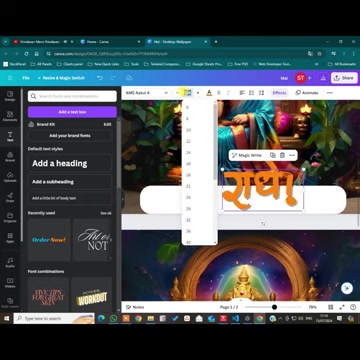
Canva offers a lot of font selections or you can upload your own custom Font.
Customizing Text Appearance:
- Font Selection: Choose a font that complements the overall design and is easy to read against the background. Consider using bold fonts for prominence or elegant scripts for a sophisticated touch.
- Size and Placement: Adjust the text size and placement to ensure it is legible and doesn't obstruct important elements of the wallpaper. Experiment with different positions to achieve optimal visual balance.
- Color and Effects: Use colors that contrast well with the background to make the text stand out. Add effects like shadows, outlines, or glows to enhance the text's visibility and style.
- Animation: For desktop wallpapers, Canva allows you to animate the text, creating dynamic and engaging designs. Consider subtle animations that add visual interest without being distracting. Animated elements are very eye-catching.
Adding Text in Multiple Languages: Canva supports various languages, allowing you to add text in your preferred script. This feature is particularly useful for personalizing wallpapers with local sayings, names, or quotes in regional languages. You can upload fonts that support the languages that you want to implement in the design.
Modifying and Enhancing Wallpaper Backgrounds
The background is a crucial element of any wallpaper, setting the overall tone and visual appeal. Canva provides numerous options to modify and enhance backgrounds, ensuring they Align with your design vision.
Selecting Background Images or Colors:
- Images: Canva's extensive library offers a wide range of high-quality images suitable for backgrounds. You can search for specific themes or styles, such as nature, abstract, or minimalist, to find the perfect image for your wallpaper. Just be sure you have the commercial rights to use the assets.
- Colors: For a simpler look, you can opt for solid colors or gradients. Canva allows you to choose from a vast color palette or create custom color schemes that match your personal taste.
Applying Effects and Filters: Enhance your background with effects and filters to add depth, texture, and visual interest. Canva offers various filters to adjust brightness, contrast, saturation, and blur, allowing you to create the desired mood and atmosphere.
Creating AI-Generated Backgrounds:
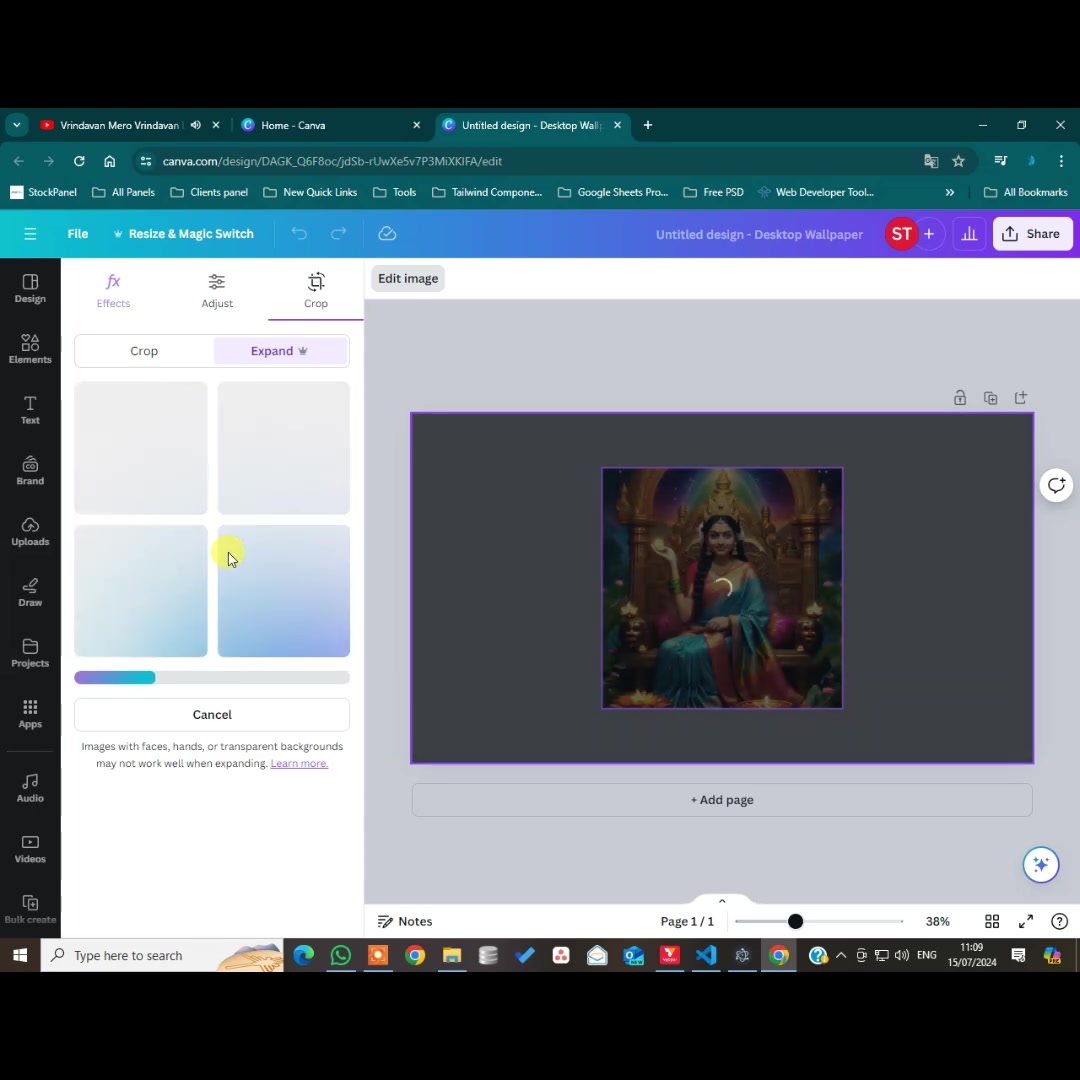
Leverage Canva's AI capabilities to generate unique and creative backgrounds. By inputting specific prompts, such as 'nature landscape with rainbow mountain' or 'ancient palace style' you can generate designs tailored to your preferences. Be sure to regenerate results for several tries, as not all will render in a desireable fashion. These AI-generated elements can add a distinctive touch to your wallpapers, making them truly one-of-a-kind.
Removing Background Elements: Sometimes, you might want to remove certain elements from an image to create a cleaner or more focused background. Canva's 'Magic Eraser' tool allows you to selectively erase unwanted objects or details, providing greater control over your design. The 'Magic Edit' tool can help with this, allowing you to change a specific object in the design.
Adding Graphic Elements and Stickers
To further personalize your wallpapers, consider adding graphic elements and stickers. Canva’s library is rich with illustrations, icons, and stickers that can enhance your design and convey specific themes or messages.

Peacock feathers are a popular choice.
Browsing and Inserting Graphics:
- Illustrations and Icons: Use illustrations and icons to add visual interest and reinforce the wallpaper's theme. Canva's collection includes a wide variety of styles, from minimalist line art to intricate illustrations.
- Stickers: Incorporate stickers to add playful and decorative elements. Choose stickers that align with your personal style or the wallpaper's overall design concept.
Customizing Graphic Elements:
- Color and Size Adjustments: Modify the color and size of graphic elements to ensure they Blend seamlessly with the background and text. Use colors that complement the overall color scheme and adjust sizes to maintain visual harmony.
- Placement and Arrangement: Experiment with different placements to achieve the desired composition. Arrange elements to create focal points, balance the design, and avoid clutter.
- Animation: Animate graphic elements to create dynamic wallpapers for desktop use. Subtle movements can add a touch of liveliness without being too distracting. Note that animated desktop wallpapers may Consume additional system resources.
Optimizing and Applying Your Wallpaper
Once your design is complete, optimizing it for various screen resolutions ensures it looks its best on different devices. Canva simplifies this process with straightforward download and application options.
Downloading Your Design: Click on the 'Share' button in the top-right corner of the Canva interface to download your design. Select the appropriate file format, such as PNG or JPEG. PNG is generally recommended for high-quality images, while JPEG is suitable for smaller file sizes.
Resizing for Different Screens: Canva Premium subscribers can use the 'Resize' tool to automatically adjust the dimensions of their design for different screen resolutions. For free users, manual resizing may be required to ensure optimal display on various devices. You can use the 'Magic Expand' and 'Magic Grab' to help with this process.
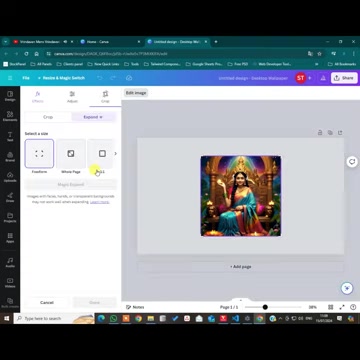
Applying Wallpapers on Desktop and Mobile:
- Desktop: Locate the downloaded file on your computer, right-click, and select 'Set as desktop background.' You can also adjust the display settings to choose how the image fits your screen, such as 'Fill,' 'Fit,' or 'Stretch.'
- Mobile: Save the downloaded file to your phone's gallery, then navigate to your device’s settings, select 'Wallpaper,' and choose the custom design. Ensure the image fits properly by adjusting its position and zoom level. You can access this from the control panel or personalization settings.
Adding Finishing Touches for a Professional Look
Magic Grab, Magic Edit, and Magic Eraser
Magic Grab is a new feature, available to Canva pro users, allowing users to separate any subject or object from the background
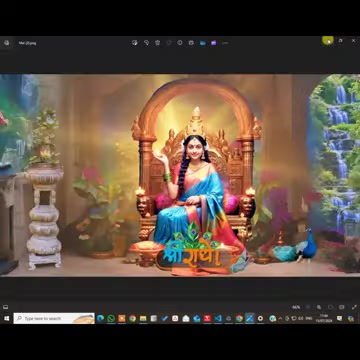
, and freely move it to other areas in the design.
Magic Edit is a new feature, available to Canva pro users, allowing users to change any subject or object in the design. All you need to do is brush over the desired area and then type out what you want that area to become. Results can be hit or miss as this is a new feature and the ai is still learning.
Magic Eraser is a useful new feature for getting rid of any element in a photo or design that is not wanted. Simply adjust the size of the brush and paint over the subject or area that you want to get rid of. These new featuers are all in beta, so expect further improvements.






Most people like
































Report
Please select a reason for reporting
- 13 Reasons to Switch from Snapchat to Text Messaging
- 7 Powerful Speech to Text Apps to Boost Productivity
- 10 Best Speech to Text Tools for Effortless Transcription
- 13 Free Tools to Easily Transcribe Audio to Text
- 15 Surprising Ways Google's Speech-to-Text Boosts Productivity
- 7 Best Free Online Audio to Text Transcription Tools
- 9 Tips to Transcribe Speech to Text Faster and Better
- 13 Best Speech to Text Software for Windows 10 in 2023
- 7 Tips for Choosing the Best Transcriber for Audio to Text
- 11 Reasons Why Dragon Speech-to-Text Apps are Game-Changers
- 6 Secrets to Enhance Your Speech to Text Transcription
- 6 Brilliant Ways to Boost Productivity with Talk-to-Text on Your MacBook
- 6 Ways Transcription Software Converts Audio to Text
- 8 Tips to Transcribe Speech to Text Like a Pro
- 6 Reasons IBM Watson Speech to Text is a Game-Changer
- 14 Powerful Ways Talk-to-Text Improves Your Workflow
- 12 Top Windows Speech-to-Text Software for Efficient Transcription
- 12 Game-Changing Benefits of Apple's Speech to Text Technology
- 9 Powerful Use Cases for AWS Speech to Text Technology
- 10 Easy Steps to Transcribe YouTube Videos to Text
- transcription audio en texte
- online audio transcription
- free audio file transcription
- free ai audio transcription
- audio transcription service
- audio transcription online free
- audio transcription free online
- audio to transcription software
- audio and transcript
- ai audio transcription free
- voice recording to text converter
- translate voice recording to text
- record voice to text
- audio recording to text converter
- voice recording and transcription
- chatgpt voice to text
- gmail voice to text
- speech to text reader
- speech to text ai free
- speech to talk
- How to Use AI Tools to Find Internal Linking Opportunities Across a Business Website
- Discover Your Perfect Haircut with AI Hairstyle Apps
- Free Reputation Calculator Tools: How They're Adapting to Score AI Visibility, Not Just Rankings
- Design Professional Flyers for Free on Your Phone
- Best Free Flyer Maker Apps for Android: Design Like a Pro
- How to Know If Your Business Is Ready for an AI Customer Service Agent
- Revolutionizing Storytelling: From Novels to Screenplays with AI
- Create Engaging Animated Explainer Videos with a Free AI Tool
- Stop Multi-Subscribing: Benchmark Top AI Visual Models in One Canvas
- Best Seedance 2.5 API Provider: Every Price on the Market, Checked at Source
- Top AI Social Media Management Tools: Automate Your Content Strategy
- Free AI Text to Video Generator: Create Stunning Videos from Text
- Discover 17 ChatGPT Alternatives: A Comprehensive Comparison
- Character.AI vs. Janitor AI: Which AI Chat Platform Reigns Supreme?
- Top Virtual Assistant Companies in 2026: Reviews, Pricing, and Plans Compared
- Unveiling FaceCheck.ID: Revolutionizing Reverse Image Searches with AI
- 11 Best AI Dialers in 2026: Features, Pricing, Pros and Cons
- How I Direct Consistent AI Clips: A Hands-On Guide to Multi-Model Generation
- A Realistic Review of the Photo Generator Image Tool
- Playwright MCP Server: Automated Web Testing with Agent Mode

Copyright ©2026 toolify