































Table of Contents
- Key Points
- Getting Started with DeepFaceLive: A Step-by-Step Guide
- Adding Images to Software
- Pros and Cons of Using DeepFaceLive
- FAQ
- Related Questions


Getting Started with DeepFaceLive: A Step-by-Step Guide
What is DeepFaceLive?
DeepFaceLive is a cutting-edge, open-source software that leverages artificial intelligence to perform real-time face swapping on your webcam. This means you can transform your appearance during video calls, live streams, or while Recording videos. Imagine presenting yourself as a different celebrity, politician, or even a fictional character, all in real-time.
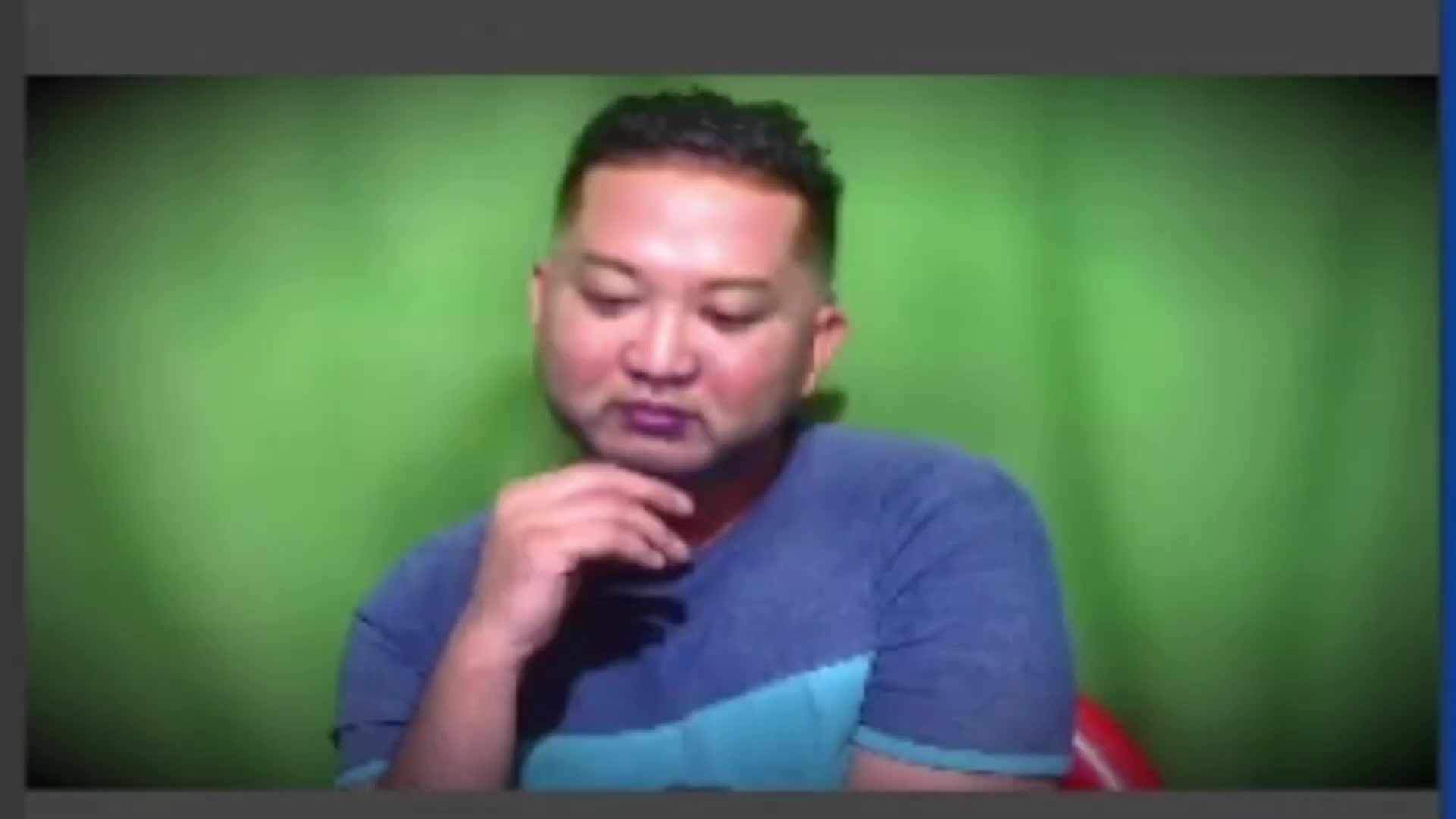
This is the power of DeepFaceLive. The application works by analyzing your facial features and mapping them onto a target face, creating a seamless and often hilarious transformation. The key benefit is its accessibility—being free and relatively straightforward to set up, it opens the door to advanced facial manipulation for content creators and casual users alike. However, as with any powerful tool, responsible usage is paramount, respecting privacy and ethical considerations is key. It's a fantastic way to add fun and personality to your digital presence.
System Requirements: Is Your PC Up to the Task?
Before diving into the installation, it's crucial to ensure your PC meets the minimum system requirements for DeepFaceLive to function smoothly. A powerful computer configuration is required, or else it could be laggy. This is a critical section because inadequate hardware can lead to a choppy, unsatisfactory experience.

Here's a breakdown of the essential components:
- Graphics Card (GPU): Any Direct X12 compatible graphics card (Recommended RTX 2070+ / Radeon RX 5700 XT+)
- Processor (CPU): Modern CPU with AVX instructions
- Memory (RAM): 4GB RAM, 32GB+ paging file
- Operating System: Windows 10
To effectively run the real-time face swapping features, a potent GPU is recommended. This implies that an RTX 2070 graphics card or AMD’s Radeon RX 5700 XT graphics card should be used at the bare minimum to achieve satisfactory results. Moreover, a cutting-edge CPU, which has AVX features, is equally important. Also, you’ll need to ensure that the VM option is enabled, in your core computer configuration. At least 4 gigabytes of RAM is required. Also, 32 gigs of storage must be available in order for the program to install. All of this is very important, if you plan on using DeepFaceLive.
Downloading and Installing DeepFaceLive: A Step-by-Step Process
Now that you've confirmed your PC meets the requirements, let's proceed with downloading and installing DeepFaceLive.
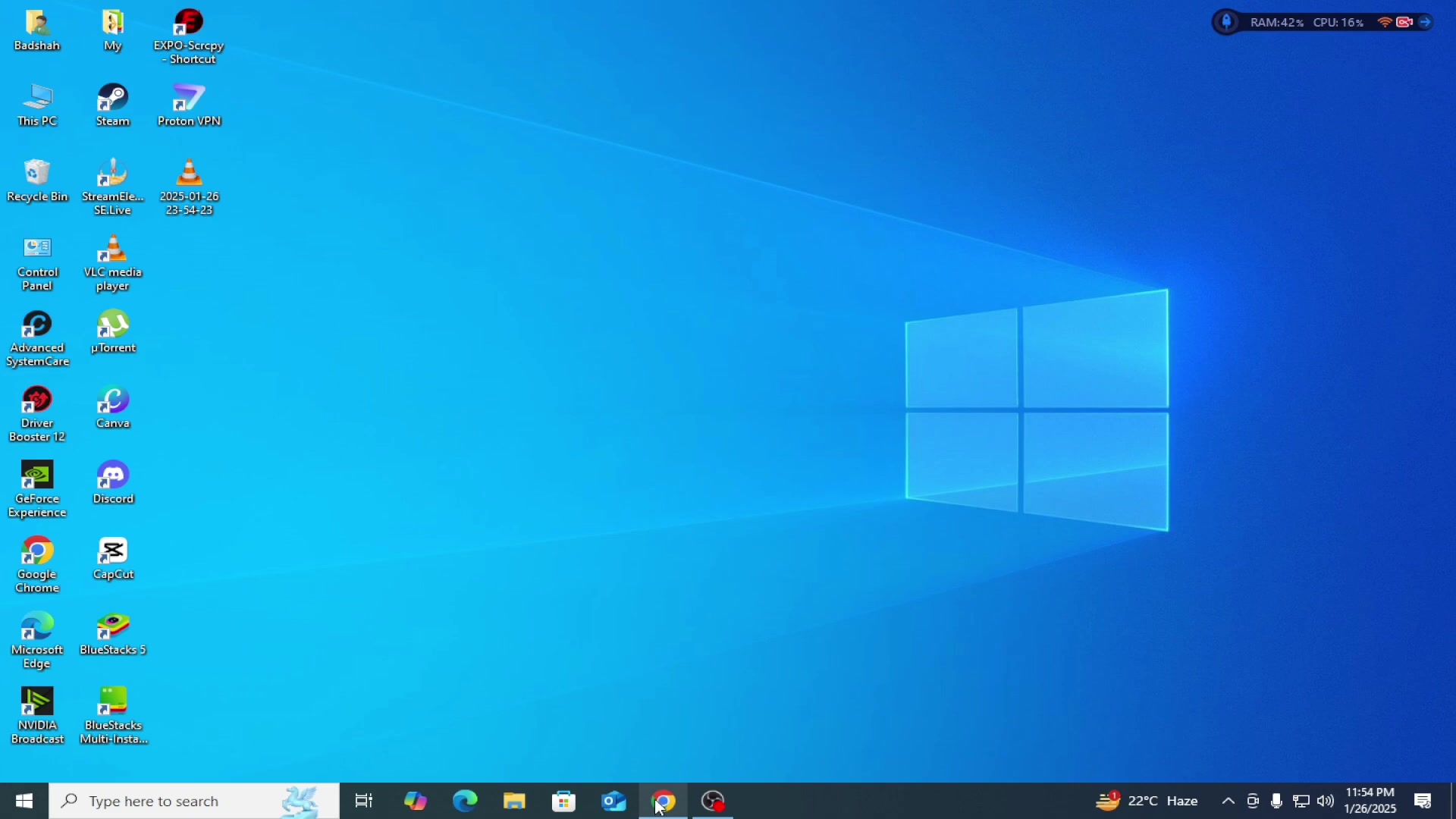
Important Note: In some regions, the primary download links may be blocked. A VPN (Virtual Private Network) might be necessary to bypass these restrictions and access the download files. We'll cover setting up a VPN later in this guide.
- Navigate to the DeepFaceLive GitHub Repository: Use your web browser to visit the DeepFaceLive GitHub page (the link provided in this step is crucial). This will ensure you obtain the software directly from the source and avoid any potential malware or outdated versions.
- Locate the 'Releases' Section: Scroll down the GitHub page until you find the 'Releases' section. This section contains the compiled versions of the software, ready for download.
- Choose the Correct Version: Look for the version compatible with your operating system (Windows 10 x64 is most common). You'll typically find two download options: one from Yandex.ru and another from Mega.nz.
- Download the Software: Choose either the Yandex.ru or Mega.nz link to begin downloading the software. Be mindful of your internet speed, as the download size can be considerable.
Once the file is downloaded, you will want to run 7Zip, or WinRar to extract the necessary files to your storage device of choice. Remember, ensure you run a scan through virus total or other antivirus in order to confirm the validity of the file.
Setting Up Your Camera Source and Face Detection
With DeepFaceLive successfully installed, it's time to configure the software to recognize your webcam and detect your face.
- Launch DeepFaceLive: Navigate to the folder where you extracted the DeepFaceLive files and run the 'DeepFaceLive.exe' executable.
A command Prompt window will appear alongside the DeepFaceLive interface—keep this window open in the background, as it's essential for the software's functionality.
- Configure Camera Source: In the DeepFaceLive interface, locate the 'Camera source' section. Activate it. From the dropdown menu, select 'Compatible' as the driver. Then, choose your webcam from the 'Device Index' list. Finally, adjust the resolution to match your webcam's capabilities.
- Enable Face Detection: Find the 'Face detector' section and activate it. This section tells the software to find a face, any face.
- Detector - the model that is being used for face detection
- Device - If your GPU is compatible, select the correct GPU. Otherwise, use CPU.
- Selecting Face Mesh Activate 'Google FaceMesh'. Select the right device. (See the details above.) This is so that your camera will work, and properly Align faces for swapping.
Choosing Your Face Swap Target: Celebrities, Politicians, and Beyond
One of the most exciting aspects of DeepFaceLive is the ability to transform into various personalities. Here's how to select your face swap target:
- Locate the 'Face Swap Insight Section': In the software's interface, find the 'Face Swap Insight' section. This area controls the target face that will be mapped onto your own.
- Select a Target Image: Click the browse button (often represented by a folder icon or three dots) next to the face selection. This will open a file explorer window.
- Upload Your Own Images: You must first transfer your images into the “animatables” folder in order to view your celebrity image.
- After the image is in the “animatables folder”, you should be able to see it as an option on the first dropdown.
- Select your celebrity choice, and enjoy!
Always Keep the Command Prompt File Running
It is very important to keep in mind that if you close out the CMD file in the background, the entire program will quit.
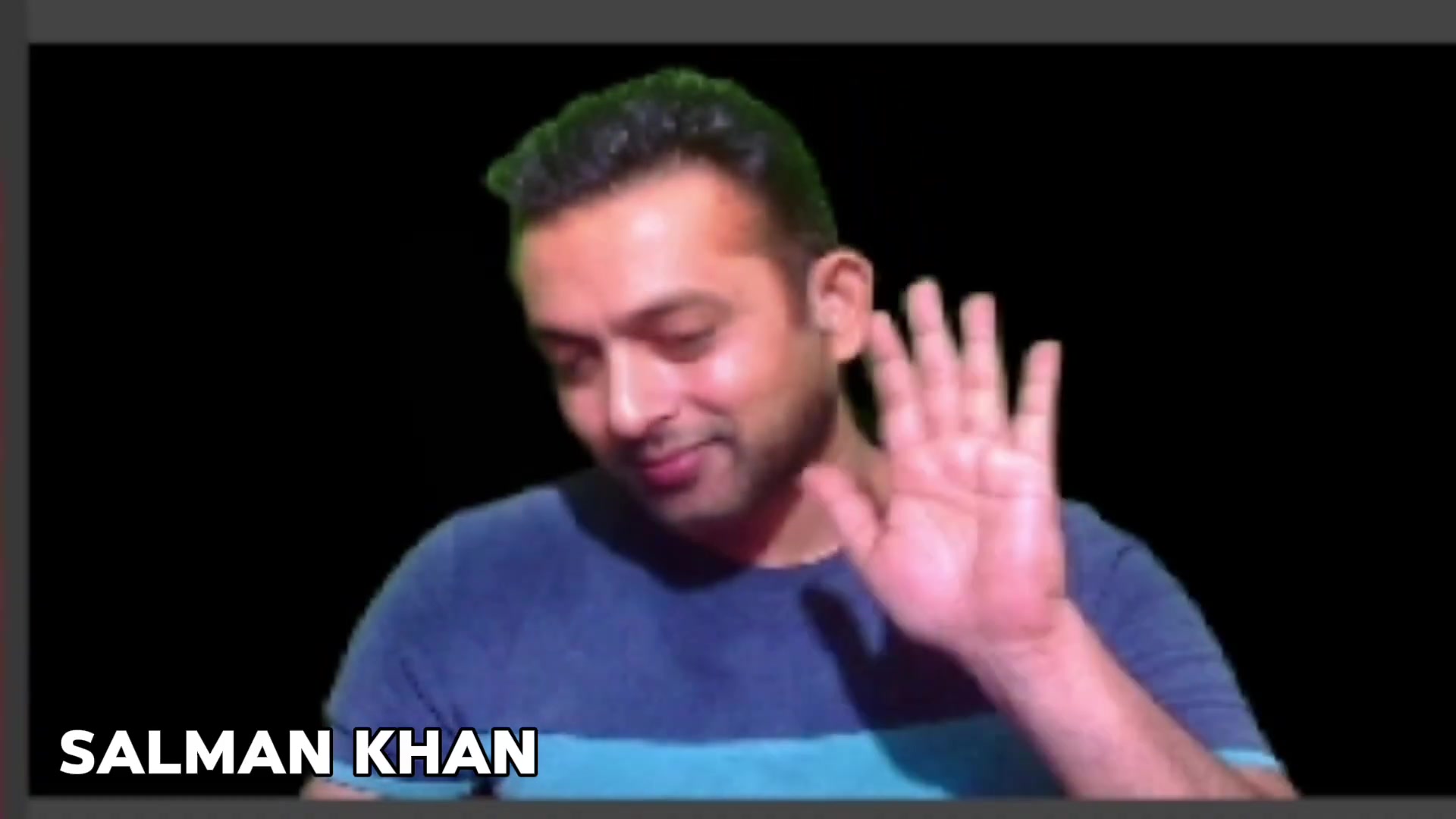
If you want to minimize the chances of this occurring. Just ensure to keep it opened in the background and never to close it.
Always Remember to Turn Off Webcams Running in the Background
It’s important to note: If your webcam is running in the background, there is a high chance that DeepFaceLive won’t turn on properly. That’s because DeepFaceLive will not have exclusive access to the camera. To fix this issue, ensure that all webcams running are all turned off.
Adjusting the Blur, and setting correct resolution
Two settings exist that determine if your DeepFaceLive is going to look good. Ensure that you set the settings accordingly, or else the result could be disastrous. There are two main settings that need to be covered in order to improve face quality:
- The Median Blur setting is for adjusting if the image is too sharp, or too blurry
- Under Camera Source, ensure to set the correct resolution. If you set the wrong resolution, the image could get really weird!









Most people like

























Report
Please select a reason for reporting
- 13 Reasons to Switch from Snapchat to Text Messaging
- 7 Powerful Speech to Text Apps to Boost Productivity
- 10 Best Speech to Text Tools for Effortless Transcription
- 13 Free Tools to Easily Transcribe Audio to Text
- 15 Surprising Ways Google's Speech-to-Text Boosts Productivity
- 7 Best Free Online Audio to Text Transcription Tools
- 9 Tips to Transcribe Speech to Text Faster and Better
- 13 Best Speech to Text Software for Windows 10 in 2023
- 7 Tips for Choosing the Best Transcriber for Audio to Text
- 11 Reasons Why Dragon Speech-to-Text Apps are Game-Changers
- 6 Secrets to Enhance Your Speech to Text Transcription
- 6 Brilliant Ways to Boost Productivity with Talk-to-Text on Your MacBook
- 6 Ways Transcription Software Converts Audio to Text
- 8 Tips to Transcribe Speech to Text Like a Pro
- 6 Reasons IBM Watson Speech to Text is a Game-Changer
- 14 Powerful Ways Talk-to-Text Improves Your Workflow
- 12 Top Windows Speech-to-Text Software for Efficient Transcription
- 12 Game-Changing Benefits of Apple's Speech to Text Technology
- 9 Powerful Use Cases for AWS Speech to Text Technology
- 10 Easy Steps to Transcribe YouTube Videos to Text
- transcription audio en texte
- online audio transcription
- free audio file transcription
- free ai audio transcription
- audio transcription service
- audio transcription online free
- audio transcription free online
- audio to transcription software
- audio and transcript
- ai audio transcription free
- voice recording to text converter
- translate voice recording to text
- record voice to text
- audio recording to text converter
- voice recording and transcription
- chatgpt voice to text
- gmail voice to text
- speech to text reader
- speech to text ai free
- speech to talk
- Create Engaging Animated Explainer Videos with a Free AI Tool
- Stop Multi-Subscribing: Benchmark Top AI Visual Models in One Canvas
- Best Seedance 2.5 API Provider: Every Price on the Market, Checked at Source
- AI OnlyFans: How to Generate $30,000/Month (Legally)
- Transform Your Script into an Engaging Video with AI Video Maker!
- AI Marketing Automation: A Comprehensive Guide for Small Businesses
- Midjourney Alternative for Anime Art Creators: Why PixAI May Be Better for Character Workflows
- 10 Things Most People Get Wrong About AI Image Search
- AI Girlfriend Apps: Top Choices Redefining Relationships 2025
- How to Reduce Quoting Errors in Salesforce with AI-Assisted Quote Creation
- Summarize PDFs on Mobile with AI: A Simple Guide
- Translate Documents Easily: Canva's AI Translation Tool
- DTP AI: Revolutionizing Document Conversion & Translation
- UPDF AI: Revolutionizing PDF Editing with AI Power
- Foxit PDF Editor AI Assistant: Boost PDF Accessibility Effortlessly
- Wondershare PDFelement: Best AI PDF Editor for 2025
- Wondershare PDFelement 11: AI-Powered PDF Editor Review
- Wondershare PDFelement: The Ultimate AI-Powered PDF Editor Review
- Immersive Translate: Break Language Barriers in Web3
- Immersive Translate: AI-Powered Bilingual Website & PDF Translation

Copyright ©2026 toolify