































Table of Contents
- Key Points
- Introduction to Draw.io Integration
- Installing and Using Draw.io Integration in Visual Studio Code
- Advantages and Disadvantages of Draw.io Integration
- Frequently Asked Questions About Draw.io Integration
- Related Questions


Introduction to Draw.io Integration
What is Draw.io Integration?
The Draw.io Integration is an amazing, free plugin for Visual Studio Code that lets you design SVG files, SVG vector diagrams, workflow diagrams, and flowcharts directly within your VS Code environment
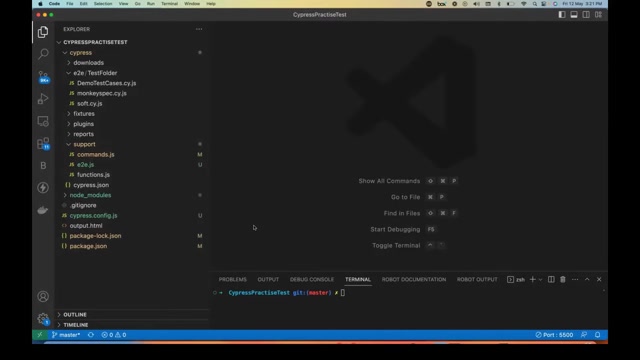
. This integration is particularly useful for documenting your work, creating confluence pages, and teaching concepts visually. It eliminates the need to switch between different applications, keeping your workflow streamlined.
With Draw.io, you can create various types of diagrams, including:
- Workflow diagrams
- Flowcharts
- UML diagrams
- Android and iOS-based diagrams
The plugin offers a wide range of shapes, connectors, and styling options, making it easy to create professional-looking diagrams. It’s a valuable tool for anyone looking to enhance their documentation or visualize complex processes. Draw.io seamlessly blends diagramming capabilities with the coding environment, enhancing both productivity and clarity.
The Draw.io extension isn't just for developers; it's a tool that bridges the gap between code and visual representation. It helps articulate complex systems, debug workflows, and document architectures within the familiar environment of Visual Studio Code. Whether you are a seasoned developer or a student, the ability to integrate diagrams directly into your coding projects is invaluable. The ease of creating and exporting diagrams ensures that project documentation remains current and accessible. Draw.io reduces the cognitive overhead involved in understanding complex codebases, enabling teams to work collaboratively and efficiently.
Benefits of Using Draw.io Integration
Using the Draw.io Integration offers numerous benefits for developers and other professionals
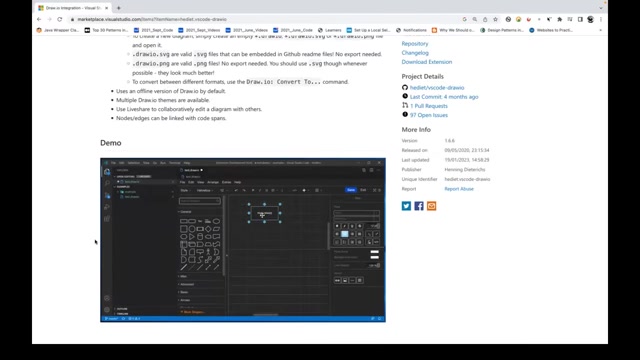
:
- Enhanced Documentation: Create clear and visually appealing documentation for your projects.
- Improved Teaching: Visualize complex concepts for better understanding and engagement.
- Streamlined Workflow: Design diagrams without leaving your Visual Studio Code environment.
- Versatile Diagram Creation: Supports a wide range of diagram types including workflow, UML, Android, and iOS-based diagrams.
- Free and Open Source: Access powerful diagramming capabilities without any cost.
It is really helpful for writing documentation and creating confidence pages. The main benefit of using Draw.io is that you are teaching someone, so the ability to create amazing workflow diagrams and flowcharts is a Game changer, especially if you are documenting code.
With Draw.io Integration, collaboration becomes more effective. Teams can work together on diagrams in real time, ensuring everyone is on the same page. The plugin supports multiple themes, allowing for customization to fit different project requirements. Regular updates and community support ensure that users have access to the latest features and troubleshooting assistance. Additionally, the ability to link nodes and edges with code spans directly integrates diagrams into the coding process, facilitating a seamless, unified workflow.
Installing and Using Draw.io Integration in Visual Studio Code
Step 1: Install Draw.io Integration
To install the Draw.io Integration, follow these simple steps
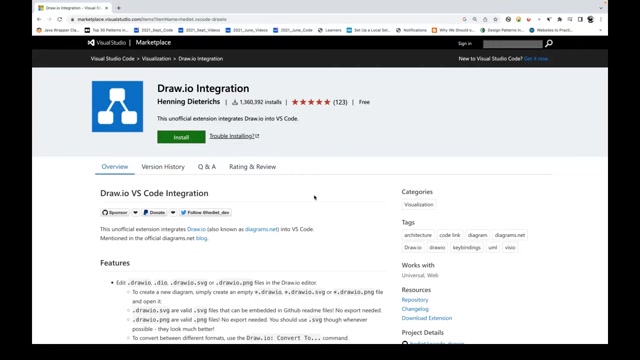
:
- Open Visual Studio Code.
- Go to the Extensions Marketplace by clicking on the Extensions icon in the Activity Bar on the side of the window.
- Type
Draw.io Integrationin the search box. - Select the first option,
Draw.io Integrationby Henning Dieterichs. Make sure it’s the one with over 1.3 million downloads and a five-star rating. - Click on the Install button. After a few seconds, the plugin will be installed.
- Click on Reload Required if prompted, to fully activate the extension.
That's it. Installation is now complete, and you're ready to begin using Draw.io within Visual Studio Code.
Step 2: Creating a New Diagram File
Once the plugin is installed, you can create a new diagram file within your project
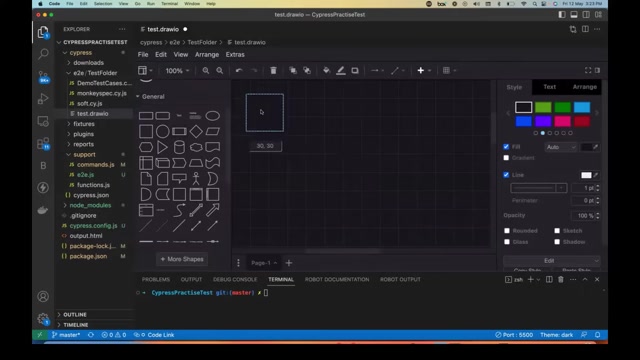
:
- Navigate to your project folder in the Explorer pane.
- Right-click in the folder where you want to create the diagram.
- Select New File.
- Name the file with a
.drawioextension (e.g.,test.drawio). You can also use other extensions like.dio,.drawio.svg, or.drawio.png. - Press Enter. The Draw.io editor will open automatically within Visual Studio Code.
Step 3: Designing Your Diagram
With the editor open, you can start designing your diagram
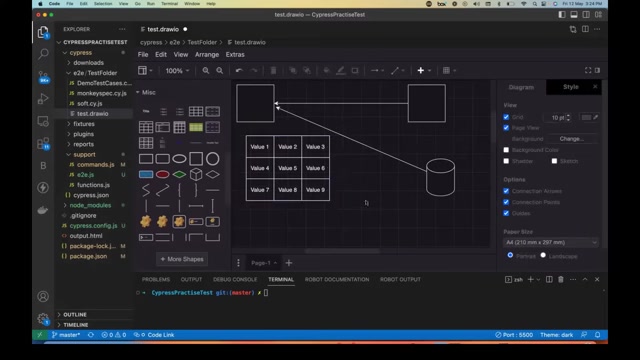
. Here’s how:
- Explore the Interface: Familiarize yourself with the tools on the left sidebar. Here, you’ll find various shapes, connectors, and other elements.
- Add Shapes: Drag and drop shapes from the sidebar onto the canvas.
- Connect Shapes: Use connectors to link shapes and illustrate relationships. Click on a shape, then drag from one of its edges to another shape.
- Add Text: Double-click on a shape to add and edit text.
- Customize: Use the options on the right sidebar to change the style, color, and properties of shapes and connectors.
For instance, you can create a simple workflow diagram by adding rectangle shapes for processes and arrows to indicate the flow. You can also create database diagrams using cylinder shapes and tables for data entities . Various diagram elements are available:
- General shapes: Squares, circles, triangles
- Miscellaneous shapes
- Advanced shapes: More complex elements for detailed diagrams
- Android and iOS icons: Design mobile app interfaces
- UML elements: Create class diagrams and other UML notations
Draw.io within Visual Studio Code makes creating even the most intricate diagrams easy and seamless.
Step 4: Exporting Your Diagram
Once you’re satisfied with your diagram, you can export it in various formats :
- Go to File in the menu bar.
- Select Export.
- Choose the desired format: You can export as SVG, PNG, or Draw.io file.
- Select the export settings and click on Export.
- Choose a location to save the file and click Save.
With these steps, your diagrams are easy to share with others.
| File Format | Use Case |
|---|---|
| SVG | Scalable vector graphics for web use |
| PNG | Image format for documentation |
| Draw.io | Native file for editing later |




Most people like







































Report
Please select a reason for reporting
- 13 Reasons to Switch from Snapchat to Text Messaging
- 7 Powerful Speech to Text Apps to Boost Productivity
- 10 Best Speech to Text Tools for Effortless Transcription
- 13 Free Tools to Easily Transcribe Audio to Text
- 15 Surprising Ways Google's Speech-to-Text Boosts Productivity
- 7 Best Free Online Audio to Text Transcription Tools
- 9 Tips to Transcribe Speech to Text Faster and Better
- 13 Best Speech to Text Software for Windows 10 in 2023
- 7 Tips for Choosing the Best Transcriber for Audio to Text
- 11 Reasons Why Dragon Speech-to-Text Apps are Game-Changers
- 6 Secrets to Enhance Your Speech to Text Transcription
- 6 Brilliant Ways to Boost Productivity with Talk-to-Text on Your MacBook
- 6 Ways Transcription Software Converts Audio to Text
- 8 Tips to Transcribe Speech to Text Like a Pro
- 6 Reasons IBM Watson Speech to Text is a Game-Changer
- 14 Powerful Ways Talk-to-Text Improves Your Workflow
- 12 Top Windows Speech-to-Text Software for Efficient Transcription
- 12 Game-Changing Benefits of Apple's Speech to Text Technology
- 9 Powerful Use Cases for AWS Speech to Text Technology
- 10 Easy Steps to Transcribe YouTube Videos to Text
- transcription audio en texte
- online audio transcription
- free audio file transcription
- free ai audio transcription
- audio transcription service
- audio transcription online free
- audio transcription free online
- audio to transcription software
- audio and transcript
- ai audio transcription free
- voice recording to text converter
- translate voice recording to text
- record voice to text
- audio recording to text converter
- voice recording and transcription
- chatgpt voice to text
- gmail voice to text
- speech to text reader
- speech to text ai free
- speech to talk
- Meshy AI: How to Create 3D Models from Text and Images
- How SEO and Marketing Dashboards Empower Agencies to Drive Results
- How to Use AI Tools to Find Internal Linking Opportunities Across a Business Website
- Discover Your Perfect Haircut with AI Hairstyle Apps
- Free Reputation Calculator Tools: How They're Adapting to Score AI Visibility, Not Just Rankings
- Design Professional Flyers for Free on Your Phone
- Best Free Flyer Maker Apps for Android: Design Like a Pro
- How to Know If Your Business Is Ready for an AI Customer Service Agent
- Revolutionizing Storytelling: From Novels to Screenplays with AI
- Create Engaging Animated Explainer Videos with a Free AI Tool
- Automate Lead Generation: A Comprehensive Guide with AI Agents
- Revideo.io: The Future of Reverse Video Search Technology
- Revolutionizing Email Marketing Agency with AI
- Breaking the Character Drift Dilemma: A Practical Test of Smart Shot
- Meshy AI: How to Create 3D Models from Text and Images
- ASOMobile Helps Teams Benchmark App Store Screenshots Against Competitors
- How to Match LMS Software With Your Organization's Training Plan
- How to Convert BTC to HNT
- Unleashing the Power of AI: Cognizant's Roadmap for Transformation
- Frame to Video Review: A Practical Look at Turning Two Still Frames Into Motion

Copyright ©2026 toolify