































Table of Contents
- Key Points
- Setting Up the AI PDF Reader Chatbot
- The Process Summarized: Configuring the AI PDF Reader Chatbot
- Interacting with the AI PDF Reader Chatbot
- Weighing the AI PDF Reader Chatbot: Balancing Benefits and Drawbacks
- FAQ
- Related Questions



Setting Up the AI PDF Reader Chatbot
Initial Steps: Logging into Sohimp.com and Purchasing the Tool
The first step involves navigating to Sohimp.com,
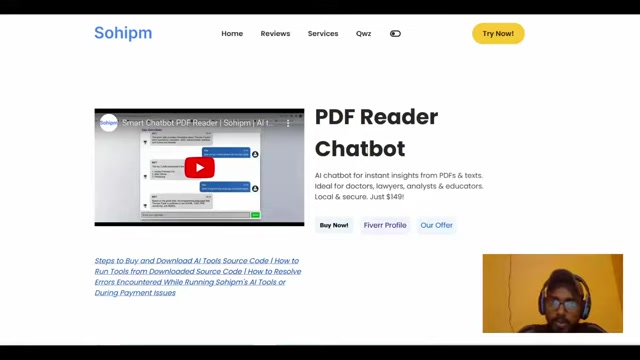
a platform offering the AI PDF Reader Chatbot. Once on the site, you'll need to log in to your account. If you don’t have an account, you will need to create one. After logging in, the next step is to purchase the AI PDF Reader Chatbot. This is typically done by clicking a 'Buy Now' button. This buy now action directs you to the purchase processing page. The Sohimp platform streamlines this entire operation, offering an intuitive interface for first time users.
Completing the Purchase and Downloading the Source Code
After clicking 'Buy Now', you'll be directed to a payment interface. The ai PDF Reader Chatbot is a paid tool that requires a one-time purchase fee.
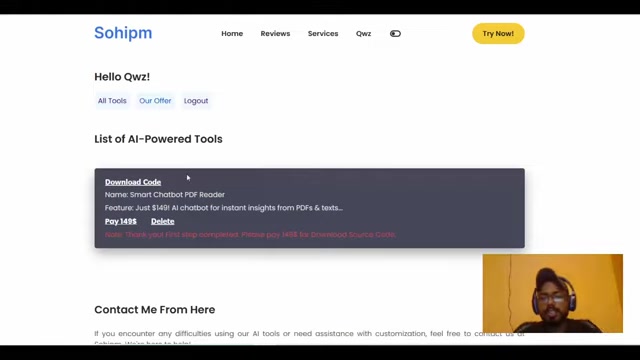
This initial investment unlocks powerful features that can greatly enhance productivity and efficiency. Once the payment is complete, a download link for the source code becomes available. This download typically comes as a ZIP file, which contains all the necessary components to run the chatbot on your local machine. The download source code process simplifies the process further for the users.
Extracting the Source Code and Preparing for Setup
The downloaded ZIP file needs to be extracted to a location on your local machine. This extraction process unveils a directory structure containing several files and folders that constitute the source code of the AI PDF Reader Chatbot.
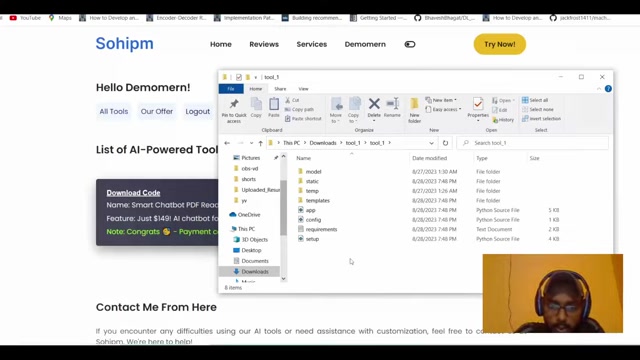
Commonly, the files are found within a folder that is titled Tool_1. The step of the extraction will ensure the further processing is unhindered. This folder contains Python scripts, configuration files, and other necessary resources that need to be deployed for the tool to be fully used.
Obtaining and Configuring the OpenAI API Key
A critical component of this AI PDF Reader Chatbot is the OpenAI API key.
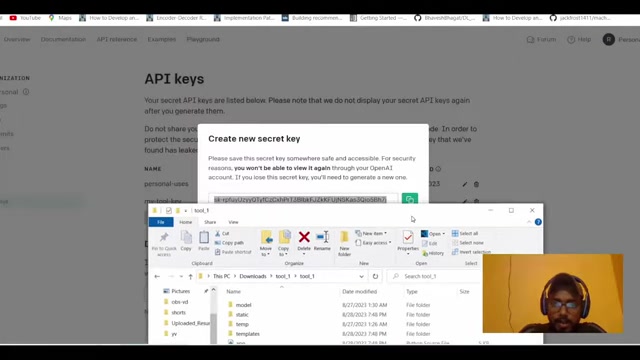
You'll need to have an OpenAI account to generate this unique key, which is used to authenticate your access to OpenAI's services. If you don’t have an account, head over to the OpenAI platform and sign up. After that, you’ll create a new secret key. In the OpenAI dashboard, you can generate a new secret key specifically for your tool. This key will be essential for enabling the AI functionality of the PDF Reader Chatbot. The code in this key should not be exposed and/or used without authorization.
Configuring the config.py File with Your OpenAI API Key
Once you have the API key,
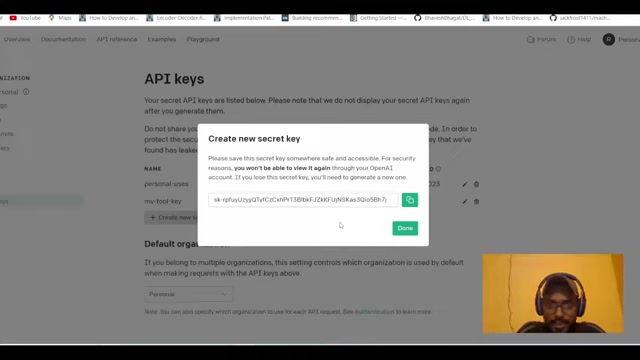
you’ll need to configure the config.py file within the extracted source code directory. This file contains settings that dictate how the chatbot interacts with external services and resources. Open the config.py file using a text editor such as Notepad, or TextEdit. Locate the line designated for the OpenAI API key, and replace the placeholder text with your actual API key. Save the file, ensuring the API key is correctly placed within the specified setting. This procedure enables the AI PDF Reader Chatbot to perform operations such as semantic analysis and context recognition.
Verifying and Navigating to the Correct Directory
Before running the chatbot, ensure your command line interface is pointing to the correct directory where the source code was extracted. Verify that the path in your command line matches the directory where the key components, like the app.py script, are located. Proper directory navigation is critical for successful operation.
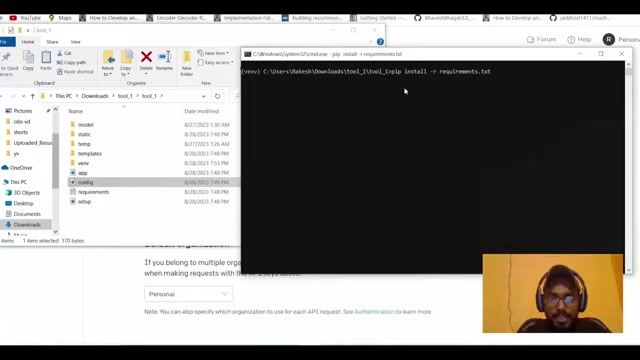
This should be checked very carefully for it to be used to its maximum benefit.
Installing Necessary Libraries with pip install
The AI PDF Reader Chatbot relies on a number of Python libraries to function correctly. These dependencies are listed in the requirements.txt file within the source code directory. To install these dependencies, use the command pip install -r requirements.txt in your command line.
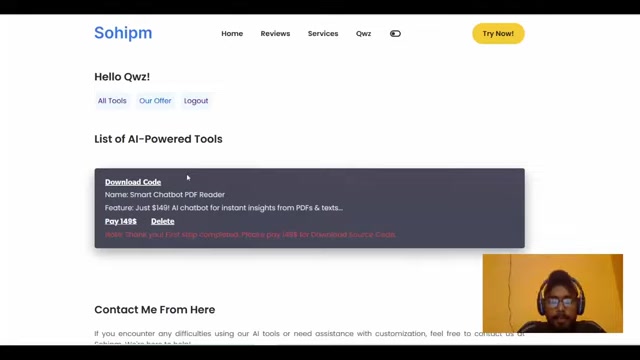
This command instructs pip, the Python package installer, to read the requirements.txt file and install all listed libraries. Successfully installing these dependencies is essential for ensuring that all the functionalities work properly. The following table summaries the step by step process to configuring the AI Reader Chatbot.
Interacting with the AI PDF Reader Chatbot
Accessing the Chatbot Interface
After successfully running the app.py script, a local server address is generated.
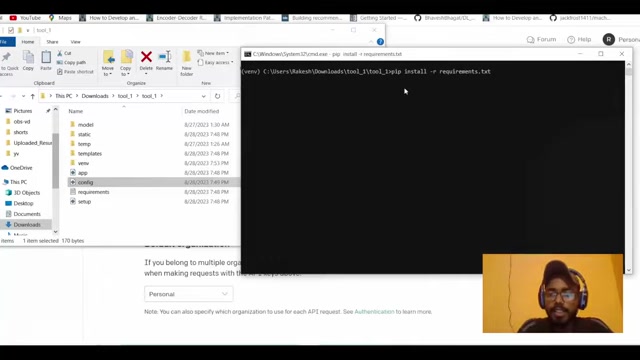
This address is typically displayed in the command line interface and will look something like http://127.0.0.1:8888/. By copying this address into your web browser, you’ll access the chatbot’s interface.
Choosing Your File
Within the chatbot interface, locate the file selection element. This feature allows you to upload the PDF or textual file from which you want to extract information.
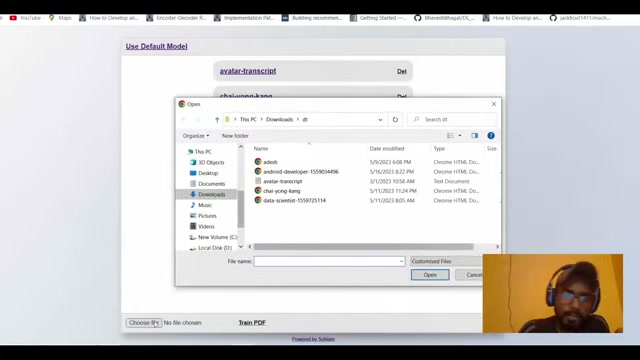
Click on the choose file to select a file.
Training the AI on Your Document
Once the file is selected, click on the button labeled Train PDF . This action initiates the AI engine, allowing it to ingest and analyze the contents of your document. The bot will learn its content and try to provide useful insights for the user.
Starting the conversation with your model.
Once the tool is trained successfully on the document the user may provide a specific Prompt in the enter your message area and the chatbot will answer to the best of its knowledge based on the document the model was trained with.






Most people like

































Report
Please select a reason for reporting
- 13 Reasons to Switch from Snapchat to Text Messaging
- 7 Powerful Speech to Text Apps to Boost Productivity
- 10 Best Speech to Text Tools for Effortless Transcription
- 13 Free Tools to Easily Transcribe Audio to Text
- 15 Surprising Ways Google's Speech-to-Text Boosts Productivity
- 7 Best Free Online Audio to Text Transcription Tools
- 9 Tips to Transcribe Speech to Text Faster and Better
- 13 Best Speech to Text Software for Windows 10 in 2023
- 7 Tips for Choosing the Best Transcriber for Audio to Text
- 11 Reasons Why Dragon Speech-to-Text Apps are Game-Changers
- 6 Secrets to Enhance Your Speech to Text Transcription
- 6 Brilliant Ways to Boost Productivity with Talk-to-Text on Your MacBook
- 6 Ways Transcription Software Converts Audio to Text
- 8 Tips to Transcribe Speech to Text Like a Pro
- 6 Reasons IBM Watson Speech to Text is a Game-Changer
- 14 Powerful Ways Talk-to-Text Improves Your Workflow
- 12 Top Windows Speech-to-Text Software for Efficient Transcription
- 12 Game-Changing Benefits of Apple's Speech to Text Technology
- 9 Powerful Use Cases for AWS Speech to Text Technology
- 10 Easy Steps to Transcribe YouTube Videos to Text
- transcription audio en texte
- online audio transcription
- free audio file transcription
- free ai audio transcription
- audio transcription service
- audio transcription online free
- audio transcription free online
- audio to transcription software
- audio and transcript
- ai audio transcription free
- voice recording to text converter
- translate voice recording to text
- record voice to text
- audio recording to text converter
- voice recording and transcription
- chatgpt voice to text
- gmail voice to text
- speech to text reader
- speech to text ai free
- speech to talk
- How SEO and Marketing Dashboards Empower Agencies to Drive Results
- How to Use AI Tools to Find Internal Linking Opportunities Across a Business Website
- Discover Your Perfect Haircut with AI Hairstyle Apps
- Free Reputation Calculator Tools: How They're Adapting to Score AI Visibility, Not Just Rankings
- Design Professional Flyers for Free on Your Phone
- Best Free Flyer Maker Apps for Android: Design Like a Pro
- How to Know If Your Business Is Ready for an AI Customer Service Agent
- Revolutionizing Storytelling: From Novels to Screenplays with AI
- Create Engaging Animated Explainer Videos with a Free AI Tool
- Stop Multi-Subscribing: Benchmark Top AI Visual Models in One Canvas
- AI & Elections: Defending Democracy Against Misinformation
- Navigating Political Discourse: AI, Deepfakes, and Reality Checks
- Detecting Political Bias in News Articles: A Powerful AI Algorithm
- AI Bias Unveiled: Political Leanings in ChatGPT & Beyond
- Revolutionize Learning: Discover Quizzes AI for Engaging Interactive Quizzes
- From AI-Generated to Audience-Ready: How Quillbot Humanize AI Is Changing the Content Editing Process
- Building an AI Writing Stack in 2026: LLMs, Detectors, and Humanizers
- 7 Top AI-Powered Database Assistant Platforms
- An Objective Look at Modern Web-Based Visual Modifications
- My Honest Experience with VideoAI: The Secret Weapon for Creators Who Need Character Voices

Copyright ©2026 toolify