































Table of Contents
- Key Points
- Understanding Descript's Background Removal Feature
- Step-by-Step Guide to Removing and Replacing Your Background in Descript
- Advanced Tips and Tricks for Descript Background Removal
- Descript Pricing Plans
- Advantages and Disadvantages of Using Descript for Background Removal
- Frequently Asked Questions about Descript Background Removal
- Related Questions



Understanding Descript's Background Removal Feature
What is Descript Background Removal?
Descript's background removal feature allows you to automatically isolate the subject of your video from its background. While it is labeled as a 'green screen' effect within the platform, no actual green screen is required. Descript uses AI to identify the subject and remove the surrounding background, making it transparent. This feature is useful for putting yourself in front of different backgrounds, removing clutter, or adding visual interest to your videos. It's important to note that the quality of the background removal can depend on factors like lighting, contrast, and the complexity of the background. Keep reading for tips to optimize these factors to enhance your results.
Key Benefits of Descript Background Removal:
- No Green Screen Required: Edit from anywhere without needing special equipment.
- AI-Powered Precision: Intelligent algorithms isolate subjects from their backgrounds.
- Versatile Use: Remove unwanted distractions or create dynamic scenes.
- Scene-Specific Application: Apply the effect only where you need it.
- Seamless Integration: Add new backgrounds directly within Descript.
Accessing the Green Screen (Background Removal) Feature in Descript
To access the background removal feature in Descript, you'll need to navigate to the 'Underlord' panel
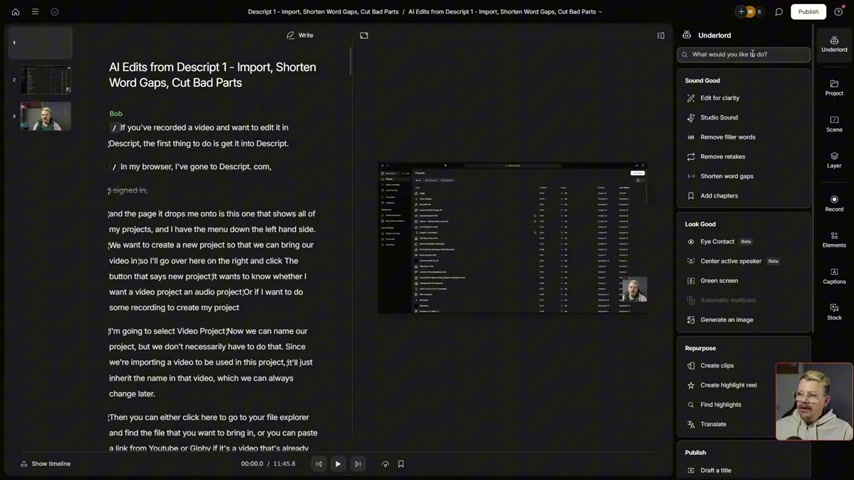
. If this panel isn't visible, click the 'Underlord' button on the right side of the Descript interface. Once the panel is open, look for the 'Look Good' section. Within this section, you'll find the 'Green Screen' option. Clicking 'Green Screen' activates the background removal process, initiating a blue pulsating indicator at the bottom of your screen, to indicate that the effect is processing and being applied. Make sure that it has applied, as the preview might not always update immediately, and toggling around in the scene can assist with that.
Step-by-Step Guide to Removing and Replacing Your Background in Descript
Step 1: Scene Division for Precision Editing
Begin by dividing your video into scenes
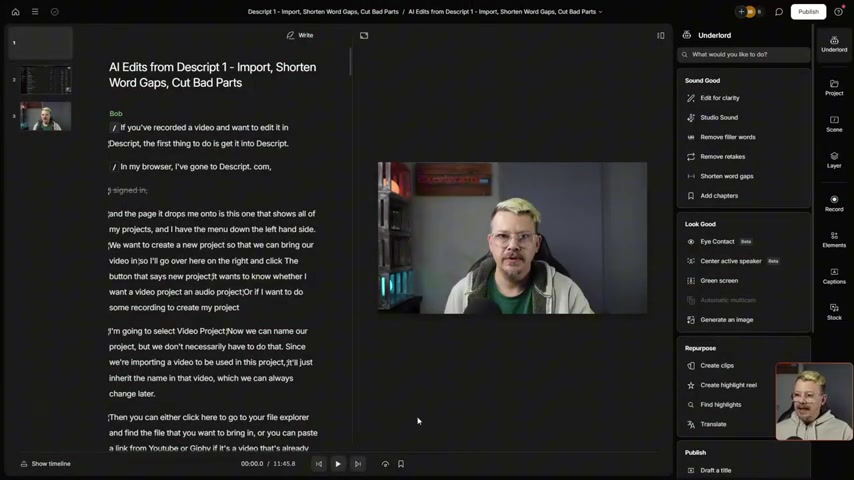
. This allows you to apply background removal to specific parts of your video rather than the entire composition. To divide your video, use the scene selection tools within Descript.
Step 2: Removing the Existing Background
Navigate to the scene you want to edit.
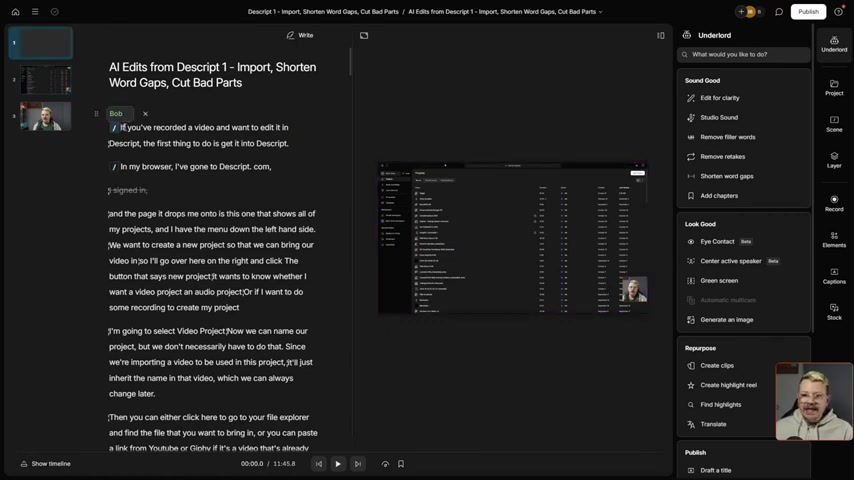
Open the 'Underlord' panel (if it’s not already open) and locate the 'Look Good' section. Click the 'Green Screen' option to initiate the background removal process. Descript will analyze the scene and automatically remove the background.
If the background removal doesn't produce the desired results (e.g., unwanted portions of the subject are removed), consider turning the toggle next to green screen off with the steps in the following section. Remember, good lighting and contrast can improve the accuracy of the feature. For sections where AI removal does not work well, it is better to leave the original background.
Step 3: Fine-Tuning the Background Removal
While Descript's AI does a decent job of removing backgrounds, if you find it removed things that it was not supposed to or cut out parts of your body, you can either:
-
Click the settings button to remove the green screen effects completely and start over
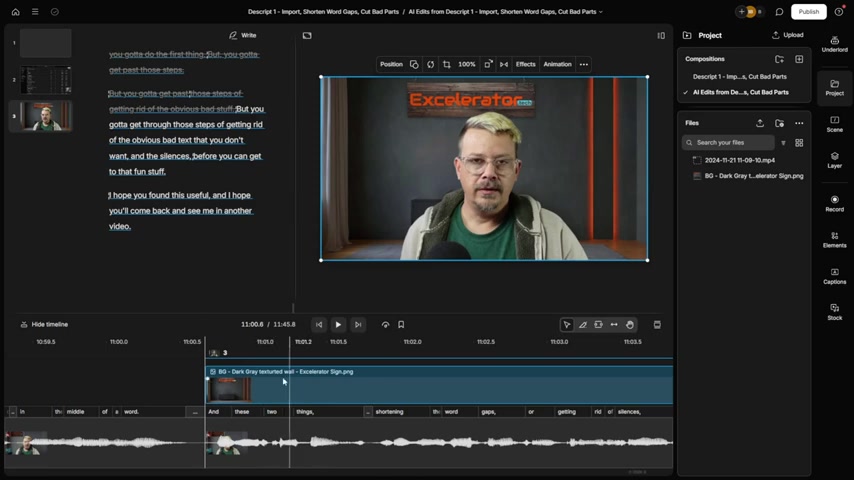
-
Avoid using the background removal in that section completely. You can always toggle it back on later for just the parts that you need it.
Step 4: Adding a New Background
Now that you've removed the existing background, you can add a new one. Descript provides several options for adding backgrounds:
- Import Your Own Media: If you have a specific image or video you want to use, import it into your Descript project. Then, drag the imported media onto the timeline and place it below the scene with the removed background. Make sure the background layer spans across the entire scene to properly fill it.
- Use Descript's Stock Library: Descript also offers a built-in stock library with a variety of images and videos . To access this library, click on the 'Stock' tab. Search for a background that suits your video and drag it onto the timeline below the scene with the removed background.
To adjust the layering, right click on the background image in the timeline and select, Layer Order -> Send to Back.





Most people like



































Report
Please select a reason for reporting
- 13 Reasons to Switch from Snapchat to Text Messaging
- 7 Powerful Speech to Text Apps to Boost Productivity
- 10 Best Speech to Text Tools for Effortless Transcription
- 13 Free Tools to Easily Transcribe Audio to Text
- 15 Surprising Ways Google's Speech-to-Text Boosts Productivity
- 7 Best Free Online Audio to Text Transcription Tools
- 9 Tips to Transcribe Speech to Text Faster and Better
- 13 Best Speech to Text Software for Windows 10 in 2023
- 7 Tips for Choosing the Best Transcriber for Audio to Text
- 11 Reasons Why Dragon Speech-to-Text Apps are Game-Changers
- 6 Secrets to Enhance Your Speech to Text Transcription
- 6 Brilliant Ways to Boost Productivity with Talk-to-Text on Your MacBook
- 6 Ways Transcription Software Converts Audio to Text
- 8 Tips to Transcribe Speech to Text Like a Pro
- 6 Reasons IBM Watson Speech to Text is a Game-Changer
- 14 Powerful Ways Talk-to-Text Improves Your Workflow
- 12 Top Windows Speech-to-Text Software for Efficient Transcription
- 12 Game-Changing Benefits of Apple's Speech to Text Technology
- 9 Powerful Use Cases for AWS Speech to Text Technology
- 10 Easy Steps to Transcribe YouTube Videos to Text
- transcription audio en texte
- online audio transcription
- free audio file transcription
- free ai audio transcription
- audio transcription service
- audio transcription online free
- audio transcription free online
- audio to transcription software
- audio and transcript
- ai audio transcription free
- voice recording to text converter
- translate voice recording to text
- record voice to text
- audio recording to text converter
- voice recording and transcription
- chatgpt voice to text
- gmail voice to text
- speech to text reader
- speech to text ai free
- speech to talk
- Meshy AI: How to Create 3D Models from Text and Images
- How SEO and Marketing Dashboards Empower Agencies to Drive Results
- How to Use AI Tools to Find Internal Linking Opportunities Across a Business Website
- Discover Your Perfect Haircut with AI Hairstyle Apps
- Free Reputation Calculator Tools: How They're Adapting to Score AI Visibility, Not Just Rankings
- Design Professional Flyers for Free on Your Phone
- Best Free Flyer Maker Apps for Android: Design Like a Pro
- How to Know If Your Business Is Ready for an AI Customer Service Agent
- Revolutionizing Storytelling: From Novels to Screenplays with AI
- Create Engaging Animated Explainer Videos with a Free AI Tool
- Meshy AI: How to Create 3D Models from Text and Images
- ASOMobile Helps Teams Benchmark App Store Screenshots Against Competitors
- How to Match LMS Software With Your Organization's Training Plan
- Revolutionizing Email Marketing Agency with AI
- How to Convert BTC to HNT
- Unleashing the Power of AI: Cognizant's Roadmap for Transformation
- Frame to Video Review: A Practical Look at Turning Two Still Frames Into Motion
- NVIDIA NIM: Revolutionizing Supply Chain Data Analysis with AI
- Top AI Tools That Help Brands Stand Out Offline (Not Just Online)
- Top 5 Cold Email Software: Maximize Your Outreach in 2025

Copyright ©2026 toolify