Equals Spreadsheet: AI-Powered Data Analysis & Automation

Updated on May 04,2025

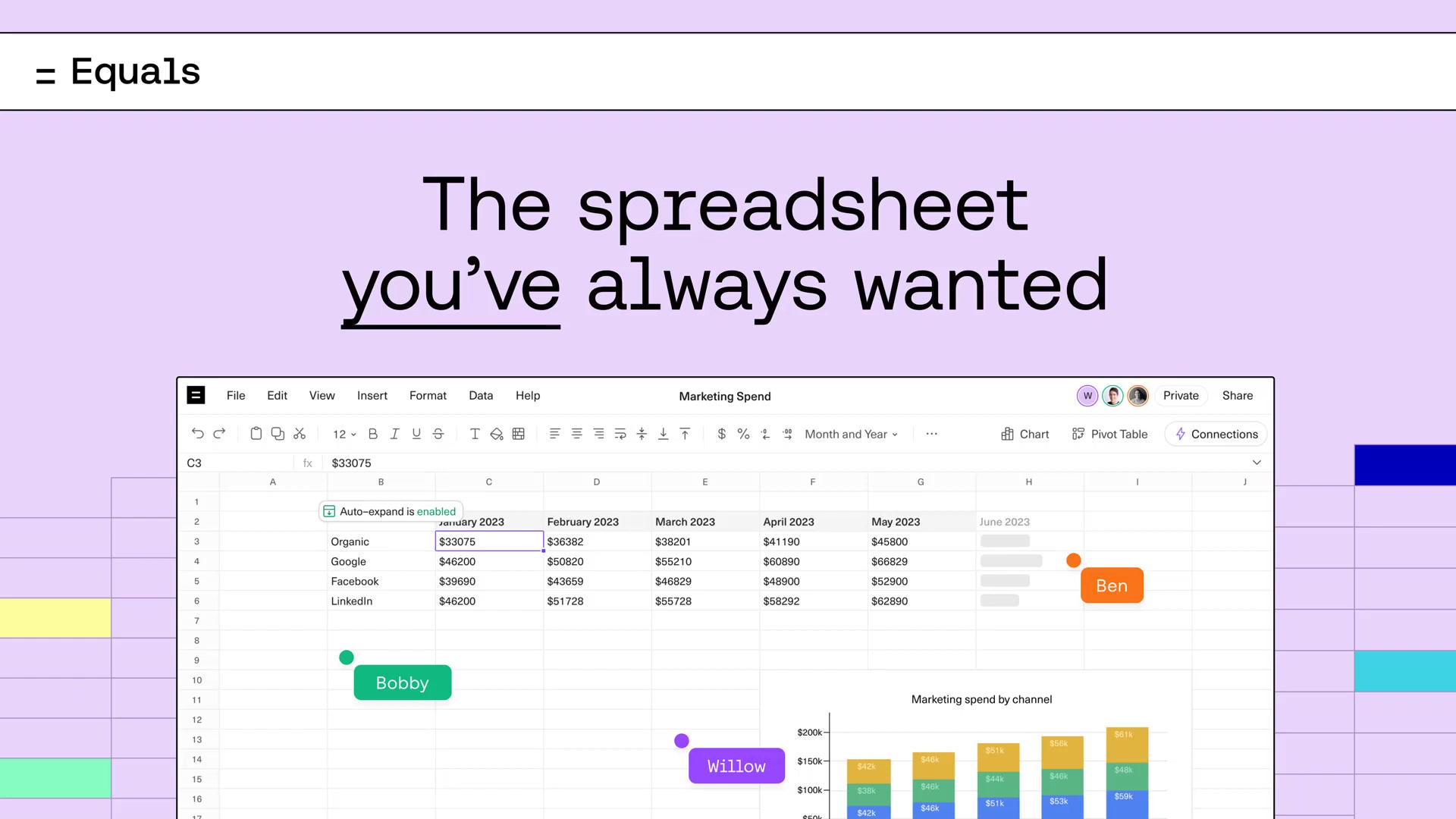
Tired of wrestling with complex spreadsheet formulas and manual data entry? Imagine a world where data analysis is intuitive and automated, empowering you to unlock insightful results with simple commands. Equals Spreadsheet is here to revolutionize your workflow, offering an AI-powered platform that connects to live data and simplifies complex tasks. Say goodbye to traditional spreadsheet limitations and hello to a new era of data-driven decision-making. Equals is the future of spreadsheet software.

Key Points

AI-Powered Formula Assistance: Generate complex formulas with simple text commands, eliminating the need for manual coding.

Live Data Connectivity: Connect directly to databases and other data sources for real-time insights and automated updates.

User-Friendly Interface: Enjoy an intuitive, collaborative environment designed for seamless data analysis.

Automated Task Management: Streamline repetitive tasks and processes, freeing up valuable time for strategic initiatives.

Advanced Charting and Visualization: Create dynamic charts and graphs to easily communicate complex data insights.

Enhanced Collaboration: Share spreadsheets and collaborate in real-time with your team, ensuring everyone stays informed.

SQL Integration: Seamlessly integrate SQL queries for advanced data manipulation and analysis.

Unveiling Equals Spreadsheet: The AI-Driven Revolution

What is Equals Spreadsheet?

Equals Spreadsheet is a next-generation data analysis tool designed to simplify complex spreadsheet tasks. It leverages artificial intelligence to automate processes, connect to live data sources, and provide intuitive formula assistance. Unlike traditional spreadsheets, Equals focuses on user experience and collaboration, making data analysis accessible to everyone. Equals spreadsheet empowers users to transform raw data into actionable insights with ease.

Equals Spreadsheet offers a seamless and intuitive data analysis experience. Its AI-powered features, live data connectivity, and collaborative environment empower users to streamline their workflows and unlock valuable insights. Whether you're a business analyst, data scientist, or finance professional, Equals Spreadsheet provides the tools you need to make data-driven decisions with confidence. Its intuitive interface makes complex tasks simpler, increasing productivity and efficiency.

The core benefit is its ability to bridge the gap between traditional spreadsheets and advanced data analytics platforms. By integrating AI and live data connectivity, Equals empowers users to move beyond manual data entry and formula creation. Users can create dynamic charts, automate reporting, and collaborate in real time, all within a single platform. This helps teams work more efficiently and make more informed decisions.

Equals Spreadsheet's focus on user experience sets it apart. The platform's intuitive interface and AI-powered assistance make complex tasks simpler, reducing the learning curve and increasing productivity. With Equals, users can transform raw data into actionable insights with ease. The platform's collaborative environment further enhances productivity by enabling teams to work together seamlessly. Equals simplifies data analysis so you can extract Meaningful insights effortlessly.

Key Features and Benefits of Equals Spreadsheet

Equals Spreadsheet offers a wide range of features and benefits designed to streamline your data analysis workflow:

  • AI Formula Assistance: Generate complex formulas by simply typing a text command. No more memorizing intricate syntax or debugging errors. Equals automatically translates your natural language into accurate formulas, saving you time and effort.
  • Live Data Connections: Connect to various data sources, including databases (Snowflake, BigQuery, PostgreSQL), cloud storage (Google Sheets), and APIs. This feature ensures that your data is always up-to-date, eliminating manual data entry and reducing the risk of errors.
  • Collaboration in Real-Time: Share spreadsheets with your team and collaborate in real-time. Equals supports multi-user editing, commenting, and version control, ensuring seamless teamwork.
  • Reporting Automation: Automate the process of creating and distributing reports. Schedule reports to be generated and sent automatically, saving you time and effort.
  • SQL Integration: If you're comfortable with SQL, you can use Equals' SQL editor to query your data directly. This provides greater flexibility and control over your data analysis.
  • Chart Generation: Effortlessly create compelling charts. Equals offers a variety of Chart types to choose from, allowing you to Visualize your data in the most effective way.
  • Customizable Interface: Tailor the platform to match your specific needs and preferences. Customize the layout, themes, and keyboard shortcuts to optimize your workflow.

Equals AI Assist: Revolutionizing Formula Creation

Simplifying Spreadsheet Formulas with AI

One of the most remarkable features of Equals is its AI-powered formula assistance. Imagine being able to generate complex spreadsheet formulas by simply typing what you want to achieve. This eliminates the need to memorize intricate syntax or spend hours debugging errors. Equals' AI assist translates your natural language into accurate formulas, saving you countless hours.

For example, instead of manually writing a complex IF(AND(...)) formula to calculate expenses based on specific date ranges, you can simply type "calculate expenses for 2022". Equals will generate the correct formula automatically. This feature is particularly useful for non-technical users who may find traditional spreadsheet formulas intimidating.

The benefits of this AI assistance are significant:

  • Time Savings: Generate formulas in seconds, freeing up valuable time for other tasks.
  • Reduced Errors: Eliminate manual coding errors and ensure formula accuracy.
  • Accessibility: Empower non-technical users to perform complex data analysis.
  • Learning Tool: Gain insights into spreadsheet formulas by seeing how Equals translates your commands.
  • Increased Productivity: Streamline your workflow and accomplish more in less time.

This AI Formula Assistance isn’t just a gimmick; it’s a transformative tool that empowers users of all skill levels to harness the full power of spreadsheet software. By simplifying formula creation, Equals makes data analysis more accessible and efficient. With Equals, data analysis becomes as straightforward as typing a command, thereby democratizing complex tasks.

Connecting Live Data: The Power of Real-Time Insights

Another Game-changing feature of Equals Spreadsheet is its ability to connect directly to live data sources. In traditional spreadsheets, you often have to manually import data from databases or other sources, which can be time-consuming and prone to errors. With Equals, you can connect to various data sources, including:

  • Databases (Snowflake, BigQuery, PostgreSQL)
  • Cloud Storage (Google Sheets)
  • APIs

This live data connectivity ensures that your data is always up-to-date. Any changes in the source data are automatically reflected in your spreadsheet, eliminating the need for manual updates and reducing the risk of working with outdated information.

For example, imagine that you're tracking your company's marketing spend across different channels. Instead of manually importing data from each Channel's reporting dashboard, you can connect Equals directly to your marketing database. This will automatically update your spreadsheet with the latest spend data, giving you real-time insights into your marketing performance.

The benefits of connecting live data are substantial:

  • Real-Time Insights: Get up-to-date data whenever you need it.
  • Automation: Eliminate manual data entry and updates.
  • Reduced Errors: Minimize the risk of working with outdated information.
  • Improved Decision-Making: Make more informed decisions based on accurate, real-time data.
  • Enhanced Efficiency: Streamline your workflow and focus on analysis, not data management.

Equals Spreadsheet's live data connectivity is a powerful tool for any data-driven organization. It empowers users to make decisions with confidence, knowing that they're always working with the latest information.

Getting Started with Equals: A Step-by-Step Guide

Using AI Assist for Quick Calculations

  1. Select a Cell: Begin by selecting the cell where you want the result of your calculation to appear.

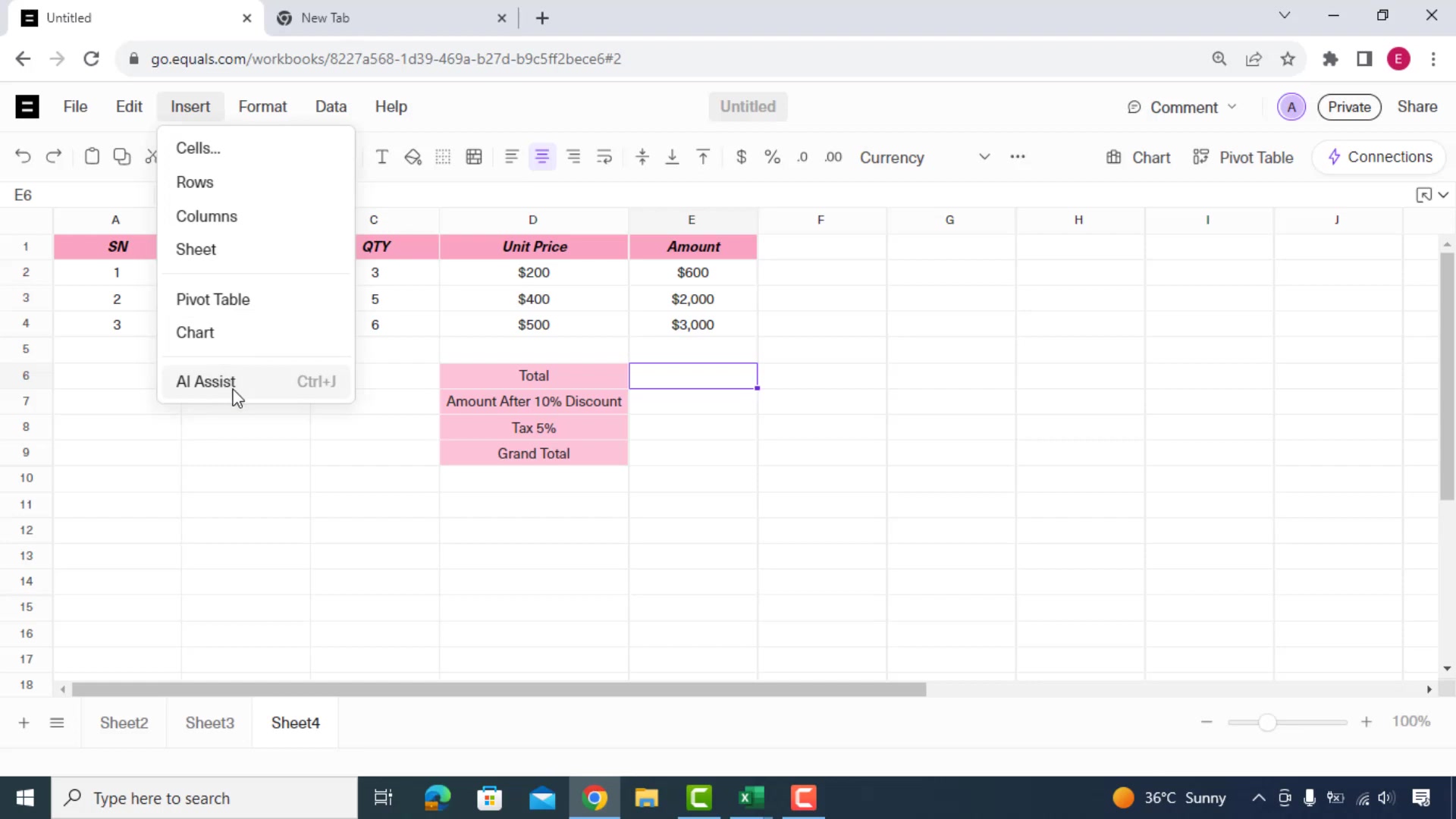
  2. Activate AI Assist: Navigate to the 'Insert' menu and click on 'AI Assist'. Alternatively, you can use the shortcut Ctrl+J (or Cmd+J on macOS).

  3. Type Your Command: In the AI Assist input field, type your calculation or formula in plain English. For instance, type 'total amount' or 'amount after 10% discount'. [t:43, 54]

  4. Equals Generates the Formula: Equals will analyze your command and automatically generate the appropriate formula.

  5. Review and Accept: Review the generated formula. If it looks correct, accept it, and the result will appear in the selected cell.

Automating Tasks with Simple Commands

  1. Select Target Cell: Click on the cell where you wish to generate a result.
  2. Open AI Assist: Press Ctrl+J to launch the AI Assist function.
  3. Enter Command: Describe what you need. Example: "student is pass if 65% or above marks"
  4. Review Output: Check if the output is aligned with your expectation.

Connecting to Live Data Sources

  1. Navigate to 'Connections': On the right side of the Equals interface, find and click on the 'Connections' tab.
  2. Select a Data Source: Choose the type of data source you want to connect to, such as Snowflake, BigQuery, or Google Sheets.
  3. Authenticate Connection: You'll need to authenticate the connection by providing your credentials and granting Equals access to your data source.
  4. Select a Table/Sheet: Once connected, select the specific table or sheet you want to import into your spreadsheet.
  5. Data Import: Equals will import the data into your spreadsheet. The connection remains active, ensuring your data is updated automatically.

Writing SQL Queries within Equals

  1. Open the Connection Pane: Click on 'Connection' on the right of screen.
  2. Create new Connection: create new connection with click 'Connect datasource'.
  3. Select Table/Sheet: select type then follow process.
  4. Connect: connect the table/sheet you want to import into your spreadsheet.
  5. Writing SQL Queries: press Ctrl+J and AI write query for you.
  6. Run and Data Import: select Run query button and check output. data will import into your spreadsheet.

Equals Spreadsheet Pricing: Flexible Options for Every User

Understanding Equals Pricing Plans

Equals Spreadsheet offers a range of pricing plans designed to accommodate individuals, teams, and enterprises. These plans vary based on the features included, the number of users supported, and the level of customer support provided. Here's a general overview of the pricing structure:

  • Free Plan: A limited free plan is available for individuals who want to try out Equals' basic features. This plan typically includes limited data connections, formula assistance, and collaboration features.
  • Pro Plan: The Pro plan is designed for individual professionals and small teams who need more advanced features. This plan typically includes more data connections, priority support, and enhanced collaboration tools.
  • Business Plan: The Business plan is tailored for larger teams and organizations that require advanced features and dedicated support. This plan typically includes unlimited data connections, custom branding, and dedicated account management.
  • Enterprise Plan: The Enterprise plan is designed for large organizations with complex data analysis needs. This plan typically includes custom pricing, dedicated support, and advanced security features.

For detailed pricing information, visit the Equals Spreadsheet website or contact their sales team.

Evaluating Equals: Weighing the Pros and Cons

👍 Pros

AI-Powered Formula Assistance: Simplifies formula creation and reduces errors.

Live Data Connectivity: Provides real-time insights and eliminates manual data entry.

Collaboration: Enables seamless teamwork and knowledge sharing.

Reporting Automation: Automates report generation and distribution.

User-Friendly Interface: Makes data analysis accessible to everyone.

Time-Saving: Boosts productivity by streamlining tasks and processes.

👎 Cons

Cost: Higher-tier plans can be expensive for some users.

Learning Curve: Initial setup and familiarization may require some time.

Data Security Concerns: Data security is a paramount concern, and users need to be assured about the safety of their data when connecting to external sources.

Potential Over-Reliance on AI: There's a risk of users over-relying on AI assistance without fully understanding the underlying formulas and calculations.

Equals Spreadsheet: Core Features Overview

Key Capabilities That Set Equals Apart

Equals Spreadsheet is packed with features designed to streamline your data analysis workflow and unlock valuable insights. Here are some of its core capabilities:

  • AI-Powered Formula Assistance: Generate complex formulas with simple text commands.
  • Live Data Connectivity: Connect to various data sources for real-time insights.
  • Collaboration: Share spreadsheets and collaborate in real-time.
  • Reporting Automation: Automate the creation and distribution of reports.
  • SQL Integration: Use SQL queries to manipulate and analyze data.
  • Chart Generation: Visualize your data with a variety of chart types.
  • Customizable Interface: Tailor the platform to your specific needs.
  • Pivot Tables: Analyze and summarize large datasets with ease.

Equals Spreadsheet in Action: Real-World Use Cases

How Equals Spreadsheet is Transforming Industries

Equals Spreadsheet is used across various industries and departments to streamline data analysis and improve decision-making. Here are some real-world use cases:

  • Finance: Financial analysts use Equals to track investments, forecast revenue, and analyze financial performance. The platform's live data connectivity allows them to monitor market trends in real-time, making more informed investment decisions.
  • Marketing: Marketing teams use Equals to track campaign performance, analyze website traffic, and measure ROI. The platform's AI-powered formula assistance helps them quickly generate reports and gain insights into their marketing efforts.
  • Sales: Sales teams use Equals to track sales performance, manage leads, and forecast revenue. The platform's collaboration features allow them to share spreadsheets and collaborate on sales strategies in real-time.
  • Operations: Operations teams use Equals to manage inventory, track production, and optimize logistics. The platform's reporting automation features help them monitor key performance indicators (KPIs) and identify areas for improvement.
  • Data Analysis: Effortlessly determine the 'highest sale month' with Equals, eliminating manual searching.
  • Student Result Analysis: Instantly determine if a 'student is pass' based on specified passing marks, enhancing academic management. [t:134, 197]

Frequently Asked Questions About Equals Spreadsheet

Is Equals Spreadsheet easy to use?
Yes, Equals Spreadsheet is designed to be user-friendly and intuitive. Its AI-powered formula assistance, streamlined interface, and collaborative environment make data analysis accessible to everyone, regardless of their technical expertise. The platform offers tooltips, tutorials, and excellent customer support to guide users. Equals simplifies complex tasks, increasing productivity. The platform’s intuitive interface and AI-powered features make it easy for anyone to analyze data and extract meaningful insights.
What data sources can I connect to with Equals?
Equals Spreadsheet supports various data sources, including databases (Snowflake, BigQuery, PostgreSQL), cloud storage (Google Sheets), and APIs. This allows you to connect to your existing data infrastructure and access real-time information. Equals continuously adds support for new data sources, ensuring compatibility with your data ecosystem. Check the Equals website for the latest list of supported data sources.
How secure is my data with Equals?
Equals Spreadsheet prioritizes data security and employs industry-standard security measures to protect your information. The platform uses encryption to secure data in transit and at rest. Equals also complies with relevant data privacy regulations and undergoes regular security audits. Equals ensures complete security for all sensitive data, safeguarding your information.
Can I collaborate with my team on Equals spreadsheets?
Yes, Equals Spreadsheet is designed for collaboration. You can easily share spreadsheets with your team and collaborate in real-time. The platform supports multi-user editing, commenting, and version control, ensuring seamless teamwork. Equals Spreadsheet enhances team efficiency and facilitates seamless project execution. Collaborating in Equals is easy to share spreadsheets and working together on data projects.
Does Equals Spreadsheet offer customer support?
Yes, Equals Spreadsheet offers excellent customer support. You can contact their support team via email, chat, or phone. The platform also provides a comprehensive knowledge base and tutorials to help you get started. Equals ensures prompt and helpful assistance, providing expert guidance and technical support.

Related Questions About Spreadsheet Software and Data Analysis

What are the key differences between Equals Spreadsheet and traditional spreadsheet software like Microsoft Excel and Google Sheets?
Equals Spreadsheet distinguishes itself from traditional spreadsheet software through its integration of AI-powered features, live data connectivity, and a focus on collaboration. While Excel and Google Sheets rely heavily on manual data entry and formula creation, Equals automates many of these processes, saving users time and effort. Additionally, Equals offers a more intuitive interface and enhanced collaboration tools, making it easier for teams to work together on data projects. In essence, Equals bridges the gap between traditional spreadsheets and advanced data analytics platforms. By connecting data and simplifying formulas, equals lets you analyze data faster. It is also easier to collaborate with others in your organization.
What are the benefits of using spreadsheet software for data analysis?
Spreadsheet software offers several benefits for data analysis: Accessibility: Spreadsheet software is widely available and relatively inexpensive, making it accessible to individuals and organizations of all sizes. Ease of Use: Most people are familiar with the basics of spreadsheet software, making it easy to get started with data analysis. Flexibility: Spreadsheet software can be used for a wide range of data analysis tasks, from simple calculations to complex statistical analysis. Visualization: Spreadsheet software offers various charting and graphing tools to visualize data and communicate insights effectively. Collaboration: Spreadsheet software facilitates collaboration by enabling users to share and edit data in real-time. Using tools like equals can improve productivity in data analysis. Its intuitive AI and collaborative features make sharing seamless.

What are some best practices for creating effective spreadsheets?
Here are some best practices for creating effective spreadsheets: Plan Your Layout: Before you start entering data, take some time to plan the layout of your spreadsheet. This will help you organize your data in a logical and consistent manner. Use Clear Headings: Use clear and descriptive headings for each column and row. This will make it easier for others to understand your data. Format Your Data: Format your data consistently to improve readability. This includes using consistent fonts, colors, and number formats. Use Formulas: Use formulas to automate calculations and reduce errors. Equals Spreadsheet can help you generate formulas quickly and easily. Validate Your Data: Validate your data to ensure accuracy and consistency. This includes using data validation rules to restrict the type of data that can be entered into each cell. Document Your Spreadsheet: Document your spreadsheet to explain the purpose of each column and row, as well as any formulas or calculations used. This will make it easier for others to understand and use your spreadsheet. Secure Your Spreadsheet: Protect your spreadsheet with a password to prevent unauthorized access.
What are some common mistakes to avoid when using spreadsheet software?
Here are some common mistakes to avoid when using spreadsheet software: Manual Data Entry: Avoid manual data entry whenever possible. Use live data connections or import data from other sources to reduce errors. Inconsistent Formatting: Avoid inconsistent formatting, which can make your spreadsheet difficult to read and understand. Ignoring Data Validation: Don't ignore data validation rules, which can help you prevent errors and ensure data consistency. Lack of Documentation: Avoid lack of documentation, which can make it difficult for others to understand and use your spreadsheet. Over-Reliance on Formulas: Don't over-rely on formulas without understanding how they work. This can lead to errors and incorrect results. Failing to Secure Your Spreadsheet: Don't fail to secure your spreadsheet, which can expose your data to unauthorized access.
How can I improve my data analysis skills?
Here are some ways to improve your data analysis skills: Take a Course: Enroll in a data analysis course to learn the fundamentals of data analysis techniques. Read Books: Read books and articles about data analysis to deepen your understanding of the subject. Practice: Practice your data analysis skills by working on real-world projects. Use Spreadsheet Software: Use spreadsheet software to analyze data and gain practical experience. Seek Feedback: Seek feedback from others on your data analysis work to identify areas for improvement. Start with equals!

Most people like