































Table of Contents
- Key Points
- Unlocking the Power of Excel AI for Data Analysis
- AI Formula Generation and Validation in Excel
- Step-by-Step Guide: Applying the AI-Generated Formula in Excel
- Evaluating Excel AI: Balancing Automation and User Experience
- Frequently Asked Questions About Excel AI
- Related Questions About Excel and AI


Unlocking the Power of Excel AI for Data Analysis
What is Excel AI?
Excel AI refers to the integration of Artificial Intelligence (AI) capabilities directly into Microsoft Excel. This allows users to perform advanced data analysis, automate complex tasks, and gain deeper insights from their data with greater ease and efficiency. These AI-driven features are designed to make Excel more accessible and powerful, especially for users who may not have extensive backgrounds in statistics or data science.
One of the core components of Excel AI is the introduction of AI-suggested formulas. Instead of manually crafting complex formulas, users can leverage AI to automatically generate the appropriate formulas based on their data and analytical goals. This can significantly reduce the time and effort required for data manipulation and analysis.
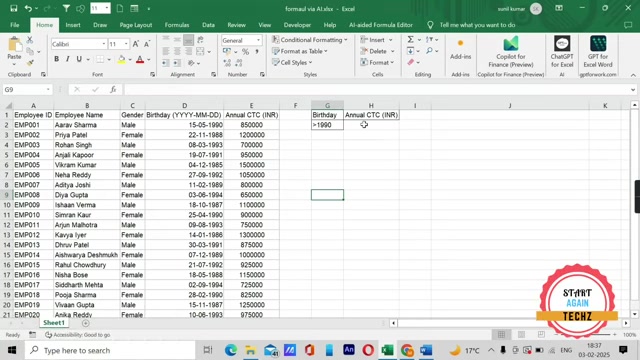
The AI algorithms can analyze data patterns and provide accurate, relevant formulas that would have previously required specialized knowledge.
Key Benefits of Excel AI:
- Automation: Excel AI automates repetitive tasks, reducing the time spent on manual data entry and formula creation.
- Accuracy: AI-driven formulas minimize the risk of human error, ensuring more accurate data analysis.
- Accessibility: Excel AI makes advanced analytical techniques accessible to a broader range of users, regardless of their technical expertise.
- Efficiency: By suggesting optimal formulas and automating tasks, Excel AI boosts overall efficiency and productivity.
- Insight Generation: AI helps uncover hidden patterns and insights in data, enabling better decision-making.
With Excel AI, users can transform raw data into meaningful information more quickly and effectively, making it a valuable tool for professionals across various industries. The combination of Excel’s familiar interface with the power of AI creates a synergistic solution that enhances data analysis capabilities and empowers users to achieve more with their spreadsheets.
Keywords: Excel AI, Artificial Intelligence, Data Analysis, AI formulas
Calculating Total CTC Based on Date of Birth: Leveraging AI for Formula Creation
One practical application of Excel AI is calculating the total Cost to Company (CTC) for employees born before a specific year. This task involves filtering data based on date of birth and summing the corresponding CTC values. Manually creating a formula to accomplish this can be complex, but with AI assistance, the process becomes significantly simpler.
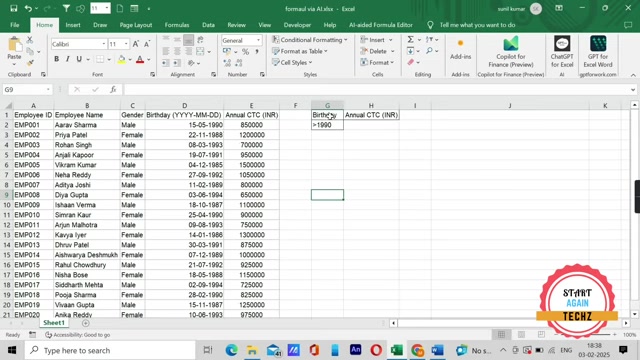
The challenge is to sum the annual CTC (INR) for all employees whose date of birth (DOB) is before 1990. Here’s how you can leverage AI to generate the necessary formula:
- Define the Task: Clearly state the objective. In this case, it's to calculate the total CTC for employees born before 1990.
- Identify Data Columns: Pinpoint the columns containing the DOB and annual CTC. For instance, DOB is in column D and CTC is in column E.
- Specify Date Format: Ensure you specify the date format used in the DOB column (e.g., DD-MM-YYYY). This helps the AI accurately interpret the dates.
- Use AI Assistance: Use AI Tools like ChatGPT to generate the formula based on your requirements. Input the task description, data columns, and date format to get a suitable formula.
For example, you could input the following Prompt into ChatGPT:
“I want to calculate the total CTC of employees who were born before 1990. The date of birth is in column D, the annual CTC is in column E, and the date format is DD-MM-YYYY. What formula should I use?”
The AI will then generate a formula that you can directly use in Excel. This saves significant time and reduces the risk of errors in manual formula creation.
Keywords: Total CTC, Date of Birth, Excel AI, AI Formulas, Data Columns
AI Formula Generation and Validation in Excel
Using ChatGPT to Generate Excel Formulas: A Step-by-Step Guide
ChatGPT, a powerful AI Tool, can be instrumental in generating Excel formulas for various data analysis tasks. By providing a clear and detailed description of your needs, you can receive accurate and efficient formulas tailored to your specific data set. Here's a comprehensive guide on how to use ChatGPT to generate Excel formulas:
- Access ChatGPT: Open a web browser and navigate to the ChatGPT interface.
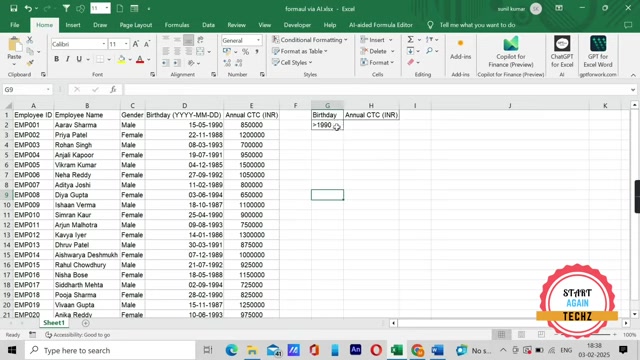
You may need to create an account or log in if you haven't already.
- Define the Task: Clearly outline the task you want to accomplish in Excel. Be as specific as possible to ensure the AI understands your requirements. Include details such as the columns involved, the date format (if applicable), and any conditions or criteria that need to be met.
- Provide Data Details: Specify the relevant data columns and their formats. For example, if you're working with dates, mention the date format (DD-MM-YYYY, MM-DD-YYYY, etc.). If you're calculating sums or averages, indicate the columns containing the numerical data.
-
Input the Prompt: Enter a well-structured prompt into ChatGPT's text input field. A good prompt should clearly describe the task, the data columns, and any conditions or criteria. For example:
“I need an Excel formula to calculate the total CTC (Cost to Company) for employees born before 1990. The date of birth (DOB) is in column D, the annual CTC is in column E, and the date format in column D is DD-MM-YYYY.”
- Generate the Formula: After entering the prompt, submit it to ChatGPT. The AI will analyze your request and generate an Excel formula designed to accomplish the specified task.
- Review and Refine: Carefully review the generated formula to ensure it aligns with your requirements. Check for any errors or inconsistencies. If necessary, provide additional details or refine the prompt to get a more accurate formula.
- Copy the Formula: Once you're satisfied with the generated formula, copy it to your clipboard.
By following these steps, you can effectively leverage ChatGPT to generate Excel formulas, saving time and effort in your data analysis tasks.
Keywords: ChatGPT, Excel Formulas, AI Assistance, Data Analysis Tasks
Verifying AI-Generated Excel Formulas for Accuracy: Essential Steps and Tips
While AI tools like ChatGPT can be incredibly helpful in generating Excel formulas, it’s crucial to verify the accuracy of these formulas to ensure that your data analysis is reliable and error-free.
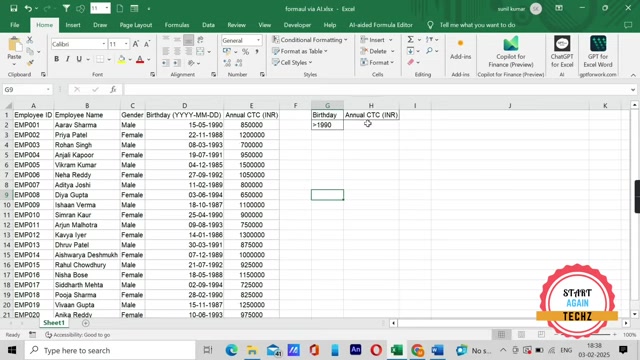
Here's a step-by-step guide on how to validate AI-generated Excel formulas:
- Understand the Formula: Take the time to understand what the AI-generated formula is intended to do. Break down the formula into smaller parts and analyze each component. This will help you identify potential issues or inconsistencies.
- Test with Sample Data: Input a small sample of your data into Excel and apply the AI-generated formula to this sample. Manually calculate the expected results for the sample data and compare these results with the values produced by the formula.
- Check Edge Cases: Identify edge cases or unusual data points in your data set. These could include missing values, zero values, or extreme outliers. Test the formula with these edge cases to ensure it handles them correctly.
- Use Excel's Formula Evaluation Tool: Excel has a built-in formula evaluation tool that allows you to step through the formula calculation process. This can help you pinpoint the exact point where an error occurs.
- Compare with Alternative Methods: If possible, compare the results of the AI-generated formula with results obtained using alternative methods or formulas. This can help you identify any discrepancies or inaccuracies.
- Seek Expert Review: If you're unsure about the accuracy of the formula, consider seeking a review from an Excel expert or a data analyst. They can provide valuable insights and help you identify any potential issues.
- Use Filtering for Validation: Implement filtering on the relevant columns (such as Date of Birth) to manually verify the results produced by the AI-generated formula. This ensures the formula accurately captures the intended data subset.
By following these steps, you can effectively validate AI-generated Excel formulas and ensure that your data analysis is accurate and reliable. Remember, while AI can be a powerful tool, human oversight is essential to maintaining data integrity.
Keywords: Verify formulas, Excel AI, Validation, Data Analysis, Test with sample data
Step-by-Step Guide: Applying the AI-Generated Formula in Excel
Implementation
Once you have the AI-generated formula, applying it in Excel involves a few straightforward steps:
- Copy the Formula: From the AI tool (like ChatGPT), copy the formula that has been generated. Make sure to copy the entire formula without missing any characters.
- Open Excel: Open the Excel spreadsheet where you want to perform the calculation.
- Select the Target Cell: Choose the cell where you want the total CTC to be displayed. This is typically an empty cell where the result will be shown.
- Paste the Formula: In the selected cell, paste the formula. Remember to precede the formula with an equals sign (=) to let Excel know that it is a formula.
- Adjust Cell References:
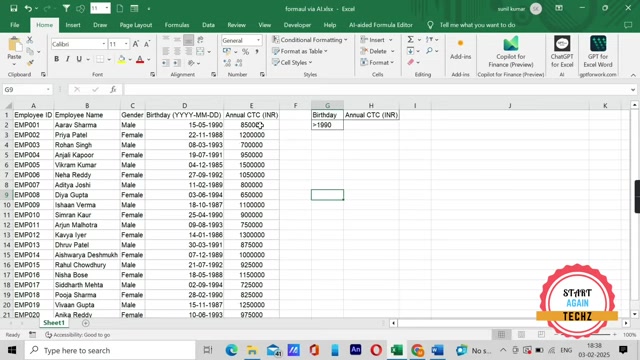
Review the formula and adjust any cell references as necessary. The AI might not always get the cell references correct based on your specific spreadsheet layout.
- Press Enter: Press the Enter key to execute the formula. Excel will calculate the total CTC based on the conditions specified in the formula.
Following these steps ensures that the AI-generated formula is correctly implemented in Excel, providing accurate results for your data analysis needs.
Keywords: Excel Formula, Data implementation, Cell Reference, AI generated formula


Most people like




































Report
Please select a reason for reporting
- 13 Reasons to Switch from Snapchat to Text Messaging
- 7 Powerful Speech to Text Apps to Boost Productivity
- 10 Best Speech to Text Tools for Effortless Transcription
- 13 Free Tools to Easily Transcribe Audio to Text
- 15 Surprising Ways Google's Speech-to-Text Boosts Productivity
- 7 Best Free Online Audio to Text Transcription Tools
- 9 Tips to Transcribe Speech to Text Faster and Better
- 13 Best Speech to Text Software for Windows 10 in 2023
- 7 Tips for Choosing the Best Transcriber for Audio to Text
- 11 Reasons Why Dragon Speech-to-Text Apps are Game-Changers
- 6 Secrets to Enhance Your Speech to Text Transcription
- 6 Brilliant Ways to Boost Productivity with Talk-to-Text on Your MacBook
- 6 Ways Transcription Software Converts Audio to Text
- 8 Tips to Transcribe Speech to Text Like a Pro
- 6 Reasons IBM Watson Speech to Text is a Game-Changer
- 14 Powerful Ways Talk-to-Text Improves Your Workflow
- 12 Top Windows Speech-to-Text Software for Efficient Transcription
- 12 Game-Changing Benefits of Apple's Speech to Text Technology
- 9 Powerful Use Cases for AWS Speech to Text Technology
- 10 Easy Steps to Transcribe YouTube Videos to Text
- transcription audio en texte
- online audio transcription
- free audio file transcription
- free ai audio transcription
- audio transcription service
- audio transcription online free
- audio transcription free online
- audio to transcription software
- audio and transcript
- ai audio transcription free
- voice recording to text converter
- translate voice recording to text
- record voice to text
- audio recording to text converter
- voice recording and transcription
- chatgpt voice to text
- gmail voice to text
- speech to text reader
- speech to text ai free
- speech to talk
- ChatGPT Knows Ford. It Just Doesn't Quote Ford
- Meshy AI: How to Create 3D Models from Text and Images
- How SEO and Marketing Dashboards Empower Agencies to Drive Results
- How to Use AI Tools to Find Internal Linking Opportunities Across a Business Website
- Discover Your Perfect Haircut with AI Hairstyle Apps
- Free Reputation Calculator Tools: How They're Adapting to Score AI Visibility, Not Just Rankings
- Design Professional Flyers for Free on Your Phone
- Best Free Flyer Maker Apps for Android: Design Like a Pro
- How to Know If Your Business Is Ready for an AI Customer Service Agent
- Revolutionizing Storytelling: From Novels to Screenplays with AI
- AI Video Editor Review: A Hands-On Look at Prompt-Based Video Editing
- Keep Characters Consistent Across Scenes With Image-to-Video AI
- How to Convert BTC to HNT
- ProxyWing DuckDuckGo Proxy Review: Plans, Setup and Who It Is For
- ChatGPT Knows Ford. It Just Doesn't Quote Ford
- Automate Lead Generation: A Comprehensive Guide with AI Agents
- Revideo.io: The Future of Reverse Video Search Technology
- Revolutionizing Email Marketing Agency with AI
- Breaking the Character Drift Dilemma: A Practical Test of Smart Shot
- Meshy AI: How to Create 3D Models from Text and Images

Copyright ©2026 toolify