































Table of Contents
- Key Points for Radeon Graphics Card Stability
- Understanding AMD Driver Crashes
- Troubleshooting AMD Radeon Driver Crashes
- How to Fine-Tune AMD Radeon Settings for Stability and Performance
- Frequently Asked Questions (FAQs)
- Further Insights


Understanding AMD Driver Crashes
Identifying the Issue
AMD driver crashes can manifest in various ways, such as screen freezes, system restarts, or error messages indicating a driver failure.
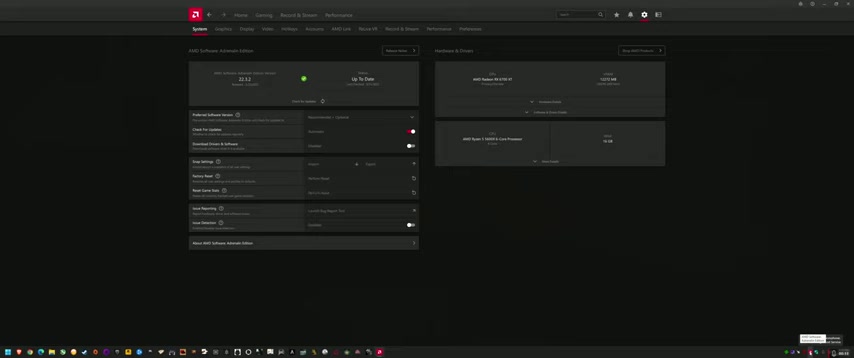
A common symptom is the disappearance of the Radeon driver icon, suggesting that the driver process has terminated unexpectedly. It’s essential to recognize these symptoms to effectively troubleshoot the problem. Many users find themselves in the same boat, so let's get this AMD Radeon back on track! Driver crashes can be really annoying especially since they usually occur at very inconvenient times.
Common Causes of Driver Crashes
Several factors can contribute to AMD driver crashes, including:
- Driver Issues: Bugs or compatibility problems in the driver software itself.
- Overclocking/Overvolting: Unstable clock speeds or voltages applied to the graphics card.
- Overheating: Excessive temperatures causing the graphics card to malfunction.
- Conflicting Software: Conflicts with other software, such as overlays or monitoring tools.
- Hardware Problems: Underlying issues with the graphics card or other system components. Some of the older AMD versions don't play well with the newer cards.
Understanding the root cause is crucial for implementing the correct solution. In addition, AMD seems to be changing the user's tuning tab.
Troubleshooting AMD Radeon Driver Crashes
Adjusting AMD Radeon Adrenalin Settings
The AMD Radeon Adrenalin software provides a range of settings that can impact driver stability. Here's how to optimize these settings to reduce crashes:
- Check for Updates: Ensure you are running the latest recommended AMD driver version.
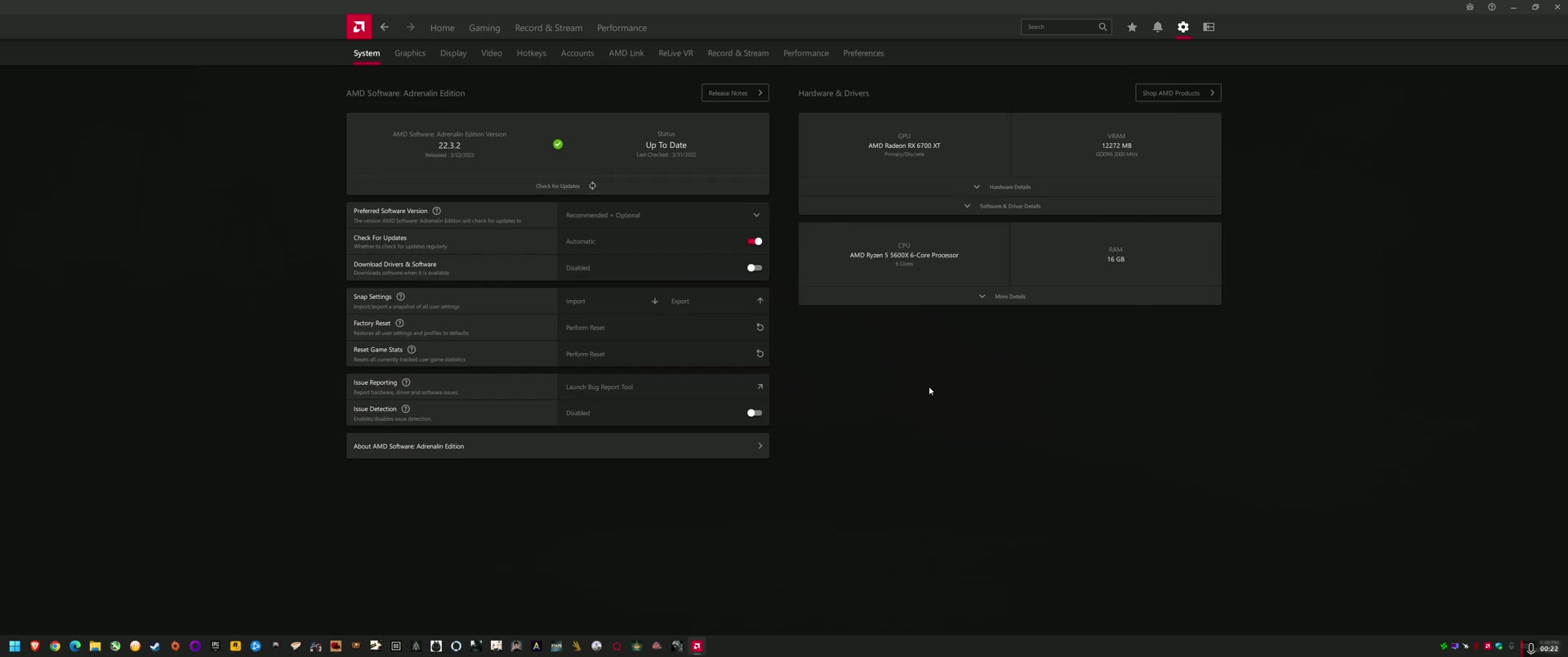
Outdated drivers are a frequent cause of instability, so keep your Radeon up-to-date.
- Preferred Software Version: Set the software to 'Recommended + Optional' to get new versions but recommended for stable performance.
- Disable Check for Updates: It might help to get a stable AMD Radeon first before updating again.
- Tuning Tab: Check the user's Tuning Tab under Performance to ensure that the GPU is optimized . AMD seems to be changing the user's tuning tab.
Tuning Settings
Consider going back about 10 driver versions to potentially start the 2020 drivers, which used to have control settings for minimum/maximum voltages
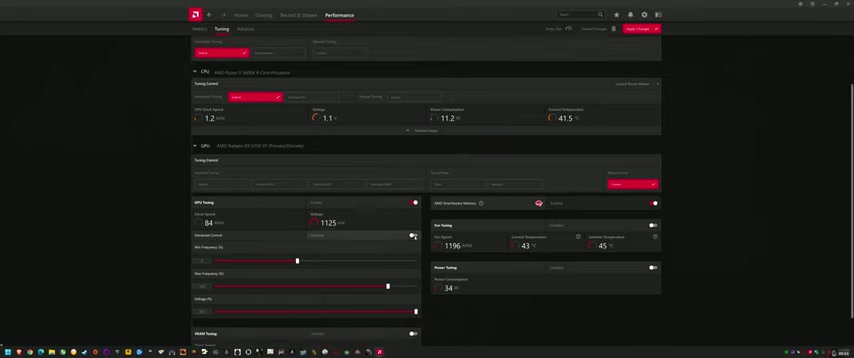
. It might be that the newest drivers are being tweaked to try and improve user stability, so it can impact after market GPUs . Some of the common troubleshooting methods include:
- Load Undervolt Profile: Load an undervolt profile in the Adrenalin software. Loading an under-volt profile can reduce crash issues.
- Boost Undervolt: It might help to boost the undervolt by 10mv and can potentially resolve the crash .
- Disable VRAM: Disable VRAM to improve driver stability .
- Set Frequencies: Set Maximum Frequency and Minimum Frequency
-
Setting Maximum Frequencies: Set the user's maximum frequencies (start with knocking 100MHz off the max frequency). The default frequency is like 280MHz, so knock off 100MHz to start .
These tuning settings, specifically max frequencies, also affect voltage ranges . AMD does change the driver so settings that worked on previous drivers, may not work on newly updated drivers. Check on AMD Radeon frequently to account for all the newly released drivers.
Disabling Additional Features
Disable additional AMD Radeon features to reduce the amount of things that can cause crash issues:
- AMD Overlay: Disable In-Game Overlay; it might be the cause of crash issues
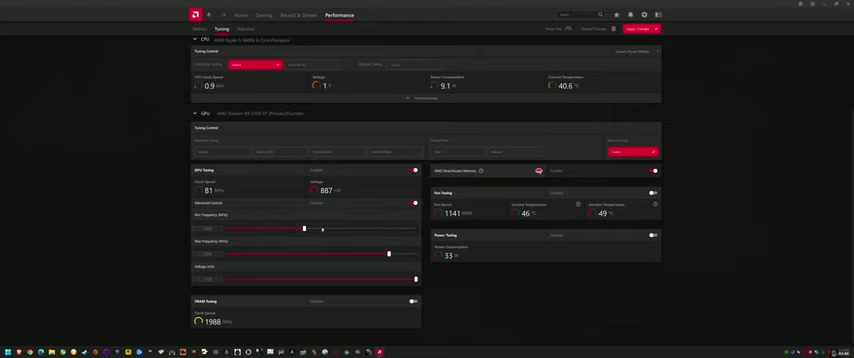
. This can often times impact the user's GPU.
- Quick Tip: Keep system Tray Menu for AMD.
- Radeon Super Resolution: Radeon Super Resolution may be incompatible with FidelityFX .
Make sure to apply the appropriate changes after the various settings mentioned.
Power and thermal consideration
Power and heat may impact AMD Radeon GPU stability. Users can consider:
- Power Boost: Boost an undervolt by 10 millivolts.
- Thermal Paste: Check thermal paste on both GPU and CPU.
- Clean the system: Clean the dust and grime off the system for appropriate cooling.
Soft Mod Methodology
More Power Tool can enter the registry and load into it with MPT files. It may be possible to load the MPT settings before the driver gets loaded up to improve overall performance and system stability
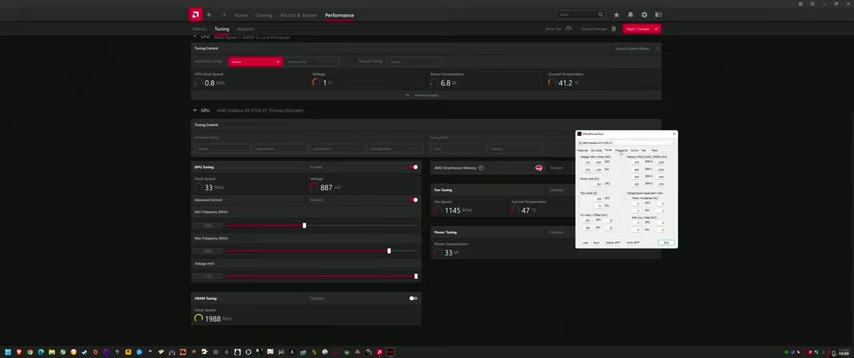
. Make sure that the zero RPM is disabled to further improve system stability.
There are a few steps here to further system stability with this method:
- Download GPZ to get the BIOS (this is not a BIOS mod, you are just extracting the reference table for all the important parameters.)
- Download More Power Tool (MPT).
- After opening MPT, click to select the proper GPU that is blank, which requires the file to be loaded from GPUZ
- Load BIOS
- Write SPPT
The method ensures that when drivers are loaded the software works efficiently . After the driver update, update the soft mod MPT file for all subsequent drivers and settings for AMD Radeon.





Most people like

































Report
Please select a reason for reporting
- 13 Reasons to Switch from Snapchat to Text Messaging
- 7 Powerful Speech to Text Apps to Boost Productivity
- 10 Best Speech to Text Tools for Effortless Transcription
- 13 Free Tools to Easily Transcribe Audio to Text
- 15 Surprising Ways Google's Speech-to-Text Boosts Productivity
- 7 Best Free Online Audio to Text Transcription Tools
- 9 Tips to Transcribe Speech to Text Faster and Better
- 13 Best Speech to Text Software for Windows 10 in 2023
- 7 Tips for Choosing the Best Transcriber for Audio to Text
- 11 Reasons Why Dragon Speech-to-Text Apps are Game-Changers
- 6 Secrets to Enhance Your Speech to Text Transcription
- 6 Brilliant Ways to Boost Productivity with Talk-to-Text on Your MacBook
- 6 Ways Transcription Software Converts Audio to Text
- 8 Tips to Transcribe Speech to Text Like a Pro
- 6 Reasons IBM Watson Speech to Text is a Game-Changer
- 14 Powerful Ways Talk-to-Text Improves Your Workflow
- 12 Top Windows Speech-to-Text Software for Efficient Transcription
- 12 Game-Changing Benefits of Apple's Speech to Text Technology
- 9 Powerful Use Cases for AWS Speech to Text Technology
- 10 Easy Steps to Transcribe YouTube Videos to Text
- transcription audio en texte
- online audio transcription
- free audio file transcription
- free ai audio transcription
- audio transcription service
- audio transcription online free
- audio transcription free online
- audio to transcription software
- audio and transcript
- ai audio transcription free
- voice recording to text converter
- translate voice recording to text
- record voice to text
- audio recording to text converter
- voice recording and transcription
- chatgpt voice to text
- gmail voice to text
- speech to text reader
- speech to text ai free
- speech to talk
- How to Use AI Tools to Find Internal Linking Opportunities Across a Business Website
- Discover Your Perfect Haircut with AI Hairstyle Apps
- Free Reputation Calculator Tools: How They're Adapting to Score AI Visibility, Not Just Rankings
- Design Professional Flyers for Free on Your Phone
- Best Free Flyer Maker Apps for Android: Design Like a Pro
- How to Know If Your Business Is Ready for an AI Customer Service Agent
- Revolutionizing Storytelling: From Novels to Screenplays with AI
- Create Engaging Animated Explainer Videos with a Free AI Tool
- Stop Multi-Subscribing: Benchmark Top AI Visual Models in One Canvas
- Best Seedance 2.5 API Provider: Every Price on the Market, Checked at Source
- Top AI Social Media Management Tools: Automate Your Content Strategy
- Free AI Text to Video Generator: Create Stunning Videos from Text
- Discover 17 ChatGPT Alternatives: A Comprehensive Comparison
- Character.AI vs. Janitor AI: Which AI Chat Platform Reigns Supreme?
- Top Virtual Assistant Companies in 2026: Reviews, Pricing, and Plans Compared
- Unveiling FaceCheck.ID: Revolutionizing Reverse Image Searches with AI
- 11 Best AI Dialers in 2026: Features, Pricing, Pros and Cons
- How I Direct Consistent AI Clips: A Hands-On Guide to Multi-Model Generation
- A Realistic Review of the Photo Generator Image Tool
- Playwright MCP Server: Automated Web Testing with Agent Mode

Copyright ©2026 toolify