































Table of Contents
- Key Points
- Understanding the Compiler Problem in Code::Blocks
- Additional Tips and Tricks for Code::Blocks
- Step-by-Step Guide to Fixing Compiler Problems
- Code::Blocks Pricing
- Core Features of Code::Blocks
- Ideal Use Cases for Code::Blocks
- Frequently Asked Questions
- Related Questions


Understanding the Compiler Problem in Code::Blocks
Why Does the 'File Has Not Been Built Yet' Error Occur?
When you attempt to run a C program in Code::Blocks without first building it, you might encounter an error message stating, 'It seems that this file has not been built yet. Do you want to build it now?'
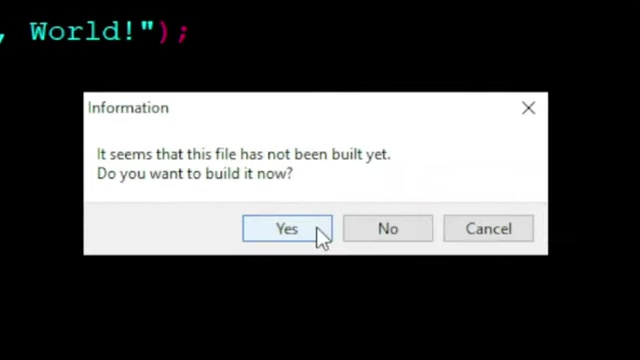
This is because the source code needs to be compiled into an executable file before it can be executed. The build process involves translating the human-readable C code into machine code that the computer can understand. If the compiler isn't correctly configured or missing entirely, this process fails, leading to the error. The compiler acts as a bridge between your code and the computer's processor, and its absence prevents the program from running.
Verifying the Compiler's Path is Critical
The error frequently occurs when Code::Blocks doesn't know where to find the compiler. This is a typical situation when you have installed Code::Blocks, but the compiler environment wasn't automatically detected during the installation. To successfully resolve the compiler problems, you will need to ensure the proper setup of the compiler's path in the settings of Code::Blocks. Properly configuring your compiler path is the first step to resolving this issue.
Step-by-Step Guide to Fixing Compiler Problems
Downloading Code::Blocks
Let’s start by getting Code::Blocks downloaded and installed. The initial step involves navigating to the official Code::Blocks website to download the software.
- Visit the Code::Blocks Official Website:
Begin by opening your web browser and navigating to the official website of Code::Blocks: www.codeblocks.org
- Navigate to the Downloads Section: Once on the homepage, locate and click on the 'Downloads' link. This is usually found in the left-hand navigation panel.
- Select Binary Release: Within the downloads section, you’ll find several options. Click on 'Download the binary release'.
- Choose Your Operating System: You'll be presented with options for different operating systems (Windows, Linux, macOS). Select the one that corresponds to your system.
- Select the Correct Download Link: Here’s where it’s crucial to make the right choice. On the subsequent page, carefully pick the version that includes MinGW (Minimalist GNU for Windows) if you’re on Windows. This bundle integrates the GCC (GNU Compiler Collection) compiler, essential for compiling C and C++ code. Typically, the file name will contain 'mingw'. The latest versions can be located using this search term: codeblocks-20.03mingw-setup.exe
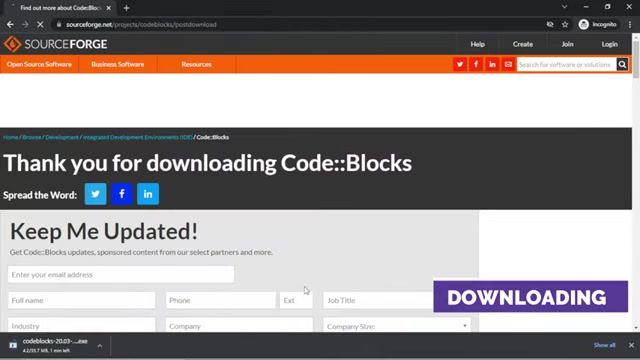
- Start the Download: The website will redirect you to SourceForge or FossHub to start your download.
Installing Code::Blocks with MinGW
Installing Code::Blocks with MinGW includes the integrated Gnu Compiler. Once the download is complete, proceed with the installation.
- Run the Installer: Locate the downloaded .exe file (e.g., codeblocks-20.03mingw-setup.exe) and double-click it to start the installation process.
- Follow the Setup Wizard: The installation wizard will guide you through the process. It is recommended to follow these steps:
- Click 'Next' on the welcome screen.
- Read and accept the license agreement by clicking 'I Agree'.
- Ensure that you select the 'Full' installation option when prompted to choose the components to install. This ensures that all necessary components, including the MinGW compiler, are installed.
- Choose an installation directory, or stick with the default. Click 'Install'.
- Wait for the installation to complete.
- When prompted, you can choose to run Code::Blocks immediately or later.
-
Verify Installation: After the installation, make sure that the compiler’s path is correctly configured within Code::Blocks.
Note: It’s important to ensure that no other instances of Code::Blocks are running during the installation.
Configuring Compiler Settings in Code::Blocks
After installation, configure Code::Blocks to recognize the compiler:
-
Open Code::Blocks.
-
Navigate to Settings: From the main menu, click on 'Settings', then select 'Compiler'.
-
Select Toolchain Executables: In the 'Compiler settings' window, go to the 'Toolchain executables' tab.
-
Auto-Detect: Click the 'Auto-detect' button. Code::Blocks should automatically detect the compiler’s installation directory.
-
Manual Configuration (If Auto-Detect Fails): If auto-detection fails, you’ll need to manually specify the compiler’s directory.
- In the 'Compiler's installation directory' field, browse to the MinGW installation directory. This is usually 'C:\MinGW' or a similar path, depending on where you installed it.
- Ensure that the program filenames for the C compiler, C++ compiler, linker for dynamic libs, and debugger are correctly set. These should point to the appropriate .exe files in the MinGW\bin directory.
-
Verify Program Filenames: Double-check that the proper file paths are set for each component:
- C Compiler:
x86_64-w64-mingw32-gcc.exe - C++ Compiler:
x86_64-w64-mingw32-g++.exe - Linker for dynamic libs:
x86_64-w64-mingw32-g++.exe - Debugger:
gdb.exe
- C Compiler:
-
Confirm Settings: Click 'OK' to save the compiler settings.
Testing Your C/C++ Installation
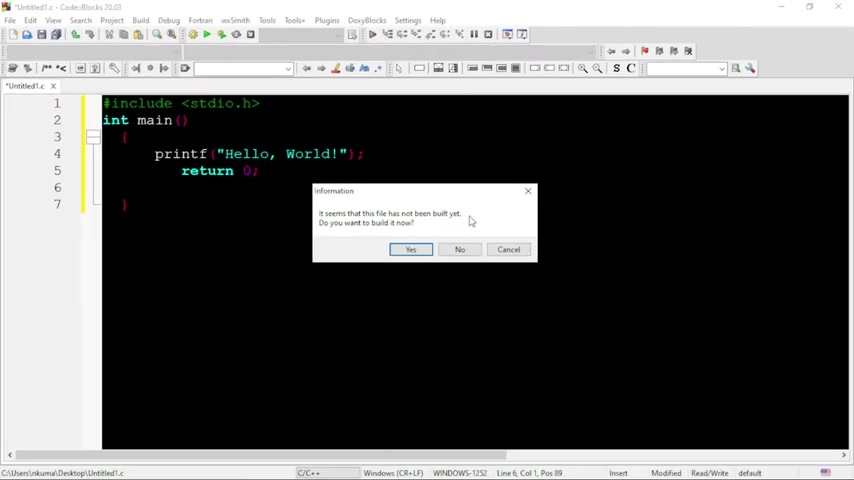
After setting up Code::Blocks with the MinGW compiler, test the installation by creating and running a simple 'Hello, World' program.
- Create a New Source File: Open Code::Blocks and create a new source file (File > New > Empty file).
- Write the Code: Copy and paste the following C code into the new file:
#include <stdio.h>
int main() { printf("Hello, World! "); return 0; }
3.  **Save the File:** Save the file with a .c extension (e.g., hello.c).
<img src="https://cdn.louhu.com/5iujaw01000ddknwqjo9qo05zs2hppl4.jpeg"/>

4.  **Build the Program:** From the menu, click **'Build' > 'Build'** (or press Ctrl+F9).
5.  **Run the Program**: After the build completes successfully, click **'Build' > 'Run'** (or press Ctrl+F10).

If everything is set up correctly, the console window should display **'Hello, World!'** This confirms that the compiler is working and the program can be executed. If you are getting an error message, retry the process, and check compiler settings. 





Most people like



































Report
Please select a reason for reporting
- 13 Reasons to Switch from Snapchat to Text Messaging
- 7 Powerful Speech to Text Apps to Boost Productivity
- 10 Best Speech to Text Tools for Effortless Transcription
- 13 Free Tools to Easily Transcribe Audio to Text
- 15 Surprising Ways Google's Speech-to-Text Boosts Productivity
- 7 Best Free Online Audio to Text Transcription Tools
- 9 Tips to Transcribe Speech to Text Faster and Better
- 13 Best Speech to Text Software for Windows 10 in 2023
- 7 Tips for Choosing the Best Transcriber for Audio to Text
- 11 Reasons Why Dragon Speech-to-Text Apps are Game-Changers
- 6 Secrets to Enhance Your Speech to Text Transcription
- 6 Brilliant Ways to Boost Productivity with Talk-to-Text on Your MacBook
- 6 Ways Transcription Software Converts Audio to Text
- 8 Tips to Transcribe Speech to Text Like a Pro
- 6 Reasons IBM Watson Speech to Text is a Game-Changer
- 14 Powerful Ways Talk-to-Text Improves Your Workflow
- 12 Top Windows Speech-to-Text Software for Efficient Transcription
- 12 Game-Changing Benefits of Apple's Speech to Text Technology
- 9 Powerful Use Cases for AWS Speech to Text Technology
- 10 Easy Steps to Transcribe YouTube Videos to Text
- transcription audio en texte
- online audio transcription
- free audio file transcription
- free ai audio transcription
- audio transcription service
- audio transcription online free
- audio transcription free online
- audio to transcription software
- audio and transcript
- ai audio transcription free
- voice recording to text converter
- translate voice recording to text
- record voice to text
- audio recording to text converter
- voice recording and transcription
- chatgpt voice to text
- gmail voice to text
- speech to text reader
- speech to text ai free
- speech to talk
- How to Use AI Tools to Find Internal Linking Opportunities Across a Business Website
- Discover Your Perfect Haircut with AI Hairstyle Apps
- Free Reputation Calculator Tools: How They're Adapting to Score AI Visibility, Not Just Rankings
- Design Professional Flyers for Free on Your Phone
- Best Free Flyer Maker Apps for Android: Design Like a Pro
- How to Know If Your Business Is Ready for an AI Customer Service Agent
- Revolutionizing Storytelling: From Novels to Screenplays with AI
- Create Engaging Animated Explainer Videos with a Free AI Tool
- Stop Multi-Subscribing: Benchmark Top AI Visual Models in One Canvas
- Best Seedance 2.5 API Provider: Every Price on the Market, Checked at Source
- Top AI Social Media Management Tools: Automate Your Content Strategy
- Free AI Text to Video Generator: Create Stunning Videos from Text
- Discover 17 ChatGPT Alternatives: A Comprehensive Comparison
- Character.AI vs. Janitor AI: Which AI Chat Platform Reigns Supreme?
- Top Virtual Assistant Companies in 2026: Reviews, Pricing, and Plans Compared
- Unveiling FaceCheck.ID: Revolutionizing Reverse Image Searches with AI
- 11 Best AI Dialers in 2026: Features, Pricing, Pros and Cons
- How I Direct Consistent AI Clips: A Hands-On Guide to Multi-Model Generation
- A Realistic Review of the Photo Generator Image Tool
- Playwright MCP Server: Automated Web Testing with Agent Mode

Copyright ©2026 toolify