































Table of Contents
- Key Points
- Setting Up the Development Environment with Codespaces
- How to Use Github Copilot to Boost Development:
- Github Copilot Pricing:
- The Pros and Cons of Github Copilot
- FAQ
- Related Questions


Setting Up the Development Environment with Codespaces
The Tedious Process of Traditional Environment Setup
For developers, the initial task often involves configuring a suitable coding environment. Traditionally, this is a time-consuming endeavor that requires installing frameworks, libraries, services, and numerous packages. This process can distract developers from the core task of coding, impacting overall efficiency and project timelines. Complex dependencies and version conflicts often compound the problem, leading to further delays and frustration.
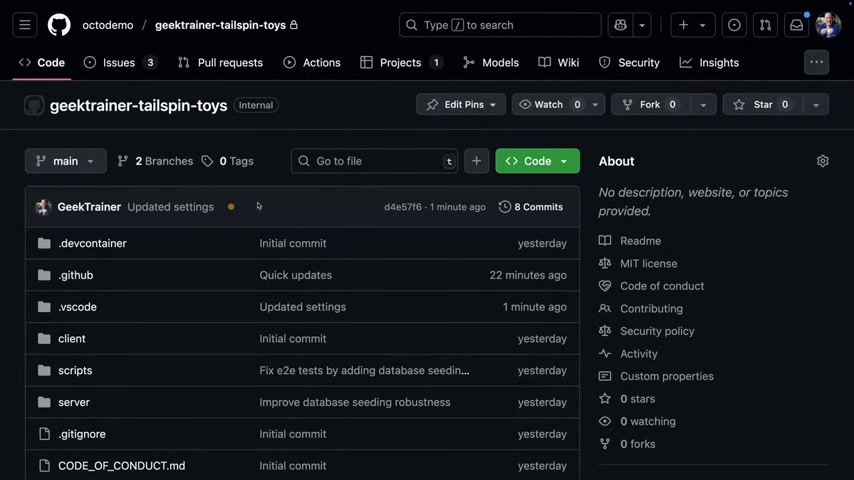
The traditional approach to setting up a development environment is not only tedious but also error-prone, making it a significant bottleneck in the software development lifecycle. The manual configuration needed often results in inconsistencies across different development machines, leading to integration issues and compatibility concerns further down the line. This inconsistency increases the risk of deployment failures and unexpected behavior in production environments.
Simplifying the Setup with GitHub Codespaces
GitHub Codespaces provides a seamless solution to overcome the traditional environment setup challenges. With just a few clicks, developers gain access to fully configured, cloud-based environments. This eliminates the need for manual installations and configurations, saving valuable time and resources. The environment's configuration is defined in a devcontainer.json file, which automatically loads all necessary tools and dependencies.
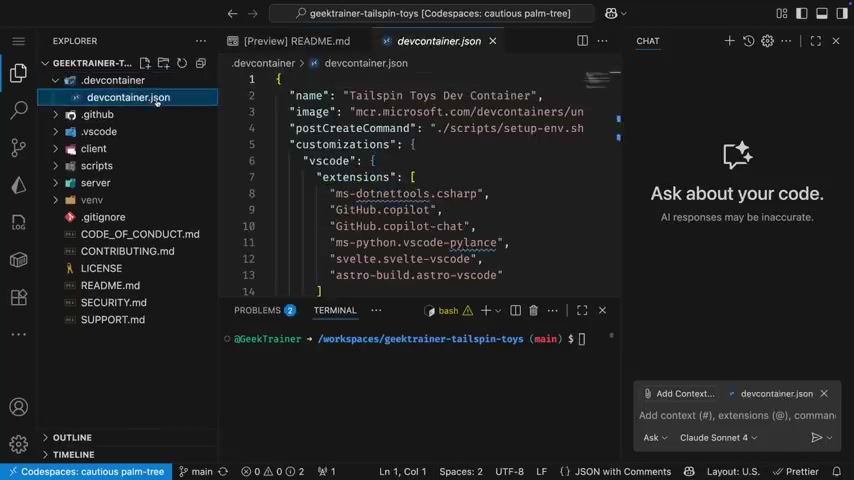
This means that every developer working on the project has the same, consistent environment, reducing compatibility issues and integration conflicts.
By using Codespaces, developers can start coding almost immediately, focusing on innovation rather than infrastructure. This enhanced accessibility and uniformity not only accelerate the development process but also improve the overall quality of the software by ensuring that all contributors work under the same conditions. The centralized nature of Codespaces also simplifies maintenance and updates, making it easier to keep the development environment aligned with project requirements.
Coding in the Browser vs. Desktop Version
GitHub Copilot and Codespaces further enhance the developer experience by offering flexible coding options.
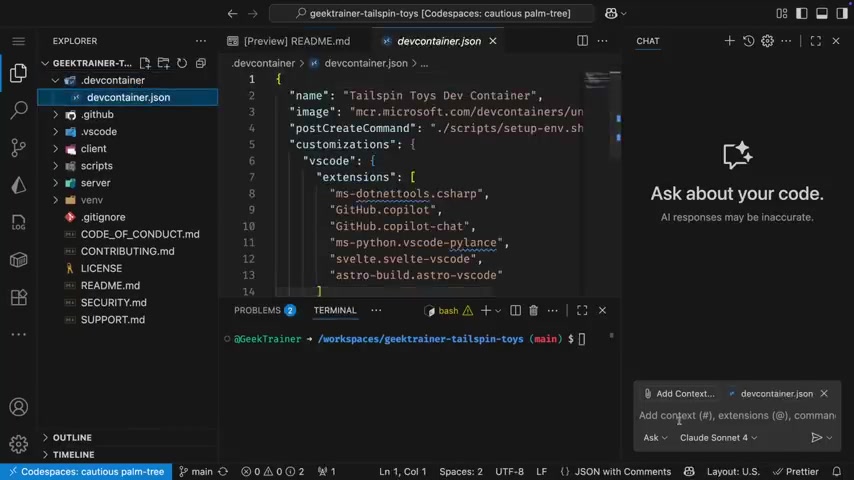
Developers can either use a version of Visual Studio Code directly in their browser or opt for the desktop version.
The in-browser VS Code provides immediate access to the coding environment without the need for any local installations. This is particularly useful for quick edits or when working from different machines. On the other hand, the desktop version provides a more feature-rich experience with access to local tools and settings. The choice between the two depends on the developer's preference and specific project needs.
Both options, however, ensure that developers can leverage the full power of GitHub Copilot, taking advantage of AI-driven suggestions, automated tasks, and seamless integration with testing frameworks. This level of flexibility empowers developers to work effectively regardless of their location or device, further boosting productivity and ensuring project success.








Most people like



































Report
Please select a reason for reporting
- 13 Reasons to Switch from Snapchat to Text Messaging
- 7 Powerful Speech to Text Apps to Boost Productivity
- 10 Best Speech to Text Tools for Effortless Transcription
- 13 Free Tools to Easily Transcribe Audio to Text
- 15 Surprising Ways Google's Speech-to-Text Boosts Productivity
- 7 Best Free Online Audio to Text Transcription Tools
- 9 Tips to Transcribe Speech to Text Faster and Better
- 13 Best Speech to Text Software for Windows 10 in 2023
- 7 Tips for Choosing the Best Transcriber for Audio to Text
- 11 Reasons Why Dragon Speech-to-Text Apps are Game-Changers
- 6 Secrets to Enhance Your Speech to Text Transcription
- 6 Brilliant Ways to Boost Productivity with Talk-to-Text on Your MacBook
- 6 Ways Transcription Software Converts Audio to Text
- 8 Tips to Transcribe Speech to Text Like a Pro
- 6 Reasons IBM Watson Speech to Text is a Game-Changer
- 14 Powerful Ways Talk-to-Text Improves Your Workflow
- 12 Top Windows Speech-to-Text Software for Efficient Transcription
- 12 Game-Changing Benefits of Apple's Speech to Text Technology
- 9 Powerful Use Cases for AWS Speech to Text Technology
- 10 Easy Steps to Transcribe YouTube Videos to Text
- transcription audio en texte
- online audio transcription
- free audio file transcription
- free ai audio transcription
- audio transcription service
- audio transcription online free
- audio transcription free online
- audio to transcription software
- audio and transcript
- ai audio transcription free
- voice recording to text converter
- translate voice recording to text
- record voice to text
- audio recording to text converter
- voice recording and transcription
- chatgpt voice to text
- gmail voice to text
- speech to text reader
- speech to text ai free
- speech to talk
- How SEO and Marketing Dashboards Empower Agencies to Drive Results
- How to Use AI Tools to Find Internal Linking Opportunities Across a Business Website
- Discover Your Perfect Haircut with AI Hairstyle Apps
- Free Reputation Calculator Tools: How They're Adapting to Score AI Visibility, Not Just Rankings
- Design Professional Flyers for Free on Your Phone
- Best Free Flyer Maker Apps for Android: Design Like a Pro
- How to Know If Your Business Is Ready for an AI Customer Service Agent
- Revolutionizing Storytelling: From Novels to Screenplays with AI
- Create Engaging Animated Explainer Videos with a Free AI Tool
- Stop Multi-Subscribing: Benchmark Top AI Visual Models in One Canvas
- My Brand New Logo: AI-Powered Logo Design for Startups
- Create Stunning Logos with Free AI Logo Generator!
- AI Logo Maker: Design a Stunning Logo in Minutes
- Elevate Your Zoom Experience with Enhanced Name Tags by Warmly
- Top 5 AI Logo Makers in 2025: Design a Stunning Brand
- Creative Fabrica's AI Tools: Flow, Studio, and Font Generator
- Create Stunning Logos with Canva's Free AI Logo Generator
- Create Professional and Memorable Logos with LogoMaker.ai
- Design Your Own Font: A Step-by-Step Guide with Vectornator Pro
- AI Font Generator: Revolutionizing Typeface Design with AI

Copyright ©2026 toolify