































Table of Contents
- Key Points
- Understanding GitHub Fundamentals
- Working with Branches: A Beginner's Guide
- Downloading a Public Repository
- GitHub: Weighing the Pros and Cons
- Frequently Asked Questions (FAQ)
- Related Questions


Understanding GitHub Fundamentals
What is GitHub?
GitHub is a web-based platform built around Git, a version control system.
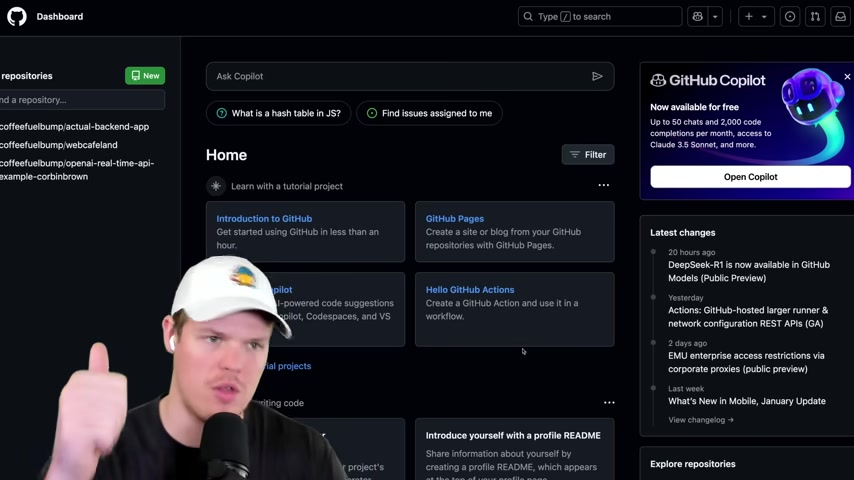
Think of GitHub as a social network for developers, allowing them to collaborate on projects, track changes to code, and manage different versions of software. It provides a centralized location to store code, enabling multiple developers to work on the same project simultaneously without overwriting each other's changes. This collaboration extends beyond your immediate team; GitHub also facilitates contributions from the open-source community.
Why Use GitHub?
There are many advantages to utilizing GitHub.
- Version Control: Easily track changes to your code, revert to previous versions if necessary, and manage different features in separate branches.
- Collaboration: Work with teams on projects, review code, and contribute to open-source initiatives.
- Backup and Recovery: Your code is safely stored in the cloud, providing a backup in case of local system failures.
- Project Management: Organize tasks, track issues, and manage project workflows effectively.
- Community: Connect with other developers, learn from their experience, and contribute to a vast ecosystem of open-source projects.
- Free to Use: For most individual and smaller team scenarios, GitHub is entirely free.
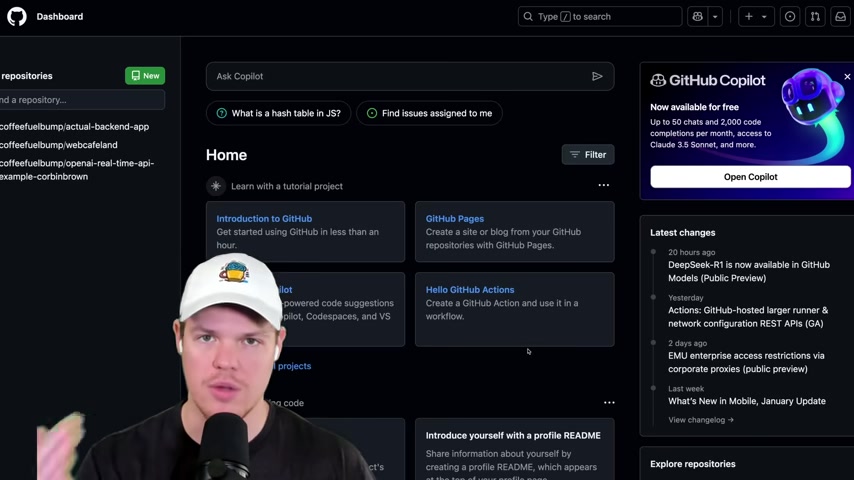
This makes it incredibly accessible for learning, experimenting, and building personal projects.
GitHub Pricing Model
GitHub's pricing model is designed to accommodate various needs. For individual developers and small teams, GitHub offers a generous free tier that includes unlimited public and private repositories.
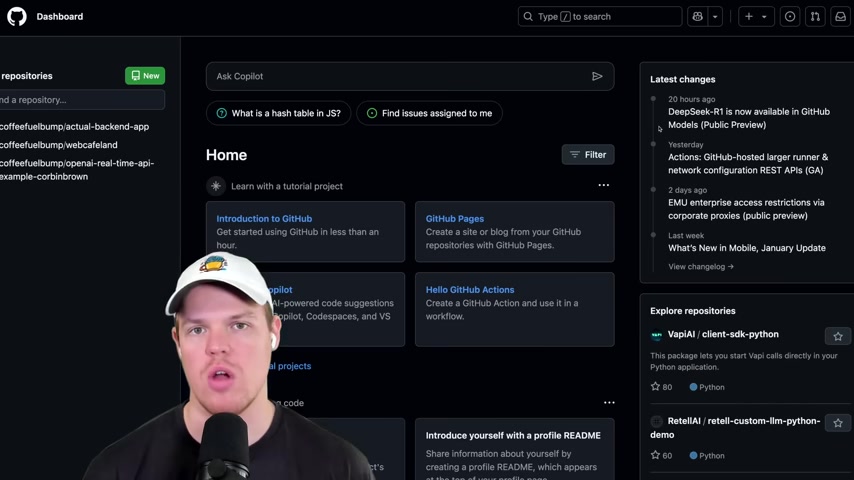
Paid plans, starting at around $4 per user per month, primarily cater to larger organizations that require more advanced collaboration features and security options. These paid options are mostly to manage bigger projects.
Key GitHub Terminology: Repositories
A repository, often shortened to "repo", is the fundamental unit of organization on GitHub.
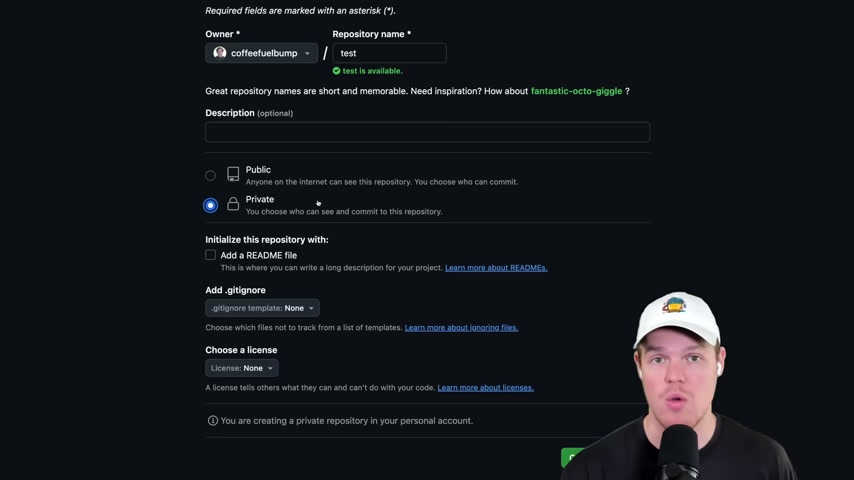
A repository houses all the files and folders related to a specific project, along with its complete history. This includes code files, documentation, images, and any other assets needed for the project. Repositories can be either public, accessible to anyone on the internet, or private, restricted to specific individuals or teams.
Creating repositories can be done either publicly or privately :
- Public: anyone can access the code within
- Private: only the account owner has access to the code
Understanding GitHub Profiles
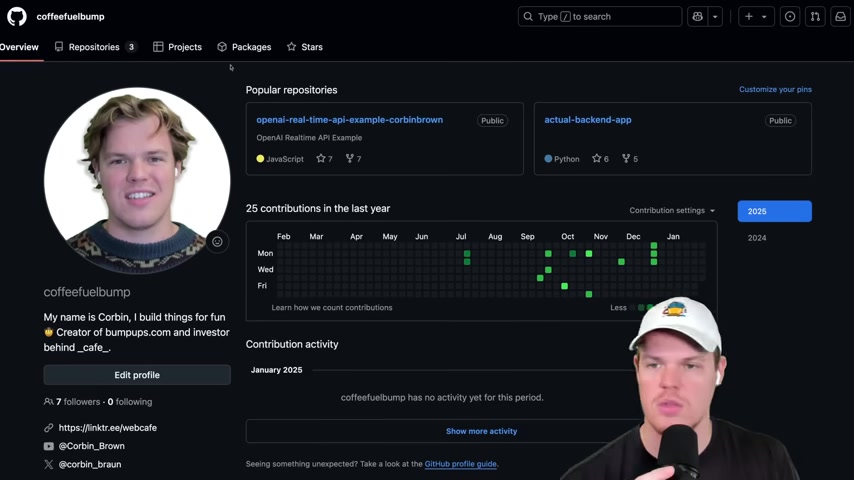
Your GitHub profile is a central hub showcasing your contributions, projects, and activity. It serves as a digital Resume for developers, allowing them to showcase their skills and experience. Your profile displays your repositories, contributions to other projects, and a contribution calendar that visualizes your activity over time.
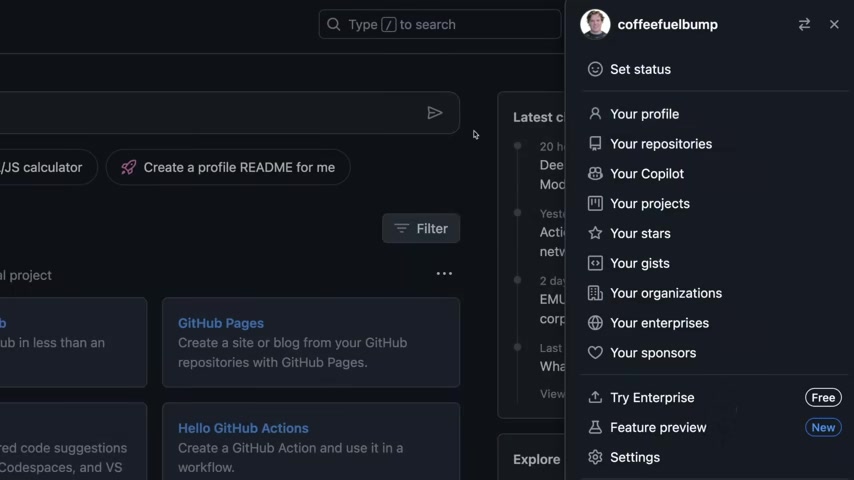
This page is a collection of everything that's going on.
The Significance of the Contribution Calendar
The contribution calendar provides a visual representation of your GitHub activity over the past year.
Each square on the calendar represents a day, with darker shades of green indicating more contributions. Clicking on a specific day reveals the details of your commits and pull requests for that date. This feature serves as a powerful tool for tracking your progress, identifying trends in your coding habits, and showcasing your dedication to software development. A green dot represents pushing something to a repository publicly.
Working with Branches: A Beginner's Guide
What are Branches?
In Git, branches are parallel versions of a repository. They allow you to work on new features or bug fixes without affecting the main codebase. The main branch typically reflects the production-ready code.
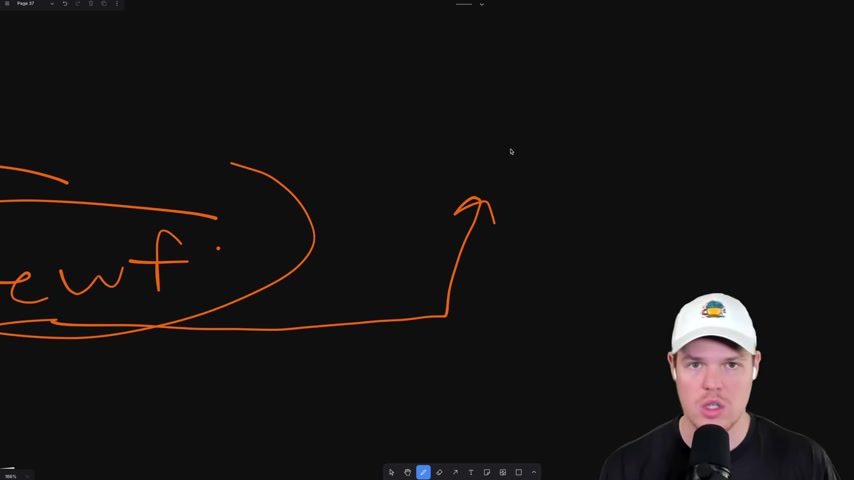
When you start a new feature, you create a branch off the main branch. This branch contains a copy of the main branch's code at the time of creation, but then exists separately.
The Power of Branching: Why We Use Them
Using branches provides several crucial benefits:
- Isolation: Work on experimental features without disrupting the stable main branch.
- Collaboration: Multiple developers can work on different features simultaneously in separate branches.
- Code Review: Before merging a branch back into main, it can be reviewed by other team members to catch potential issues.
- Experimentation: Safely play around without the risk of messing anything up because of the different coding environment.
In a way, branching creates new coding environment where you can code more freely. To make this more clear, if something goes wrong you can delete the branch and start over. This would bring you back to main branch with nothing changed.
Merging Branches: Bringing Changes Together
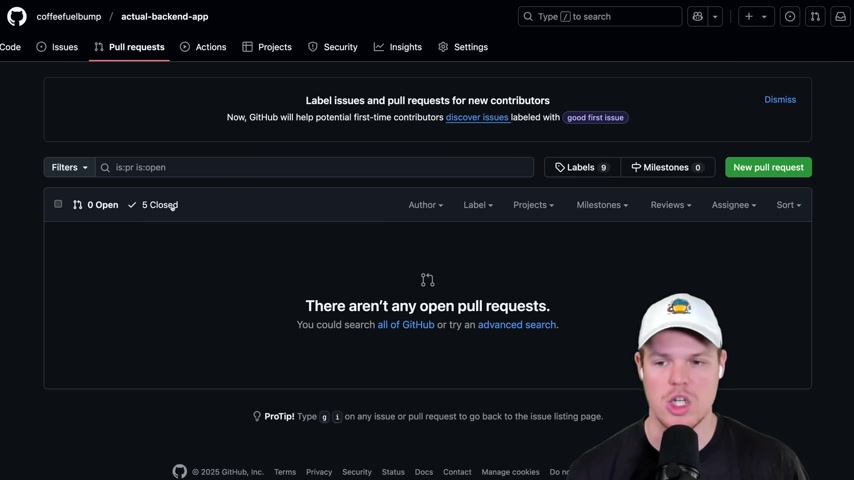
Once you've completed work on a branch and it's been reviewed, you'll want to merge it back into the main branch.
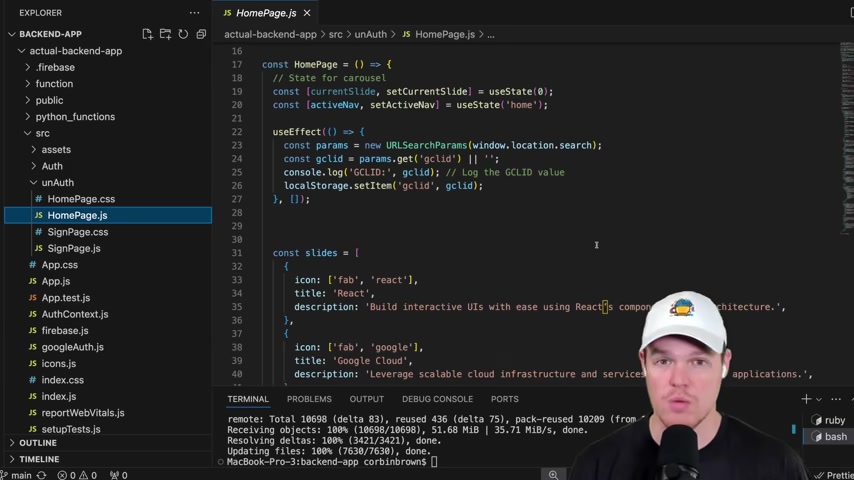
This integrates your changes into the production-ready codebase. GitHub provides a feature called pull requests, which facilitate this process. A pull request is essentially a request to merge your branch into another branch, typically main. It allows other developers to review your changes, provide feedback, and ensure the code meets the project's standards before it's integrated. It may need a review first, but is good to go in most instances.
Downloading a Public Repository
Cloning a Public Repository from GitHub
Downloading a public repository from GitHub is super easy with GitHub:

- Navigate to the GitHub page: Go to the GitHub repository you want to download.
- Click the 'Code' button: On the repository's main page, look for the green 'Code' button.
- Copy the HTTPS URL: In the dropdown menu, select the 'HTTPS' option and copy the URL provided.
- Create a folder in your documents: Create a new folder where you want the repository to live
- Open Terminal in VS Code: Open the new folder by going to
file > Open Folder > New Folderin VS Code. After that, open the VS Code Terminal by going toView > Terminal. Make sure Git is installed to run these commands:brew install git(Mac). - Clone the repository: In your terminal, type
git clone, then paste the URL you copied and press Enter.git clone <THE-REPO-URL-YOU-PASTED-HERE>
All of the code will show up in your newly created file.



Most people like
































Report
Please select a reason for reporting
- 13 Reasons to Switch from Snapchat to Text Messaging
- 7 Powerful Speech to Text Apps to Boost Productivity
- 10 Best Speech to Text Tools for Effortless Transcription
- 13 Free Tools to Easily Transcribe Audio to Text
- 15 Surprising Ways Google's Speech-to-Text Boosts Productivity
- 7 Best Free Online Audio to Text Transcription Tools
- 9 Tips to Transcribe Speech to Text Faster and Better
- 13 Best Speech to Text Software for Windows 10 in 2023
- 7 Tips for Choosing the Best Transcriber for Audio to Text
- 11 Reasons Why Dragon Speech-to-Text Apps are Game-Changers
- 6 Secrets to Enhance Your Speech to Text Transcription
- 6 Brilliant Ways to Boost Productivity with Talk-to-Text on Your MacBook
- 6 Ways Transcription Software Converts Audio to Text
- 8 Tips to Transcribe Speech to Text Like a Pro
- 6 Reasons IBM Watson Speech to Text is a Game-Changer
- 14 Powerful Ways Talk-to-Text Improves Your Workflow
- 12 Top Windows Speech-to-Text Software for Efficient Transcription
- 12 Game-Changing Benefits of Apple's Speech to Text Technology
- 9 Powerful Use Cases for AWS Speech to Text Technology
- 10 Easy Steps to Transcribe YouTube Videos to Text
- transcription audio en texte
- online audio transcription
- free audio file transcription
- free ai audio transcription
- audio transcription service
- audio transcription online free
- audio transcription free online
- audio to transcription software
- audio and transcript
- ai audio transcription free
- voice recording to text converter
- translate voice recording to text
- record voice to text
- audio recording to text converter
- voice recording and transcription
- chatgpt voice to text
- gmail voice to text
- speech to text reader
- speech to text ai free
- speech to talk
- Create Engaging Animated Explainer Videos with a Free AI Tool
- Stop Multi-Subscribing: Benchmark Top AI Visual Models in One Canvas
- Best Seedance 2.5 API Provider: Every Price on the Market, Checked at Source
- AI OnlyFans: How to Generate $30,000/Month (Legally)
- Transform Your Script into an Engaging Video with AI Video Maker!
- AI Marketing Automation: A Comprehensive Guide for Small Businesses
- Midjourney Alternative for Anime Art Creators: Why PixAI May Be Better for Character Workflows
- 10 Things Most People Get Wrong About AI Image Search
- AI Girlfriend Apps: Top Choices Redefining Relationships 2025
- How to Reduce Quoting Errors in Salesforce with AI-Assisted Quote Creation
- AI Resume Builders: EnhanceCV, ResumeNerd AI, & Teal Compared
- ResumeAI: Crafting ATS-Optimized Resumes with AI
- AI in Resume Writing: A New Era for Job Seekers
- AI Resume Tools: Streamline Your Job Search and Land Your Dream Role
- AI Resume Optimization: The Right Way to Land Interviews
- Crafting a Killer Resume with AI: A Step-by-Step Guide
- Crafting a Winning Resume: AI Tools and Expert Tips
- AI Job Search: Level Up Your Career with AI Automation
- Empower Your Career Journey: Dynamic Resumes with AI
- AI Resume Builder: Create Professional Resumes Effortlessly

Copyright ©2026 toolify