































Table of Contents
- Key Points
- Setting Up Your Xcode Project
- Creating the UI Components for Your App
- How to Use
- FAQ
- Related Questions


Setting Up Your Xcode Project
Creating a New Xcode Project
The first step in integrating Document360 into your iOS application is to create a new project in Xcode. This will serve as the foundation for your app and allow you to design the user interface and implement the necessary code.
To create a new project, follow these steps:
- Open Xcode. You should see a welcome screen. Click on 'Create a new Xcode project'.
- Choose the 'App' template under the iOS tab. This will provide you with a basic structure for an iOS application.
- Enter a product name for your app, such as 'Document360_App_Demo'. Choose your organization identifier and ensure that the interface is set to 'Storyboard' and language to 'Swift'. These settings are crucial for compatibility with the Tutorial.
- Select a location on your Mac to save the project. It's recommended to create a new folder specifically for this project to keep things organized. You might name this 'Document360 Demo'.
-
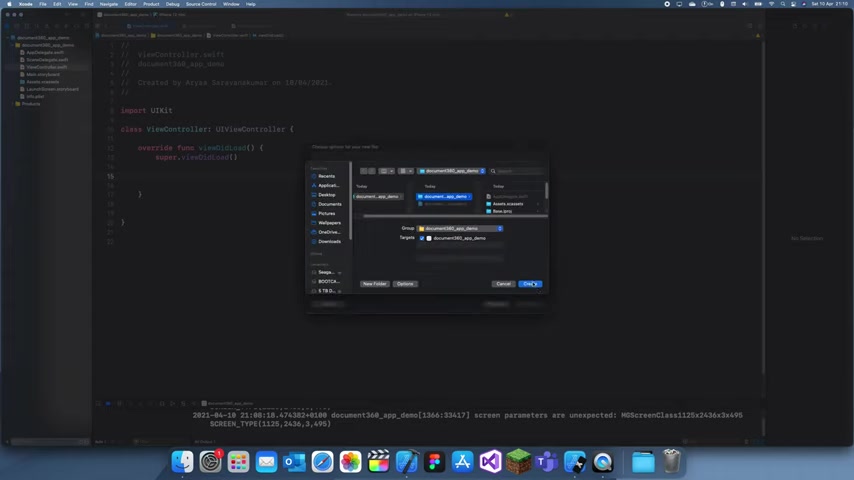
Click 'Create' to initialize the project. Xcode will automatically generate several files and folders, including the 'Main.storyboard' for UI design and 'ViewController.swift' for code implementation. This sets up the development environment and allows you to start building your application's interface and functionality.
By setting up your Xcode project correctly, you ensure a smooth development process. This initial setup lays the groundwork for the subsequent steps, enabling you to focus on integrating the Document360 Knowledge Base effectively into your iOS app.
Designing the Tab Bar Controller
To provide a seamless user experience, you'll need a well-designed user interface. We'll start by using a Tab Bar Controller.
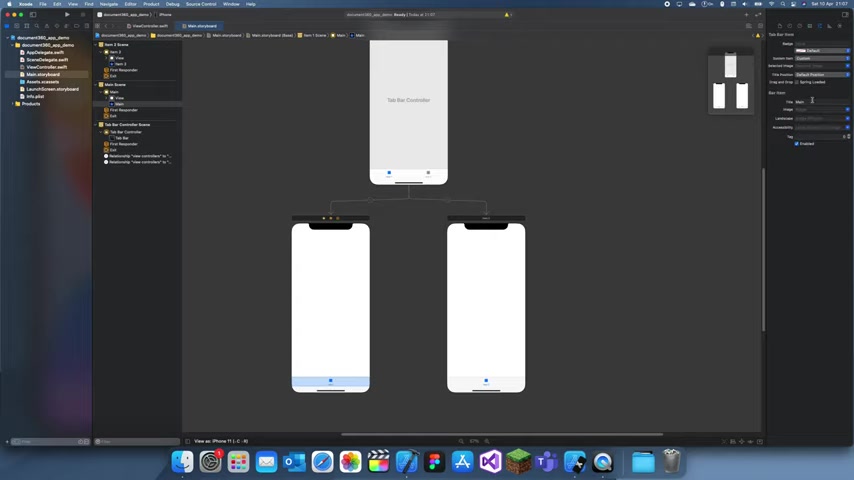
A Tab Bar Controller allows users to navigate between different sections of your app with ease. In this case, we'll use it to separate the main app functionality from the help section, where the Document360 knowledge base will reside.
Here's how to set up the Tab Bar Controller:
- Open 'Main.storyboard'. This is where you'll visually design your app's UI.
- Delete the default View Controller. You can do this by selecting the View Controller scene and pressing the delete key.
- Add a Tab Bar Controller. Search for 'Tab Bar Controller' in the Object Library (located at the bottom right corner of Xcode) and drag it onto the storyboard.
- Configure the Tab Bar Controller. Xcode automatically creates three scenes connected to the Tab Bar Controller. These scenes represent the different tabs in your app. For our purposes, we'll focus on the first two tabs.
- Rename the tabs. Select the first tab and in the Attributes Inspector (located at the top right corner), change the title to 'Main'. This tab will house the primary functionalities of your app.
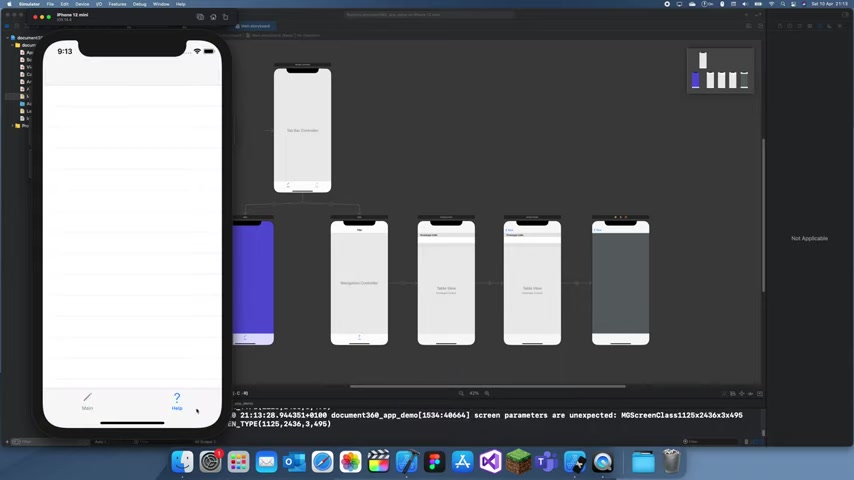
- Rename the second tab to 'Help'. This tab will integrate the Document360 knowledge base, providing users with access to help articles and troubleshooting tips.
- You can select any image as the tab bar icon, so i'll set that as a question mark.
- Customize the appearance (optional). You can customize the Tab Bar Controller's appearance by modifying its background color, Font, and other attributes. This can help align the UI with your brand's design guidelines.
By using a Tab Bar Controller, you create a clear and intuitive way for users to access both the main features of your app and the integrated Document360 knowledge base. This setup promotes a better user experience and encourages self-service support.
Configuring the Navigation
To ensure that users can navigate smoothly within the help section, you'll need to add a Navigation Controller.
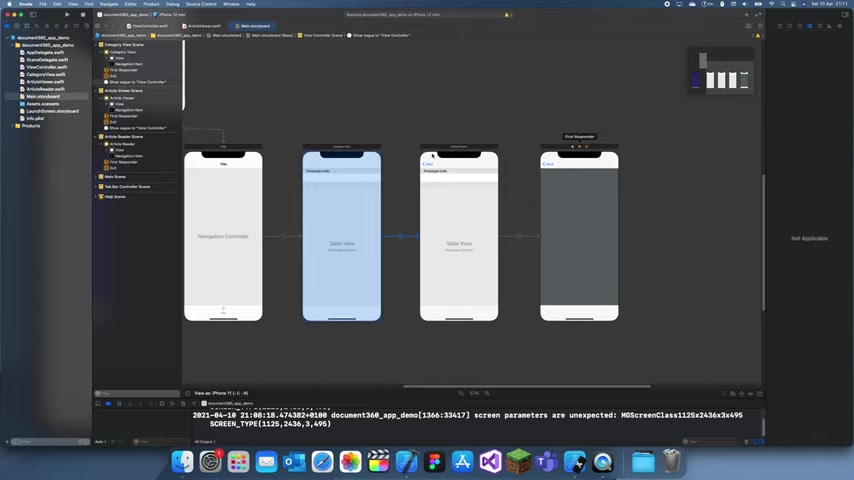
A Navigation Controller provides a stack-based navigation system, allowing users to drill down into specific articles and then easily return to the previous screen.
To embed a Navigation Controller, follow these steps:
- Select the 'Help' tab's View Controller. This is the second tab in your Tab Bar Controller.
- Embed in Navigation Controller. Go to 'Editor' in the Xcode menu, then select 'Embed In' and choose 'Navigation Controller'.
- Add new View Controllers for category and article viewing. These additional controllers will be used to display different categories of help articles and the individual articles themselves.
-
Connect View Controllers. Use segues to connect the main help screen to the category viewer and the category viewer to the article reader. This will create a hierarchical structure that allows users to navigate from the main help screen to specific articles.
- Category Viewer: This scene will display a list of categories, such as 'Getting Started', 'Troubleshooting', and 'FAQ'.
- Article Reader: This scene will display the content of a selected help article.
By configuring the navigation, you enable users to explore the Document360 knowledge base efficiently. This structured approach ensures that users can quickly find the information they need, improving their overall experience with your app.
Creating the UI Components for Your App
Adding a Table View for Categories
Inside the Navigation Controller embedded in the ‘Help’ tab, you'll need to add a Table View to display the available categories of help articles.
This UI element will provide a structured list for users to easily navigate through the knowledge base.
Here's how to add a Table View:
- Add a Table View. Search for 'Table View' in the Object Library and drag it onto the 'Help' tab's View Controller.
- Configure the Table View. Adjust the constraints to fill the entire view. This ensures that the Table View takes up the entire screen, providing a consistent layout across different devices.
- Add Prototype Cells. Prototype cells are templates for the rows in your Table View. Add a Prototype Cell to the Table View by selecting the Table View, going to the Attributes Inspector, and setting the number of Prototype Cells to '1'. Customize the cell. You can add labels, images, and other UI elements to the Prototype Cell to display the category titles and descriptions.
- Create Custom Classes.
- Create a new swift file called “CategoryView”
- Create a new swift file called “ArticleView”
- Create Outlets
- Select the Table View inside the Navigation Controller, in the identity inspector, set the class to “CategoryView”
- Connect the tableview to a new IBOutlet
- For the second tableview inside of the ArticleView, perform steps 1, 2 & 3 but use the name “ArticleView”. Connect a new IBOutlet.
Displaying Articles with WKWebView
To display the content of help articles, you can use WKWebView.
WKWebView is a powerful UI element that allows you to display web content directly within your app. You'll format the content from Document360 for display in WKWebView.
Here's how to integrate WKWebView:
- Add a WKWebView. Search for 'WKWebView' in the Object Library and drag it onto the ArticleReader view.
- Set constraints. Set the constrains to 0 for each: top, leading, trailing & bottom.
- Configure the WKWebView. You will be using the HTML content from each help article so that you can display the content nicely. We'll use the data to add a WebView and show the information on the screen.
By integrating the UI elements, the app is well structured and ready for Document360 knowledge integration.


Most people like








































Report
Please select a reason for reporting
- 13 Reasons to Switch from Snapchat to Text Messaging
- 7 Powerful Speech to Text Apps to Boost Productivity
- 10 Best Speech to Text Tools for Effortless Transcription
- 13 Free Tools to Easily Transcribe Audio to Text
- 15 Surprising Ways Google's Speech-to-Text Boosts Productivity
- 7 Best Free Online Audio to Text Transcription Tools
- 9 Tips to Transcribe Speech to Text Faster and Better
- 13 Best Speech to Text Software for Windows 10 in 2023
- 7 Tips for Choosing the Best Transcriber for Audio to Text
- 11 Reasons Why Dragon Speech-to-Text Apps are Game-Changers
- 6 Secrets to Enhance Your Speech to Text Transcription
- 6 Brilliant Ways to Boost Productivity with Talk-to-Text on Your MacBook
- 6 Ways Transcription Software Converts Audio to Text
- 8 Tips to Transcribe Speech to Text Like a Pro
- 6 Reasons IBM Watson Speech to Text is a Game-Changer
- 14 Powerful Ways Talk-to-Text Improves Your Workflow
- 12 Top Windows Speech-to-Text Software for Efficient Transcription
- 12 Game-Changing Benefits of Apple's Speech to Text Technology
- 9 Powerful Use Cases for AWS Speech to Text Technology
- 10 Easy Steps to Transcribe YouTube Videos to Text
- transcription audio en texte
- online audio transcription
- free audio file transcription
- free ai audio transcription
- audio transcription service
- audio transcription online free
- audio transcription free online
- audio to transcription software
- audio and transcript
- ai audio transcription free
- voice recording to text converter
- translate voice recording to text
- record voice to text
- audio recording to text converter
- voice recording and transcription
- chatgpt voice to text
- gmail voice to text
- speech to text reader
- speech to text ai free
- speech to talk
- ChatGPT Knows Ford. It Just Doesn't Quote Ford
- Meshy AI: How to Create 3D Models from Text and Images
- How SEO and Marketing Dashboards Empower Agencies to Drive Results
- How to Use AI Tools to Find Internal Linking Opportunities Across a Business Website
- Discover Your Perfect Haircut with AI Hairstyle Apps
- Free Reputation Calculator Tools: How They're Adapting to Score AI Visibility, Not Just Rankings
- Design Professional Flyers for Free on Your Phone
- Best Free Flyer Maker Apps for Android: Design Like a Pro
- How to Know If Your Business Is Ready for an AI Customer Service Agent
- Revolutionizing Storytelling: From Novels to Screenplays with AI
- Your Business Data Could Be Worth Up to $4M. Find Out Without Uploading a Single File.
- Can an eSIM Plan Save You Time During Travel Setup?
- AI Video Editor Review: A Hands-On Look at Prompt-Based Video Editing
- Keep Characters Consistent Across Scenes With Image-to-Video AI
- How to Convert BTC to HNT
- ProxyWing DuckDuckGo Proxy Review: Plans, Setup and Who It Is For
- ChatGPT Knows Ford. It Just Doesn't Quote Ford
- Automate Lead Generation: A Comprehensive Guide with AI Agents
- Revideo.io: The Future of Reverse Video Search Technology
- Revolutionizing Email Marketing Agency with AI

Copyright ©2026 toolify