































Table of Contents
- Key Points
- Getting Started with Audacity
- Best Practices for Recording High-Quality Audio
- Step-by-Step Audio Editing Guide in Audacity
- Pros and Cons of Using Audacity
- Frequently Asked Questions (FAQ)
- Related Questions


Getting Started with Audacity
What is Audacity?
Audacity is a free, open-source, cross-platform audio software for multi-track Recording and editing. It is available for Windows, macOS, Linux, and other operating systems. Audacity allows users to record live audio, convert tapes and records into digital recordings or CDs, edit WAV, AIFF, FLAC, MP2, MP3 and Ogg Vorbis files, and much more. Whether you're an amateur or a professional, Audacity can provide a range of tools you need to edit audio files.

Audacity is an ideal starting point because it is feature-rich and completely free, making it accessible to anyone looking to improve their audio quality. If you need a free audio software that is easy to use, Audacity is a solid option.
Here are some main features in Audacity:
- Recording: Audacity can record live audio through a microphone or mixer, and also digitize recordings from other media. It supports recording at various sample rates and formats.
- Editing: Audacity offers a wide range of editing tools including cut, copy, paste, delete, and undo. Users can also use features such as noise reduction, equalization, and amplification.
- Effects: This software has a variety of built-in effects that can be applied to audio tracks. These include reverb, echo, phaser, and wahwah effects.
- Analysis: Audacity has tools for audio analysis, such as spectrum analysis and spectrogram view. These tools help users understand the frequency content of their audio.
- Accessibility: Audacity supports several audio formats such as WAV, AIFF, MP3, and OGG Vorbis. It is cross-platform and can be used on Windows, Mac, and Linux operating systems.
Downloading and Installing Audacity
Before diving into editing, you'll need to download and install Audacity.
- Visit the Audacity website (https://www.audacityteam.org/)

. Make sure that you use the official Audacity website to prevent malware or bundled software.
- Navigate to the downloads section. This section is usually found in the navigation menu or at the bottom of the homepage.
- Select the installer for your operating system (Windows, macOS, or Linux).
- Download the installer file. Wait for the download to complete before you run the installer.
- Run the installer file, and follow the on-screen instructions. Make sure that you read and follow each step. Be aware of any extra software that you do not want to download.
- After the installation, launch Audacity. You should see the default user interface with its various toolbars and panels.
Understanding the Audacity Interface
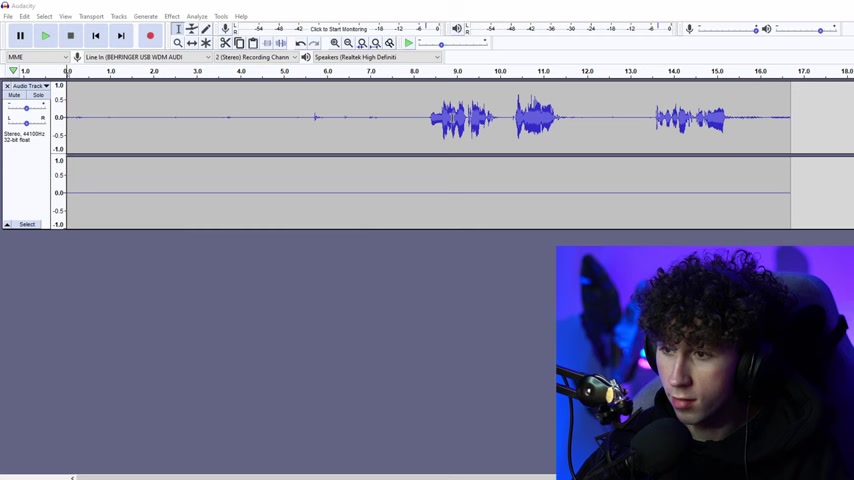
Familiarizing yourself with the Audacity interface is key to efficient audio editing. The main components include:
- Toolbars: Located at the top, these provide quick access to essential functions like recording, playback, and editing.
- Track Control Panel: This allows you to adjust volume, mute, solo, and manage individual audio tracks.
- Waveform Display: The visual representation of your audio, showing amplitude over time.
- Selection Tool: Used to highlight specific sections of your audio for editing.
Step-by-Step Audio Editing Guide in Audacity
Step 1: Importing Audio
The first step is importing your audio into Audacity. You can do this in several ways:
- Drag and Drop: Simply drag your audio file into the Audacity window.
- File Menu: Go to File > Import > Audio and select your audio file.
Audacity supports various audio formats including WAV, MP3, AIFF, and more.
Step 2: Splitting Stereo to Mono
If you are experiencing the flat audio track issue, then you must split stereo to mono. To do that, click the dropdown menu on the left of the audio track, click split stereo to mono, and delete the silent audio track.
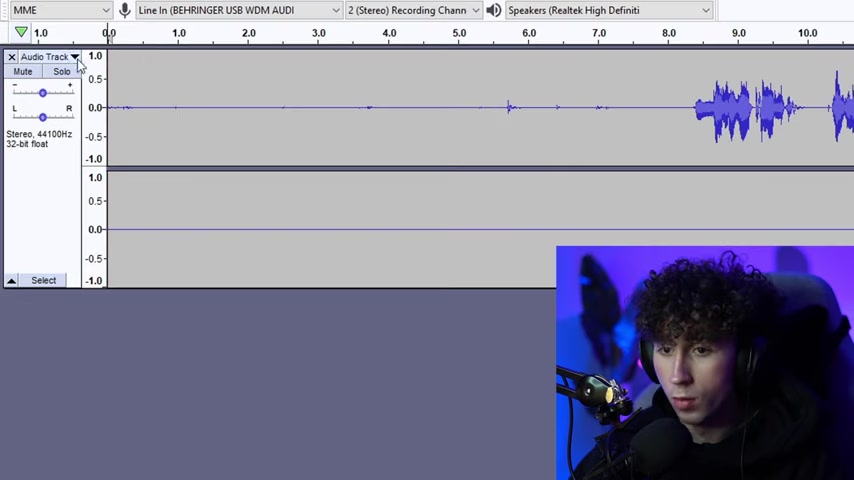
This is important because if the audio track is entirely flat, you would have to split the track.
Step 3: Noise Reduction
Noise reduction is a crucial step in cleaning up your audio. Here's how to do it:
-
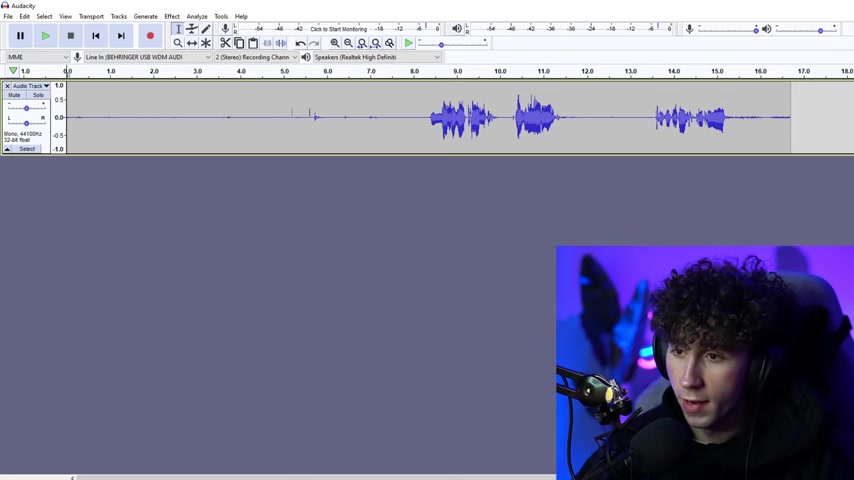
Select a Quiet Section: Highlight a section of your audio where only background noise is present. Aim for 5-10 seconds of silence to capture the ambient noise effectively.
-
Get Noise Profile: Go to Effect > Noise Reduction and click Get Noise Profile.
-
Apply Noise Reduction: Select the entire track by double-clicking it. Then, go to Effect > Noise Reduction again, and adjust the settings as needed. A good starting point is:
- Noise reduction (dB): 12
- Sensitivity: 6
- Frequency smoothing (bands): 3
-
Click OK to apply the noise reduction. You can repeat the process if necessary, but be cautious not to overdo it, as it can create artifacts in your audio. Reducing noise can improve your sound quality and help make a radio-quality presence.
Step 4: Applying Filter Curve (EQ)
Equalization (EQ) is key to sculpting the tonal balance of your audio.
-
Select the Track: Double-click the audio track to select it completely.
-
Access Filter Curve EQ: Go to Effect > Filter Curve.

-
Apply Factory Presets: Start by using factory presets such as the Bass Boost, Treble Boost, and Low Roll Off for Speech to get a feel for how EQ can affect your audio. Bass Boost emphasizes lower frequencies, adding depth to your voice. Treble Boost enhances higher frequencies, making your audio sound crisper. Low Roll Off for Speech reduces unwanted low-frequency rumble.
-
Click OK to apply the filter curve. You can experiment with different presets to find the sound that best suits your voice and content.
The EQ filter curve can impact your sound presence and make it better quality.
Step 5: Compression
Compression reduces the dynamic range of your audio, making it sound more consistent.
-
Select the Track: Double-click the audio track to select the entire thing.
-
Open Compressor: Go to Effect > Compressor.

-
Adjust Settings: A good starting point is:
- Threshold: -12 dB
- Noise Floor: -40 dB
- Ratio: 2:1 or 3:1
- Attack Time: 0.2 seconds
- Release Time: 1.0 seconds
- Make-up Gain: Adjust to normalize the volume
-
Click OK to apply the compression. This step helps in making the audio volume better by increasing the lower and decreasing the higher. This makes it balanced and sounds professional.
Step 6: Limiting
Limiting sets a maximum peak level for your audio, preventing clipping and distortion. This helps protect your audio.
- Select the Track: Double-click the audio track to select all.
- Open Limiter: Go to Effect > Limiter.
- Set Hard Limit: Choose Hard Limit from the type dropdown.
- Adjust Settings: A good setting is:
- Limit to (dB): -3.0
- Hold (ms): 10
- Click OK to apply the limiter. A hard limit to your audio will prevent peaks from exceeding a certain level, preventing distortion. This can help balance your audio.




Most people like


































Report
Please select a reason for reporting
- 13 Reasons to Switch from Snapchat to Text Messaging
- 7 Powerful Speech to Text Apps to Boost Productivity
- 10 Best Speech to Text Tools for Effortless Transcription
- 13 Free Tools to Easily Transcribe Audio to Text
- 15 Surprising Ways Google's Speech-to-Text Boosts Productivity
- 7 Best Free Online Audio to Text Transcription Tools
- 9 Tips to Transcribe Speech to Text Faster and Better
- 13 Best Speech to Text Software for Windows 10 in 2023
- 7 Tips for Choosing the Best Transcriber for Audio to Text
- 11 Reasons Why Dragon Speech-to-Text Apps are Game-Changers
- 6 Secrets to Enhance Your Speech to Text Transcription
- 6 Brilliant Ways to Boost Productivity with Talk-to-Text on Your MacBook
- 6 Ways Transcription Software Converts Audio to Text
- 8 Tips to Transcribe Speech to Text Like a Pro
- 6 Reasons IBM Watson Speech to Text is a Game-Changer
- 14 Powerful Ways Talk-to-Text Improves Your Workflow
- 12 Top Windows Speech-to-Text Software for Efficient Transcription
- 12 Game-Changing Benefits of Apple's Speech to Text Technology
- 9 Powerful Use Cases for AWS Speech to Text Technology
- 10 Easy Steps to Transcribe YouTube Videos to Text
- transcription audio en texte
- online audio transcription
- free audio file transcription
- free ai audio transcription
- audio transcription service
- audio transcription online free
- audio transcription free online
- audio to transcription software
- audio and transcript
- ai audio transcription free
- voice recording to text converter
- translate voice recording to text
- record voice to text
- audio recording to text converter
- voice recording and transcription
- chatgpt voice to text
- gmail voice to text
- speech to text reader
- speech to text ai free
- speech to talk
- Meshy AI: How to Create 3D Models from Text and Images
- How SEO and Marketing Dashboards Empower Agencies to Drive Results
- How to Use AI Tools to Find Internal Linking Opportunities Across a Business Website
- Discover Your Perfect Haircut with AI Hairstyle Apps
- Free Reputation Calculator Tools: How They're Adapting to Score AI Visibility, Not Just Rankings
- Design Professional Flyers for Free on Your Phone
- Best Free Flyer Maker Apps for Android: Design Like a Pro
- How to Know If Your Business Is Ready for an AI Customer Service Agent
- Revolutionizing Storytelling: From Novels to Screenplays with AI
- Create Engaging Animated Explainer Videos with a Free AI Tool
- Automate Lead Generation: A Comprehensive Guide with AI Agents
- Revideo.io: The Future of Reverse Video Search Technology
- Revolutionizing Email Marketing Agency with AI
- Breaking the Character Drift Dilemma: A Practical Test of Smart Shot
- Meshy AI: How to Create 3D Models from Text and Images
- ASOMobile Helps Teams Benchmark App Store Screenshots Against Competitors
- How to Match LMS Software With Your Organization's Training Plan
- How to Convert BTC to HNT
- Unleashing the Power of AI: Cognizant's Roadmap for Transformation
- Frame to Video Review: A Practical Look at Turning Two Still Frames Into Motion

Copyright ©2026 toolify