































Table of Contents
- Key Points
- Essential Adobe Illustrator Shape Creation Techniques
- Adobe Illustrator Tools Comparison
- Enhancing Your Shape Skills
- Skillshare Pricing Plans
- Skillshare's Standout Features
- Skillshare Use Cases
- Frequently Asked Questions
- Related Questions


Essential Adobe Illustrator Shape Creation Techniques
Creating a Sparkle Shape
One of the most common design elements is the star or sparkle shape. Here's how to create a basic sparkle in Adobe Illustrator:
-
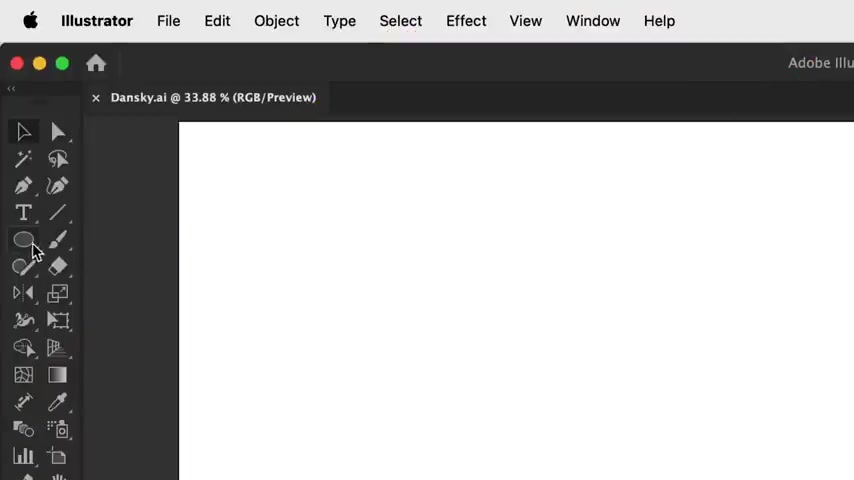
Select the Ellipse Tool: Grab the Ellipse Tool (L) from the toolbar.
-
Create a Perfect Circle: Click and drag on the artboard while holding down the Shift key to create a perfect circle. Holding Shift ensures the width and height are equal.
-
Remove the Fill: Ensure that the fill color is set to 'None'. This makes it easier to see the shape transformation.
-
Increase Stroke Weight: Increase the stroke weight to around 10 pt. This makes the circle outline more prominent for the effect.
-
Apply Pucker & Bloat Effect: Go to Effect > Distort & Transform > Pucker & Bloat.
-
Adjust the Slider: Drag the slider towards 'Pucker' to create the points of the star. Adjust to taste based on desired sharpness.
-
Expand Appearance: Go to Object > Expand Appearance to apply the effect.
-
Swap Fill and Stroke: Finally, press Shift+X to swap the fill and stroke, making it a filled shape.
Keyword : Adobe Illustrator, Shape Creation
Creating a Water Droplet Shape
Another essential shape is the water droplet. Here’s a simple method to craft one:
-
Start with a Circle: Again, begin by creating a circle using the Ellipse Tool (L).
-
Position the Circle: Move the circle down slightly on the artboard.
-
Use Direct Selection Tool: Grab the Direct Selection Tool (A) to modify anchor points.
-
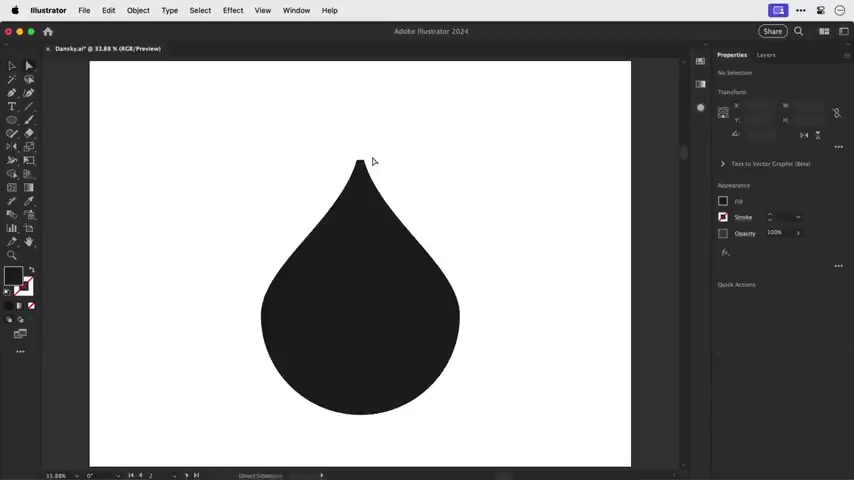
Adjust the Top Anchor Point: Drag over the top anchor point and drag it upward while holding Shift. This creates the basic teardrop shape.
-
Fine-Tune Handles: To refine the droplet, hold Alt/Option and click-drag the handle of the top anchor to shape the drop. Adjust it to the middle
-
Erase any glitchs : If you meet any glitches, Press command or control +Y in Outline mode.
-
Erase tool: For a smoother finish, use the eraser tool to flatten the top.
-
Round Corners: Select with the direct selection tool, and Round the corners to end up with a water droplet.
Keyword : Water Droplet, Adobe Illustrator, Shape Creation
Creating a Heart Shape
Crafting a heart is simpler than you might think, although many methods exist:
-
Grab the Pen Tool: For this method, select the Pen Tool (P).
-
Create the First Curve: Find the center of your artboard and click-drag upward with the Pen Tool while holding Shift to ensure a perfectly vertical handle.
-
Connect the Curve: Hover over the 90-degree intersection to the right, select that point.
-
Complete the Shape: Click on the first Anchor point to close the shape.
-
Duplicate the shape: Reflected the image by selecting the vertical reflection tool.
-
Join and Unite: Swap the fill and stroke colors using the Pathfinder panel, unite the two halves into a single shape.
Keyword : Heart Shape, Adobe Illustrator, Shape Creation
Creating Dynamic Arrows
Rather than crafting arrows from basic shapes, Adobe Illustrator offers a more flexible approach using strokes:
-
Select Line Segment Tool: Click on the line segment tool.

-
Draw a Straight Line: Click and drag to draw a straight line. Hold Shift to constrain the line horizontally.
-
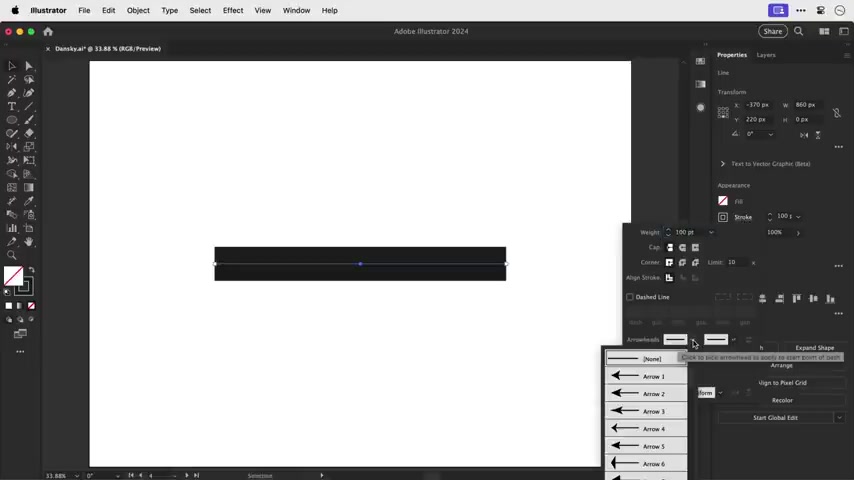
Open the Stroke Panel: Open stroke panel to add an arrowhead to the line.
-
Add an Arrowhead: You can change the arrowhead style using this panel.
-
Adjust Scale : You can change its Scale.
-
Customize the Profile: You can even change the path profile.
-
Modify with Anchor Points: Grab the Anchor Point tool to click and drag.
Keyword : Dynamic Arrows, Adobe Illustrator, Shape Creation
Creating a Shield
Creating shields, often used in logos and icons, can be achieved efficiently with these steps:
- Use the Pen Tool: Start by creating a diagonal line with the pen tool.
- Add Additional Lines : Draw the next line down the bottom so that it vertially lines up.
- Curve: Then create your shape by curving the sides.
- Replicate the shape: Grab your reflect tool to duplicate the opposite half to complete the shield.
- Transform the shield: Hold the alter tool, select all points and change the size
- Set the final design to fill : Add a fill, remove stroke to the finalized shield!
Keyword : Shield , Adobe Illustrator, Shape Creation
Creating a Starburst Shape
That attention-grabbing starburst shape commonly used for special offers is easier than you might think.
- Select the Star Tool: Click and hold, then grab your star tool.
- Adjust Points and Indent using keyboard arrows: Drag on the panel to bring your creation to life!
- Tweak if you desire : Fine-tune with the select tool
Keyword : Starburst Shape, Adobe Illustrator, Shape Creation
How to Creat an Archimedean Spiral
Creating a linear or Archimedean spiral, where the space between each line is consistent, is possible without Illustrator’s spiral tool:
- Select the Polar Grid Tool: Click and hold the line tool and choose the polar grid tool.
- Customize: Change the number of lines using the left and right keyboard arrows.
- Create radial circles : Adjust the number of circles using the up and down arrows.
- Remove the Unnecessary : Remove every line on the top half.
- Reflect and Copy: Use the reflect tool for the horizontal option, copy and paste the bottom to where the top one used to be and link it together!
- The finalized touch : Move the radial points to be in their designated points, and create the perfectly finished product
Keyword : Archimedean spiral, Adobe Illustrator, Shape Creation



Most people like


































Report
Please select a reason for reporting
- 13 Reasons to Switch from Snapchat to Text Messaging
- 7 Powerful Speech to Text Apps to Boost Productivity
- 10 Best Speech to Text Tools for Effortless Transcription
- 13 Free Tools to Easily Transcribe Audio to Text
- 15 Surprising Ways Google's Speech-to-Text Boosts Productivity
- 7 Best Free Online Audio to Text Transcription Tools
- 9 Tips to Transcribe Speech to Text Faster and Better
- 13 Best Speech to Text Software for Windows 10 in 2023
- 7 Tips for Choosing the Best Transcriber for Audio to Text
- 11 Reasons Why Dragon Speech-to-Text Apps are Game-Changers
- 6 Secrets to Enhance Your Speech to Text Transcription
- 6 Brilliant Ways to Boost Productivity with Talk-to-Text on Your MacBook
- 6 Ways Transcription Software Converts Audio to Text
- 8 Tips to Transcribe Speech to Text Like a Pro
- 6 Reasons IBM Watson Speech to Text is a Game-Changer
- 14 Powerful Ways Talk-to-Text Improves Your Workflow
- 12 Top Windows Speech-to-Text Software for Efficient Transcription
- 12 Game-Changing Benefits of Apple's Speech to Text Technology
- 9 Powerful Use Cases for AWS Speech to Text Technology
- 10 Easy Steps to Transcribe YouTube Videos to Text
- transcription audio en texte
- online audio transcription
- free audio file transcription
- free ai audio transcription
- audio transcription service
- audio transcription online free
- audio transcription free online
- audio to transcription software
- audio and transcript
- ai audio transcription free
- voice recording to text converter
- translate voice recording to text
- record voice to text
- audio recording to text converter
- voice recording and transcription
- chatgpt voice to text
- gmail voice to text
- speech to text reader
- speech to text ai free
- speech to talk
- ChatGPT Knows Ford. It Just Doesn't Quote Ford
- Meshy AI: How to Create 3D Models from Text and Images
- How SEO and Marketing Dashboards Empower Agencies to Drive Results
- How to Use AI Tools to Find Internal Linking Opportunities Across a Business Website
- Discover Your Perfect Haircut with AI Hairstyle Apps
- Free Reputation Calculator Tools: How They're Adapting to Score AI Visibility, Not Just Rankings
- Design Professional Flyers for Free on Your Phone
- Best Free Flyer Maker Apps for Android: Design Like a Pro
- How to Know If Your Business Is Ready for an AI Customer Service Agent
- Revolutionizing Storytelling: From Novels to Screenplays with AI
- Your Business Data Could Be Worth Up to $4M. Find Out Without Uploading a Single File.
- Can an eSIM Plan Save You Time During Travel Setup?
- AI Video Editor Review: A Hands-On Look at Prompt-Based Video Editing
- Keep Characters Consistent Across Scenes With Image-to-Video AI
- How to Convert BTC to HNT
- ProxyWing DuckDuckGo Proxy Review: Plans, Setup and Who It Is For
- ChatGPT Knows Ford. It Just Doesn't Quote Ford
- Automate Lead Generation: A Comprehensive Guide with AI Agents
- Revideo.io: The Future of Reverse Video Search Technology
- Revolutionizing Email Marketing Agency with AI

Copyright ©2026 toolify