























Mastering Post-Editing Transcripts: A Comprehensive Guide

Updated on Jul 01,2025








Table of Contents
- Key Points
- The Importance of Post-Editing AI-Generated Transcripts
- Navigating and Utilizing the Limecraft Transcript Editor
- Benefits and Drawbacks of Post-Editing AI Transcripts
- FAQ
- Related Questions


The Importance of Post-Editing AI-Generated Transcripts
Why Post-Editing is Essential
Even with advancements in AI, automated transcriptions are not always perfect. Post-editing bridges the gap between machine-generated text and human-level accuracy. ai Transcription is incredibly reliable, but minor errors can still occur, especially when dealing with complex terminology, varied accents, or lower-quality audio.
Post-editing guarantees that your transcripts are free of errors, ensuring clarity, professionalism, and suitability for various applications, including subtitling and content repurposing. By meticulously reviewing and correcting transcripts, you enhance their usability and value, saving time and resources in the long run.
The Role of High-Quality Audio
The quality of the source audio dramatically impacts the accuracy of AI transcriptions. High-quality audio results in more accurate and reliable transcripts, reducing the amount of post-editing required. When audio is clear, with minimal background noise and distinct speaker voices, the AI can more effectively identify and transcribe spoken words. While post-editing is still necessary, starting with quality audio minimizes the chances of errors and streamlines the overall Transcription process.
Preparation for Further Processing
If you plan to use your transcripts for subsequent processes like subtitling or video editing, meticulous post-editing is even more critical. Accurate and well-formatted transcripts form the foundation for seamless downstream workflows. Errors in the original transcript can propagate throughout the entire process, leading to inaccuracies in subtitles and potential issues with video synchronization. Investing time in post-editing upfront ensures that your transcripts are clean, consistent, and optimized for the intended purpose. This proactive approach saves time and minimizes the risk of errors in the later stages of content production.
Navigating and Utilizing the Limecraft Transcript Editor
Switching to Edit Mode for Advanced Features
To fully leverage Limecraft's post-editing capabilities, you must first switch your transcript editor to Edit Mode. This mode unlocks a suite of advanced features, including the ability to edit speaker labels, highlight confidence scores, and access an expanded set of tools in the lower toolbar. Edit Mode provides the necessary flexibility and control to refine your transcripts with precision. Making the transition from 'View' mode to 'Edit' mode is the first and most important step for improving your workflow.
Navigating Transcripts Effectively
Limecraft provides a user-friendly interface for navigating transcripts efficiently. The editor links highlighted words to corresponding frames in the video player, facilitating seamless synchronization between the text and the audio.
The lower toolbar contains essential navigation controls, allowing you to play, pause, skip forward or backward, and adjust playback speed. You can also use keyboard shortcuts to speed up your editing workflow. These features ensure you can quickly locate and correct any inaccuracies within the transcript.
Key Navigation Features Table
Here's a breakdown of the key navigation features in Limecraft's transcript editor:
| Feature | Description |
|---|---|
| Highlighted WORD | Links the selected word in the transcript to its corresponding frame in the video player. |
| Play/Pause | Starts or stops video playback. |
| Skip Forward/Backward | Skips the video forward or backward by a few seconds. |
| Speed Adjustment | Allows you to increase or decrease the playback speed for efficient review. |
| Keyboard Shortcuts | Provides quick access to navigation functions, streamlining the editing process. |
Editing Text with Precision
Correcting punctuation is crucial for readability and accuracy. Limecraft allows for small text edits directly within the transcript. The platform also includes an Edit Box within the lower toolbar for larger, more complex edits. To use the Edit Box, highlight the text you want to modify and click the pen icon. This opens a dialogue where you can make your changes, ensuring that all edits are controlled and accurate. Ensure that any edits made remain within a sentence to not mess up time codes.
Highlighting Confidences for Error Detection
Limecraft's confidence score highlighting feature helps identify potential errors within the transcript. This tool assigns a confidence score to each word, indicating the AI's certainty in its transcription. By highlighting words with lower confidence scores, you can quickly focus on areas that might require further review and correction. This feature significantly reduces the time spent searching for errors and allows for a more targeted and efficient editing process. You can find this feature in the upper toolbar.
You can select what is regarded as 'bad' using the Highlight Bad tool.
Correcting Speaker Segmentation and Naming
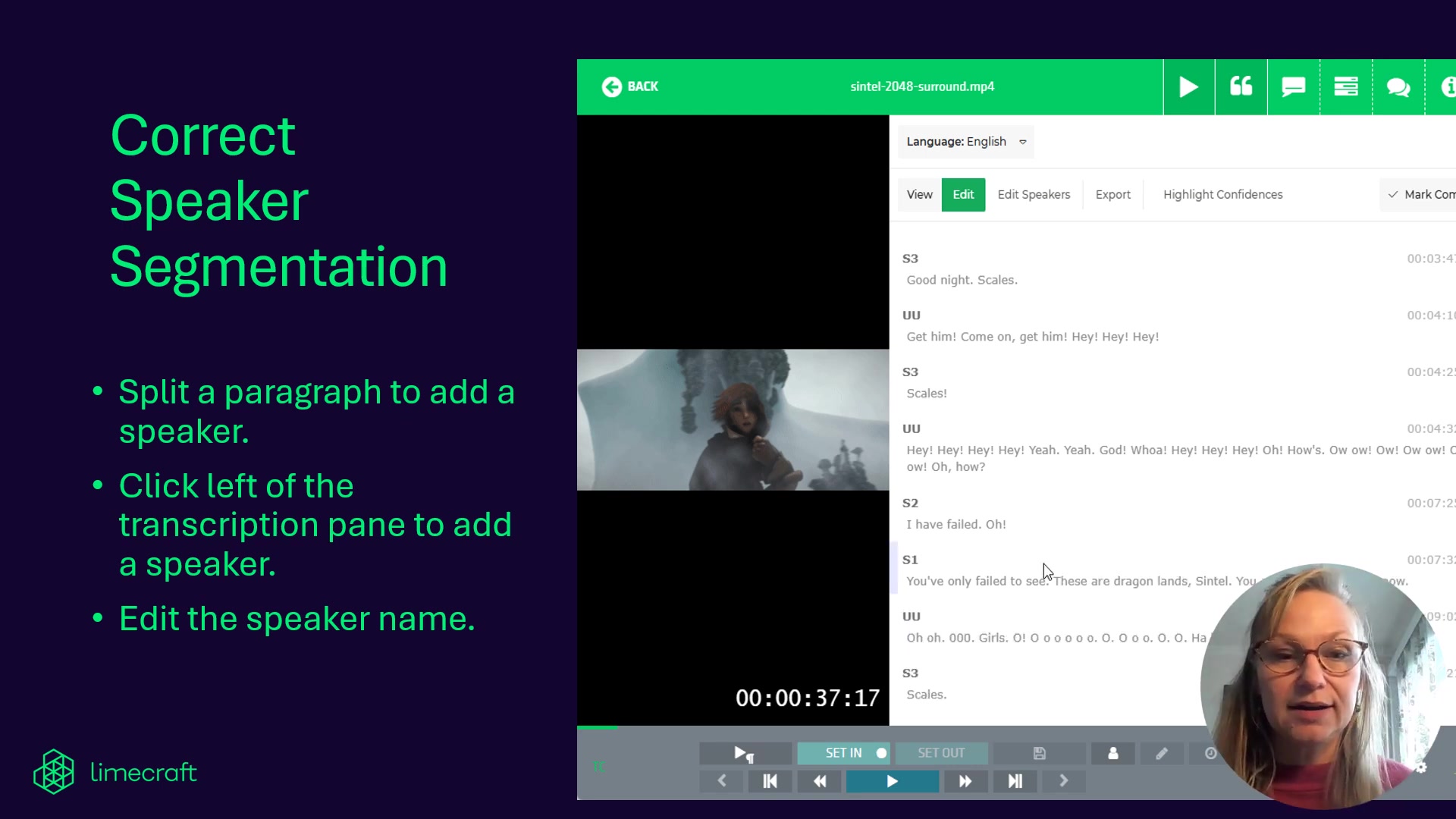
Accurate speaker segmentation is essential, especially in transcripts with multiple speakers. Limecraft allows you to split paragraphs to add or correct speaker labels. You can also edit speaker names directly within the transcript editor. By hovering, you can also use a bulk speaker rename option. To change a speaker, you first need to split the text where the speaker changed. A dropdown list then provides suggestions based on existing speakers in your project, ensuring consistency and accuracy.
This feature is critical for creating clear and understandable transcripts, especially when preparing content for subtitling or voice-over work.
Adjusting Timing for Perfect Synchronization
Perfect timing is critical to the transcript. Use the clock icon to precisely fix timing. The in and out duration times can be adjusted with small up and down arrows. If this is not suitable, manual time-code adjustments can be typed in. Remember to hit confirm and do a spot check.
Performing Bulk Speaker Renames
Often it is easier to perform renames in bulk. By using the tool available, you can quickly rename all speakers in your project to ensure clarity.








Most people like



































Report
Please select a reason for reporting
- 13 Reasons to Switch from Snapchat to Text Messaging
- 7 Powerful Speech to Text Apps to Boost Productivity
- 10 Best Speech to Text Tools for Effortless Transcription
- 13 Free Tools to Easily Transcribe Audio to Text
- 15 Surprising Ways Google's Speech-to-Text Boosts Productivity
- 7 Best Free Online Audio to Text Transcription Tools
- 9 Tips to Transcribe Speech to Text Faster and Better
- 13 Best Speech to Text Software for Windows 10 in 2023
- 7 Tips for Choosing the Best Transcriber for Audio to Text
- 11 Reasons Why Dragon Speech-to-Text Apps are Game-Changers
- 6 Secrets to Enhance Your Speech to Text Transcription
- 6 Brilliant Ways to Boost Productivity with Talk-to-Text on Your MacBook
- 6 Ways Transcription Software Converts Audio to Text
- 8 Tips to Transcribe Speech to Text Like a Pro
- 6 Reasons IBM Watson Speech to Text is a Game-Changer
- 14 Powerful Ways Talk-to-Text Improves Your Workflow
- 12 Top Windows Speech-to-Text Software for Efficient Transcription
- 12 Game-Changing Benefits of Apple's Speech to Text Technology
- 9 Powerful Use Cases for AWS Speech to Text Technology
- 10 Easy Steps to Transcribe YouTube Videos to Text
- transcription audio en texte
- online audio transcription
- free audio file transcription
- free ai audio transcription
- audio transcription service
- audio transcription online free
- audio transcription free online
- audio to transcription software
- audio and transcript
- ai audio transcription free
- voice recording to text converter
- translate voice recording to text
- record voice to text
- audio recording to text converter
- voice recording and transcription
- chatgpt voice to text
- gmail voice to text
- speech to text reader
- speech to text ai free
- speech to talk
- How SEO and Marketing Dashboards Empower Agencies to Drive Results
- How to Use AI Tools to Find Internal Linking Opportunities Across a Business Website
- Discover Your Perfect Haircut with AI Hairstyle Apps
- Free Reputation Calculator Tools: How They're Adapting to Score AI Visibility, Not Just Rankings
- Design Professional Flyers for Free on Your Phone
- Best Free Flyer Maker Apps for Android: Design Like a Pro
- How to Know If Your Business Is Ready for an AI Customer Service Agent
- Revolutionizing Storytelling: From Novels to Screenplays with AI
- Create Engaging Animated Explainer Videos with a Free AI Tool
- Stop Multi-Subscribing: Benchmark Top AI Visual Models in One Canvas
- My Brand New Logo: AI-Powered Logo Design for Startups
- Create Stunning Logos with Free AI Logo Generator!
- AI Logo Maker: Design a Stunning Logo in Minutes
- Elevate Your Zoom Experience with Enhanced Name Tags by Warmly
- Top 5 AI Logo Makers in 2025: Design a Stunning Brand
- Creative Fabrica's AI Tools: Flow, Studio, and Font Generator
- Create Stunning Logos with Canva's Free AI Logo Generator
- Create Professional and Memorable Logos with LogoMaker.ai
- Design Your Own Font: A Step-by-Step Guide with Vectornator Pro
- AI Font Generator: Revolutionizing Typeface Design with AI

Copyright ©2026 toolify