































Table of Contents
- Key Points
- Understanding Stable Diffusion Outpainting
- Setting Up Stable Diffusion for Outpainting
- Step-by-Step Guide to Outpainting with Stable Diffusion
- Stable Diffusion Pricing
- Pros and Cons of Using Stable Diffusion for Outpainting
- Core Features of Stable Diffusion for Outpainting
- Real-World Use Cases for Stable Diffusion Outpainting
- Frequently Asked Questions (FAQ)
- Related Questions



Setting Up Stable Diffusion for Outpainting
Installing and Configuring Stable Diffusion
Before diving into outpainting, it's essential to have Stable Diffusion properly installed and configured. This section provides a step-by-step guide to setting up Stable Diffusion, ensuring that you have all the necessary components and settings in place.
1. Installation:
- Download Stable Diffusion: Obtain the Stable Diffusion software from a reliable source. Ensure you have the correct version for your operating system and hardware.
- Install Dependencies: Stable Diffusion relies on several Python libraries. Install these dependencies using pip:
pip install torch torchvision torchaudio pip install diffusers transformers accelerate - Configure Settings: Adjust the settings based on your hardware capabilities. Lowering the resolution or batch size can help if you have limited GPU memory.
2. ControlNet Integration:
- Install ControlNet: Download the ControlNet extension for Stable Diffusion. This can typically be done through the Stable Diffusion web interface or by manually placing the extension files in the appropriate directory.
- Download Models: ControlNet requires specific models for different control types (e.g., inpainting, depth, canny). Download the necessary models and place them in the designated ControlNet model folder.
3. Optimizing Performance:
- GPU Acceleration: Ensure that Stable Diffusion is using your GPU for faster processing. This usually involves configuring the PyTorch settings to utilize CUDA.
- Memory Management: Adjust the memory settings to prevent out-of-memory errors. Experiment with different optimization techniques to find the best balance between speed and stability.
Properly setting up Stable Diffusion is crucial for a smooth and efficient outpainting workflow. By following these steps, you'll be well-prepared to explore the full potential of Stable Diffusion's image generation capabilities.
Essential Settings for Outpainting
Achieving optimal results with Stable Diffusion outpainting requires careful adjustment of various settings. This section outlines the key parameters you should focus on to ensure seamless and visually consistent image extensions.
1. Sampling Method:
- DPM++ 2M Karras: This sampling method is highly recommended for its balance of speed and quality. It provides excellent results for a wide range of image generation tasks, including outpainting.
-
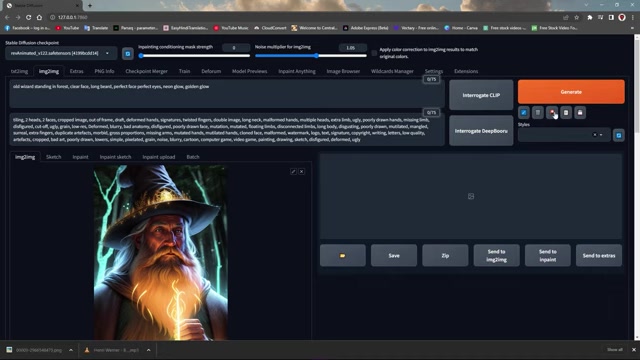
You can also try other samplers like Euler a.
2. Resolution:
- Initial Resolution: Start with a resolution similar to your original image. Increasing the resolution too much can lead to incoherent results or excessive processing time.
- Aspect Ratio: Maintain the original aspect ratio to prevent distortion. If you're extending the image in one direction, adjust the resolution accordingly.
3. CFG Scale:
- Optimal Range: The CFG scale controls how closely Stable Diffusion follows the text Prompt. A value between 7 and 12 typically works well for outpainting.
- Experimentation: Experiment with different CFG scales to find the sweet spot that balances prompt adherence with creative freedom.
4. Denoising Strength:
- High Value: A higher denoising strength allows Stable Diffusion to deviate more from the original image, which is necessary for creating new content. A value between 0.6 and 0.8 is often effective.
5. Seed:
- Keep at -1: This ensures every output is different.
6. ControlNet Settings:
- Enable ControlNet: Activate ControlNet to leverage its advanced control features.
- Control Type: Select the appropriate control type for your outpainting task (e.g., inpaint_only+lama).
- Resize Mode: Choose "Resize and Fill" to seamlessly extend the image.
Fine-tuning these settings will significantly impact the quality and consistency of your outpainted images. Take the time to experiment and find the values that work best for your specific project.
Step-by-Step Guide to Outpainting with Stable Diffusion
Generating an Initial Image
Before you can begin outpainting, you need a base image to work with. This section guides you through the process of generating an initial image using Stable Diffusion, ensuring that you have a solid foundation for your outpainting project.
1. Text-to-Image Generation:
-
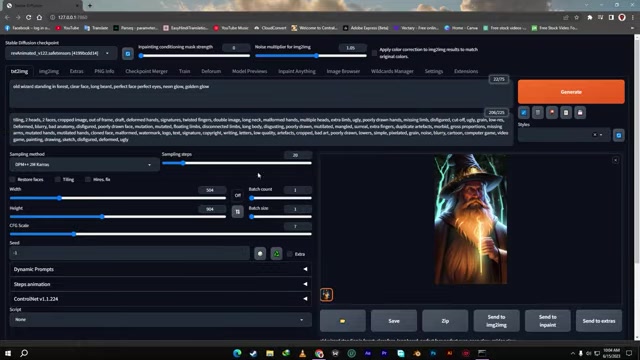
Write a Detailed Prompt: Craft a text prompt that accurately describes the scene you want to create. The more specific and descriptive your prompt, the better Stable Diffusion will be able to generate the desired image.
-
Adjust Settings: Set the resolution, sampling method, CFG scale, and other parameters according to your preferences. Refer to the previous section for recommended settings.
-
Generate the Image: Click the "Generate" button to create the initial image. If you're not satisfied with the result, adjust the prompt or settings and try again until you achieve a satisfactory base image.
2. Saving the Image:
- Save the Generated Image: Once you're happy with the initial image, save it to your computer. You'll need this image for the subsequent outpainting steps.
A well-generated initial image is crucial for successful outpainting. Take the time to refine your prompt and settings to create a base image that aligns with your creative vision. This will make the outpainting process much smoother and more rewarding.
Using Image-to-Image for Outpainting
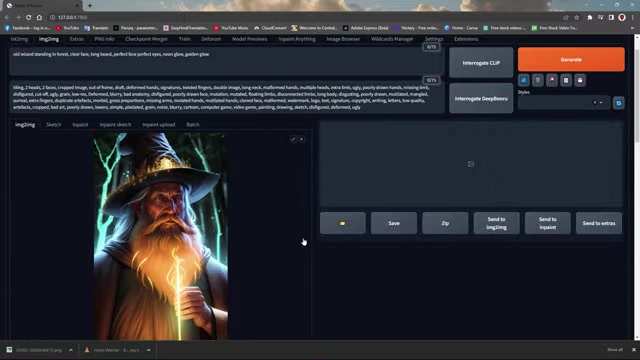
Image-to-image (Img2Img) is the best method for achieving visually consistent outpainting results. This section explains how to leverage this technique in Stable Diffusion to seamlessly extend your images.
1. Sending the Image to Img2Img:
- Load the Saved Image: Import the initial image you saved into the Stable Diffusion Img2Img interface.
2. Configuring Img2Img Settings:
- Sampling Method: Use DPM++ 2M Karras.
- Resize Mode: Set Width and Height.
- Denoising Strength: A range between .6 to .8 is desirable.
3. ControlNet Configuration:
- Enable ControlNet: Activate the ControlNet module within the Img2Img interface.
- Upload the Image: Upload the image again, the one you want to extend, into ControlNet.
- Enable ControlNet: Choose the control type inpaint_only+lama.
- Set Resize Mode: Activate Resize and Fill.
- ControlNet Weight: ControlNet is more important than your prompt.
4. Generating the Outpainted Image:
- Click Generate: Once all settings are configured, click the "Generate" button to initiate the outpainting process.
- Review Results: Examine the generated image. If the extension isn't seamless, adjust the denoising strength, CFG scale, or ControlNet settings and regenerate.
By following these steps, you can use the Img2Img function within Stable Diffusion and leverage ControlNet to create stunning visual extensions.





Most people like


































Report
Please select a reason for reporting
- 13 Reasons to Switch from Snapchat to Text Messaging
- 7 Powerful Speech to Text Apps to Boost Productivity
- 10 Best Speech to Text Tools for Effortless Transcription
- 13 Free Tools to Easily Transcribe Audio to Text
- 15 Surprising Ways Google's Speech-to-Text Boosts Productivity
- 7 Best Free Online Audio to Text Transcription Tools
- 9 Tips to Transcribe Speech to Text Faster and Better
- 13 Best Speech to Text Software for Windows 10 in 2023
- 7 Tips for Choosing the Best Transcriber for Audio to Text
- 11 Reasons Why Dragon Speech-to-Text Apps are Game-Changers
- 6 Secrets to Enhance Your Speech to Text Transcription
- 6 Brilliant Ways to Boost Productivity with Talk-to-Text on Your MacBook
- 6 Ways Transcription Software Converts Audio to Text
- 8 Tips to Transcribe Speech to Text Like a Pro
- 6 Reasons IBM Watson Speech to Text is a Game-Changer
- 14 Powerful Ways Talk-to-Text Improves Your Workflow
- 12 Top Windows Speech-to-Text Software for Efficient Transcription
- 12 Game-Changing Benefits of Apple's Speech to Text Technology
- 9 Powerful Use Cases for AWS Speech to Text Technology
- 10 Easy Steps to Transcribe YouTube Videos to Text
- transcription audio en texte
- online audio transcription
- free audio file transcription
- free ai audio transcription
- audio transcription service
- audio transcription online free
- audio transcription free online
- audio to transcription software
- audio and transcript
- ai audio transcription free
- voice recording to text converter
- translate voice recording to text
- record voice to text
- audio recording to text converter
- voice recording and transcription
- chatgpt voice to text
- gmail voice to text
- speech to text reader
- speech to text ai free
- speech to talk
- Meshy AI: How to Create 3D Models from Text and Images
- How SEO and Marketing Dashboards Empower Agencies to Drive Results
- How to Use AI Tools to Find Internal Linking Opportunities Across a Business Website
- Discover Your Perfect Haircut with AI Hairstyle Apps
- Free Reputation Calculator Tools: How They're Adapting to Score AI Visibility, Not Just Rankings
- Design Professional Flyers for Free on Your Phone
- Best Free Flyer Maker Apps for Android: Design Like a Pro
- How to Know If Your Business Is Ready for an AI Customer Service Agent
- Revolutionizing Storytelling: From Novels to Screenplays with AI
- Create Engaging Animated Explainer Videos with a Free AI Tool
- Automate Lead Generation: A Comprehensive Guide with AI Agents
- Revideo.io: The Future of Reverse Video Search Technology
- Revolutionizing Email Marketing Agency with AI
- Breaking the Character Drift Dilemma: A Practical Test of Smart Shot
- Meshy AI: How to Create 3D Models from Text and Images
- ASOMobile Helps Teams Benchmark App Store Screenshots Against Competitors
- How to Match LMS Software With Your Organization's Training Plan
- How to Convert BTC to HNT
- Unleashing the Power of AI: Cognizant's Roadmap for Transformation
- Frame to Video Review: A Practical Look at Turning Two Still Frames Into Motion

Copyright ©2026 toolify