































Table of Contents
- Key Points
- Setting Up Your Local AI Image Recognition Environment
- Advanced Techniques for Image Analysis
- Step-by-Step Guide to Image Recognition with Python and Ollama
- Cost Considerations
- Weighing the Options: Pros and Cons of Local AI Image Recognition
- Exploring the Core Features of Ollama and llava
- Unlocking the Potential: Use Cases for Local AI Image Recognition
- Frequently Asked Questions
- Related Questions


Setting Up Your Local AI Image Recognition Environment
Understanding the Need for Offline AI Image Recognition
In an increasingly connected world, the need for offline solutions remains crucial. Whether due to limited internet access, privacy concerns, or the desire for faster processing, running AI models locally offers several advantages. Local ai Image Recognition provides a secure and efficient alternative to cloud-based services, allowing you to analyze images without sending sensitive data over the internet. This approach not only ensures greater control over your data but also reduces latency, making it ideal for real-time applications. By leveraging tools like Python and Ollama, you can harness the power of AI without compromising on privacy or performance. This method is totally free and you can find the code in the description.
Installing Ollama: Your Gateway to Local LLMs
Ollama is the cornerstone of our local AI Image Recognition setup. This platform empowers you to run Large Language Models (LLMs) directly on your computer. By installing Ollama, you gain access to a vast library of pre-trained models, including llava, designed for image analysis. Here's how to get started:
-
Visit the Ollama Website: Navigate to ollama.com to download the appropriate version for your operating system (macOS, Linux, or Windows).
-
Download and Install: Follow the installation instructions provided on the website. The process is straightforward and typically involves running an installer package.
-
Install the Ollama Command Line Tool (CLI): During the setup, ensure you install the Ollama CLI tool. This is essential for interacting with Ollama from the command line, enabling you to pull models and run inference tasks. The Ollama CLI is your primary interface for managing and utilizing LLMs locally.
Once Ollama is installed, you're ready to explore its capabilities and begin setting up your image recognition pipeline.
Choosing the Right Model: Introducing llava
The llava model is specifically designed for image recognition and understanding. It excels at analyzing images and generating textual descriptions, making it perfect for our project. The llava model comes in various sizes, indicated by the number of parameters (e.g., 7 billion, 13 billion, 34 billion). Models with more parameters generally offer higher accuracy but require more system resources to run efficiently. For systems with limited resources, the 7 billion parameter model is a good starting point.

To select the llava model:
- Navigate to the Models Section: Return to ollama.com and click on the "Models" tab.
- Search for llava: Use the search bar to find the llava model.
- Choose a Version: Select a version that suits your system's capabilities. For this Tutorial, we'll focus on the 7 billion parameter model.
Choosing the right model is crucial for balancing accuracy and performance. Ensure your system meets the minimum requirements for the selected model to avoid performance issues.
Installing the llava Model on Your System
With Ollama installed and the llava model selected, it's time to download and install the model on your system. This involves using the Ollama CLI to pull the model from the Ollama library. Follow these steps:
-
Open Your Terminal: Launch your terminal application (e.g., Terminal on macOS, Command Prompt on Windows).
-
Execute the Pull Command: Enter the following command to pull the llava model:
ollama pull llava:7b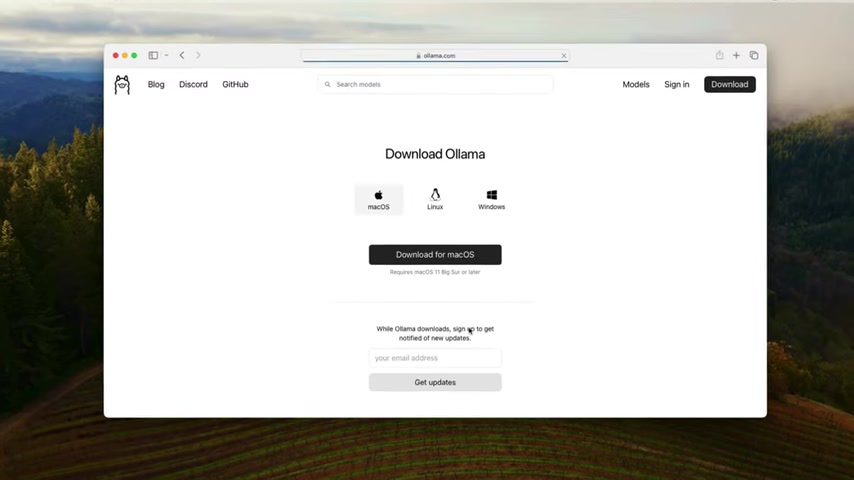
-
Wait for the Download: The command will initiate the download and installation process. This may take some time, depending on your internet connection and system resources.
Once the download is complete, the llava model will be ready for use in your local AI image recognition projects.
Integrating Ollama with Python
To seamlessly integrate Ollama with your Python projects, you'll need to install the Ollama Python package. This package provides a convenient interface for interacting with the Ollama API from your Python code. To install the Ollama Python package:
- Open Your Terminal: Launch your terminal application.
- Execute the Installation Command: Enter the following command:
pip install ollama
With the Ollama Python package installed, you can now write Python scripts to interact with the llava model and perform image recognition tasks. The integration allows you to automate image analysis workflows and build custom AI applications.
Step-by-Step Guide to Image Recognition with Python and Ollama
Step 1: Import the Ollama Package and Initialize the Model
Begin by importing the Ollama package in your Python script. This provides access to the functions needed to interact with the llava model.
import ollama
Next, initialize the llava model. This step loads the model into memory and prepares it for image recognition tasks.
res = ollama.chat(
    model='llava:7b',
)
Step 2: Crafting Your Image Recognition Request
The next step involves creating an image recognition request. This request includes the image you want to analyze and any instructions you want to provide to the llava model.
messages = [
    {
        'role': 'user',
        'content': 'Describe this image',
        'images': ['./image1.jpg'],
    },
]
This code block defines a message with the role set to 'user', indicating that this is a request from the user. The content field specifies the instruction, in this case, 'Describe this image'. The images field provides the path to the image you want to analyze.
Step 3: Sending the Request and Receiving the Response
Now, send the image recognition request to the llava model and receive the response. This involves calling the chat function with the model and messages as arguments.
print(res['message']['content'])This code block sends the request and prints the model's response to the console. The response typically includes a textual description of the image.
Cost Considerations
Ollama and the llava Model: Free and Open-Source
One of the most significant advantages of using Ollama and the llava model is that they are free and open-source. This means you can use them for personal or commercial projects without incurring any licensing fees. However, it's important to consider the cost of hardware resources required to run the models locally.
- Hardware Costs: Running LLMs locally requires sufficient CPU and GPU power. Depending on the size of the model and the complexity of the analysis, you may need to invest in a high-performance computer or server. The cost of hardware can vary widely, depending on your specific needs and budget.
- Electricity Costs: Running a computer or server continuously can incur electricity costs. These costs can be significant, especially for long-running tasks. Consider optimizing your code and hardware configuration to minimize electricity consumption.
- Maintenance Costs: Maintaining your local AI environment involves tasks such as software updates, hardware repairs, and security maintenance. These tasks can require time and expertise, adding to the overall cost of ownership.
While Ollama and llava themselves are free, it's crucial to factor in the associated hardware, electricity, and maintenance costs to accurately assess the total cost of ownership.





Most people like
































Report
Please select a reason for reporting
- 13 Reasons to Switch from Snapchat to Text Messaging
- 7 Powerful Speech to Text Apps to Boost Productivity
- 10 Best Speech to Text Tools for Effortless Transcription
- 13 Free Tools to Easily Transcribe Audio to Text
- 15 Surprising Ways Google's Speech-to-Text Boosts Productivity
- 7 Best Free Online Audio to Text Transcription Tools
- 9 Tips to Transcribe Speech to Text Faster and Better
- 13 Best Speech to Text Software for Windows 10 in 2023
- 7 Tips for Choosing the Best Transcriber for Audio to Text
- 11 Reasons Why Dragon Speech-to-Text Apps are Game-Changers
- 6 Secrets to Enhance Your Speech to Text Transcription
- 6 Brilliant Ways to Boost Productivity with Talk-to-Text on Your MacBook
- 6 Ways Transcription Software Converts Audio to Text
- 8 Tips to Transcribe Speech to Text Like a Pro
- 6 Reasons IBM Watson Speech to Text is a Game-Changer
- 14 Powerful Ways Talk-to-Text Improves Your Workflow
- 12 Top Windows Speech-to-Text Software for Efficient Transcription
- 12 Game-Changing Benefits of Apple's Speech to Text Technology
- 9 Powerful Use Cases for AWS Speech to Text Technology
- 10 Easy Steps to Transcribe YouTube Videos to Text
- transcription audio en texte
- online audio transcription
- free audio file transcription
- free ai audio transcription
- audio transcription service
- audio transcription online free
- audio transcription free online
- audio to transcription software
- audio and transcript
- ai audio transcription free
- voice recording to text converter
- translate voice recording to text
- record voice to text
- audio recording to text converter
- voice recording and transcription
- chatgpt voice to text
- gmail voice to text
- speech to text reader
- speech to text ai free
- speech to talk
- How to Use AI Tools to Find Internal Linking Opportunities Across a Business Website
- Discover Your Perfect Haircut with AI Hairstyle Apps
- Free Reputation Calculator Tools: How They're Adapting to Score AI Visibility, Not Just Rankings
- Design Professional Flyers for Free on Your Phone
- Best Free Flyer Maker Apps for Android: Design Like a Pro
- How to Know If Your Business Is Ready for an AI Customer Service Agent
- Revolutionizing Storytelling: From Novels to Screenplays with AI
- Create Engaging Animated Explainer Videos with a Free AI Tool
- Stop Multi-Subscribing: Benchmark Top AI Visual Models in One Canvas
- Best Seedance 2.5 API Provider: Every Price on the Market, Checked at Source
- Top AI Social Media Management Tools: Automate Your Content Strategy
- Free AI Text to Video Generator: Create Stunning Videos from Text
- Discover 17 ChatGPT Alternatives: A Comprehensive Comparison
- Character.AI vs. Janitor AI: Which AI Chat Platform Reigns Supreme?
- Top Virtual Assistant Companies in 2026: Reviews, Pricing, and Plans Compared
- Unveiling FaceCheck.ID: Revolutionizing Reverse Image Searches with AI
- 11 Best AI Dialers in 2026: Features, Pricing, Pros and Cons
- How I Direct Consistent AI Clips: A Hands-On Guide to Multi-Model Generation
- A Realistic Review of the Photo Generator Image Tool
- Playwright MCP Server: Automated Web Testing with Agent Mode

Copyright ©2026 toolify