































Table of Contents
- Key Points
- Exporting Data from PGC 6
- Understanding PGC 6 and P7 Data Differences
- Advantages and Disadvantages of Upgrading to P7
- FAQ
- Related Questions


Exporting Data from PGC 6
Step 1: Initiating the Export Process
The first step in converting your tool data from PGC 6 to P7 is exporting the data from PGC 6.
This process involves accessing the database tools within the PGC 6 software and selecting the export option. It is crucial to ensure that the PGC 6 software is running correctly before attempting to export the data. Improper execution can lead to data corruption or incomplete transfers. To begin, launch the PGC Plus 6 software.
Key Steps:
- Ensure PGC Plus 6 is running without errors.
- Navigate to the 'Database Tools' menu.
- Select the 'Data Import/Export' option.
- Choose 'Export Data' from the submenu.
This will prepare the system for the next steps, ensuring a clean and reliable data extraction process. Always back up your data before proceeding with any export operation.
Step 2: Configuring Export Settings in PGC 6
Once you initiate the export process, configuring the settings is crucial to ensure that all necessary data is included and properly formatted.
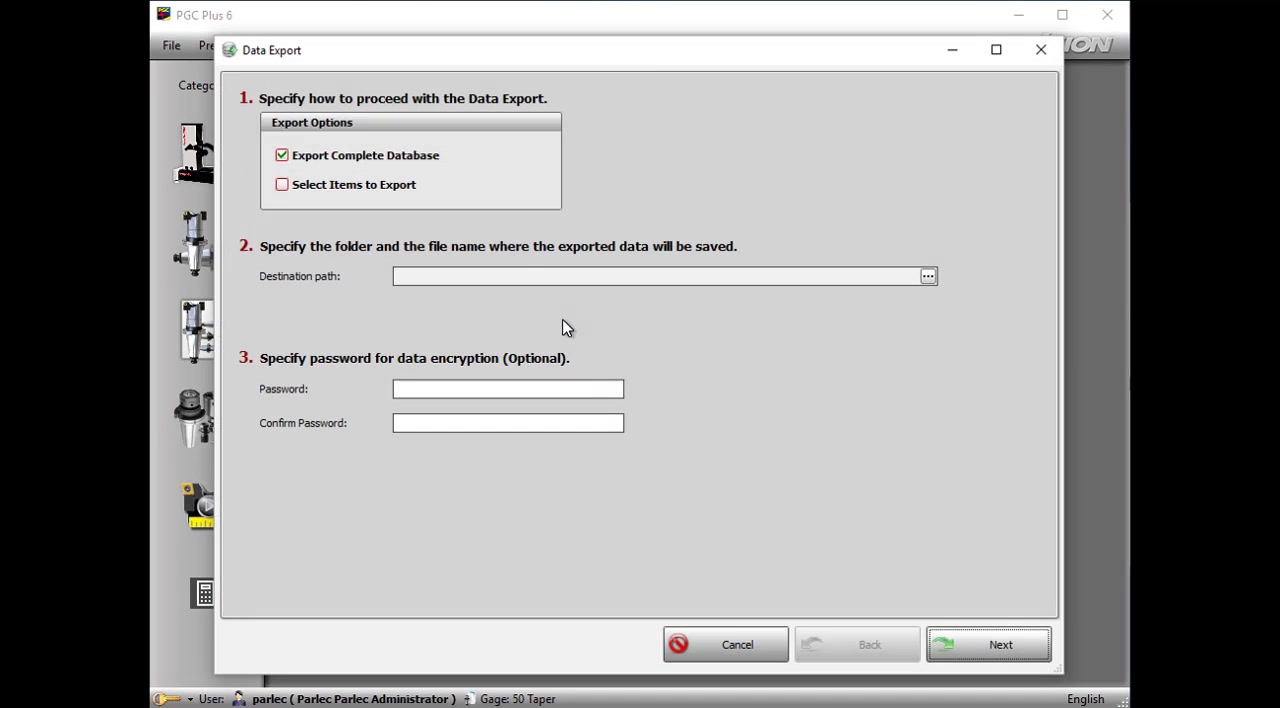
In the Data Export window, you'll find several options that determine what data gets exported and how it is saved. The most important configuration is selecting 'Export Complete Database' to ensure all tool data, components, and settings are included. You'll also specify a destination folder where the exported data will be saved, along with a file name for easy identification. An optional step is to add a password for data encryption.
Export Settings Configuration:
- Export Options: Select 'Export Complete Database'.
- Destination Path: Choose a location for the exported file, ideally a secure and easily accessible folder.
- File Name: Assign a descriptive name to the exported file, such as 'PGC6_ToolData_YYYYMMDD'.
- Password (Optional): Set a password for encryption if data security is a concern. It is necessary to confirm the password.
Carefully configuring these settings will help prevent data loss and ensure that the exported file is ready for import into P7. Always double-check the selected options before proceeding to the next step.
Step 3: Saving the Exported Data from PGC 6
After configuring the export settings, the next step is to save the exported data.
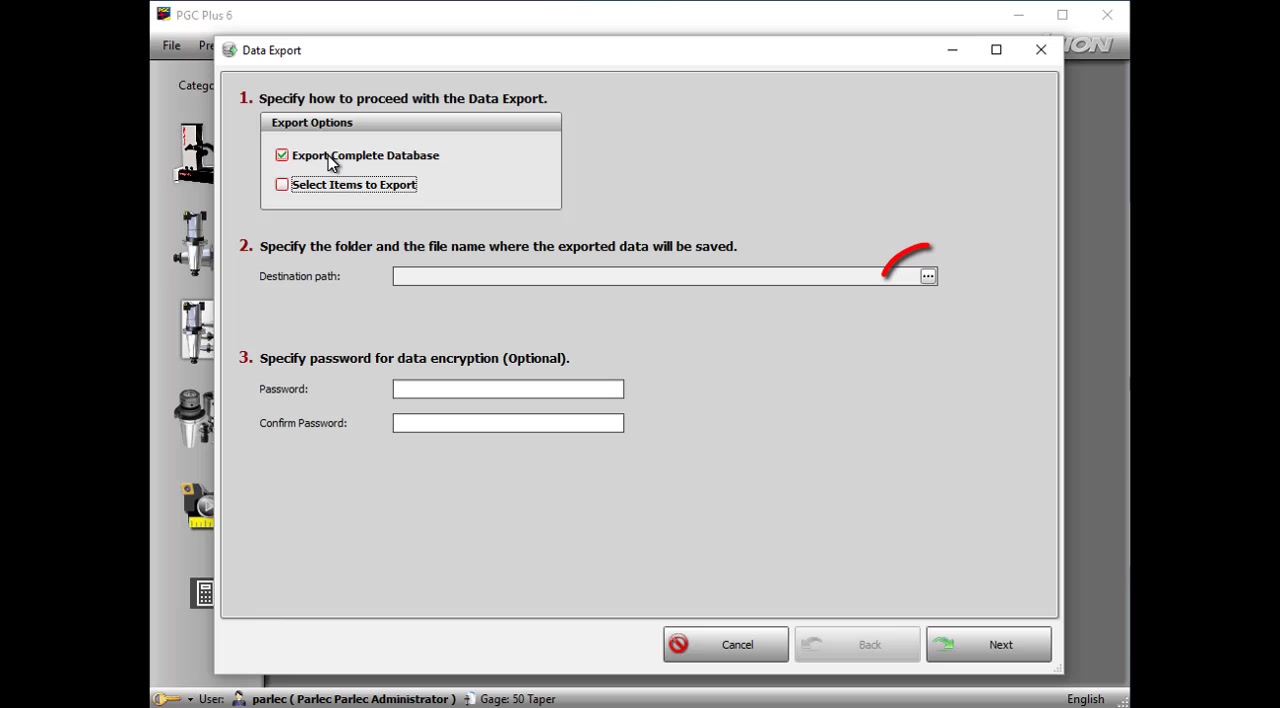
This involves selecting the destination folder and providing a suitable file name for the exported data. Make sure the file name is descriptive and includes the date to help with version control. Once the folder and file name are selected, click the 'Save' button to confirm the location. After specifying the destination, click 'Next' to proceed with the export process. PGC 6 will then begin retrieving and compiling the data. A progress bar will indicate the status of the export, providing real-time feedback on the operation. Once the process completes, a notification will confirm that the data export was finished successfully.
Saving Process:
- Select the three dot button, and choose the destination folder where the data will be saved.
- Give the data file a meaningful name.
- Click 'Save' to confirm the location.
- Click 'Next' to start the export process.
- Wait for the progress bar to reach 100%.
- Confirm the successful export notification.
Ensuring that the data is saved correctly is vital for a successful conversion to P7. Check the destination folder to verify that the exported file is present before moving on to the next phase.
Step 4: Finalizing the Export in PGC 6
Once the save location has been selected, and any password has been applied, finalize the process in PGC 6.
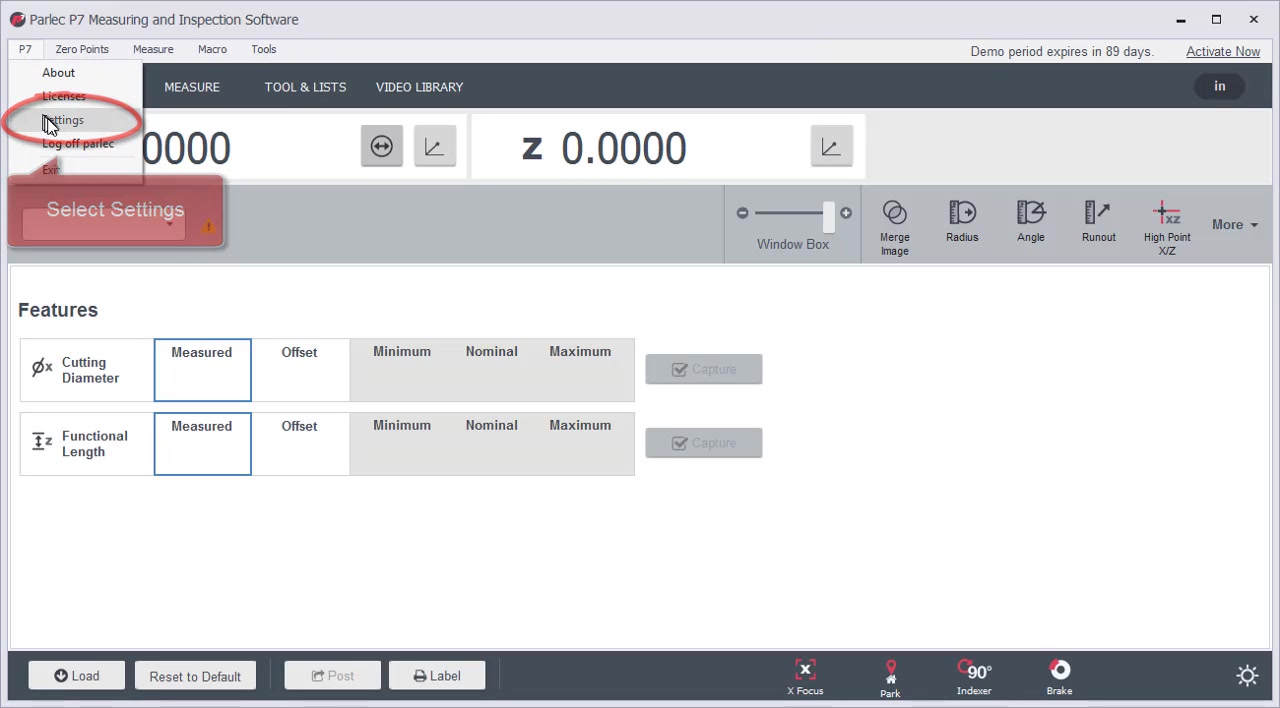
This begins by clicking the 'Next' button. This action initiates the data retrieval and compiling process. A progress bar provides real-time feedback on the operation's status, allowing you to monitor its progress. Once the process completes, a notification will confirm that the data export was finished successfully. This verification is essential to ensure that all necessary data has been extracted and is ready for importing into P7.
Finalizing Export:
- Click 'Next' on the Data Export window.
- Monitor the progress bar until it reaches 100%.
- Verify the success message indicating that the data export was finished successfully.
- Click ‘OK’ on the information window.
Taking these final steps ensures that all the tool data from PGC 6 is ready for transfer to P7. It’s a checkpoint to confirm that the export phase has been completed without any errors.




Most people like


































Report
Please select a reason for reporting
- 13 Reasons to Switch from Snapchat to Text Messaging
- 7 Powerful Speech to Text Apps to Boost Productivity
- 10 Best Speech to Text Tools for Effortless Transcription
- 13 Free Tools to Easily Transcribe Audio to Text
- 15 Surprising Ways Google's Speech-to-Text Boosts Productivity
- 7 Best Free Online Audio to Text Transcription Tools
- 9 Tips to Transcribe Speech to Text Faster and Better
- 13 Best Speech to Text Software for Windows 10 in 2023
- 7 Tips for Choosing the Best Transcriber for Audio to Text
- 11 Reasons Why Dragon Speech-to-Text Apps are Game-Changers
- 6 Secrets to Enhance Your Speech to Text Transcription
- 6 Brilliant Ways to Boost Productivity with Talk-to-Text on Your MacBook
- 6 Ways Transcription Software Converts Audio to Text
- 8 Tips to Transcribe Speech to Text Like a Pro
- 6 Reasons IBM Watson Speech to Text is a Game-Changer
- 14 Powerful Ways Talk-to-Text Improves Your Workflow
- 12 Top Windows Speech-to-Text Software for Efficient Transcription
- 12 Game-Changing Benefits of Apple's Speech to Text Technology
- 9 Powerful Use Cases for AWS Speech to Text Technology
- 10 Easy Steps to Transcribe YouTube Videos to Text
- transcription audio en texte
- online audio transcription
- free audio file transcription
- free ai audio transcription
- audio transcription service
- audio transcription online free
- audio transcription free online
- audio to transcription software
- audio and transcript
- ai audio transcription free
- voice recording to text converter
- translate voice recording to text
- record voice to text
- audio recording to text converter
- voice recording and transcription
- chatgpt voice to text
- gmail voice to text
- speech to text reader
- speech to text ai free
- speech to talk
- ChatGPT Knows Ford. It Just Doesn't Quote Ford
- Meshy AI: How to Create 3D Models from Text and Images
- How SEO and Marketing Dashboards Empower Agencies to Drive Results
- How to Use AI Tools to Find Internal Linking Opportunities Across a Business Website
- Discover Your Perfect Haircut with AI Hairstyle Apps
- Free Reputation Calculator Tools: How They're Adapting to Score AI Visibility, Not Just Rankings
- Design Professional Flyers for Free on Your Phone
- Best Free Flyer Maker Apps for Android: Design Like a Pro
- How to Know If Your Business Is Ready for an AI Customer Service Agent
- Revolutionizing Storytelling: From Novels to Screenplays with AI
- Your Business Data Could Be Worth Up to $4M. Find Out Without Uploading a Single File.
- Can an eSIM Plan Save You Time During Travel Setup?
- AI Video Editor Review: A Hands-On Look at Prompt-Based Video Editing
- Keep Characters Consistent Across Scenes With Image-to-Video AI
- How to Convert BTC to HNT
- ProxyWing DuckDuckGo Proxy Review: Plans, Setup and Who It Is For
- ChatGPT Knows Ford. It Just Doesn't Quote Ford
- Automate Lead Generation: A Comprehensive Guide with AI Agents
- Revideo.io: The Future of Reverse Video Search Technology
- Revolutionizing Email Marketing Agency with AI

Copyright ©2026 toolify