































Table of Contents
- Key Points
- Introduction to Power Apps Text Recognition
- Tips for Improving Text Recognition Accuracy
- Step-by-Step Guide: Extracting Data with Power Apps Text Recognizer
- Power Apps and AI Builder Pricing
- Pros and Cons of Using Power Apps Text Recognition
- Practical Use Cases for Power Apps Text Recognition
- Frequently Asked Questions (FAQ)
- Related Questions


Step-by-Step Guide: Extracting Data with Power Apps Text Recognizer
Step 1: Adding the Text Recognizer Component
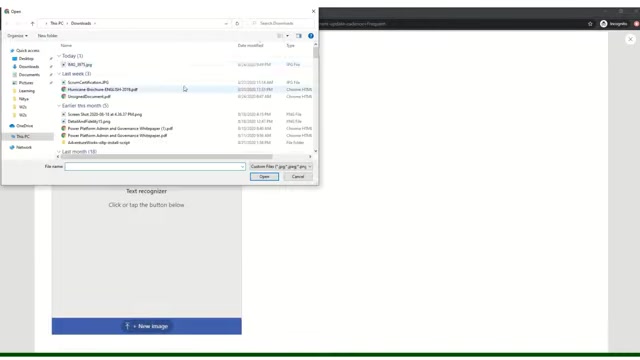
To begin, you need to add the Text Recognizer AI Builder component to your Power Apps screen. Follow these steps:
-
Open your Power Apps application in the Power Apps Studio.
-
Navigate to the screen where you want to add the text recognition functionality.
-
Click on the Insert tab in the top menu.
-
Select AI Builder from the options.
-
Choose Text Recognizer from the dropdown menu.
-
A premium component notification may appear. Acknowledge and proceed to add the text recognizer to your canvas.
Step 2: Configuring the Text Recognizer
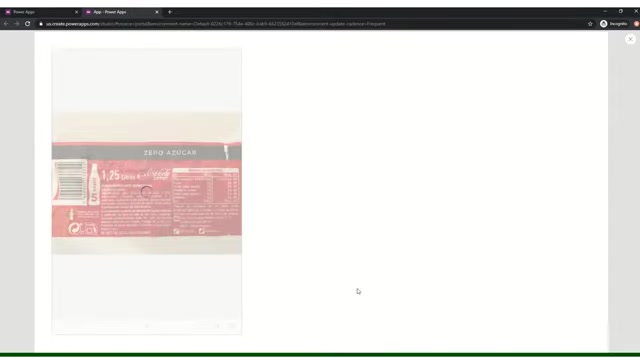
Once the Text Recognizer component is added, you can configure its properties:
- Select the Text Recognizer component on your screen.
- In the Properties pane on the right, you can adjust settings such as:
- Display Mode: Choose whether the component is editable or read-only.
- Show Image: Toggle the visibility of the image within the component.
- Show Controls: Show or hide the camera and upload buttons.
- Color and Border: Customize the appearance of the component.
- Adjust the size and position of the component as needed.
Step 3: Inserting a Data Table
To display the extracted text, use a data table. Here’s how:
- Click the Insert tab.
- Select Data table.
- Adjust the size and position of the data table on your screen.
Step 4: Linking Text Recognizer to the Data Table
Now, connect the Text Recognizer component to the data table:
- Select the data table.
- Go to the Properties pane and locate the Items property.
- Enter the following formula:
TextRecognizer.Results.Text - Go to properties pane and click Edit Fields, then add a field and pick the Text option that came from the textRecognizer control.
This formula retrieves the recognized text results and displays them in the data table.
Step 5: Testing the Text Recognition
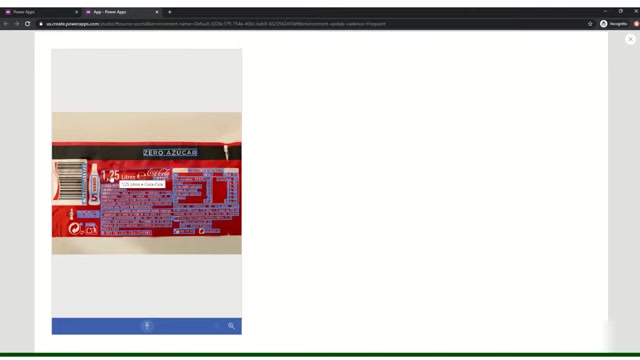
To test the text recognition, follow these steps:
-
Run the Power App: Click the Play button in the top-right corner of the Power Apps Studio.
-
Add an Image: Use the Text Recognizer component to add an image.
-
View the Results: The data table will display the extracted text from the image.
Practical Use Cases for Power Apps Text Recognition
Extracting Nutrition Information from Product Labels
One practical use case is extracting nutrition information from product labels. Consider an image of a food label
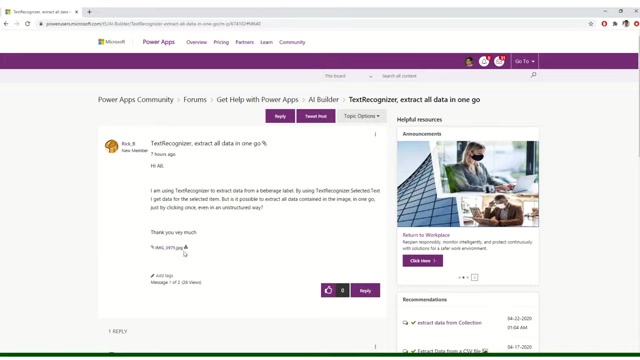
. By using the Text Recognizer component, you can extract the following information:
- Product Name
- Serving Size
- Calories
- Fat Content
- Carbohydrates
- Protein
- Ingredients list.
This information can be stored in a database or used to populate forms, making it easier to track and manage product data.
Automating Form Processing
Text recognition can also be used to automate form processing. For example, you can extract information from scanned documents or images of forms, such as invoices or applications. By automatically extracting the text, you can reduce the need for manual data entry and improve the efficiency of your form processing workflows.
Inventory Management
Text recognition can streamline inventory management by extracting information from product labels, such as product codes, descriptions, and quantities. This data can be used to update inventory records and track stock levels, helping you manage your inventory more effectively.





Most people like

































Report
Please select a reason for reporting
- 13 Reasons to Switch from Snapchat to Text Messaging
- 7 Powerful Speech to Text Apps to Boost Productivity
- 10 Best Speech to Text Tools for Effortless Transcription
- 13 Free Tools to Easily Transcribe Audio to Text
- 15 Surprising Ways Google's Speech-to-Text Boosts Productivity
- 7 Best Free Online Audio to Text Transcription Tools
- 9 Tips to Transcribe Speech to Text Faster and Better
- 13 Best Speech to Text Software for Windows 10 in 2023
- 7 Tips for Choosing the Best Transcriber for Audio to Text
- 11 Reasons Why Dragon Speech-to-Text Apps are Game-Changers
- 6 Secrets to Enhance Your Speech to Text Transcription
- 6 Brilliant Ways to Boost Productivity with Talk-to-Text on Your MacBook
- 6 Ways Transcription Software Converts Audio to Text
- 8 Tips to Transcribe Speech to Text Like a Pro
- 6 Reasons IBM Watson Speech to Text is a Game-Changer
- 14 Powerful Ways Talk-to-Text Improves Your Workflow
- 12 Top Windows Speech-to-Text Software for Efficient Transcription
- 12 Game-Changing Benefits of Apple's Speech to Text Technology
- 9 Powerful Use Cases for AWS Speech to Text Technology
- 10 Easy Steps to Transcribe YouTube Videos to Text
- transcription audio en texte
- online audio transcription
- free audio file transcription
- free ai audio transcription
- audio transcription service
- audio transcription online free
- audio transcription free online
- audio to transcription software
- audio and transcript
- ai audio transcription free
- voice recording to text converter
- translate voice recording to text
- record voice to text
- audio recording to text converter
- voice recording and transcription
- chatgpt voice to text
- gmail voice to text
- speech to text reader
- speech to text ai free
- speech to talk
- How to Use AI Tools to Find Internal Linking Opportunities Across a Business Website
- Discover Your Perfect Haircut with AI Hairstyle Apps
- Free Reputation Calculator Tools: How They're Adapting to Score AI Visibility, Not Just Rankings
- Design Professional Flyers for Free on Your Phone
- Best Free Flyer Maker Apps for Android: Design Like a Pro
- How to Know If Your Business Is Ready for an AI Customer Service Agent
- Revolutionizing Storytelling: From Novels to Screenplays with AI
- Create Engaging Animated Explainer Videos with a Free AI Tool
- Stop Multi-Subscribing: Benchmark Top AI Visual Models in One Canvas
- Best Seedance 2.5 API Provider: Every Price on the Market, Checked at Source
- Top AI Social Media Management Tools: Automate Your Content Strategy
- Free AI Text to Video Generator: Create Stunning Videos from Text
- Discover 17 ChatGPT Alternatives: A Comprehensive Comparison
- Character.AI vs. Janitor AI: Which AI Chat Platform Reigns Supreme?
- Top Virtual Assistant Companies in 2026: Reviews, Pricing, and Plans Compared
- Unveiling FaceCheck.ID: Revolutionizing Reverse Image Searches with AI
- 11 Best AI Dialers in 2026: Features, Pricing, Pros and Cons
- How I Direct Consistent AI Clips: A Hands-On Guide to Multi-Model Generation
- A Realistic Review of the Photo Generator Image Tool
- Playwright MCP Server: Automated Web Testing with Agent Mode

Copyright ©2026 toolify