































Table of Contents
- Key Points
- Understanding the Importance of Clean Audio
- Steps to Reduce Noise Using Lexis Audio Editor
- Optimizing Noise Reduction Settings in Lexis Audio Editor
- Lexis Audio Editor Pricing
- Pros and Cons of Using Lexis Audio Editor
- Core Features of Lexis Audio Editor
- Use Cases for Lexis Audio Editor
- Frequently Asked Questions
- Related Questions


Steps to Reduce Noise Using Lexis Audio Editor
Step-by-Step Tutorial: Removing Noise from Audio
Here’s a detailed guide on how to use Lexis Audio Editor to remove background noise from your audio recordings:
-
Download and Install Lexis Audio Editor:
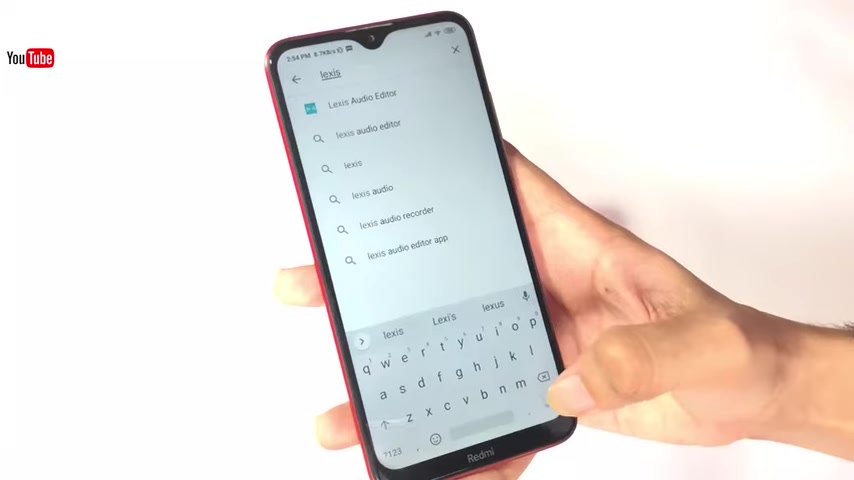
Start by downloading Lexis Audio Editor from the Google Play Store. Search for “Lexis Audio Editor” and install the app on your Android device.
-
Open the Audio File: Once installed, open the Lexis Audio Editor app. Tap the “Open” button located at the top of the screen. This will allow you to browse your device’s storage and select the audio file you want to edit. Ensure the audio file is easily accessible, either on your internal storage or SD card.
-
Select Your Audio File: Navigate to the folder containing your audio file and select it. The app will load the audio file, and you will see the audio waveform displayed on the screen. The waveform provides a visual representation of your audio, allowing you to identify areas with high or low sound levels.
-
Access the Effects Menu: Tap the three vertical dots (the menu button) located at the top right corner of the screen. This will open a dropdown menu. From the dropdown menu, select “Effects.” This menu contains various audio editing options, including noise reduction.
-
Apply Noise Reduction: In the Effects menu, scroll down and select “Noise Reduction.” A dialog box will appear with settings for adjusting the noise reduction effect. These settings include threshold, rate, and attack/release. Experiment with these settings to find the optimal balance for your audio.
-
Adjust Noise Reduction Settings:
- Threshold: This setting determines the level at which noise reduction is applied. Lowering the threshold will reduce more noise, but it can also affect the quality of the desired audio. Start with a moderate setting and adjust as needed. Setting the Threshold level in Noise Reduction will help reduce noise, without damaging quality, if used properly.
- Rate: The rate setting controls the intensity of the noise reduction. Higher rates result in more aggressive noise reduction, while lower rates provide a more subtle effect. Adjust the rate to balance noise reduction with preserving audio quality.
- Attack/Release: These settings control how quickly the noise reduction effect kicks in and fades out. Adjust these settings to create a natural and smooth noise reduction effect.
-
Preview the Changes: Before applying the noise reduction, use the “Preview” option to hear how the changes will sound. This allows you to adjust the settings in real-time and find the perfect balance. Continuously preview the audio until you achieve the desired noise reduction without compromising the overall sound quality. It's important to set the Threshold level in Noise Reduction properly.
-
Apply the Effect: Once you are satisfied with the preview, tap “Apply” to apply the noise reduction effect to the entire audio file. The app will process the audio, and the waveform will update to reflect the changes.
-
Save the Cleaned Audio: After applying the noise reduction, tap the “Save” button located at the top of the screen. Choose a location on your device to save the cleaned audio file. Give the file a new name to avoid overwriting the original. Consider saving the audio in a high-quality format such as WAV to preserve the audio quality.





Most people like


































Report
Please select a reason for reporting
- 13 Reasons to Switch from Snapchat to Text Messaging
- 7 Powerful Speech to Text Apps to Boost Productivity
- 10 Best Speech to Text Tools for Effortless Transcription
- 13 Free Tools to Easily Transcribe Audio to Text
- 15 Surprising Ways Google's Speech-to-Text Boosts Productivity
- 7 Best Free Online Audio to Text Transcription Tools
- 9 Tips to Transcribe Speech to Text Faster and Better
- 13 Best Speech to Text Software for Windows 10 in 2023
- 7 Tips for Choosing the Best Transcriber for Audio to Text
- 11 Reasons Why Dragon Speech-to-Text Apps are Game-Changers
- 6 Secrets to Enhance Your Speech to Text Transcription
- 6 Brilliant Ways to Boost Productivity with Talk-to-Text on Your MacBook
- 6 Ways Transcription Software Converts Audio to Text
- 8 Tips to Transcribe Speech to Text Like a Pro
- 6 Reasons IBM Watson Speech to Text is a Game-Changer
- 14 Powerful Ways Talk-to-Text Improves Your Workflow
- 12 Top Windows Speech-to-Text Software for Efficient Transcription
- 12 Game-Changing Benefits of Apple's Speech to Text Technology
- 9 Powerful Use Cases for AWS Speech to Text Technology
- 10 Easy Steps to Transcribe YouTube Videos to Text
- transcription audio en texte
- online audio transcription
- free audio file transcription
- free ai audio transcription
- audio transcription service
- audio transcription online free
- audio transcription free online
- audio to transcription software
- audio and transcript
- ai audio transcription free
- voice recording to text converter
- translate voice recording to text
- record voice to text
- audio recording to text converter
- voice recording and transcription
- chatgpt voice to text
- gmail voice to text
- speech to text reader
- speech to text ai free
- speech to talk
- Meshy AI: How to Create 3D Models from Text and Images
- How SEO and Marketing Dashboards Empower Agencies to Drive Results
- How to Use AI Tools to Find Internal Linking Opportunities Across a Business Website
- Discover Your Perfect Haircut with AI Hairstyle Apps
- Free Reputation Calculator Tools: How They're Adapting to Score AI Visibility, Not Just Rankings
- Design Professional Flyers for Free on Your Phone
- Best Free Flyer Maker Apps for Android: Design Like a Pro
- How to Know If Your Business Is Ready for an AI Customer Service Agent
- Revolutionizing Storytelling: From Novels to Screenplays with AI
- Create Engaging Animated Explainer Videos with a Free AI Tool
- Automate Lead Generation: A Comprehensive Guide with AI Agents
- Revideo.io: The Future of Reverse Video Search Technology
- Revolutionizing Email Marketing Agency with AI
- Breaking the Character Drift Dilemma: A Practical Test of Smart Shot
- Meshy AI: How to Create 3D Models from Text and Images
- ASOMobile Helps Teams Benchmark App Store Screenshots Against Competitors
- How to Match LMS Software With Your Organization's Training Plan
- How to Convert BTC to HNT
- Unleashing the Power of AI: Cognizant's Roadmap for Transformation
- Frame to Video Review: A Practical Look at Turning Two Still Frames Into Motion

Copyright ©2026 toolify