































Table of Contents
- Key Points
- Setting Up Your R Environment for AI Integration
- Powering Up Cursor AI with Essential R Packages
- AI-Assisted Code Generation for Ray Shader in R
- Understanding Cursor AI Pricing
- Weighing the AI Advantage: Pros and Cons of Enhanced R Development
- Frequently Asked Questions about AI-Enhanced R Development
- Related Questions About Making AI Enhance R Development



Setting Up Your R Environment for AI Integration
Downloading and Installing R for Windows
The first step toward an unstoppable R environment is to have the core language installed.

For users on Windows, begin by heading to your preferred web browser, such as Chrome or Firefox. Type 'download R for Windows' into the search bar.
Find the CRAN (Comprehensive R Archive Network) link. It is usually the first or Second result and points directly to a CRAN mirror. Once on the CRAN page, click on the 'Download R for Windows' link. This will start the download of the R installer.
After downloading, locate the installer file (usually in your 'Downloads' folder). Right-click the installer and choose 'Run as administrator.' This ensures that R is installed with the necessary permissions to function correctly. Follow the prompts, accepting the license agreement and choosing a destination folder. It's generally recommended to keep the default installation location.
During the installation, you'll be presented with options to customize the startup. Consider creating a desktop shortcut for easy access. Additionally, ensure that you choose to save the version information in the registry. This is crucial for other tools and IDEs to recognize your R installation automatically.
Complete the installation process, and R is ready to use. This foundational step provides the core for your AI-enhanced R environment. With R successfully installed, you’re ready to move on to enhancing it with other tools and packages for ultimate development.
Acquiring and Configuring RTools for Package Compilation
While R itself handles many data analysis tasks, some packages require compilation from source code, especially those with C or C++ components. This is where RTools comes into play, providing the necessary compilers and build tools.
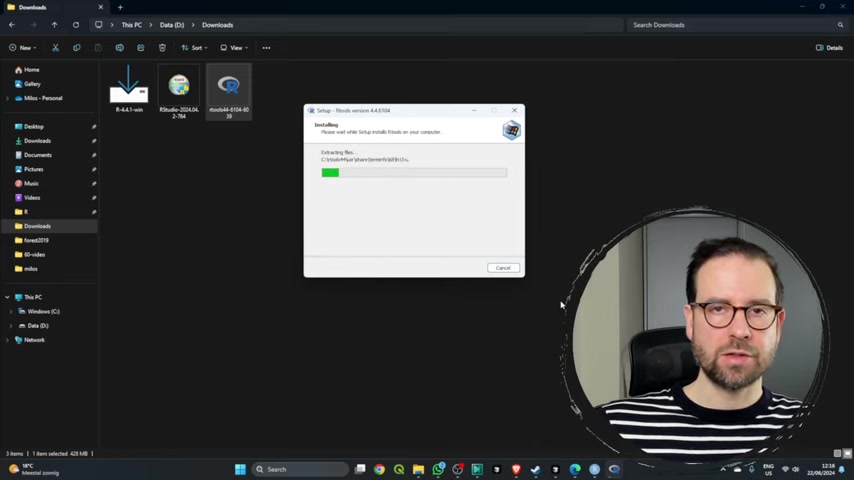
To obtain RTools, return to your web browser and search for 'download RTools for Windows'. Look for the link from CRAN that directs you to the RTools download page. Choose the latest version compatible with your R installation. Make sure to choose the right version.
The setup process will Prompt you to select the installation location. The most crucial step is to ensure that RTools is added to your system's PATH environment variable. This allows R to find and use the RTools compilers seamlessly. When installing, choose an installation folder. Ensure that it is installed in C drive.
After installing RTools, add its location to the system path. Add the following folder into environment variables.
C:\Rtools44\usr\binRestart your computer after install. This will allow changes to be reflected.
With RTools installed and configured, R can now compile and install packages with external dependencies, further expanding your environment’s capabilities. This is essential for many advanced packages that require compilation, ensuring a smooth and error-free development experience.
Elevating R Development with Cursor AI
Cursor AI is an integrated development environment (IDE) designed to boost productivity by intelligently providing shortcuts.
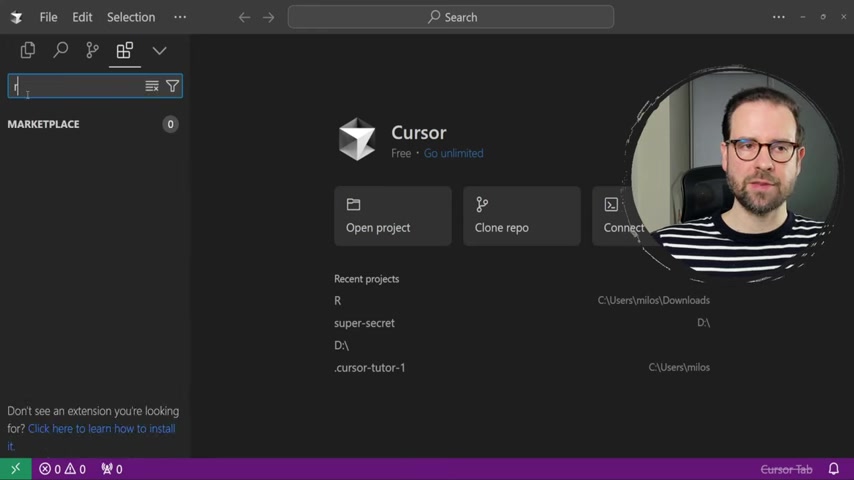
This integrates with programming languages. To set up Cursor AI in your unstoppable R environment, first head to your web browser and search for 'Cursor AI.'
Locate the Cursor AI Website. Download the installation Package suitable for your operating system. Once downloaded, initiate the installation by running the installer as administrator. This grants Cursor AI the permissions it needs to modify system settings and interact with your R environment.
The integration of Cursor AI with R unlocks a multitude of possibilities. Once launched, cursor ai has some interesting properties.
| Category | Detail |
|---|---|
| Free or Not | It's free to use. |
| Auto complete | It automatically adds code snippets. |
| Functionality | You can also fix error code from a specific codebase with that. |
| | |
When you open Cursor AI, ensure that the R extension for VS Code is installed for the functionality to work. This integration enables Cursor AI to understand and assist with R code, providing suggestions, autocompletion, and error detection. After the AI has been integrated and configured, you have unlocked a new level of AI.




Most people like


































Report
Please select a reason for reporting
- 13 Reasons to Switch from Snapchat to Text Messaging
- 7 Powerful Speech to Text Apps to Boost Productivity
- 10 Best Speech to Text Tools for Effortless Transcription
- 13 Free Tools to Easily Transcribe Audio to Text
- 15 Surprising Ways Google's Speech-to-Text Boosts Productivity
- 7 Best Free Online Audio to Text Transcription Tools
- 9 Tips to Transcribe Speech to Text Faster and Better
- 13 Best Speech to Text Software for Windows 10 in 2023
- 7 Tips for Choosing the Best Transcriber for Audio to Text
- 11 Reasons Why Dragon Speech-to-Text Apps are Game-Changers
- 6 Secrets to Enhance Your Speech to Text Transcription
- 6 Brilliant Ways to Boost Productivity with Talk-to-Text on Your MacBook
- 6 Ways Transcription Software Converts Audio to Text
- 8 Tips to Transcribe Speech to Text Like a Pro
- 6 Reasons IBM Watson Speech to Text is a Game-Changer
- 14 Powerful Ways Talk-to-Text Improves Your Workflow
- 12 Top Windows Speech-to-Text Software for Efficient Transcription
- 12 Game-Changing Benefits of Apple's Speech to Text Technology
- 9 Powerful Use Cases for AWS Speech to Text Technology
- 10 Easy Steps to Transcribe YouTube Videos to Text
- transcription audio en texte
- online audio transcription
- free audio file transcription
- free ai audio transcription
- audio transcription service
- audio transcription online free
- audio transcription free online
- audio to transcription software
- audio and transcript
- ai audio transcription free
- voice recording to text converter
- translate voice recording to text
- record voice to text
- audio recording to text converter
- voice recording and transcription
- chatgpt voice to text
- gmail voice to text
- speech to text reader
- speech to text ai free
- speech to talk
- Meshy AI: How to Create 3D Models from Text and Images
- How SEO and Marketing Dashboards Empower Agencies to Drive Results
- How to Use AI Tools to Find Internal Linking Opportunities Across a Business Website
- Discover Your Perfect Haircut with AI Hairstyle Apps
- Free Reputation Calculator Tools: How They're Adapting to Score AI Visibility, Not Just Rankings
- Design Professional Flyers for Free on Your Phone
- Best Free Flyer Maker Apps for Android: Design Like a Pro
- How to Know If Your Business Is Ready for an AI Customer Service Agent
- Revolutionizing Storytelling: From Novels to Screenplays with AI
- Create Engaging Animated Explainer Videos with a Free AI Tool
- Automate Lead Generation: A Comprehensive Guide with AI Agents
- Revideo.io: The Future of Reverse Video Search Technology
- Revolutionizing Email Marketing Agency with AI
- Breaking the Character Drift Dilemma: A Practical Test of Smart Shot
- Meshy AI: How to Create 3D Models from Text and Images
- ASOMobile Helps Teams Benchmark App Store Screenshots Against Competitors
- How to Match LMS Software With Your Organization's Training Plan
- How to Convert BTC to HNT
- Unleashing the Power of AI: Cognizant's Roadmap for Transformation
- Frame to Video Review: A Practical Look at Turning Two Still Frames Into Motion

Copyright ©2026 toolify