































Table of Contents
- Key Points
- Building a Serverless Sentiment Analysis Project on Google Cloud
- Step-by-Step Instructions
- Pros and Cons
- FAQ
- Related Questions



Building a Serverless Sentiment Analysis Project on Google Cloud
What is a Serverless Application and Why GCP?
A serverless application is one where the cloud provider automatically manages the infrastructure, allowing developers to focus solely on writing code. GCP offers a robust suite of serverless services, making it an ideal platform for building scalable and cost-effective applications. Key benefits of using GCP for serverless projects include:
- Scalability: GCP automatically scales resources based on demand.
- Cost Efficiency: You only pay for the resources you consume.
- Simplified Management: GCP handles infrastructure management, freeing up developers.
- Innovation: GCP offers cutting-edge services for data analytics, machine learning, and more.
This project combines the advantages of a serverless approach with the powerful capabilities of GCP's data analytics tools, creating a robust and efficient sentiment analysis pipeline. We will repeatedly use sentiment analysis to describe the project we build through this article.
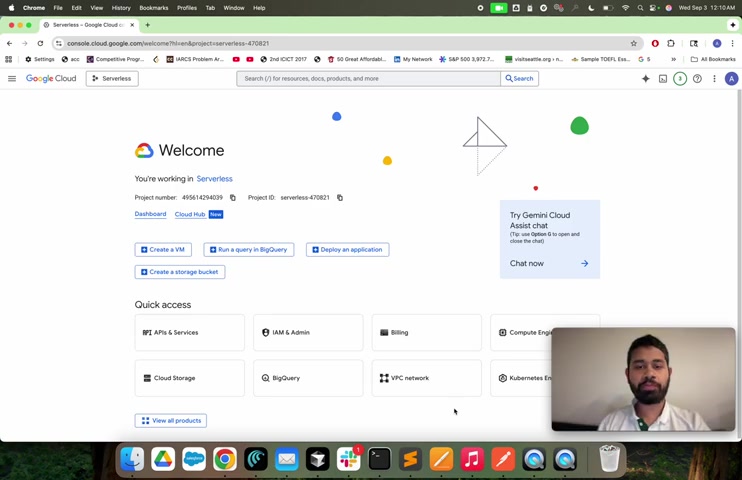
Project Overview: Review Submission and Sentiment Calculation
The core functionality of this project is to enable users to submit reviews for a web-based application. These reviews are then processed to determine the overall sentiment (positive, negative, or neutral) and stored for later analysis. Here's a breakdown of the project's workflow:
-
Review Submission: Users submit reviews through a web interface.
-
Pub/Sub Integration: The submitted review is published to a Pub/Sub topic.
-
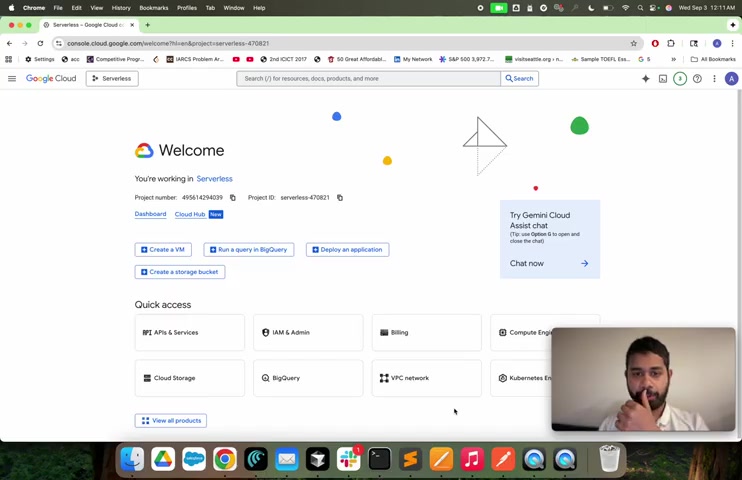
Cloud Function Trigger: A Cloud Function is triggered by the new message in the Pub/Sub topic.
-
Sentiment Analysis: The Cloud Function performs sentiment analysis on the review text.
-
BigQuery Storage: The review text and sentiment score are stored in a BigQuery table.
This architecture ensures that the sentiment analysis process is decoupled from the web application, allowing for scalability and independent updates. Furthermore the sentiment analysis data that is sent to BigQuery is easily accessible by any team members.
Initial GCP Setup: Project ID and Region
Before diving into the code, we need to set up a new project in Google Cloud Platform. Key steps include:
-
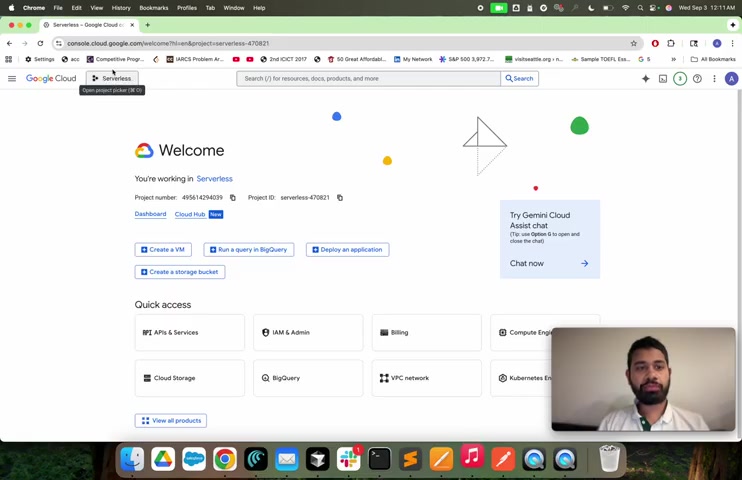
Creating a GCP Project: Navigate to the GCP console and create a new project. You'll need to provide a project name and ID.
-
Project Number and ID: Note down the project number and project ID, as these will be used throughout the project. The project ID will be reused later in the Tutorial. We will be building our sentiment analysis application under the project ID you create.
-
Setting the Project ID in gcloud: Use the gcloud command-line tool to configure the project ID for your current session. This makes it easier to manage resources within the project.
-
Enabling Necessary APIs: Enable the required APIs for the project, including Cloud Run, Pub/Sub, Cloud Functions, BigQuery, and Natural Language API. This ensures that the application can access the necessary GCP services.
export PROJECT_ID="your-gcp-project-id"
export REGION="us-central1" # Or your preferred region
gcloud config set project $PROJECT_ID

gcloud services enable \
  cloudfunctions.googleapis.com \
  run.googleapis.com \
  pubsub.googleapis.com \
  bigquery.googleapis.com \
  language.googleapis.com
Setting the correct region is also important. The region should be in the central United States. All of these settings help make building this project easy for you.
Creating BigQuery Resources: Dataset and Table
BigQuery is GCP's data warehousing solution, which we will use to store the sentiment analysis results. The following steps outline the creation of the necessary BigQuery resources:
-
Creating a Dataset: A BigQuery dataset is a container for tables. Create a dataset named
product_reviews_datasetwithin your project.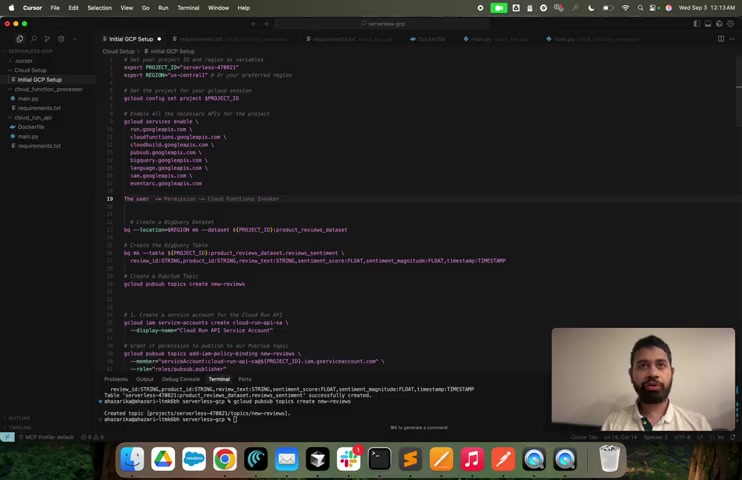
-
Creating a Table: A BigQuery table stores the review data and sentiment scores. Create a table named
reviews_sentimentwith the following schema:review_id: STRING (Unique identifier for the review)product_id: STRING (Identifier for the product being reviewed)review_text: STRING (The text of the review)sentiment_score: FLOAT (Sentiment score calculated by the Natural Language API)sentiment_magnitude: FLOAT (Magnitude of the sentiment)timestamp: TIMESTAMP (Timestamp of when the review was processed)- This is to show how valuable Google Cloud Services are in that Google provides the Natural Language API.
bq mk --location=$REGION --dataset $PROJECT_ID:product_reviews_dataset

bq mk --table \
    $PROJECT_ID:product_reviews_dataset.reviews_sentiment \
    review_id:STRING,product_id:STRING,review_text:STRING, \
    sentiment_score:FLOAT,sentiment_magnitude:FLOAT,timestamp:TIMESTAMP
These scripts are what creates our BigQuery tables used for sentiment analysis.
Publishing reviews: Setting up the Pub/Sub topic
Pub/Sub is a messaging service that enables asynchronous communication between applications. In this project, it's used to decouple the review submission process from the sentiment analysis process.
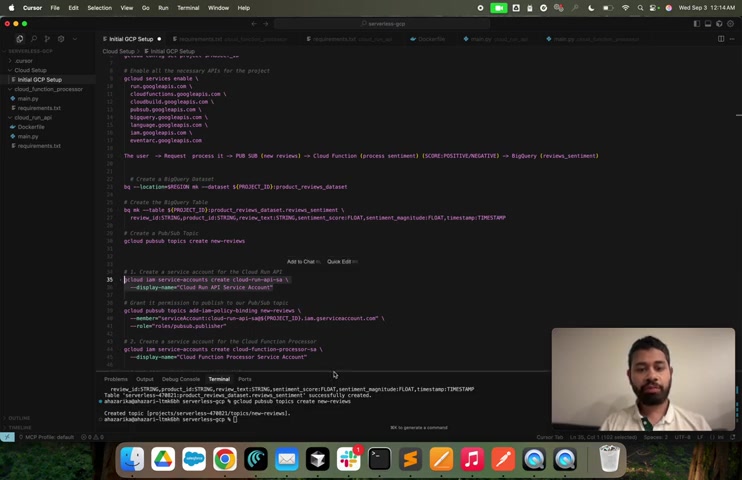
Create a Pub/Sub topic named new-reviews using the following command:
gcloud pubsub topics create new-reviewsThis command creates a new Pub/Sub topic that will be used to publish new review messages. Pub/Sub is easy to manage and will provide good performance for our sentiment analysis pipeline.
Securing Access: Setting up service accounts for Cloud Run
To ensure secure access to GCP resources, it's best practice to use service accounts. A service account is a special type of Google account intended to represent a non-human user that needs to authenticate and be authorized to access data in Google Cloud APIs. We'll need the service accounts so that the rest of the pipeline can utilize the sentiment analysis data.
- Create a Service Account for Cloud Run API: Create a service account named
cloud-run-api-safor the Cloud Run API. - Grant Permissions: Grant the service account permission to publish to the
new-reviewsPub/Sub topic. - Create a Service Account for Cloud Function Processor: Create a service account named
cloud-function-processor-safor the Cloud Function Processor. - Grant Permissions: Grant the service account permission to write to BigQuery and use the Natural Language API.
gcloud iam service-accounts create cloud-run-api-sa \
    --display-name="Cloud Run API Service Account"

gcloud pubsub topics add-iam-policy-binding new-reviews \
    --member=serviceAccount:cloud-run-api-sa@$PROJECT_ID.iam.gserviceaccount.com \
    --role=roles/pubsub.publisher

gcloud iam service-accounts create cloud-function-processor-sa \
    --display-name="Cloud Function Processor Service Account"

gcloud projects add-iam-policy-binding $PROJECT_ID \
    --member=serviceAccount:cloud-function-processor-sa@$PROJECT_ID.iam.gserviceaccount.com \
    --role=roles/bigquery.dataEditor

gcloud projects add-iam-policy-binding $PROJECT_ID \
    --member=serviceAccount:cloud-function-processor-sa@$PROJECT_ID.iam.gserviceaccount.com \
    --role=roles/aiplatform.user
Deploying the Cloud Function: Processing the Data
The core of the serverless pipeline resides in the Cloud Function, which performs sentiment analysis and stores the results in BigQuery. The key components of the Cloud Function code are:
- Trigger: The Cloud Function is triggered by new messages in the
new-reviewsPub/Sub topic. - Sentiment Analysis: The function uses the Natural Language API to analyze the sentiment of the review text, obtaining a sentiment score and magnitude. The sentiment analysis is used to get key metrics on customer opinions.
- BigQuery Insertion: The function inserts the review text, sentiment score, magnitude, and timestamp into the
reviews_sentimentBigQuery table.
This code demonstrates how to connect GCP services to process and store data in a serverless manner. The sentiment analysis function takes a message from Pub/Sub, runs a calculation, and stores the information in BigQuery.
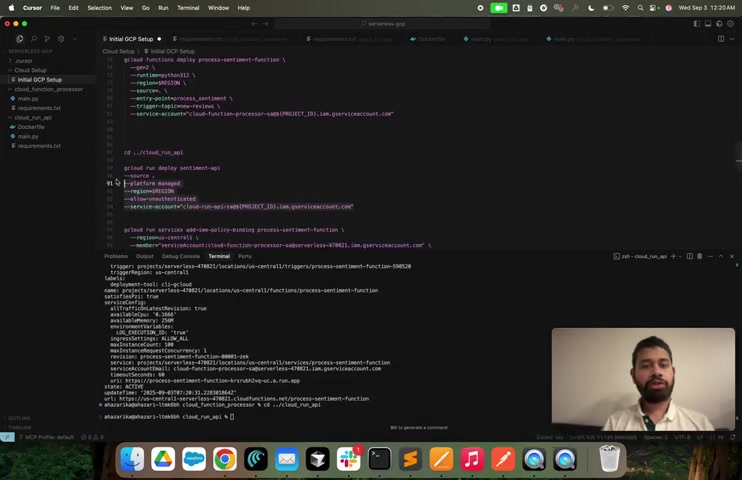
Deploying the Cloud Run API: Exposing the Endpoint
Cloud Run is used to deploy a containerized web application that allows users to submit reviews.
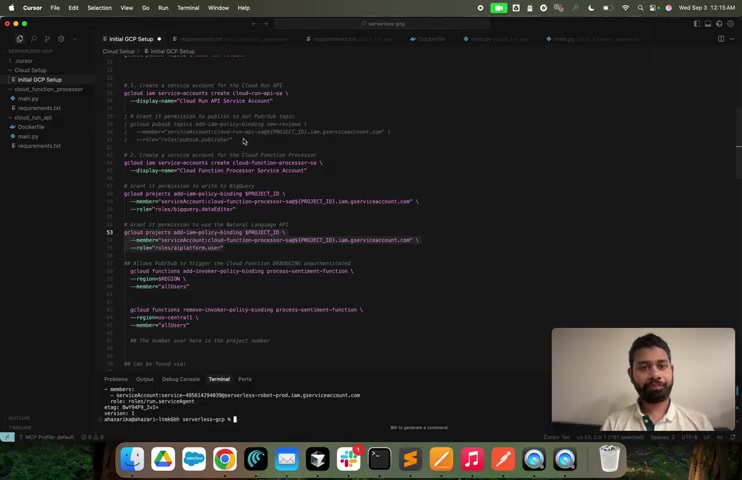
The steps include:
- Containerizing the Application: Create a Dockerfile that defines the application's dependencies and runtime environment.
- Deploying to Cloud Run: Use the gcloud command-line tool to deploy the container image to Cloud Run. The image must meet particular requirements to deploy.
- Configuring Ingress: Configure Cloud Run to allow unauthenticated access to the application.
cd cloud_run_api
gcloud run deploy sentiment-api \
    --source . \
    --platform managed \
    --region $REGION \
    --allow-unauthenticated
By deploying the API to Cloud Run, we are providing an easy entry point for teams to use and start generating data for our application.
Testing the Application: Review Submission and Verification
After deploying the Cloud Run API, it's essential to test the application end-to-end. Follow these steps:
-
Obtain the Service URL: Retrieve the service URL for your Cloud Run application.
-
Submit a Review: Use the curl command-line tool to submit a review to the Cloud Run API.
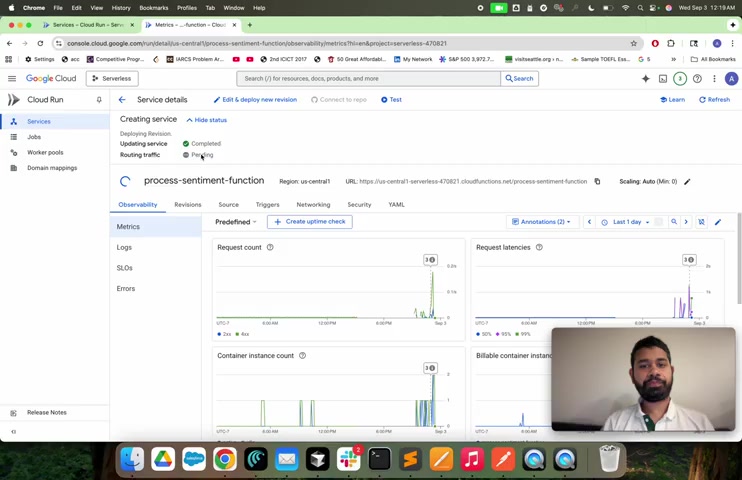
-
Verify in BigQuery: Check the BigQuery table to ensure that the review text and sentiment score have been successfully stored.
curl -X POST "$(gcloud run services describe sentiment-api --platform managed --region $REGION --format 'value(status.url)')/review" \
    -H "Content-Type: application/json" \
    -d '{"product_id": "P-7543212", "review_text": "This product is absolutely amazing! I am incredibly happy with my purchase and would recommend it to everyone."}'
This process allows us to submit a review and confirm that is is working end to end.





Most people like





























Report
Please select a reason for reporting
- 13 Reasons to Switch from Snapchat to Text Messaging
- 7 Powerful Speech to Text Apps to Boost Productivity
- 10 Best Speech to Text Tools for Effortless Transcription
- 13 Free Tools to Easily Transcribe Audio to Text
- 15 Surprising Ways Google's Speech-to-Text Boosts Productivity
- 7 Best Free Online Audio to Text Transcription Tools
- 9 Tips to Transcribe Speech to Text Faster and Better
- 13 Best Speech to Text Software for Windows 10 in 2023
- 7 Tips for Choosing the Best Transcriber for Audio to Text
- 11 Reasons Why Dragon Speech-to-Text Apps are Game-Changers
- 6 Secrets to Enhance Your Speech to Text Transcription
- 6 Brilliant Ways to Boost Productivity with Talk-to-Text on Your MacBook
- 6 Ways Transcription Software Converts Audio to Text
- 8 Tips to Transcribe Speech to Text Like a Pro
- 6 Reasons IBM Watson Speech to Text is a Game-Changer
- 14 Powerful Ways Talk-to-Text Improves Your Workflow
- 12 Top Windows Speech-to-Text Software for Efficient Transcription
- 12 Game-Changing Benefits of Apple's Speech to Text Technology
- 9 Powerful Use Cases for AWS Speech to Text Technology
- 10 Easy Steps to Transcribe YouTube Videos to Text
- transcription audio en texte
- online audio transcription
- free audio file transcription
- free ai audio transcription
- audio transcription service
- audio transcription online free
- audio transcription free online
- audio to transcription software
- audio and transcript
- ai audio transcription free
- voice recording to text converter
- translate voice recording to text
- record voice to text
- audio recording to text converter
- voice recording and transcription
- chatgpt voice to text
- gmail voice to text
- speech to text reader
- speech to text ai free
- speech to talk
- Create Engaging Animated Explainer Videos with a Free AI Tool
- Stop Multi-Subscribing: Benchmark Top AI Visual Models in One Canvas
- Best Seedance 2.5 API Provider: Every Price on the Market, Checked at Source
- AI OnlyFans: How to Generate $30,000/Month (Legally)
- Transform Your Script into an Engaging Video with AI Video Maker!
- AI Marketing Automation: A Comprehensive Guide for Small Businesses
- Midjourney Alternative for Anime Art Creators: Why PixAI May Be Better for Character Workflows
- 10 Things Most People Get Wrong About AI Image Search
- AI Girlfriend Apps: Top Choices Redefining Relationships 2025
- How to Reduce Quoting Errors in Salesforce with AI-Assisted Quote Creation
- Convert PDF to Audio: Free Urdu Text-to-Speech Tool
- Automatically Transcribe and Subtitle Audio and Video with Descript
- Revolutionize your video editing with AI-generated transcripts
- Mastering Wordpad: Essential Tips for Windows 10 Users
- AfirstSoft PDF Editor: The Ultimate PDF Solution of 2025
- UPDF: The Ultimate PDF Editor for iPadOS and macOS
- Translate PDF Documents: A Comprehensive Guide with OnlineDocTranslator
- Tenorshare PDNob PDF Editor: Smarter AI-Powered Editing
- uPDF Pro Review: AI-Powered PDF Editing for Professionals
- Master the Art of Wrapping Text in Illustrator CC

Copyright ©2026 toolify