































Table of Contents
- Key Points
- Getting Started with GitHub Copilot in Visual Studio
- Advanced Techniques with GitHub Copilot
- Step-by-Step Guide: Setting Up GitHub Copilot in Visual Studio
- Benefits and Drawbacks of Integrating GitHub Copilot with Visual Studio
- FAQ
- Related Questions


Getting Started with GitHub Copilot in Visual Studio
Initial Setup and Free Tier Activation
Setting up GitHub Copilot in Visual Studio is a straightforward process. First, ensure you have the GitHub COPILOT extension installed. Once installed, you'll need to sign in with your GitHub account and enable the free tier if you're eligible.
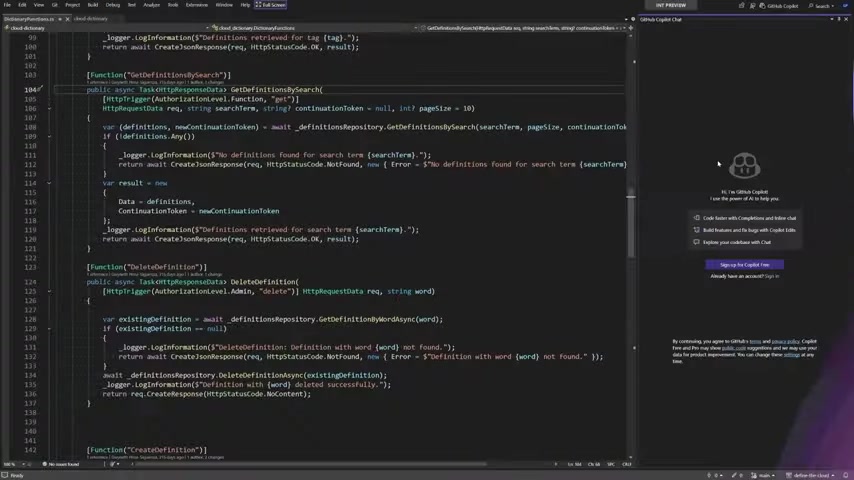
This process usually involves a few clicks within Visual Studio, guiding you through authentication and permission requests. By activating the free tier, you gain access to a limited set of AI-powered coding features, allowing you to explore the capabilities of GitHub Copilot without immediate subscription costs.
- Sign in to GitHub: Authenticate your Visual Studio instance with your GitHub account.
- Enable Free Tier: Follow the prompts to activate the free tier of GitHub Copilot, if you are eligible.
- Verify Installation: Confirm that GitHub Copilot is correctly installed and active within your Visual Studio environment.
Leveraging GitHub Copilot Chat for Real-Time Assistance
GitHub Copilot Chat is an invaluable tool for developers seeking real-time coding assistance. By opening the Copilot Chat window within Visual Studio, you can ask questions, request code explanations, and Seek help with debugging. The AI responds contextually, considering the code you're currently working on. This allows for quick problem-solving and a deeper understanding of unfamiliar codebases. Whether you need to generate unit tests, fix bugs, or comprehend complex algorithms, GitHub Copilot Chat provides a readily available AI assistant to enhance your coding workflow.
- Code Summarization: Ask Copilot Chat to summarize sections of code for quick understanding.
- Unit Test Generation: Request Copilot Chat to write unit tests for methods or entire files.
- Debugging Assistance: Seek help from Copilot Chat to identify and resolve code errors.





Most people like




































Report
Please select a reason for reporting
- 13 Reasons to Switch from Snapchat to Text Messaging
- 7 Powerful Speech to Text Apps to Boost Productivity
- 10 Best Speech to Text Tools for Effortless Transcription
- 13 Free Tools to Easily Transcribe Audio to Text
- 15 Surprising Ways Google's Speech-to-Text Boosts Productivity
- 7 Best Free Online Audio to Text Transcription Tools
- 9 Tips to Transcribe Speech to Text Faster and Better
- 13 Best Speech to Text Software for Windows 10 in 2023
- 7 Tips for Choosing the Best Transcriber for Audio to Text
- 11 Reasons Why Dragon Speech-to-Text Apps are Game-Changers
- 6 Secrets to Enhance Your Speech to Text Transcription
- 6 Brilliant Ways to Boost Productivity with Talk-to-Text on Your MacBook
- 6 Ways Transcription Software Converts Audio to Text
- 8 Tips to Transcribe Speech to Text Like a Pro
- 6 Reasons IBM Watson Speech to Text is a Game-Changer
- 14 Powerful Ways Talk-to-Text Improves Your Workflow
- 12 Top Windows Speech-to-Text Software for Efficient Transcription
- 12 Game-Changing Benefits of Apple's Speech to Text Technology
- 9 Powerful Use Cases for AWS Speech to Text Technology
- 10 Easy Steps to Transcribe YouTube Videos to Text
- transcription audio en texte
- online audio transcription
- free audio file transcription
- free ai audio transcription
- audio transcription service
- audio transcription online free
- audio transcription free online
- audio to transcription software
- audio and transcript
- ai audio transcription free
- voice recording to text converter
- translate voice recording to text
- record voice to text
- audio recording to text converter
- voice recording and transcription
- chatgpt voice to text
- gmail voice to text
- speech to text reader
- speech to text ai free
- speech to talk
- How to Use AI Tools to Find Internal Linking Opportunities Across a Business Website
- Discover Your Perfect Haircut with AI Hairstyle Apps
- Free Reputation Calculator Tools: How They're Adapting to Score AI Visibility, Not Just Rankings
- Design Professional Flyers for Free on Your Phone
- Best Free Flyer Maker Apps for Android: Design Like a Pro
- How to Know If Your Business Is Ready for an AI Customer Service Agent
- Revolutionizing Storytelling: From Novels to Screenplays with AI
- Create Engaging Animated Explainer Videos with a Free AI Tool
- Stop Multi-Subscribing: Benchmark Top AI Visual Models in One Canvas
- Best Seedance 2.5 API Provider: Every Price on the Market, Checked at Source
- Top AI Social Media Management Tools: Automate Your Content Strategy
- Free AI Text to Video Generator: Create Stunning Videos from Text
- Discover 17 ChatGPT Alternatives: A Comprehensive Comparison
- Character.AI vs. Janitor AI: Which AI Chat Platform Reigns Supreme?
- Top Virtual Assistant Companies in 2026: Reviews, Pricing, and Plans Compared
- Unveiling FaceCheck.ID: Revolutionizing Reverse Image Searches with AI
- 11 Best AI Dialers in 2026: Features, Pricing, Pros and Cons
- How I Direct Consistent AI Clips: A Hands-On Guide to Multi-Model Generation
- A Realistic Review of the Photo Generator Image Tool
- Playwright MCP Server: Automated Web Testing with Agent Mode

Copyright ©2026 toolify