































Table of Contents
- Key Points
- Understanding Ollama and its System Requirements
- Installing and Configuring Ollama with Spec Coder
- Weighing the Advantages and Disadvantages of Ollama and Spec Coder
- Key Features of Ollama and Spec Coder Integration
- Frequently Asked Questions (FAQ)
- Related Questions



Understanding Ollama and its System Requirements
What is Ollama?
Ollama
is a versatile tool that empowers developers to utilize Large Language Models directly on their local machines. This is particularly beneficial for situations where internet access is limited or non-existent. By running these models locally, you gain increased control over your data and can experiment with LLMs without relying on external servers. Ollama supports various operating systems, making it a cross-platform solution for developers working on macOS, Linux, or Windows.
However, running LLMs locally requires substantial computational resources. The specific system requirements depend on the size and complexity of the language model you intend to use. It’s crucial to ensure your machine meets these requirements to achieve optimal performance and avoid slowdowns or crashes. A key advantage of Ollama is its ability to provide a secure and private environment for working with LLMs, as all processing is done locally. This eliminates the risk of sensitive data being transmitted to external servers, which is a concern when using cloud-based LLM services.
In addition to privacy, Ollama also offers greater flexibility in terms of customization and experimentation. You can fine-tune the models to suit your specific needs and explore different configurations without being constrained by the limitations of a remote API. This level of control is highly valuable for researchers and developers who need to tailor LLMs to unique applications.
General System Requirements for Ollama
To effectively utilize Ollama
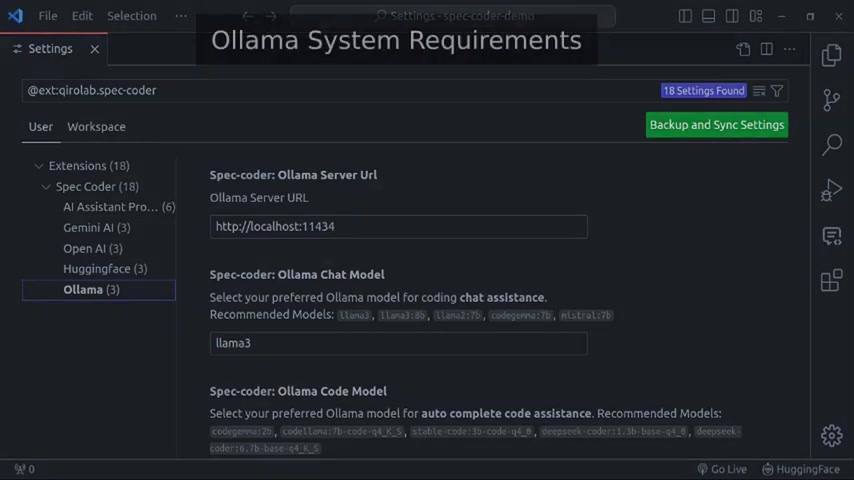
for running large language models, you'll need to consider several key system requirements. These include operating system compatibility, sufficient RAM, a capable CPU, and potentially a GPU for accelerated performance. Understanding these requirements will help ensure a smooth and productive experience.
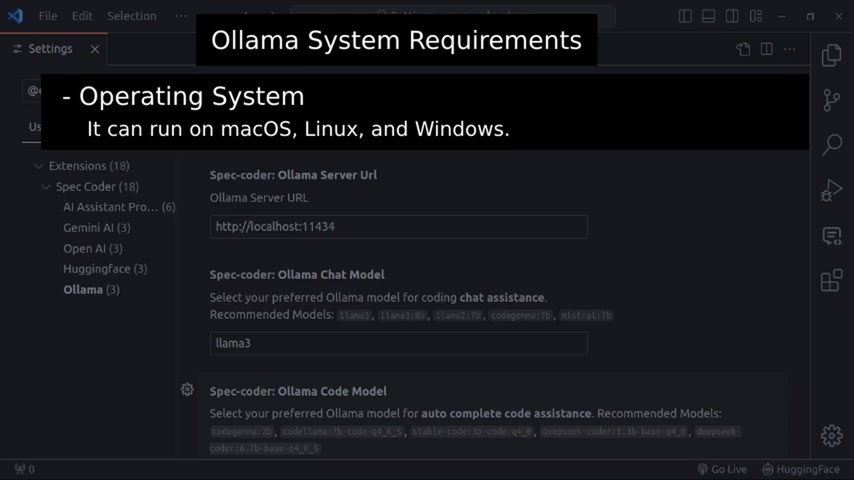
- Operating System: Ollama is designed to be cross-platform, compatible with macOS, Linux, and Windows. This makes it accessible to a wide range of developers, regardless of their preferred operating system.
- RAM: The amount of RAM required depends on the size of the language models you plan to use. As a general guideline:
- 8GB RAM is suitable for running 3B models.
- 16GB RAM is recommended for 7B models.
- 32GB RAM is necessary for running 13B models.
- CPU: A CPU with at least 4 cores is recommended for running Ollama. However, for optimal performance, especially with larger models, a CPU with 8 or more cores is highly beneficial.
- GPU: While a GPU is not strictly required for running Ollama, it can significantly improve performance, particularly when working with larger models. A dedicated GPU can accelerate the computations involved in running LLMs, leading to faster response times and a smoother overall experience.
Here is a quick system requirements guide.
| Component | Minimum Requirement | Recommended for Optimal Performance |
|---|---|---|
| Operating System | macOS, Linux, Windows | macOS, Linux, Windows |
| RAM | 8GB (for 3B models) | 16GB or more |
| CPU | 4 cores | 8 cores or more |
| GPU | Not Required | Dedicated GPU |
Installing and Configuring Ollama with Spec Coder
Step 1: Installing Ollama
Begin by downloading Ollama from the official website
. Navigate to ollama.com and click the download button. Choose the appropriate version for your operating system (macOS, Linux, or Windows) and follow the installation instructions. For Linux users, you can typically install Ollama using a single command provided on the website. Once downloaded, follow the prompts to complete the installation process. After the installation finishes, it's essential to verify that Ollama is installed correctly. Open your terminal (or PowerShell/Command Prompt on Windows) and type ollama. This command should display the available commands for Ollama, indicating a successful installation.
Step 2: Configuring Ollama in VS Code with Spec Coder
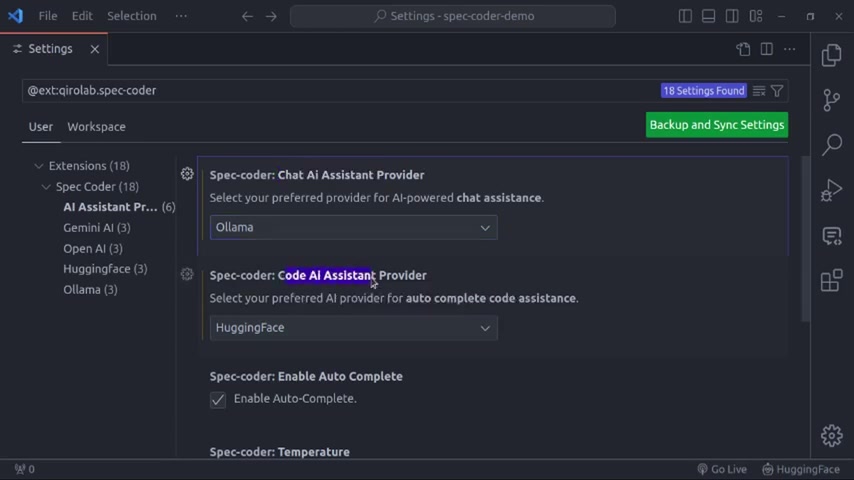
Now that Ollama is installed, integrate it with Spec Coder in VS Code
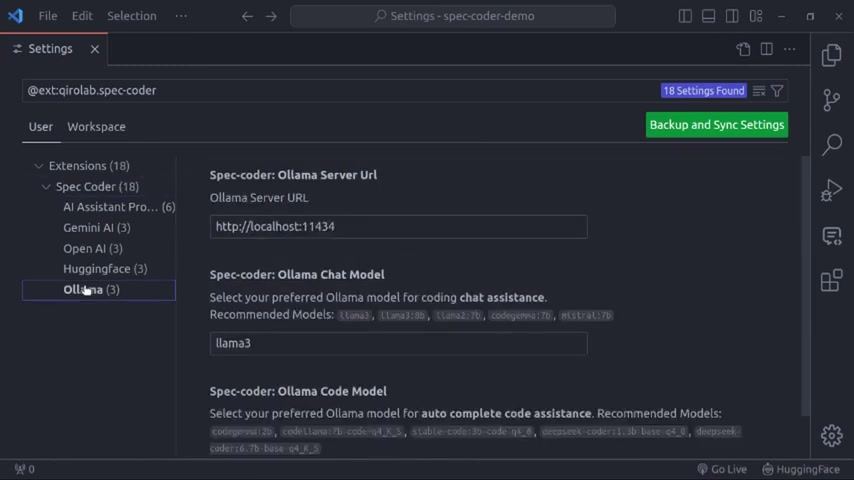
. To do this, open VS Code and navigate to the settings menu. Search for 'Spec Coder' to find the extension's settings. The first setting you'll encounter is the 'Ollama Server URL'. This setting specifies the path where your Ollama server is running. The default URL is typically http://localhost:11434, and you likely won't need to change this unless you've configured Ollama to run on a different port.
Next, you'll need to configure the AI models for both chat assistance and code generation. Under the 'Ollama Chat Model' setting, select your preferred Ollama model for coding chat assistance. The extension recommends several models, including llama3, llama3:8b, codegemma:7b, and mistral:7b. These are models known to work well with coding-related tasks. Similarly, under the 'Ollama Code Model' setting, select your preferred model for auto-complete code assistance. Again, the extension provides recommendations such as codegemma:2b and codellama:7b-code. Choose the models that best suit your system's capabilities and your coding needs.
Step 3: Pulling the Required Language Models
Before you can start using Ollama with Spec Coder, you need to pull the language models you've selected
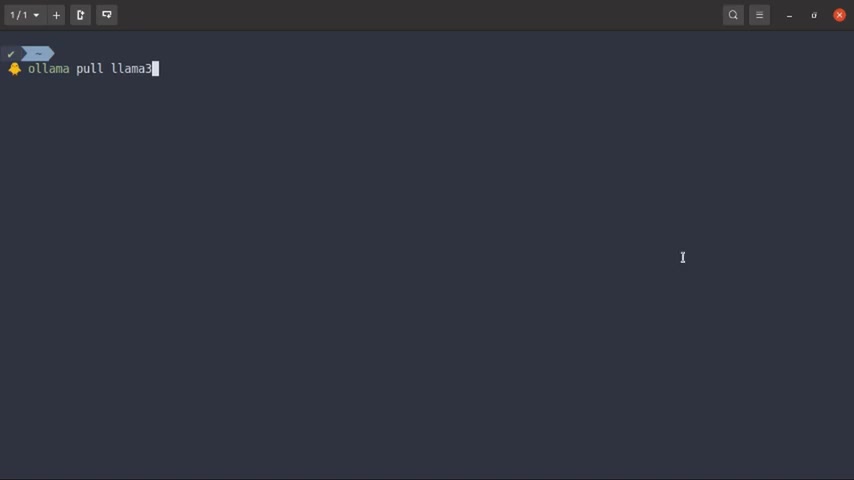
. These models are not included with the base Ollama installation and must be downloaded separately. To pull a model, open your terminal and use the ollama pull command followed by the model name.
For example, if you want to use the llama3 model, you would run the following command:
ollama pull llama3Repeat this process for all the models you intend to use, including the ones you've configured for chat assistance and code generation in Spec Coder. Please note that pulling these models can take some time, depending on your internet connection speed and the size of the models. Ensure you have a stable connection to avoid interruptions during the download process. After pulling models be sure to check out the recommended and latest language models offered by Ollama, available on its website.







Most people like































Report
Please select a reason for reporting
- 13 Reasons to Switch from Snapchat to Text Messaging
- 7 Powerful Speech to Text Apps to Boost Productivity
- 10 Best Speech to Text Tools for Effortless Transcription
- 13 Free Tools to Easily Transcribe Audio to Text
- 15 Surprising Ways Google's Speech-to-Text Boosts Productivity
- 7 Best Free Online Audio to Text Transcription Tools
- 9 Tips to Transcribe Speech to Text Faster and Better
- 13 Best Speech to Text Software for Windows 10 in 2023
- 7 Tips for Choosing the Best Transcriber for Audio to Text
- 11 Reasons Why Dragon Speech-to-Text Apps are Game-Changers
- 6 Secrets to Enhance Your Speech to Text Transcription
- 6 Brilliant Ways to Boost Productivity with Talk-to-Text on Your MacBook
- 6 Ways Transcription Software Converts Audio to Text
- 8 Tips to Transcribe Speech to Text Like a Pro
- 6 Reasons IBM Watson Speech to Text is a Game-Changer
- 14 Powerful Ways Talk-to-Text Improves Your Workflow
- 12 Top Windows Speech-to-Text Software for Efficient Transcription
- 12 Game-Changing Benefits of Apple's Speech to Text Technology
- 9 Powerful Use Cases for AWS Speech to Text Technology
- 10 Easy Steps to Transcribe YouTube Videos to Text
- transcription audio en texte
- online audio transcription
- free audio file transcription
- free ai audio transcription
- audio transcription service
- audio transcription online free
- audio transcription free online
- audio to transcription software
- audio and transcript
- ai audio transcription free
- voice recording to text converter
- translate voice recording to text
- record voice to text
- audio recording to text converter
- voice recording and transcription
- chatgpt voice to text
- gmail voice to text
- speech to text reader
- speech to text ai free
- speech to talk
- How SEO and Marketing Dashboards Empower Agencies to Drive Results
- How to Use AI Tools to Find Internal Linking Opportunities Across a Business Website
- Discover Your Perfect Haircut with AI Hairstyle Apps
- Free Reputation Calculator Tools: How They're Adapting to Score AI Visibility, Not Just Rankings
- Design Professional Flyers for Free on Your Phone
- Best Free Flyer Maker Apps for Android: Design Like a Pro
- How to Know If Your Business Is Ready for an AI Customer Service Agent
- Revolutionizing Storytelling: From Novels to Screenplays with AI
- Create Engaging Animated Explainer Videos with a Free AI Tool
- Stop Multi-Subscribing: Benchmark Top AI Visual Models in One Canvas
- ASOMobile Helps Teams Benchmark App Store Screenshots Against Competitors
- How to Match LMS Software With Your Organization's Training Plan
- Revolutionizing Email Marketing Agency with AI
- How to Convert BTC to HNT
- Unleashing the Power of AI: Cognizant's Roadmap for Transformation
- Frame to Video Review: A Practical Look at Turning Two Still Frames Into Motion
- NVIDIA NIM: Revolutionizing Supply Chain Data Analysis with AI
- Top AI Tools That Help Brands Stand Out Offline (Not Just Online)
- Top 5 Cold Email Software: Maximize Your Outreach in 2025
- Magic School AI: Revolutionizing Quiz & Assessment Generation

Copyright ©2026 toolify