























SketchUp Deck Builder: Automatic Deck Design with Ease

Updated on Oct 24,2025








Table of Contents
- Key Points
- Understanding SketchUp's Deck Builder Extension
- A Step-by-Step Guide to Using Deck Builder
- Pricing
- Evaluating Deck Builder: Pros and Cons
- Core Features of Deck Builder
- Use Cases for Deck Builder
- Frequently Asked Questions
- Related Questions


Understanding SketchUp's Deck Builder Extension
What is Deck Builder for SketchUp?
The Deck Builder extension
simplifies deck design in SketchUp. It is used to automatically generate deck structures, framing, and railings based on selected faces in your model. It is available for free through the SketchUcation Plugin Store. It offers customization options for deck components, enabling users to define the size, orientation, and style of their decks. While the plugin is older and hasn't been updated since 2016, it remains a functional tool for basic deck generation in SketchUp's newer versions.
Key Features:
- Automated deck creation from selected faces
- Customizable decking size and orientation
- Selection of different post and spindle styles
- Joist spacing adjustments
- Railing options
It's worth noting that Deck Builder is an unsigned extension, which may require users to adjust their SketchUp extension loading policy to allow its installation and functionality. Despite its age, the plugin provides a quick and easy solution for generating deck structures for architectural and landscape designs.
Installation and Compatibility Considerations
The process begins at the SketchUcation Plugin Store. It is where you will download the Deck Builder extension. Installation may not be straightforward due to its older, unsigned status.
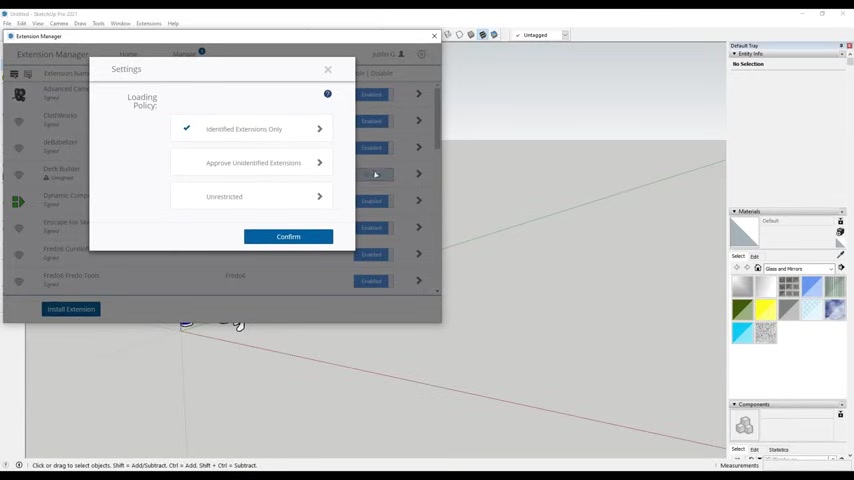
An "unsigned extension" lacks a digital signature, which can trigger security warnings in newer SketchUp versions.
Troubleshooting Installation Issues:
- Adjust Extension Loading Policy: In SketchUp, navigate to
Window > Extension Manager. Click the "Settings" icon. Select "Approve Unidentified Extensions" or "Unrestricted" to allow the extension to load. This step is crucial for unsigned extensions to function properly. - Check Extension Manager: After installing from SketchUcation, verify that Deck Builder appears in the Extension Manager. If it's listed as "Blocked," manually enable it.
- Compatibility Check: While the extension was last updated in 2016, it can still function in newer SketchUp versions (such as 2021). However, it's essential to test its functionality to ensure it meets your project requirements. You may face compatibility or performance issues due to its outdated status.
- Restart SketchUp: After making changes to the extension loading policy or manually enabling Deck Builder, restart SketchUp to ensure the changes take effect. This step allows SketchUp to properly load the extension.
Users should be aware of these steps to ensure a smooth installation and usage experience, despite the extension's age. By carefully managing these settings, you can successfully integrate Deck Builder into your SketchUp workflow, especially for simpler deck designs.
A Step-by-Step Guide to Using Deck Builder
Drawing a Shape and Creating a Deck
The primary feature of the Deck Builder extension is its ability to create deck components from a simple shape
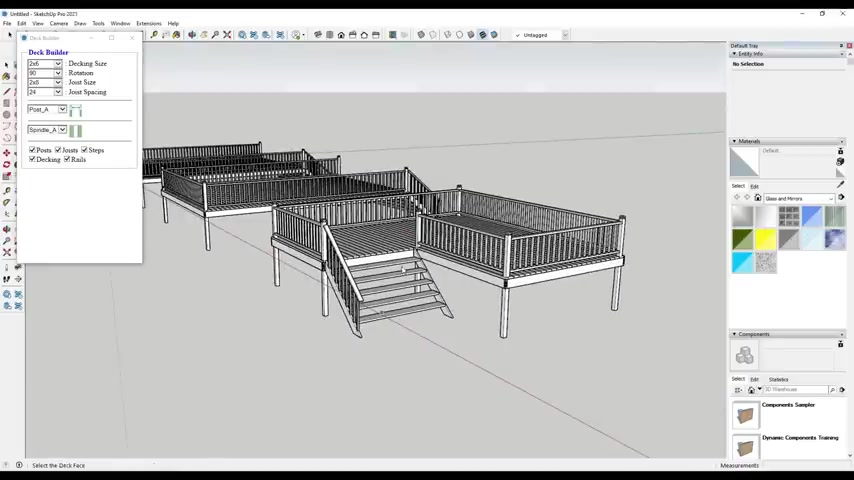
. Begin by using SketchUp’s drawing tools to create a face that represents the desired outline of your deck. This can be a simple rectangle, a more complex polygon, or even a curved shape. Ensure the face is properly oriented (front face outward) to avoid issues during the deck generation process.
After drawing the shape, select the face using SketchUp’s selection tool. With the face selected, access the Deck Builder extension. You can find this option in the Extensions menu. This action will open the Deck Builder dialog, which presents various options for customizing your deck.
In the Deck Builder dialog , you can adjust several parameters to tailor the deck to your specifications:
- Decking Size: Set the dimensions of the decking boards used in the deck.
- Rotation: Determine the orientation of the decking boards relative to the deck’s edges.
- Joist Spacing: Adjust the spacing between the joists that support the decking.
- Post Type: Choose from a selection of post styles for the deck’s support structure.
- Spindle Style: Select the style of spindles used for the deck railings.
Once you have set the desired parameters, click the button (or hit enter) to generate the deck . The extension will automatically create the deck structure, framing, and railings based on the selected face and specified options. It automates much of the repetitive modeling work involved in deck design.
Customize your Deck
After generating the initial deck structure, you may want to further customize individual elements. The Deck Builder creates components that can be adjusted. You can select and modify components such as decking boards, railings, or support posts.
Deck Joist Rotation:
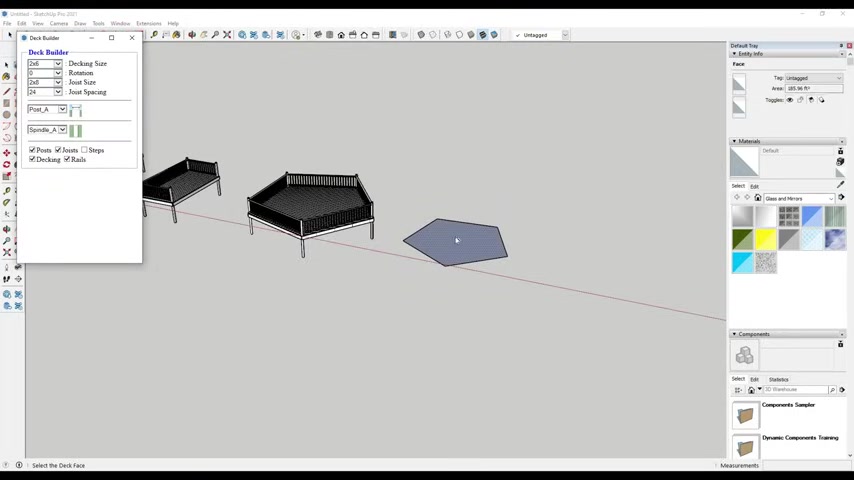
Many users want to rotate joist, follow the below steps to customize your Deck Joist Rotation
- Select the face.
- Click Extension and choose Deck Builder
.
- Set rotation.
- Click on the shape again and now the Joist rotation is updated.







Most people like





























Report
Please select a reason for reporting
- 13 Reasons to Switch from Snapchat to Text Messaging
- 7 Powerful Speech to Text Apps to Boost Productivity
- 10 Best Speech to Text Tools for Effortless Transcription
- 13 Free Tools to Easily Transcribe Audio to Text
- 15 Surprising Ways Google's Speech-to-Text Boosts Productivity
- 7 Best Free Online Audio to Text Transcription Tools
- 9 Tips to Transcribe Speech to Text Faster and Better
- 13 Best Speech to Text Software for Windows 10 in 2023
- 7 Tips for Choosing the Best Transcriber for Audio to Text
- 11 Reasons Why Dragon Speech-to-Text Apps are Game-Changers
- 6 Secrets to Enhance Your Speech to Text Transcription
- 6 Brilliant Ways to Boost Productivity with Talk-to-Text on Your MacBook
- 6 Ways Transcription Software Converts Audio to Text
- 8 Tips to Transcribe Speech to Text Like a Pro
- 6 Reasons IBM Watson Speech to Text is a Game-Changer
- 14 Powerful Ways Talk-to-Text Improves Your Workflow
- 12 Top Windows Speech-to-Text Software for Efficient Transcription
- 12 Game-Changing Benefits of Apple's Speech to Text Technology
- 9 Powerful Use Cases for AWS Speech to Text Technology
- 10 Easy Steps to Transcribe YouTube Videos to Text
- transcription audio en texte
- online audio transcription
- free audio file transcription
- free ai audio transcription
- audio transcription service
- audio transcription online free
- audio transcription free online
- audio to transcription software
- audio and transcript
- ai audio transcription free
- voice recording to text converter
- translate voice recording to text
- record voice to text
- audio recording to text converter
- voice recording and transcription
- chatgpt voice to text
- gmail voice to text
- speech to text reader
- speech to text ai free
- speech to talk
- Create Engaging Animated Explainer Videos with a Free AI Tool
- Stop Multi-Subscribing: Benchmark Top AI Visual Models in One Canvas
- Best Seedance 2.5 API Provider: Every Price on the Market, Checked at Source
- AI OnlyFans: How to Generate $30,000/Month (Legally)
- Transform Your Script into an Engaging Video with AI Video Maker!
- AI Marketing Automation: A Comprehensive Guide for Small Businesses
- Midjourney Alternative for Anime Art Creators: Why PixAI May Be Better for Character Workflows
- 10 Things Most People Get Wrong About AI Image Search
- AI Girlfriend Apps: Top Choices Redefining Relationships 2025
- How to Reduce Quoting Errors in Salesforce with AI-Assisted Quote Creation
- AI Resume Builders: EnhanceCV, ResumeNerd AI, & Teal Compared
- ResumeAI: Crafting ATS-Optimized Resumes with AI
- AI in Resume Writing: A New Era for Job Seekers
- AI Resume Tools: Streamline Your Job Search and Land Your Dream Role
- AI Resume Optimization: The Right Way to Land Interviews
- Crafting a Killer Resume with AI: A Step-by-Step Guide
- Crafting a Winning Resume: AI Tools and Expert Tips
- AI Job Search: Level Up Your Career with AI Automation
- Empower Your Career Journey: Dynamic Resumes with AI
- AI Resume Builder: Create Professional Resumes Effortlessly

Copyright ©2026 toolify