































Table of Contents
- Key Points
- Getting Started with the Localazy Strapi Plugin
- A Look into Strapi Collections and Data
- Translating Content with Localazy: A Practical Guide
- Pricing
- Evaluate Strapi's Localazy Plugin Pros and Cons
- FAQ
- Related Questions



Getting Started with the Localazy Strapi Plugin
Introduction to Strapi Localization and Localazy
Reaching a global audience requires more than just translating words; it necessitates adapting your content to resonate with diverse cultures and languages.
Strapi, a leading headless CMS, provides a flexible platform for managing content, but automating the localization process can significantly boost efficiency. Localazy offers a comprehensive localization platform, and its plugin seamlessly integrates with Strapi. The Localazy Strapi plugin allows you to connect your Strapi CMS with Localazy’s translation management system, simplifying the management of multilingual content and drastically reducing localization efforts. This means you can manage your content in multiple languages, improving SEO and enhancing user experience for international audiences. The plugin allows you to extract translatable content from your Strapi entries, send it to Localazy for translation, and then seamlessly pull the translated content back into your Strapi project. This automation not only saves time but also reduces the risk of manual errors in the translation process. By leveraging the Localazy plugin, you can focus on creating high-quality content while Localazy handles the complexities of adapting that content to different linguistic markets.
Installation and Configuration: A Step-by-Step Guide
Setting up the Localazy plugin in your Strapi project is a straightforward process.
The recommended method is through the Strapi marketplace. Here’s how:
-
Access the Strapi Marketplace: From your Strapi admin panel, navigate to the marketplace section. This is where you can find and install various plugins to extend the functionality of your CMS.
-
Search for the Localazy Plugin: Use the search bar in the marketplace and type 'Localazy'. The Localazy plugin will appear in the search results. Pay attention to the 'Plugin verified by Strapi' badge, assuring the plugin has been reviewed and meets Strapi's quality standards. This verification process helps guarantee its compatibility and security.
-
Install the Plugin: Once you find the Localazy plugin, click on it and select the 'Install' option. Strapi will handle the installation process automatically.
-
Rebuild the Admin Interface: After the installation is complete, you'll need to rebuild the Strapi admin interface. This is usually done via your terminal using the command
yarn buildornpm run builddepending on your project’s package manager. This step ensures that the plugin’s UI elements are correctly integrated into the Strapi admin panel. -
Restart Your Strapi Project: After rebuilding the admin interface, restart your Strapi project to ensure all changes are applied.
-
Access the Localazy Plugin: After the restart, you should see the Localazy plugin available in the left menu of your Strapi admin panel.
With the plugin now installed, the next step is configuring it to connect with your Localazy account.
-
Create a Localazy Account (If You Don’t Have One): If you don't already have an account with Localazy, you’ll need to create one at localazy.com/register. A Localazy account is essential to manage and store your translations.
-
Log in to Localazy through the Plugin: Click the 'Login with Localazy' button within the plugin settings in Strapi. This will redirect you to the Localazy website where you'll need to authorize the connection between your Strapi project and Localazy account.
-
Create a New Localazy Project: You'll be prompted to create a new project within Localazy, linking it to your Strapi instance. Enter a name for your project to easily differentiate it from other projects you might have. You may also choose an existing project, in which case, Localazy may ask you to select the language.
-
Authorize the Connection: Authorize the connection between Strapi and Localazy to allow seamless data transfer for translations.
Once these steps are complete, your Strapi project will be successfully integrated with Localazy, allowing for efficient content localization management.
Successfully installing and setting up the Localazy plugin enables automated content uploads and downloads for translation, making the localization process faster and more manageable.
Configuring Content Transfer
Before initiating the translation process, it's important to configure which content types you want to send to Localazy for translation. This can be done via content transfer setup.
This configuration ensures that only the translatable fields are sent to Localazy, avoiding unnecessary data transfer.
-
Navigate to Content Transfer Setup: In the Strapi admin panel, under the Localazy plugin settings, find the 'Content Transfer Setup' option. This is where you define which parts of your project will be uploaded to Localazy.
-
Select Content Types and Fields: You’ll see a list of your content types and fields. By default, text-based fields are enabled for transfer, while non-text fields like numbers, relations, and boolean values are disabled. You can customize this by checking or unchecking the respective fields.
-
Adjust translatable fields: Tweak the translatable fields to your liking. Also, localization must be turned on for each collection if you want to Translate it at all.
-
Save Your Configuration: Once you’ve selected the content types and fields you want to transfer, save the configuration. This ensures that only the specified content will be sent to Localazy for translation.
This level of control is useful for excluding content that doesn't require translation. For instance, you can exclude names or addresses if they are consistent across all locales. By carefully selecting which content to send to Localazy, you can optimize the translation workflow, reduce costs, and maintain content consistency.
Remember to enable localization for each desired collection type. Navigate to Content Type Builder to enable this function. This can be configured at settings >> internationalization section.
A Look into Strapi Collections and Data
Looking into the Collection Types
Before uploading, it's valuable to understand the structure of your collections.
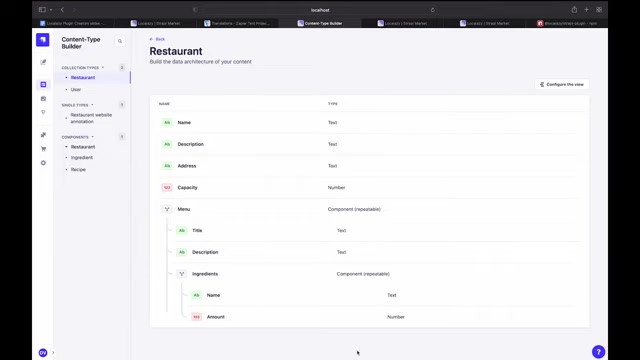
The structure of these collections defines how content is organized and displayed, impacting the localization approach. Different types of collections will require different approaches for efficient content management and translation.
In Strapi, there are a few collection types you can use:
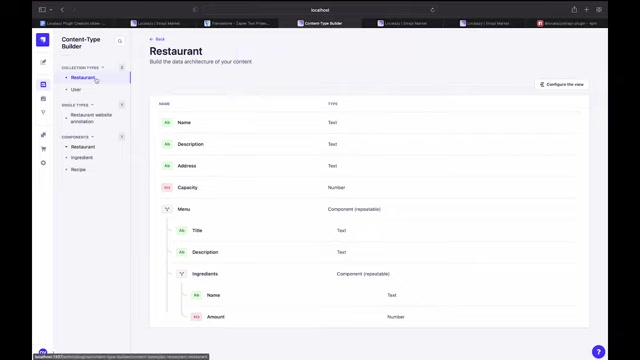
- Restaurant: An example project used a "Restaurant" collection, comprised of multiple sub-components, each containing varying translatable fields.
- Restaurant website annotation: A single type collection. In the sample project, it stored a title and short invitation phrase.
A well-organized data structure simplifies the process of extracting and integrating translated content. Use a consistent approach when working with localization, which will minimize errors. Proper collection structure enables you to easily isolate which areas of the project needs translation versus which parts should remain constant across locales.
Translating Content with Localazy: A Practical Guide
Uploading Content for Translation
After configuring content transfer settings, you can now upload your Strapi content to Localazy for translation.
The process is as follows:
-
Navigate to the Upload Section: In the Localazy plugin within Strapi, select the 'Upload to Localazy' option.
-
Start the Upload: Click the 'Start Upload' button to begin the process. The plugin will extract the translatable content based on your configured settings and send it to Localazy.
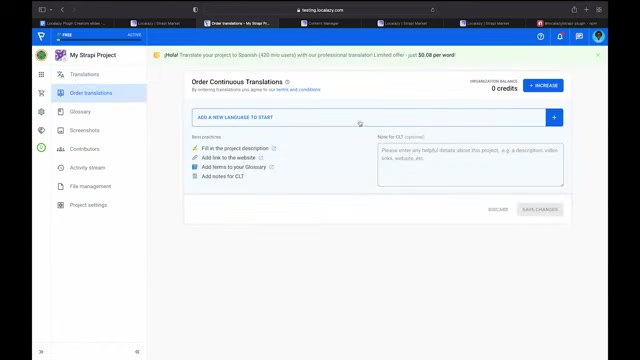
The actual translation can be approached in different ways in Localazy’s TMS.
This automated content upload ensures the translation stays up-to-date and integrated with Strapi.
Translation Methods in Localazy
Localazy offers several translation methods to suit different needs and budgets. After uploading the strings for translation, it's important to choose the best method to obtain the new translated versions of your text.
-
Manual Translation: You can translate strings manually within the Localazy interface. This gives you complete control over the translation process, ensuring accuracy and cultural relevance.
-
Machine Translation Suggestions: The platform offers machine translation suggestions from multiple providers like Amazon Translate. It's important to note that if machine translation is being used, it's best to review the results. Machine translation should be checked for accuracy prior to use.
-
Continuous Localization Team (CLT): The CLT is the highest tier Localazy has to offer. This will leverage professionals to assist with translation and quality control. The CLT is a service offered by Localazy that solves machine translation errors with human level quality control.
Choosing the right translation method will ensure the accuracy and cultural relevance of your translated content.
Downloading Translated Texts Back into Strapi
Once the translations are complete, you’ll want to download them back into your Strapi project. To finish the round trip of the text, Strapi must be populated with the latest translations. This ensures that your localized content is reflected on your website. Here’s how to do it:
-
Navigate to the Download Section: In the Localazy plugin within Strapi, select the 'Download to Strapi' option.
-
Start the Download: Click the 'Start Download' button to begin the process. The plugin will retrieve the translated content from Localazy and import it into your Strapi project.
-
Check the Report: After the download is complete, review the report to ensure all content was imported successfully. This report provides insights into any issues during the download process.
With the translated content now back in Strapi, you can manage and publish it as needed, providing a seamless multilingual experience to your audience.
Pricing
Localazy Pricing Plans
Localazy offers several pricing plans for all types of users from freemium to scaled enterprise plans. These plans are built for different stages of your project and scale with the increased needs. With freemium and startup plans, most projects can start and test out if the platform meets their needs. In addition, a free trial of the Autopilot plan is available to test the service.
The pricing will change based on the number of new keys, monthly active users, number of machine translations, number of projects, support level, etc.
Visit the Localazy website to view the current plans and details.





Most people like






































Report
Please select a reason for reporting
- 13 Reasons to Switch from Snapchat to Text Messaging
- 7 Powerful Speech to Text Apps to Boost Productivity
- 10 Best Speech to Text Tools for Effortless Transcription
- 13 Free Tools to Easily Transcribe Audio to Text
- 15 Surprising Ways Google's Speech-to-Text Boosts Productivity
- 7 Best Free Online Audio to Text Transcription Tools
- 9 Tips to Transcribe Speech to Text Faster and Better
- 13 Best Speech to Text Software for Windows 10 in 2023
- 7 Tips for Choosing the Best Transcriber for Audio to Text
- 11 Reasons Why Dragon Speech-to-Text Apps are Game-Changers
- 6 Secrets to Enhance Your Speech to Text Transcription
- 6 Brilliant Ways to Boost Productivity with Talk-to-Text on Your MacBook
- 6 Ways Transcription Software Converts Audio to Text
- 8 Tips to Transcribe Speech to Text Like a Pro
- 6 Reasons IBM Watson Speech to Text is a Game-Changer
- 14 Powerful Ways Talk-to-Text Improves Your Workflow
- 12 Top Windows Speech-to-Text Software for Efficient Transcription
- 12 Game-Changing Benefits of Apple's Speech to Text Technology
- 9 Powerful Use Cases for AWS Speech to Text Technology
- 10 Easy Steps to Transcribe YouTube Videos to Text
- transcription audio en texte
- online audio transcription
- free audio file transcription
- free ai audio transcription
- audio transcription service
- audio transcription online free
- audio transcription free online
- audio to transcription software
- audio and transcript
- ai audio transcription free
- voice recording to text converter
- translate voice recording to text
- record voice to text
- audio recording to text converter
- voice recording and transcription
- chatgpt voice to text
- gmail voice to text
- speech to text reader
- speech to text ai free
- speech to talk
- Meshy AI: How to Create 3D Models from Text and Images
- How SEO and Marketing Dashboards Empower Agencies to Drive Results
- How to Use AI Tools to Find Internal Linking Opportunities Across a Business Website
- Discover Your Perfect Haircut with AI Hairstyle Apps
- Free Reputation Calculator Tools: How They're Adapting to Score AI Visibility, Not Just Rankings
- Design Professional Flyers for Free on Your Phone
- Best Free Flyer Maker Apps for Android: Design Like a Pro
- How to Know If Your Business Is Ready for an AI Customer Service Agent
- Revolutionizing Storytelling: From Novels to Screenplays with AI
- Create Engaging Animated Explainer Videos with a Free AI Tool
- Meshy AI: How to Create 3D Models from Text and Images
- ASOMobile Helps Teams Benchmark App Store Screenshots Against Competitors
- How to Match LMS Software With Your Organization's Training Plan
- Revolutionizing Email Marketing Agency with AI
- How to Convert BTC to HNT
- Unleashing the Power of AI: Cognizant's Roadmap for Transformation
- Frame to Video Review: A Practical Look at Turning Two Still Frames Into Motion
- NVIDIA NIM: Revolutionizing Supply Chain Data Analysis with AI
- Top AI Tools That Help Brands Stand Out Offline (Not Just Online)
- Top 5 Cold Email Software: Maximize Your Outreach in 2025

Copyright ©2026 toolify