































Table of Contents
- Key Points
- Demystifying the Expand Function in Illustrator
- The Power of Pathfinder with Expand
- How to Outline Text for Versatile Graphic Design
- Weighing the Expand Options: Objects, Fills, Strokes
- Frequently Asked Questions
- Further Insights and Design Tips


Demystifying the Expand Function in Illustrator
What is the Expand Function?
The Expand function in Adobe Illustrator is a versatile command that converts various object attributes into editable paths and shapes. It essentially 'bakes in' certain dynamic properties, making them static and directly manipulable.
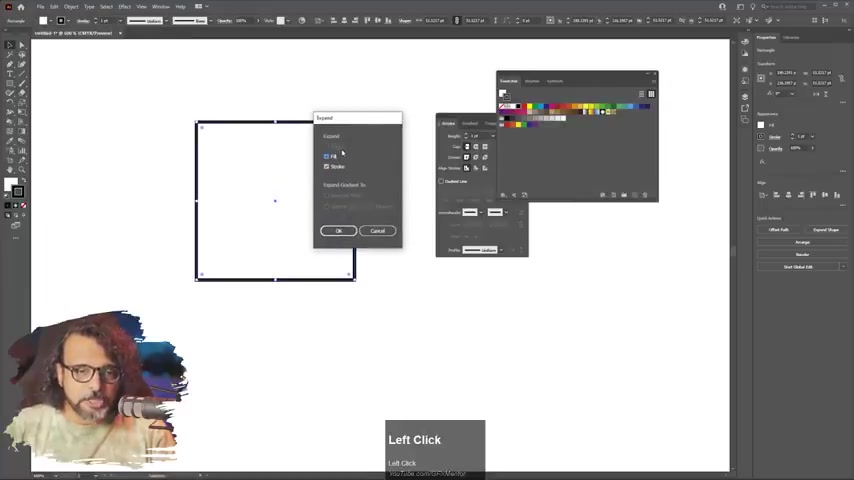
It is important to note that the Expand function can work on fills and strokes. If you expand an object that has a fill and a stroke, you can specify whether to expand the fill, the stroke, or both. By expanding strokes, you are turning what were once lines into closed shapes, offering more control for designers.
Think of it as solidifying a design choice. For example, a stroke is initially a property applied to a path. By expanding it, you're turning that stroke into a separate, filled object that can then be further edited independently from the original path.
Key areas where Expand is useful:
- Converting strokes to fills
- Breaking down gradients and Patterns.
- Converting text into vector outlines.
- Making objects for print or CNC machines.
Expand vs. Expand Appearance: What’s the Difference?
Illustrator actually offers two related but distinct commands: Expand and Expand Appearance. Knowing the difference is crucial for effective use. The standard Expand command primarily deals with basic object attributes like fills and strokes, as explained above.
Expand Appearance, on the other HAND, works on objects to which you’ve applied effects (found under the Effect menu). These effects are often dynamic and don't inherently create new geometry. Expand Appearance breaks down these effects, turning them into actual paths and fills that can be edited directly.
Here’s a simple way to think about it:
- Expand: Converts basic properties (fills, strokes) into objects.
- Expand Appearance: Converts effects into objects.
For example, consider a simple circle with a drop shadow effect applied to it. You can use Adobe Illustrator. The circle starts as a vector image. It only becomes a shadow after the designer adds the effect. Using the Expand Appearance features helps you make the shadow its own shape and the shadow can be used as its own Shape in the design or elsewhere.
Here's why knowing this distinction matters: You often need to use Expand Appearance before you can use the regular Expand. If you try to Expand an object with an effect, you may find that the Expand command is grayed out or doesn't produce the expected result. This is usually because the Expand command does not work on items with specific Adobe Illustrator effects. Use Expand Appearance first, then Expand. This unlocks a whole new level of control.
When to Use Expand: Practical Scenarios
The Expand function isn’t just a theoretical concept; it has numerous practical applications in design workflows. Here are some common scenarios where it proves invaluable:
- Converting Strokes for Precise Control:

Sometimes you need more control over the shape of a stroke than Illustrator's basic stroke settings allow. By expanding the stroke, you create a filled object that can be manipulated with path editing tools, allowing for complex and custom stroke designs.
- Preparing Files for CNC or Laser Cutting: Many CNC and laser cutting machines require objects to be defined as closed paths, not strokes. Expanding strokes ensures compatibility and precise cutting.
- Outlining Text for Font Independence: When sharing Illustrator files with others, outlining text (using Create Outlines, which is essentially a specialized Expand) guarantees that the text will display correctly, regardless of whether the recipient has the same fonts installed. It converts the text into vector shapes.
- Working with Complex Gradients and Patterns: Expand allows you to deconstruct gradients and patterns into individual shapes, opening up possibilities for further customization or creating interesting effects.
- Preparing Designs for Animation: In some animation workflows, it's helpful to break down complex shapes into simpler, editable components. Expand can be used to achieve this.
- Creating Unique Text Effects: Outlining text allows you to manipulate the vector shapes of the letters, creating custom effects like distortions, cutouts, or complex fills that wouldn't be possible with editable type.





Most people like




































Report
Please select a reason for reporting
- 13 Reasons to Switch from Snapchat to Text Messaging
- 7 Powerful Speech to Text Apps to Boost Productivity
- 10 Best Speech to Text Tools for Effortless Transcription
- 13 Free Tools to Easily Transcribe Audio to Text
- 15 Surprising Ways Google's Speech-to-Text Boosts Productivity
- 7 Best Free Online Audio to Text Transcription Tools
- 9 Tips to Transcribe Speech to Text Faster and Better
- 13 Best Speech to Text Software for Windows 10 in 2023
- 7 Tips for Choosing the Best Transcriber for Audio to Text
- 11 Reasons Why Dragon Speech-to-Text Apps are Game-Changers
- 6 Secrets to Enhance Your Speech to Text Transcription
- 6 Brilliant Ways to Boost Productivity with Talk-to-Text on Your MacBook
- 6 Ways Transcription Software Converts Audio to Text
- 8 Tips to Transcribe Speech to Text Like a Pro
- 6 Reasons IBM Watson Speech to Text is a Game-Changer
- 14 Powerful Ways Talk-to-Text Improves Your Workflow
- 12 Top Windows Speech-to-Text Software for Efficient Transcription
- 12 Game-Changing Benefits of Apple's Speech to Text Technology
- 9 Powerful Use Cases for AWS Speech to Text Technology
- 10 Easy Steps to Transcribe YouTube Videos to Text
- transcription audio en texte
- online audio transcription
- free audio file transcription
- free ai audio transcription
- audio transcription service
- audio transcription online free
- audio transcription free online
- audio to transcription software
- audio and transcript
- ai audio transcription free
- voice recording to text converter
- translate voice recording to text
- record voice to text
- audio recording to text converter
- voice recording and transcription
- chatgpt voice to text
- gmail voice to text
- speech to text reader
- speech to text ai free
- speech to talk
- How to Use AI Tools to Find Internal Linking Opportunities Across a Business Website
- Discover Your Perfect Haircut with AI Hairstyle Apps
- Free Reputation Calculator Tools: How They're Adapting to Score AI Visibility, Not Just Rankings
- Design Professional Flyers for Free on Your Phone
- Best Free Flyer Maker Apps for Android: Design Like a Pro
- How to Know If Your Business Is Ready for an AI Customer Service Agent
- Revolutionizing Storytelling: From Novels to Screenplays with AI
- Create Engaging Animated Explainer Videos with a Free AI Tool
- Stop Multi-Subscribing: Benchmark Top AI Visual Models in One Canvas
- Best Seedance 2.5 API Provider: Every Price on the Market, Checked at Source
- Top AI Social Media Management Tools: Automate Your Content Strategy
- Free AI Text to Video Generator: Create Stunning Videos from Text
- Discover 17 ChatGPT Alternatives: A Comprehensive Comparison
- Character.AI vs. Janitor AI: Which AI Chat Platform Reigns Supreme?
- Top Virtual Assistant Companies in 2026: Reviews, Pricing, and Plans Compared
- Unveiling FaceCheck.ID: Revolutionizing Reverse Image Searches with AI
- 11 Best AI Dialers in 2026: Features, Pricing, Pros and Cons
- How I Direct Consistent AI Clips: A Hands-On Guide to Multi-Model Generation
- A Realistic Review of the Photo Generator Image Tool
- Playwright MCP Server: Automated Web Testing with Agent Mode

Copyright ©2026 toolify