































Table of Contents
- Key Points
- Introduction to LookX: An AI-Powered Rendering Revolution
- Exploring LookX's Rendering Modes
- Generating Renderings with LookX in Rhino: A Step-by-Step Guide
- LookX Pricing Plans: Choose the Right Option for You
- LookX: Weighing the Pros and Cons
- Related Questions



Introduction to LookX: An AI-Powered Rendering Revolution
The Power of AI in Architectural Visualization
The world of architectural visualization is changing rapidly, driven by the advancements in artificial intelligence. AI-powered tools like LookX are enabling architects and designers to explore design options, create compelling visuals, and streamline their workflows in ways previously unimaginable. Whether you're a seasoned professional or a student just starting, understanding and leveraging these AI Tools will give you a significant edge. LookX specifically helps with:
- Quick Render Generation: Need a fast render of your 3D massing? LookX can do it.
- Grasshopper Integration: Transform your parametric designs into clear, process Diagram renders.
- AI-Driven Inspiration: Get fresh ideas and inspiration for your 3D sketches.
- Effortless Rendering: Produce high-quality renders without tedious manual setup.
LookX provides a solution, reducing the time spent on rendering and allowing more focus on design. This technology allows design possibilities in mere seconds.
Getting Started: Setting Up LookX
Before you can begin leveraging the power of LookX, you'll need to create an account and install the Rhino plugin. The first step is navigating to the lookX.ai website

. Here, you'll create an account. Once the account is made, log in to the system .
Next, you will need to obtain the LookX Plugin for Rhino, found under the plugins menu . In Rhino, type 'PackageManager' to find the Plugin Search bar and from there search for LookX and click the Install button . After installation, type LookXRender in Rhino to open the plugin, which should bring up a login window for you to enter the information you created in step one.
Generating Renderings with LookX in Rhino: A Step-by-Step Guide
Step 1: Prepare Your Rhino Model
Ensure your Rhino model is clean, well-organized, and ready for rendering. Simplify the geometry to focus on the key massing and forms, especially if you're using the Conceptual Massing render mode. For detailed models, ensure appropriate textures and materials are assigned.
Step 2: Install and Log in to the LookX Plugin
Follow the instructions in the "Getting Started" section to install the LookX plugin for Rhino. Once installed, open the plugin by typing LookXRender into the Rhino console and log in with your LookX account.
Step 3: Choose a Render Mode
Select the appropriate render mode based on your needs:
- Conceptual Massing: For quick, diagrammatic renders.
- Detailed Model: For realistic, high-detail renders.
- Custom: Allows fine tuning base and style images
Step 4: Define the View and Capture the Rhino Screen
Position your Rhino viewport to the desired angle and framing. To capture what the Al uses as the base image press Capture Rhino screen
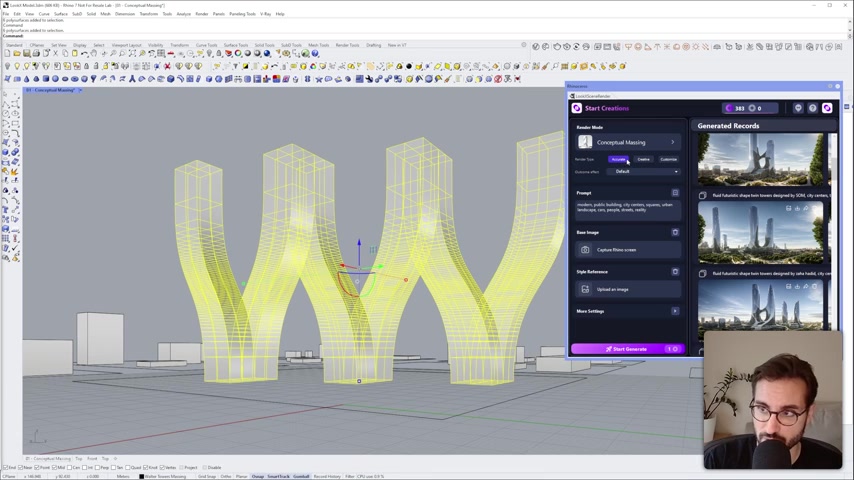
and select the aspect which you want to use.
Step 5: Set Your Prompt and Style Reference
Write a text Prompt describing the scene you want to create. Be specific about the style, materials, and atmosphere. Use a style reference image for the AI to create more inspiration on what to render. You do this by clicking upload to select and import image.
Step 6: Generate the Render
Click the 'Start Generate' button. Let AI perform its magic! The rendering process will begin, and the results will be displayed directly in the LookX plugin window within Rhino. Note you must be on a paid subscription to have full access to the service

.
Step 7: Refine (Optional)
After generating the initial render, you can choose to refine the output. From this, it is possible to generate more images based on a specific style or make adjustments to the source image. In addition, you can manually adjust features such as aspect ratio by adjusting the upload image.
Step 8: Download and Share
Once you're satisfied, download your rendering. High quality rendering options also come with the paid subscription option. The AI revolutionalization of Architecture is about generating fast possibilities for designs.
LookX Pricing Plans: Choose the Right Option for You
Subscription Model
While LookX does offer a limited free trial, the true power comes with a paid subscription
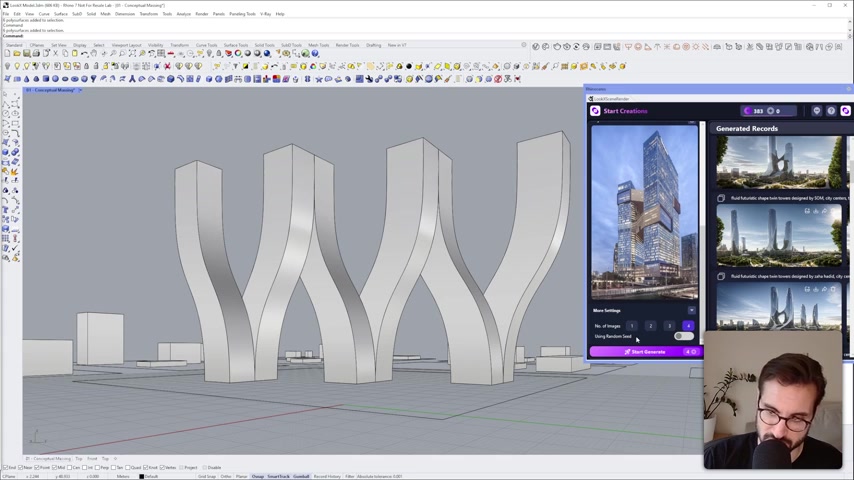
. LookX offers two types of monthly payment subscription. The first gives you 580 credits to enjoy while generating, and the Second annual offer unlimited monthly renderings. Be aware of subscription limits in order to optimize renderings.








Most people like


































Report
Please select a reason for reporting
- 13 Reasons to Switch from Snapchat to Text Messaging
- 7 Powerful Speech to Text Apps to Boost Productivity
- 10 Best Speech to Text Tools for Effortless Transcription
- 13 Free Tools to Easily Transcribe Audio to Text
- 15 Surprising Ways Google's Speech-to-Text Boosts Productivity
- 7 Best Free Online Audio to Text Transcription Tools
- 9 Tips to Transcribe Speech to Text Faster and Better
- 13 Best Speech to Text Software for Windows 10 in 2023
- 7 Tips for Choosing the Best Transcriber for Audio to Text
- 11 Reasons Why Dragon Speech-to-Text Apps are Game-Changers
- 6 Secrets to Enhance Your Speech to Text Transcription
- 6 Brilliant Ways to Boost Productivity with Talk-to-Text on Your MacBook
- 6 Ways Transcription Software Converts Audio to Text
- 8 Tips to Transcribe Speech to Text Like a Pro
- 6 Reasons IBM Watson Speech to Text is a Game-Changer
- 14 Powerful Ways Talk-to-Text Improves Your Workflow
- 12 Top Windows Speech-to-Text Software for Efficient Transcription
- 12 Game-Changing Benefits of Apple's Speech to Text Technology
- 9 Powerful Use Cases for AWS Speech to Text Technology
- 10 Easy Steps to Transcribe YouTube Videos to Text
- transcription audio en texte
- online audio transcription
- free audio file transcription
- free ai audio transcription
- audio transcription service
- audio transcription online free
- audio transcription free online
- audio to transcription software
- audio and transcript
- ai audio transcription free
- voice recording to text converter
- translate voice recording to text
- record voice to text
- audio recording to text converter
- voice recording and transcription
- chatgpt voice to text
- gmail voice to text
- speech to text reader
- speech to text ai free
- speech to talk
- How SEO and Marketing Dashboards Empower Agencies to Drive Results
- How to Use AI Tools to Find Internal Linking Opportunities Across a Business Website
- Discover Your Perfect Haircut with AI Hairstyle Apps
- Free Reputation Calculator Tools: How They're Adapting to Score AI Visibility, Not Just Rankings
- Design Professional Flyers for Free on Your Phone
- Best Free Flyer Maker Apps for Android: Design Like a Pro
- How to Know If Your Business Is Ready for an AI Customer Service Agent
- Revolutionizing Storytelling: From Novels to Screenplays with AI
- Create Engaging Animated Explainer Videos with a Free AI Tool
- Stop Multi-Subscribing: Benchmark Top AI Visual Models in One Canvas
- ASOMobile Helps Teams Benchmark App Store Screenshots Against Competitors
- How to Match LMS Software With Your Organization's Training Plan
- Revolutionizing Email Marketing Agency with AI
- How to Convert BTC to HNT
- Unleashing the Power of AI: Cognizant's Roadmap for Transformation
- Frame to Video Review: A Practical Look at Turning Two Still Frames Into Motion
- NVIDIA NIM: Revolutionizing Supply Chain Data Analysis with AI
- Top AI Tools That Help Brands Stand Out Offline (Not Just Online)
- Top 5 Cold Email Software: Maximize Your Outreach in 2025
- Magic School AI: Revolutionizing Quiz & Assessment Generation

Copyright ©2026 toolify