































Table of Contents
- Key Points
- Introduction to NotebookLM: An AI-Enhanced Learning and Research Tool
- Diving Deeper: Key Features of NotebookLM
- Mastering NotebookLM: Step-by-Step Usage Guide
- Weighing the Options: Pros and Cons of NotebookLM
- Real-World Applications: Use Cases for NotebookLM
- Frequently Asked Questions about NotebookLM
- Dive Deeper: Additional Questions About Google's NotebookLM


Introduction to NotebookLM: An AI-Enhanced Learning and Research Tool
What is NotebookLM?
NotebookLM, developed by Google, stands for Notebook Language Model.
It is designed as a personalized AI assistant that transforms your documents and notes into a dynamic workspace. The core function of NotebookLM is to help you better understand, analyze, and synthesize information from various sources. This innovative tool uses artificial intelligence to provide insights, answer questions, and generate summaries based on the content you upload.
NotebookLM is more than just a digital notebook; it is a comprehensive solution for anyone looking to enhance their research capabilities, improve their learning outcomes, or simply manage information more effectively. Its integration with Google’s ecosystem makes it accessible and user-friendly, offering a seamless experience for those already familiar with Google products.
Key Benefits of Using NotebookLM
- Enhanced Comprehension: NotebookLM helps you grasp complex information more quickly by providing AI-generated summaries and answering your specific questions.
- Efficient Research: Organize and analyze large volumes of data from multiple sources in a single, unified workspace.
- Personalized Learning: Tailor your learning experience by adding personal notes, creating study guides, and generating audio overviews.
- Improved productivity: Streamline your workflow by automating tasks such as summarizing texts and extracting key information.
Getting Started with NotebookLM: Accessing the Tool
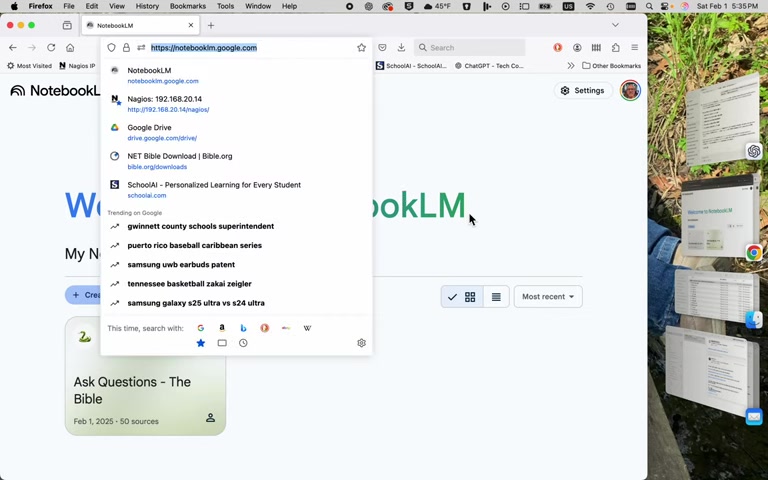
Accessing NotebookLM is straightforward, especially if you already use Google products. To begin, simply navigate to notebooklm.google.com. You will need a Google account to access the platform. This accessibility makes NotebookLM a convenient tool for a wide range of users, from students and educators to researchers and professionals.
Once you're logged in, you'll find yourself in the main dashboard, which displays your existing notebooks and provides options to create new ones. The interface is clean and intuitive, making it easy to get started even if you're not particularly tech-savvy. This user-friendly design ensures that you can focus on your work rather than struggling with complicated software.
NotebookLM can be used whether you have a personal Gmail account or if you use it at work.
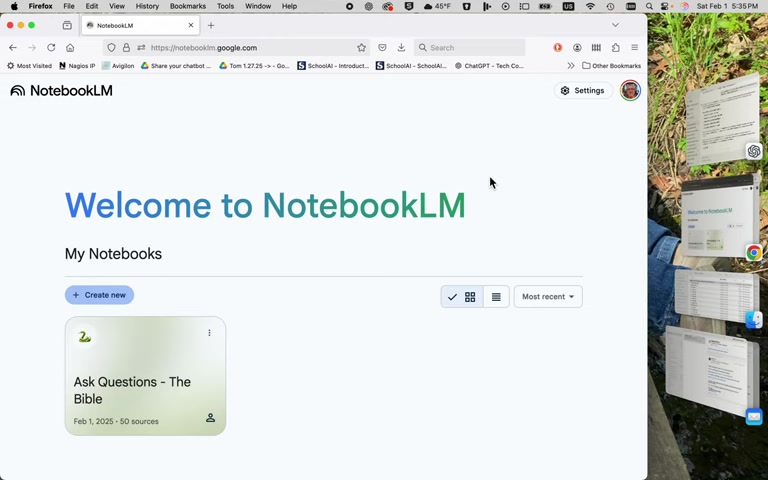
This flexibility means you can seamlessly integrate it into your existing workflow, regardless of your organizational structure.
Step-by-Step Guide to Accessing NotebookLM
- Open your web browser: Use any modern web browser such as Chrome, Firefox, Safari, or Edge.
- Go to NotebookLM: Type notebooklm.google.com into the address bar and press Enter.
- Log in with your Google account: If you're not already logged in, you'll be prompted to enter your Google account credentials (email and password).
- Accept the terms and conditions: Upon your first login, you may need to agree to the platform's terms of service.
- Explore the dashboard: Once logged in, you'll be directed to the main dashboard where you can view your notebooks and start working.
Diving Deeper: Key Features of NotebookLM
Adding Sources: Uploading and Linking Content
One of NotebookLM's standout features is its ability to handle a wide variety of source materials.
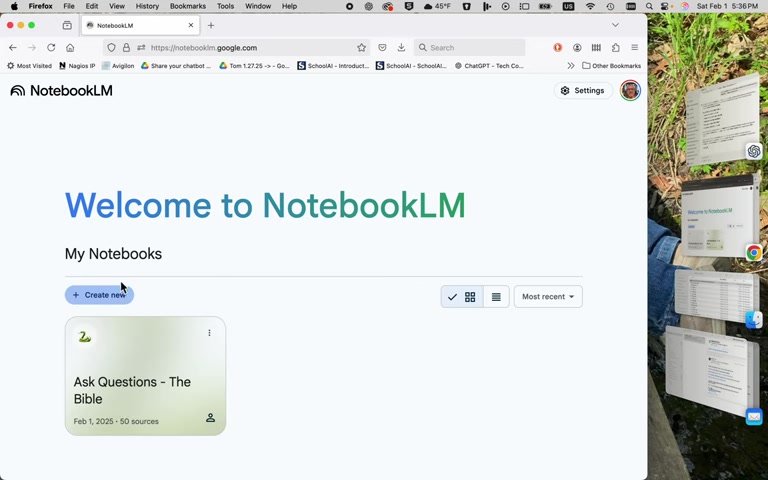
You can upload files directly from your computer, import them from Google Drive, or link to external websites and YouTube videos. This flexibility ensures that you can consolidate all your research materials in one place, regardless of their format or origin.
Supported File Types
- PDF: Ideal for research Papers, articles, and reports.
- TXT: Perfect for simple text documents and notes.
- Markdown: Great for formatted text with headings, lists, and links.
- Audio (MP3): Useful for lectures, interviews, and spoken content.
Importing from Google Drive
- Google Docs: Seamlessly import your written documents from Google Docs.
- Google Slides: Incorporate presentations directly into your notebook.
Linking External Sources
- Websites: Link to relevant web pages for additional information and context.
- YouTube: Include educational videos or tutorials to supplement your research.
This comprehensive support for different file types and sources makes NotebookLM a versatile tool for managing and analyzing all kinds of information.
The source limit is 50. This means you can add up to 50 different sources to each NotebookLM notebook.
Harnessing the Power of AI: Chat and Analysis
NotebookLM's AI capabilities are where the tool truly shines. Once you've uploaded your sources, you can start asking questions related to the content. The AI will analyze the documents and provide answers grounded in the information you've provided. This feature is incredibly useful for quickly finding specific details, understanding complex relationships, and synthesizing information from multiple sources.
Copied Text: You can copy and paste large amounts of text directly into NotebookLM for analysis.
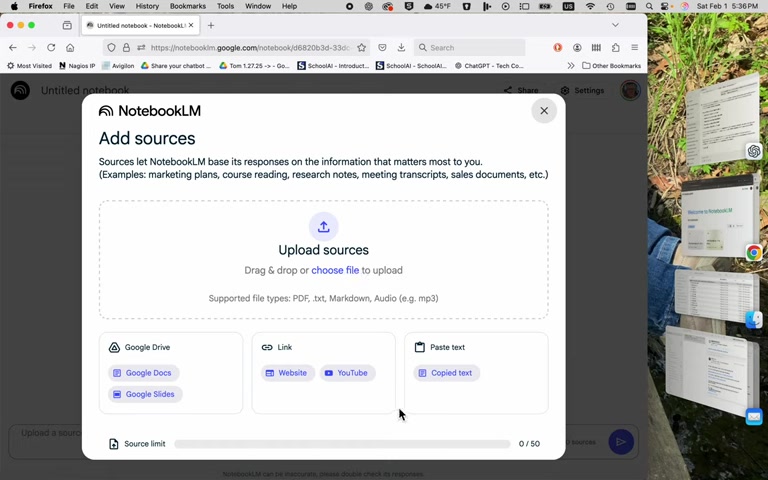
This is particularly useful for quickly processing content from websites or digital documents.
NotebookLM analyzes the document and provides a response. This AI-driven interaction saves you time and effort by automating the process of information retrieval and synthesis. You can also have it summarize any document that you give it.
Key Benefits of the Chat Feature
- Quick Answers: Get immediate answers to your questions based on your uploaded content.
- Deep Analysis: Understand complex relationships and connections within your data.
- Efficient Synthesis: Combine information from multiple sources into a coherent overview.
- Tailored Responses: Receive answers that are specifically relevant to your research or learning goals.
By leveraging the power of AI, NotebookLM transforms your documents into an interactive Knowledge Base, allowing you to explore and understand your content in new and insightful ways. This interactive process will allow you to learn information in half the time.
Organization and Customization: Tailoring Your Workspace
NotebookLM provides several features to help you organize and customize your workspace to suit your specific needs. You can add notes, create audio overviews, and generate briefing documents to enhance your understanding and recall of the information.
Adding Notes: Incorporate your own thoughts, insights, and annotations directly into the notebook. This allows you to personalize your learning experience and create a comprehensive record of your research process.
Audio Overview: NotebookLM can generate an audio overview of your content. This feature is useful for reviewing information while multitasking or for those who prefer auditory learning.
Briefing Document: Create a concise summary of your key findings and insights. This feature is valuable for sharing your research with others or for quickly refreshing your memory on important details.
You can have NotebookLM provide the audio overview by two AI podcast host personalities.
These organization and customization options allow you to create a dynamic and personalized learning environment that adapts to your unique needs and preferences.
NotebookLM remembers your settings, so if you are working on Google Docs, and you update them, NotebookLM will update them.
NotebookLM is like a Search Engine for your world.
Mastering NotebookLM: Step-by-Step Usage Guide
Step 1: Creating a New Notebook
To begin, click the 'Create new' button.
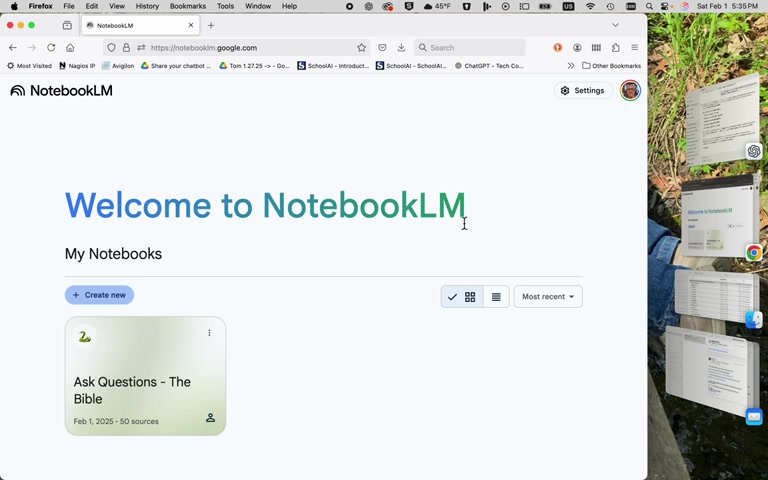
This will open a new notebook where you can start adding your sources and organizing your research. The notebook interface is designed to be intuitive, with clearly labeled sections for sources, chat, and settings.
Step 2: Uploading Documents
Click on the 'Upload sources' button and choose a PDF.
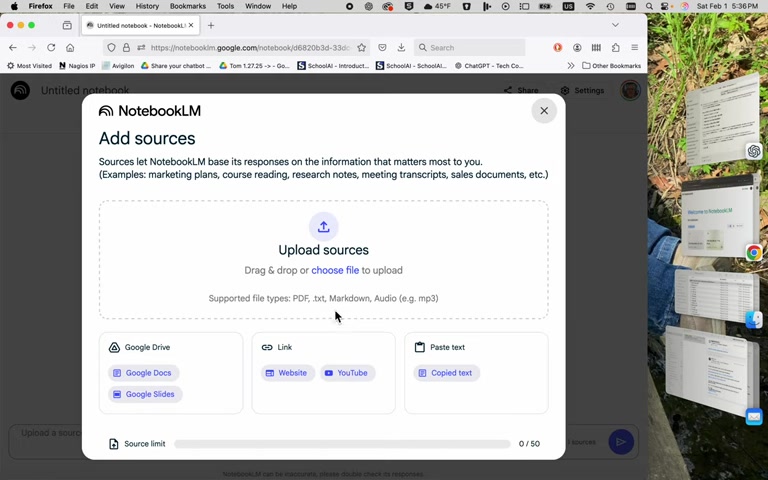
After your PDF has been uploaded you will see a progress bar. NotebookLM offers several options for uploading content into your notebooks:
From Your Computer:
- Click the 'Upload Sources' button.
- Choose 'Upload from Computer'.
- Select the files you want to upload (PDF, TXT, Markdown, Audio).
From Google Drive:
- Click the 'Upload Sources' button.
- Choose 'Google Drive'.
- Select the Google Docs or Slides you want to import.
Linking External Content:
- Click the 'Upload Sources' button.
- Choose 'Website' or 'YouTube'.
- Enter the URL of the website or video you want to link.
Step 3: Syncing Google Docs
If you are using a Google Doc, you can set it to sync with NotebookLM.
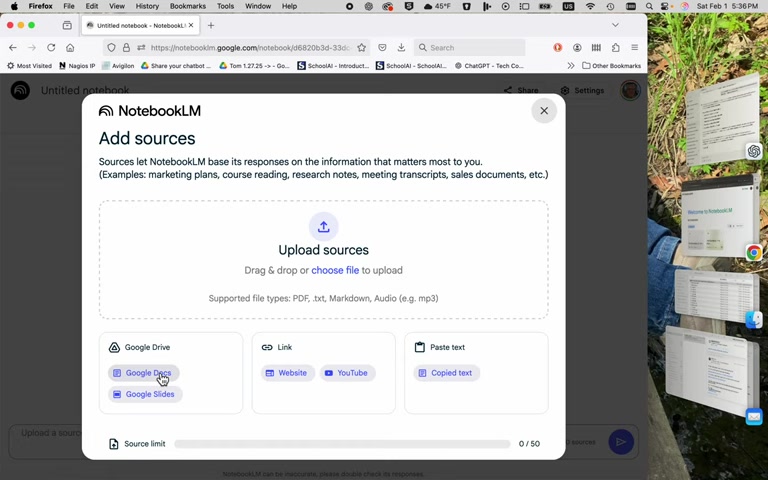
Each time that you update the Google Doc, NotebookLM will see the changes and automatically update.
Step 4: Interacting with the AI Chat
Once your sources are uploaded, you can start using the AI chat feature to ask questions and explore your content.
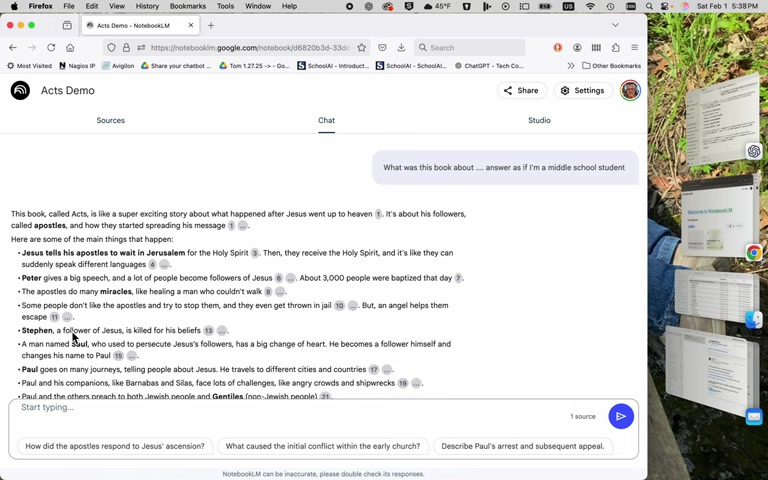
- Click on the 'Chat' tab.
- Type your question in the text box.
- Press Enter to submit your question.
NotebookLM will analyze your sources and provide an answer based on the information you've provided. You can also ask it to act as a middle school student.
The platform also suggests some good questions for you to use.
Step 5: Exploring Audio Overviews
If you want, NotebookLM will give you an audio overview to review the content while multi-tasking. Click the 'Audio Overview' button to hear a synthesized podcast regarding the information that you provided it.


Most people like




































Report
Please select a reason for reporting
- 13 Reasons to Switch from Snapchat to Text Messaging
- 7 Powerful Speech to Text Apps to Boost Productivity
- 10 Best Speech to Text Tools for Effortless Transcription
- 13 Free Tools to Easily Transcribe Audio to Text
- 15 Surprising Ways Google's Speech-to-Text Boosts Productivity
- 7 Best Free Online Audio to Text Transcription Tools
- 9 Tips to Transcribe Speech to Text Faster and Better
- 13 Best Speech to Text Software for Windows 10 in 2023
- 7 Tips for Choosing the Best Transcriber for Audio to Text
- 11 Reasons Why Dragon Speech-to-Text Apps are Game-Changers
- 6 Secrets to Enhance Your Speech to Text Transcription
- 6 Brilliant Ways to Boost Productivity with Talk-to-Text on Your MacBook
- 6 Ways Transcription Software Converts Audio to Text
- 8 Tips to Transcribe Speech to Text Like a Pro
- 6 Reasons IBM Watson Speech to Text is a Game-Changer
- 14 Powerful Ways Talk-to-Text Improves Your Workflow
- 12 Top Windows Speech-to-Text Software for Efficient Transcription
- 12 Game-Changing Benefits of Apple's Speech to Text Technology
- 9 Powerful Use Cases for AWS Speech to Text Technology
- 10 Easy Steps to Transcribe YouTube Videos to Text
- transcription audio en texte
- online audio transcription
- free audio file transcription
- free ai audio transcription
- audio transcription service
- audio transcription online free
- audio transcription free online
- audio to transcription software
- audio and transcript
- ai audio transcription free
- voice recording to text converter
- translate voice recording to text
- record voice to text
- audio recording to text converter
- voice recording and transcription
- chatgpt voice to text
- gmail voice to text
- speech to text reader
- speech to text ai free
- speech to talk
- ChatGPT Knows Ford. It Just Doesn't Quote Ford
- Meshy AI: How to Create 3D Models from Text and Images
- How SEO and Marketing Dashboards Empower Agencies to Drive Results
- How to Use AI Tools to Find Internal Linking Opportunities Across a Business Website
- Discover Your Perfect Haircut with AI Hairstyle Apps
- Free Reputation Calculator Tools: How They're Adapting to Score AI Visibility, Not Just Rankings
- Design Professional Flyers for Free on Your Phone
- Best Free Flyer Maker Apps for Android: Design Like a Pro
- How to Know If Your Business Is Ready for an AI Customer Service Agent
- Revolutionizing Storytelling: From Novels to Screenplays with AI
- Keep Characters Consistent Across Scenes With Image-to-Video AI
- How to Convert BTC to HNT
- ProxyWing DuckDuckGo Proxy Review: Plans, Setup and Who It Is For
- ChatGPT Knows Ford. It Just Doesn't Quote Ford
- Automate Lead Generation: A Comprehensive Guide with AI Agents
- Revideo.io: The Future of Reverse Video Search Technology
- Revolutionizing Email Marketing Agency with AI
- Breaking the Character Drift Dilemma: A Practical Test of Smart Shot
- Meshy AI: How to Create 3D Models from Text and Images
- ASOMobile Helps Teams Benchmark App Store Screenshots Against Competitors

Copyright ©2026 toolify