































Table of Contents
- Key Points
- What is Canva's Magic Studio?
- Exploring Canva's Key Magic Studio Features
- How to Use Canva's Key Magic Studio Features
- Canva Pricing: Options for Every Budget
- Weighing the Pros and Cons of Canva's Magic Studio
- Frequently Asked Questions
- Related Questions


What is Canva's Magic Studio?
A Suite of AI-Powered Creative Tools
Canva’s Magic Studio represents a significant leap forward in accessible design technology. It brings together various AI-driven features designed to empower users to create professional-quality content more efficiently than ever before. From generating custom designs to creating engaging videos, Magic Studio aims to simplify and enhance every stage of the creative process.
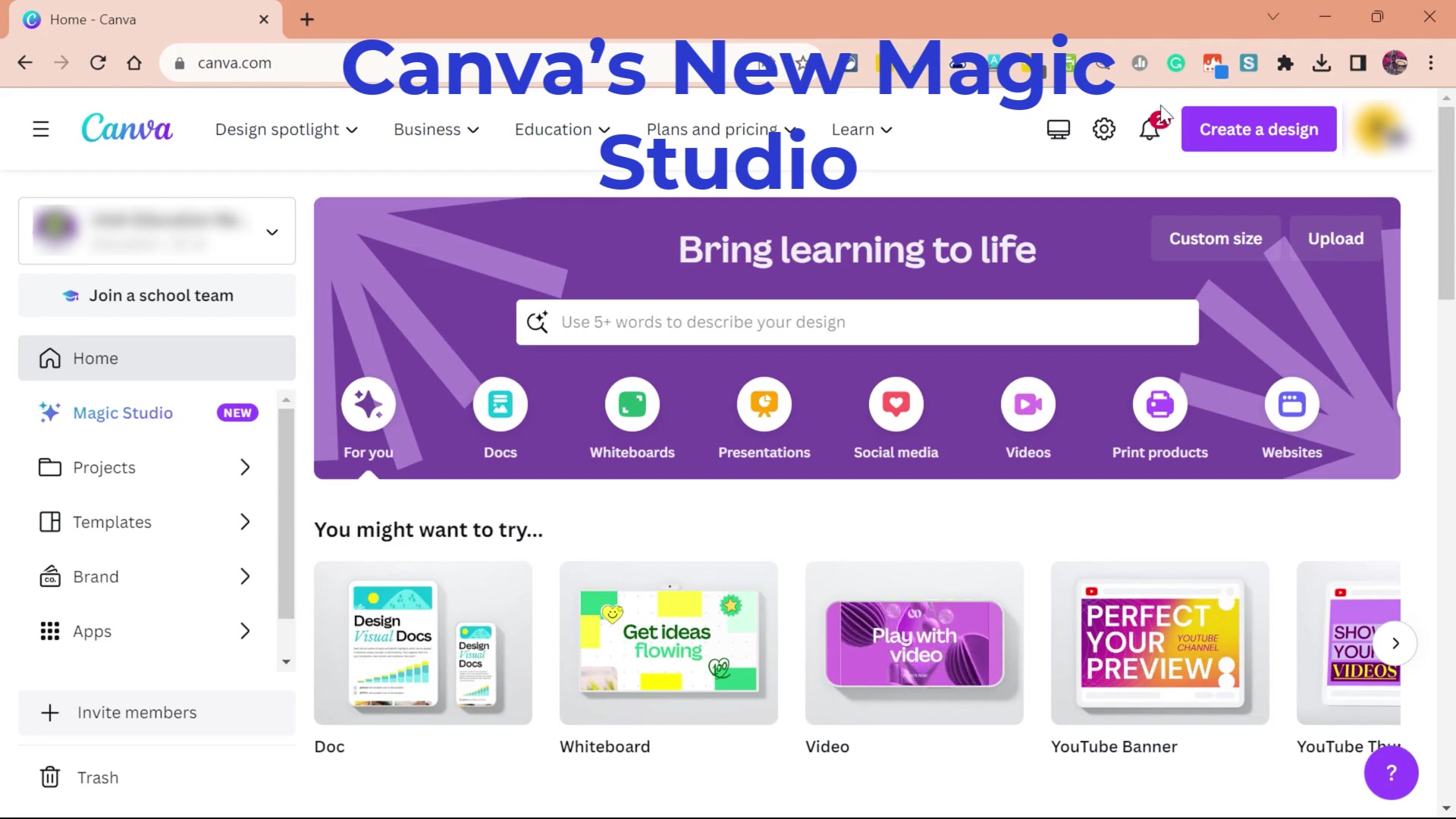
Magic Studio isn't just about making things easier; it's about unlocking new possibilities for creative expression. By automating tedious tasks and offering intelligent suggestions, it allows users to focus on the core elements of their design, ensuring that their vision is brought to life in the most impactful way.
The integration of AI into design is not just a trend; it's a fundamental shift in how creative work is done. Canva’s Magic Studio is at the forefront of this revolution, providing tools that are intuitive, powerful, and accessible to users of all skill levels. Whether you are a seasoned designer or just starting out, Magic Studio offers the resources you need to elevate your creations and achieve your design goals.
With features designed to optimize your workflow and boost your creativity, Magic Studio empowers you to create professional-quality content with incredible speed and ease. Say goodbye to tedious tasks and hello to a world where your imagination is the only limit. Unlock new possibilities for your creative projects and experience design like never before with Canva's revolutionary Magic Studio.
Exploring Canva's Key Magic Studio Features
Magic Design: Generating Custom Templates with Ease
One of the standout features of Canva's Magic Studio is Magic Design, which allows users to generate custom design templates from a simple text Prompt.
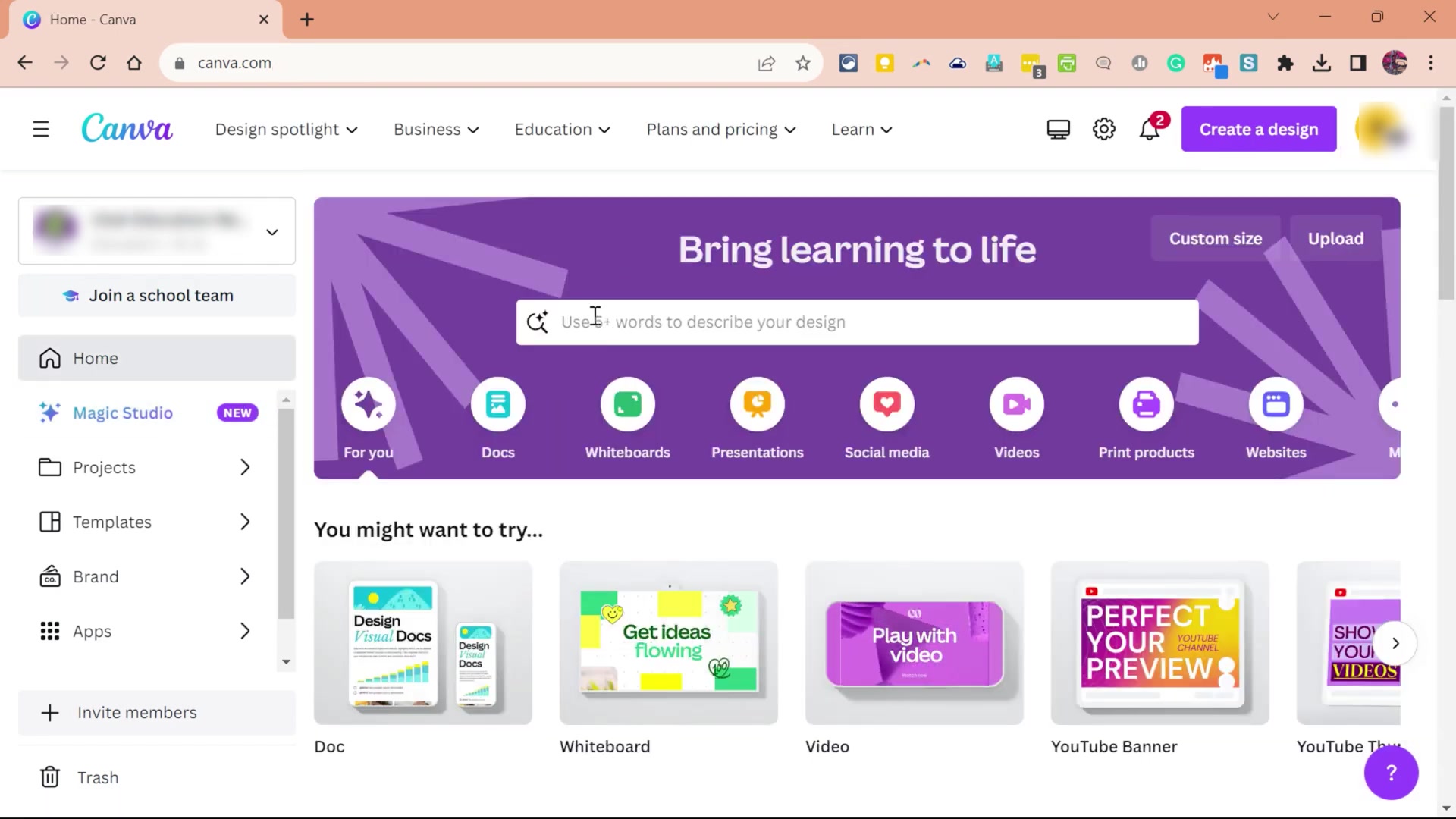
Instead of browsing through countless pre-made templates, you can describe the kind of design you need, and Canva’s AI will generate a selection of custom templates tailored to your specific requirements.
For example, if you need an Instagram poster about Digital Citizenship Week, you can simply type that into the search bar. Canva’s AI will then generate a variety of poster designs, complete with relevant graphics and text suggestions. This feature is incredibly useful for those who have a clear idea of what they want but need a starting point to bring their vision to life. The ability to generate custom templates saves time and ensures that your designs are aligned with your specific needs.
The days of endless scrolling and template searching are over. With Magic Design, you can transform your ideas into visually stunning realities in a matter of moments. Whether you're creating social media content, marketing materials, or presentations, this feature is an indispensable tool for any designer or content creator looking to elevate their work and save valuable time. This boosts your creative workflow, making you more efficient and more innovative.
AI Image Generator: Unleashing Your Imagination
Canva's Magic Studio also features an AI Image Generator, allowing you to create unique images from text descriptions.
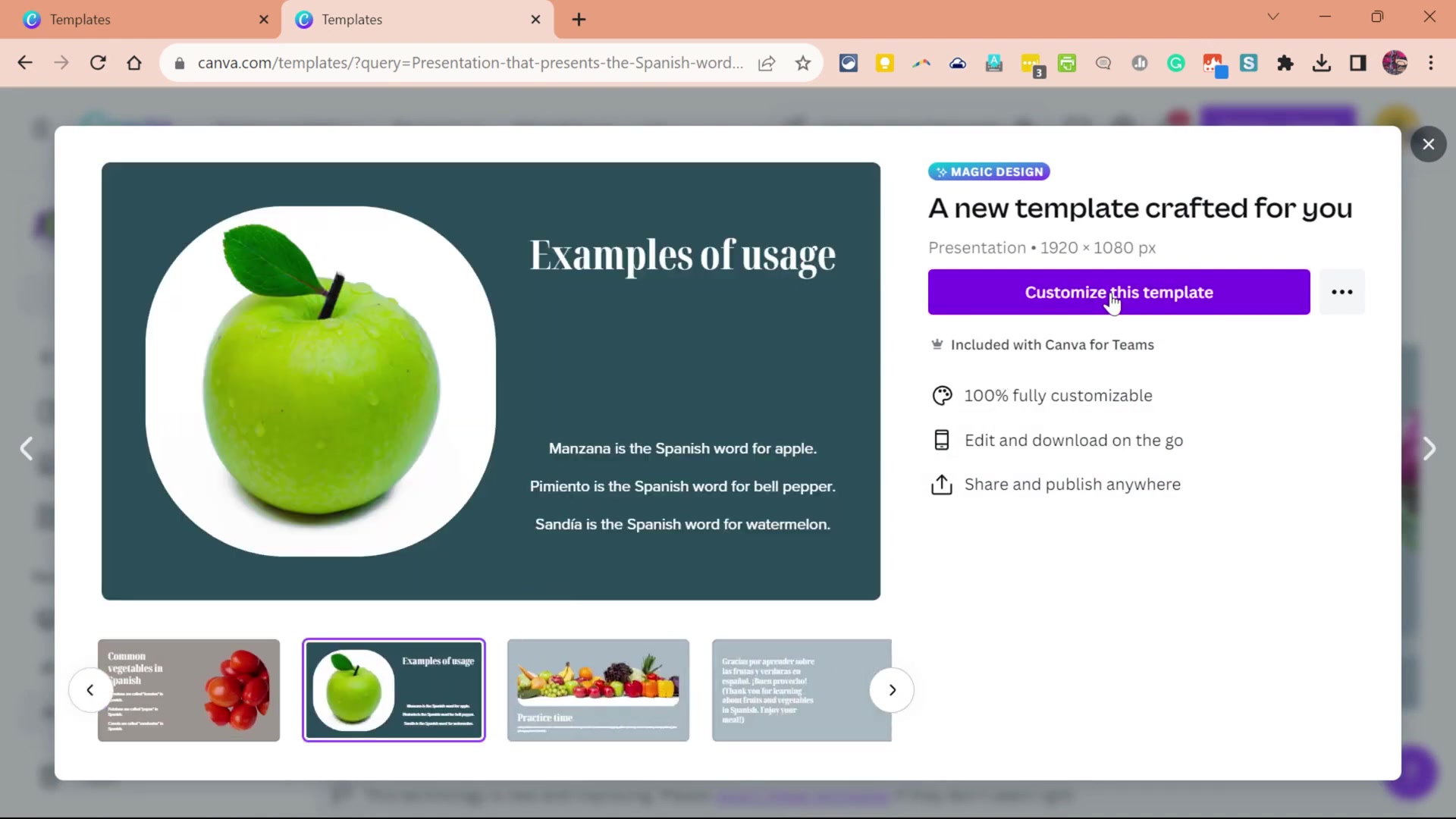
This feature is particularly useful when you need specific visuals that are not readily available in stock photo libraries. To use the AI Image Generator, you simply type in a description of the image you want to create, and Canva’s AI will generate a selection of images based on your prompt.
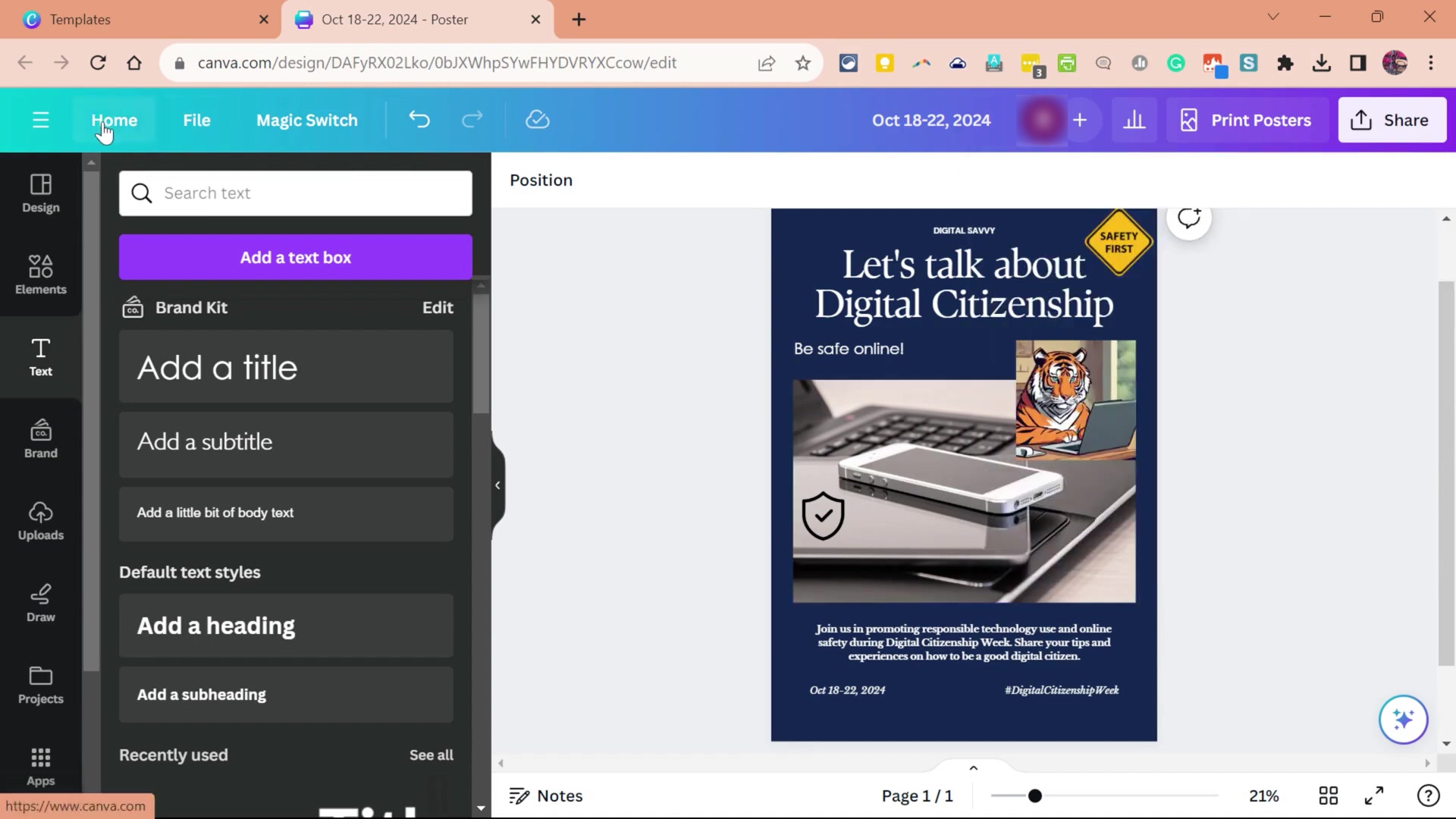
Let’s say you want an image of “a tiger being a good digital citizen.” You can type that into the AI Image Generator, and Canva will create a range of images featuring tigers in various digital citizenship scenarios. You can then select the image that best fits your project and incorporate it into your design. This feature is an invaluable tool for creating personalized and engaging content that stands out from the crowd.
The AI Image Generator not only saves time and effort but also opens up a world of creative possibilities. Whether you are creating marketing materials, social media content, or educational resources, this tool empowers you to bring your ideas to life with stunning, AI-generated visuals. With Canva’s AI Image Generator, the only limit is your imagination. From whimsical illustrations to realistic photographs, this tool provides the resources you need to make your designs truly unique and impactful.
Magic Switch: Seamlessly Converting Between Design Formats
Another impressive feature within Canva's Magic Studio is Magic Switch, which enables you to convert designs between different formats with ease. This feature is incredibly useful when you need to repurpose content for various platforms or mediums.
For instance, you can convert a video into a presentation with just a few clicks. Magic Switch will automatically resize and reformat the content to fit the new format, saving you the time and effort of manually recreating the design. This is particularly useful for marketers who need to adapt their content for different social media platforms, educators who want to repurpose presentations for online learning, or anyone looking to streamline their design workflow.
Magic Switch simplifies the process of repurposing content, allowing you to maximize the value of your creative assets. Whether you're converting a video into a presentation, a document into a blog post, or a social media graphic into a print-ready design, this feature ensures that your content is always perfectly formatted and optimized for its intended purpose.
How to Use Canva's Key Magic Studio Features
Magic Design : Generate Custom Templates
-
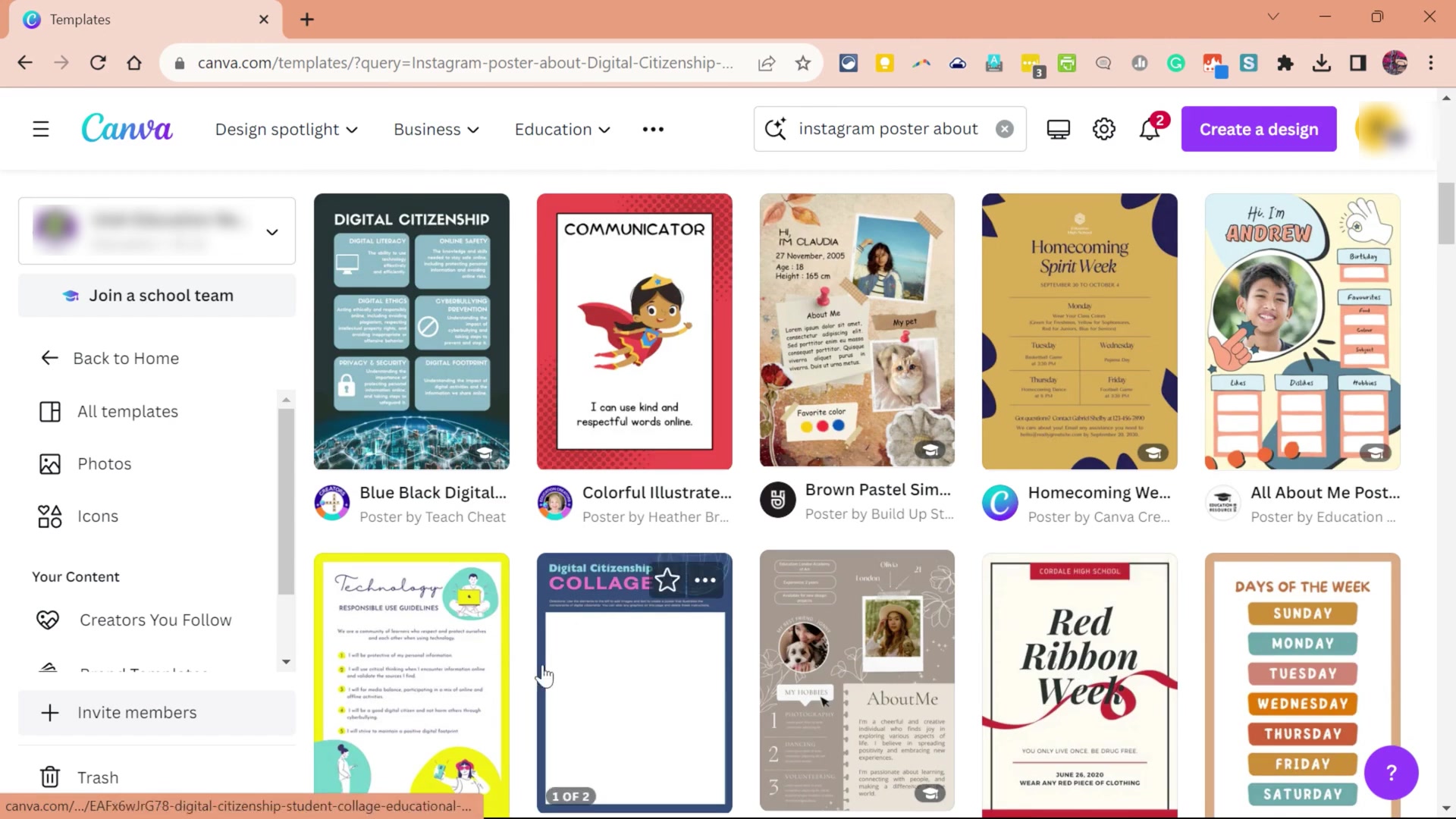
Navigate to the Canva Homepage: After logging into Canva, you'll arrive at the homepage.
-
Enter Your Design Description: Locate the search bar labeled “Use 5+ words to describe your design.” Type a detailed description of the template you want to generate. Be as specific as possible to get the best results.
-
Explore the Generated Templates: Canva will display a range of custom templates tailored to your description. Scroll through the options to find a template that closely aligns with your vision.
-
Customize Your Chosen Template: Once you’ve selected a template, click on it to open it in the Canva editor. From here, you can modify the text, images, colors, and layout to perfect your design.
AI Image Generator: Generate Your Own Images
-
Access the Elements Section: Within the Canva editor, click on the “Elements” tab on the left-hand panel.
-
Navigate to the AI Image Generator: Scroll down the Elements panel until you find the “AI Image Generator” section.
-
Describe Your Desired Image: In the text box labeled “Describe the image you want,” type a detailed description of the image you wish to create. Include details such as colors, places, and movements.
-
Generate and Select Your Image: Tap enter on the keyboard and Canva’s AI will generate several images based on your description. Review the generated images and select the one that best matches your vision.
-
Incorporate the Image into Your Design: Once you’ve chosen an image, simply click on it to add it to your Canva design. You can then resize, reposition, and adjust the image as needed.
Magic Switch: Change Document Into Another Document
- Select Magic Switch Choose Magic Switch in edit page.
- Select The kind Of Design
- You Got the Design! Enjoy yourself!





Most people like
































Report
Please select a reason for reporting
- 13 Reasons to Switch from Snapchat to Text Messaging
- 7 Powerful Speech to Text Apps to Boost Productivity
- 10 Best Speech to Text Tools for Effortless Transcription
- 13 Free Tools to Easily Transcribe Audio to Text
- 15 Surprising Ways Google's Speech-to-Text Boosts Productivity
- 7 Best Free Online Audio to Text Transcription Tools
- 9 Tips to Transcribe Speech to Text Faster and Better
- 13 Best Speech to Text Software for Windows 10 in 2023
- 7 Tips for Choosing the Best Transcriber for Audio to Text
- 11 Reasons Why Dragon Speech-to-Text Apps are Game-Changers
- 6 Secrets to Enhance Your Speech to Text Transcription
- 6 Brilliant Ways to Boost Productivity with Talk-to-Text on Your MacBook
- 6 Ways Transcription Software Converts Audio to Text
- 8 Tips to Transcribe Speech to Text Like a Pro
- 6 Reasons IBM Watson Speech to Text is a Game-Changer
- 14 Powerful Ways Talk-to-Text Improves Your Workflow
- 12 Top Windows Speech-to-Text Software for Efficient Transcription
- 12 Game-Changing Benefits of Apple's Speech to Text Technology
- 9 Powerful Use Cases for AWS Speech to Text Technology
- 10 Easy Steps to Transcribe YouTube Videos to Text
- transcription audio en texte
- online audio transcription
- free audio file transcription
- free ai audio transcription
- audio transcription service
- audio transcription online free
- audio transcription free online
- audio to transcription software
- audio and transcript
- ai audio transcription free
- voice recording to text converter
- translate voice recording to text
- record voice to text
- audio recording to text converter
- voice recording and transcription
- chatgpt voice to text
- gmail voice to text
- speech to text reader
- speech to text ai free
- speech to talk
- How to Use AI Tools to Find Internal Linking Opportunities Across a Business Website
- Discover Your Perfect Haircut with AI Hairstyle Apps
- Free Reputation Calculator Tools: How They're Adapting to Score AI Visibility, Not Just Rankings
- Design Professional Flyers for Free on Your Phone
- Best Free Flyer Maker Apps for Android: Design Like a Pro
- How to Know If Your Business Is Ready for an AI Customer Service Agent
- Revolutionizing Storytelling: From Novels to Screenplays with AI
- Create Engaging Animated Explainer Videos with a Free AI Tool
- Stop Multi-Subscribing: Benchmark Top AI Visual Models in One Canvas
- Best Seedance 2.5 API Provider: Every Price on the Market, Checked at Source
- Top AI Social Media Management Tools: Automate Your Content Strategy
- Free AI Text to Video Generator: Create Stunning Videos from Text
- Discover 17 ChatGPT Alternatives: A Comprehensive Comparison
- Character.AI vs. Janitor AI: Which AI Chat Platform Reigns Supreme?
- Top Virtual Assistant Companies in 2026: Reviews, Pricing, and Plans Compared
- Unveiling FaceCheck.ID: Revolutionizing Reverse Image Searches with AI
- 11 Best AI Dialers in 2026: Features, Pricing, Pros and Cons
- How I Direct Consistent AI Clips: A Hands-On Guide to Multi-Model Generation
- A Realistic Review of the Photo Generator Image Tool
- Playwright MCP Server: Automated Web Testing with Agent Mode

Copyright ©2026 toolify