































Table of Contents
- Key Points
- Understanding Automated Urine Strip Test Analysis
- Practical Implementation with MATLAB
- Step-by-Step Guide to Urine Strip Test Analysis in MATLAB
- Pricing and Resources
- Key Features of the Automated Analysis System
- Versatile Use Cases in Medical Diagnostics
- Frequently Asked Questions (FAQ)
- Related Questions



Understanding Automated Urine Strip Test Analysis
What is Urine Strip Test Analysis?
Urine strip tests are a common diagnostic tool used in Healthcare to detect various medical conditions by analyzing the components of urine. The process involves immersing a chemically treated strip into a urine sample, where different pads on the strip react with specific substances, causing color changes.
These color changes indicate the presence and concentration of substances such as glucose, protein, ketones, blood, leukocytes, nitrites, bilirubin, urobilinogen, and pH levels.
Traditionally, the interpretation of these tests is done visually by comparing the colors on the strip to a reference Chart provided by the manufacturer. However, visual interpretation is prone to subjectivity and variability due to factors such as lighting conditions, individual color Perception, and the experience level of the observer.
Automated urine strip test analysis seeks to eliminate these subjective factors by using technology to interpret the test results. This involves capturing an image of the urine strip, processing the image to identify and analyze the colors of the different pads, and then using algorithms to determine the concentration levels of the substances being tested. By automating this process, healthcare providers can obtain more consistent, accurate, and Timely results, leading to better patient care and more efficient use of resources. Image processing, deep learning, and software like MATLAB are crucial tools in developing these automated systems, making them reliable and accessible in various medical settings.
The Role of Image Processing and Deep Learning
Image processing and deep learning play a pivotal role in automating urine strip test analysis, enhancing both the accuracy and efficiency of the diagnostic process. Here’s a detailed look at how these technologies are applied:
Image Acquisition: The process begins with capturing a high-resolution image of the urine strip.
The quality of the image is crucial, as it directly affects the subsequent analysis. Factors such as lighting, angle, and focus must be controlled to ensure clear and consistent images.
Pre-processing: Once the image is captured, pre-processing steps are applied to enhance its quality and prepare it for further analysis. Common pre-processing techniques include:
- Noise Reduction: Applying filters to reduce noise and artifacts in the image, ensuring clearer color detection.
- Contrast Enhancement: Adjusting the contrast to make the color variations more pronounced.
- Color Correction: Correcting any color distortions caused by lighting or camera settings to ensure accurate color representation.
Segmentation: Segmentation involves isolating the individual pads on the urine strip. This step is critical for accurately analyzing each reaction. Techniques used for segmentation include:
- Edge Detection: Identifying the boundaries of each pad using edge detection algorithms.
- Thresholding: Applying thresholding techniques to separate the pads from the background.
- Contour Analysis: Analyzing the contours of the pads to accurately Delineate their shapes and positions.
Feature Extraction: After segmentation, the key features of each pad are extracted. The most important feature is the color of the pad, which is indicative of the concentration of the substance being tested. Color analysis involves:
- Color Space Conversion: Converting the image to a color space that is suitable for analysis, such as RGB, HSV, or CIELAB.
- Color Measurement: Measuring the average color values for each pad using statistical methods.
- Color Calibration: Calibrating the color measurements to a standard reference to ensure consistency and accuracy.
Classification: Classification is the final step, where the extracted features (colors) are used to determine the concentration levels of the substances being tested. Deep learning algorithms, particularly Convolutional Neural Networks (CNNs), are often used for this purpose.
- Training the Model: CNNs are trained on a large dataset of urine strip images with known concentrations. This allows the model to learn the complex relationships between the colors and the corresponding concentrations.
- Making Predictions: Once trained, the CNN can accurately classify new urine strip images, providing quantitative results for each parameter being tested.
By integrating image processing and deep learning, automated urine strip analysis systems can provide rapid, accurate, and objective results, enhancing diagnostic capabilities in various medical settings.
Practical Implementation with MATLAB
Setting Up the MATLAB Environment
MATLAB is a powerful platform for developing and deploying automated urine strip test analysis systems. It offers a wide range of tools and libraries specifically designed for image processing, deep learning, and data analysis.
Here’s a guide on setting up the MATLAB environment for this purpose:
1. Install MATLAB:
- If you haven’t already, download and install MATLAB from the MathWorks website. Ensure you have a valid license.
2. Install Necessary Toolboxes:
- MATLAB’s functionality is extended through toolboxes. For urine strip test analysis, the following toolboxes are essential:
- Image Processing Toolbox: Provides functions for image analysis, enhancement, filtering, segmentation, and color space conversions.
- Deep Learning Toolbox: Supports the design, training, and deployment of deep learning models, including CNNs.
- Computer Vision Toolbox: Offers tools for object detection, feature extraction, and video processing.
- Statistics and Machine Learning Toolbox: Includes functions for statistical analysis, classification, and regression.
- To install these toolboxes, open MATLAB and go to the Home tab. Click on Add-Ons and then Get Add-Ons. Search for each toolbox and click Install.
3. Setting Up the Project Directory:
- Create a dedicated directory for your urine strip analysis project. This will help keep your files organized. For example:
UrineStripAnalysisProject/
├── data/
├── images/
├── scripts/
├── models/
└── results/- data/: Stores the training and testing datasets.
- images/: Contains sample images of urine strips.
- scripts/: Includes MATLAB scripts for image processing, deep learning, and analysis.
- models/: Stores trained deep learning models.
- results/: Holds the output and analysis results.
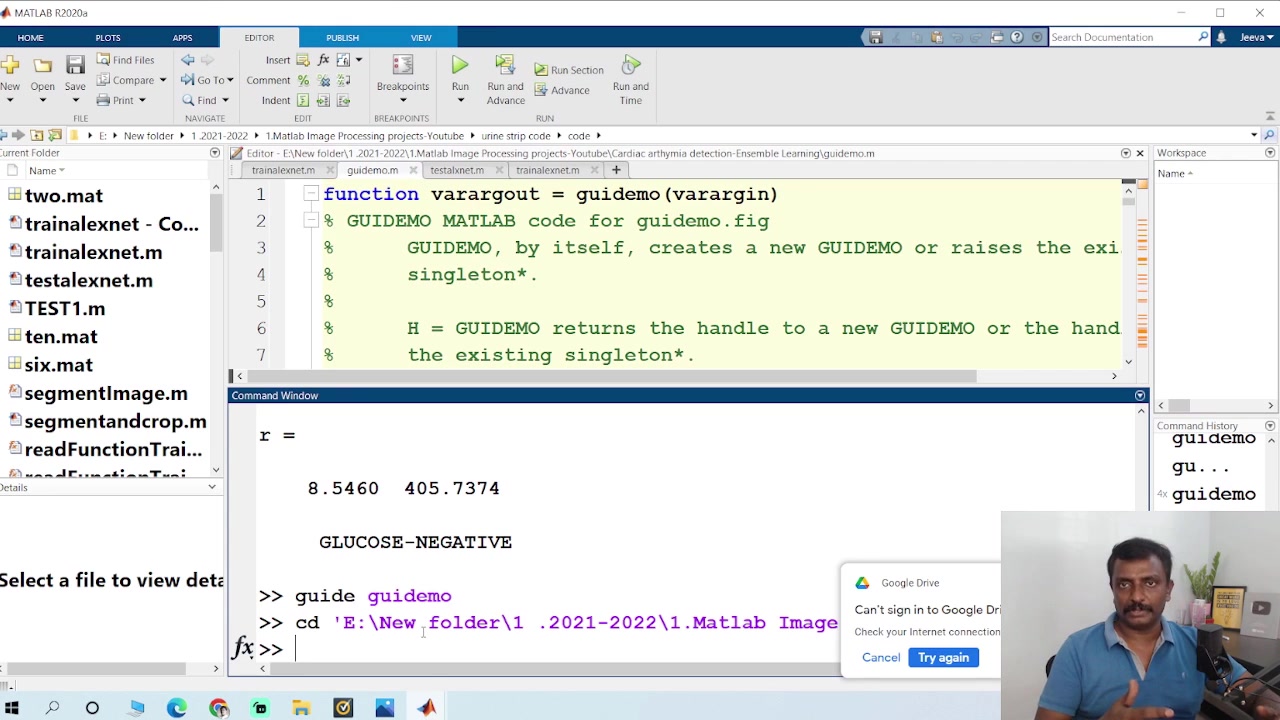
4. Changing the MATLAB Path:
- To ensure MATLAB can find your scripts and data, add the project directory to the MATLAB path. In the MATLAB command window, type:
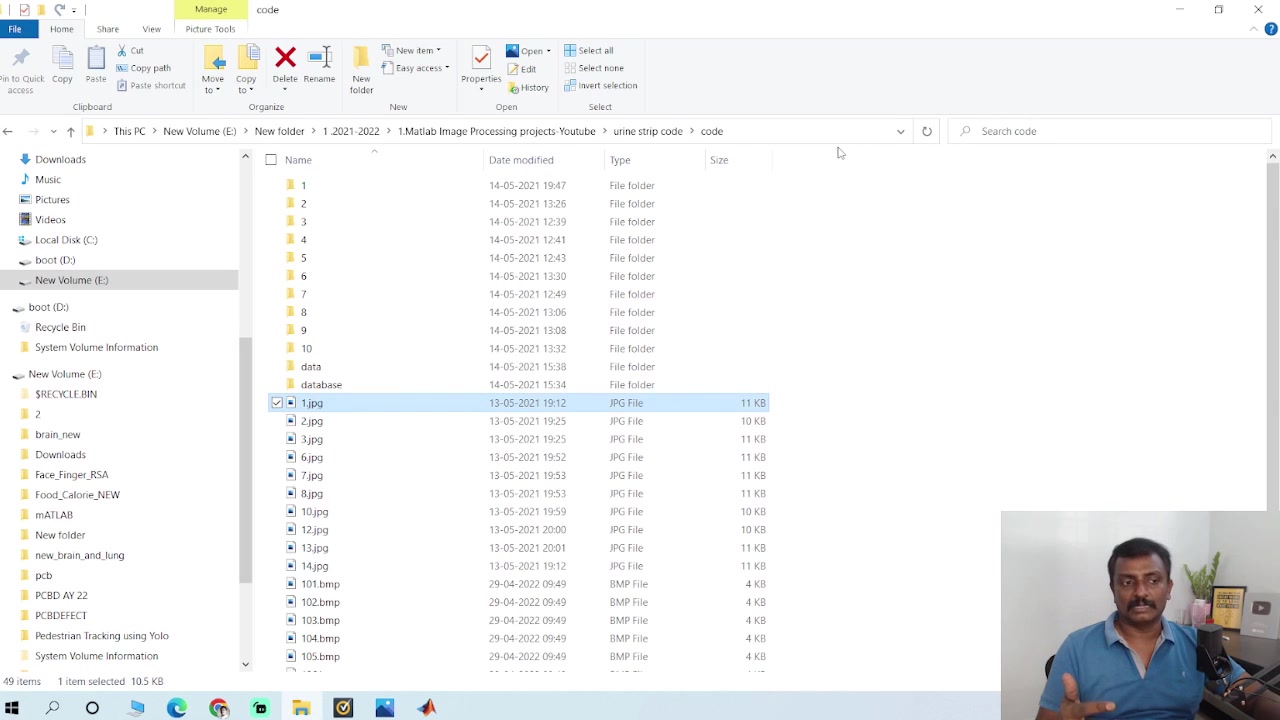
cd 'E:\New folder\1. 2021-2022\\1.Matlab Image Processing projects youtube\urine strip code'- This command changes the current directory to your project directory. MATLAB will now search for files in this directory and its subdirectories.
5. Testing the Setup:
- Create a simple MATLAB script (e.g.,
test_setup.m) to verify that all toolboxes are correctly installed and accessible:
% Test script to verify MATLAB setup

% Check if Image Processing Toolbox is installed
if license('test', 'Image_Toolbox')
    disp('Image Processing Toolbox is installed.');
else
    error('Image Processing Toolbox is not installed.');
end

% Check if Deep Learning Toolbox is installed
if license('test', 'Deep_Learning_Toolbox')
    disp('Deep Learning Toolbox is installed.');
else
    error('Deep Learning Toolbox is not installed.');
end

disp('MATLAB setup is complete.');- Run the script by typing
test_setupin the command window. If all toolboxes are correctly installed, you should see confirmation messages. Otherwise, you'll receive an error message indicating which toolbox is missing.
By following these steps, you’ll have a well-organized and fully equipped MATLAB environment ready for developing automated urine strip test analysis systems. This setup ensures that you have all the necessary tools and libraries to perform image processing, deep learning, and data analysis effectively.
Developing the Automated Analysis Script
Developing an automated analysis script in MATLAB involves several key steps, each contributing to the overall accuracy and efficiency of the system. Here’s a detailed guide to creating such a script:
1. Image Loading and Pre-processing:
- Start by loading the image of the urine strip into MATLAB. Use the
imreadfunction for this purpose:
% Load the image
image = imread('urine_strip_image.jpg');

% Display the image
imshow(image);
title('Original Image');- Next, pre-process the image to enhance its quality. This includes noise reduction, contrast adjustment, and color correction:
% Convert to grayscale
grayImage = rgb2gray(image);

% Apply a median filter for noise reduction
filteredImage = medfilt2(grayImage, [3 3]);

% Adjust contrast using histogram equalization
adjustedImage = histeq(filteredImage);

% Display the pre-processed image
imshow(adjustedImage);
title('Pre-processed Image');
2. Strip Segmentation:
- Segment the urine strip from the background. Binarization helps to create a mask for segmentation. Use the following commands:
bw = imbinarize(adjustedImage);
imshow(bw)
3. Pad Segmentation:
- Segment each color pad of the urine strip to isolate each testing parameter of the urine sample:
segmentation = segmentImage(bw);
imshow(segmentation)
**4. Color Analysis and Feature Extraction:**

*   Extract the average color values from each pad. Convert the RGB values to a more suitable color space, such as HSV or CIELAB, for better color analysis:

```matlab
% Convert to HSV color space
hsvImage = rgb2hsv(image);

% Extract the Hue, Saturation, and Value channels
hueChannel = hsvImage(:, :, 1);
saturationChannel = hsvImage(:, :, 2);
valueChannel = hsvImage(:, :, 3);

% Calculate the average color values for each pad
meanHue = mean2(hueChannel(padMask));
meanSaturation = mean2(saturationChannel(padMask));
meanValue = mean2(valueChannel(padMask));
5. Classification and Result Interpretation:
- Use a pre-trained deep learning model (CNN) or a classification algorithm to interpret the extracted color features and determine the concentration levels:
% Load the trained CNN model
load('trainedCNNModel.mat', 'net');

% Prepare the input image for the CNN
resizedPadImage = imresize(padImage, [224 224]); % CNN input size

% Classify the pad image using the CNN
[predictedLabel, classScores] = classify(net, resizedPadImage);

% Display the results
disp(['Predicted Class: ' char(predictedLabel)]);
disp('Class Scores:');
disp(classScores);
6. Displaying the Results:
- Display the interpreted results in a user-friendly format. This could be a simple text output or a graphical display:
% Display the results
disp(['Leukocytes: ' result.Leukocytes]);
disp(['Nitrite: ' result.Nitrite]);
disp(['Blood: ' result.Blood]);
disp(['Glucose: ' result.Glucose]);

% You can also display a graphical representation of the results
figure;
bar([1 2 3 4], [result.LeukocytesValue result.NitriteValue result.BloodValue result.GlucoseValue]);
set(gca, 'XTickLabel', {'Leukocytes', 'Nitrite', 'Blood', 'Glucose'});
ylabel('Concentration Level');
title('Urine Strip Test Results');
7. Creating a User Interface (GUI):
- For ease of use, create a GUI using MATLAB’s App Designer or GUIDE. This allows users to load images and view the results in a more interactive manner:
% Example GUI code (using GUIDE or App Designer)
function analyzeButton_Callback(hObject, eventdata, handles)
    % Load the image
    [filename, pathname] = uigetfile({'*.jpg;*.jpeg;*.png;*.bmp', 'Image Files (*.jpg, *.jpeg, *.png, *.bmp)'}, 'Select an Image');
    if isequal(filename,0)
       return;
    end
    imagePath = fullfile(pathname, filename);
    image = imread(imagePath);

    % Pre-process, segment, analyze, and classify the image
    results = analyzeUrineStrip(image);

    % Display the results in the GUI
    set(handles.leukocytesText, 'String', ['Leukocytes: ' results.Leukocytes]);
    set(handles.nitriteText, 'String', ['Nitrite: ' results.Nitrite]);
    set(handles.bloodText, 'String', ['Blood: ' results.Blood]);
    set(handles.glucoseText, 'String', ['Glucose: ' results.Glucose]);
end
By following these steps and integrating the code snippets into a comprehensive MATLAB script, you can develop an automated urine strip test analysis system that provides rapid, accurate, and objective results. Ensure to adapt and refine the code based on your specific requirements and the characteristics of your urine strip images.
Training a Deep Learning Model for Classification
Training a deep learning model, specifically a Convolutional Neural Network (CNN), is crucial for accurate classification in automated urine strip test analysis. This section outlines the steps to train a CNN using MATLAB.
1. Data Collection and Preparation:
- Gather a large dataset of urine strip images with known concentrations for each parameter (e.g., glucose, protein, ketones, blood). Aim for at least several hundred images per class to ensure robust training.
Each color pad must have images assigned to 5 classes:
- Negative
- Trace
- Small
- Moderate
- Large
- Label each image with the corresponding concentrations or class labels. Organize the data into a structured format, such as separate folders for each class.
2. Data Augmentation:
- To increase the size and diversity of the training dataset, apply data augmentation techniques. This helps prevent overfitting and improves the model's generalization ability. Common augmentation methods include:
- Rotation: Rotate images by small angles.
- Scaling: Zoom in and out of images.
- Translation: Shift images horizontally and vertically.
- Flipping: Flip images horizontally or vertically.
- Brightness Adjustment: Vary the brightness of images.
- Use MATLAB’s
imageDatastoreandaugmentedImageDatastorefunctions to efficiently manage and augment the image data:
% Create an image datastore
imds = imageDatastore('path_to_your_data', 'IncludeSubfolders', true, 'LabelSource', 'foldernames');

% Split the data into training and validation sets
[imdsTrain, imdsValidation] = splitEachLabel(imds, 0.8, 'randomized');

% Create an augmented image datastore for training
imageSize = [224 224 3]; % CNN input size
augmenter = imageDataAugmenter(
    'RandRotation', [-10, 10],
    'RandXTranslation', [-20 20],
    'RandYTranslation', [-20 20],
    'RandXReflection', true,
    'RandYReflection', true
);
augmentedTrainingSet = augmentedImageDatastore(imageSize, imdsTrain, 'DataAugmentation', augmenter);

% Augmented image datastore for validation (no augmentation)
augmentedValidationSet = augmentedImageDatastore(imageSize, imdsValidation);
3. Model Selection and Architecture:
- Choose a suitable CNN architecture. Popular choices include AlexNet, VGGNet, ResNet, or a custom-designed CNN. For this example, we’ll use a pre-trained AlexNet and fine-tune it for our task:
% Load the pre-trained AlexNet
net = alexnet;

% Inspect the network architecture
layers = net.Layers;

% Modify the network for our classification task
numClasses = numel(categories(imdsTrain.Labels));
layers(end-2) = fullyConnectedLayer(numClasses);
layers(end-1) = softmaxLayer;
layers(end) = classificationLayer;

% Verify the modified layers
layers = net.Layers;
4. Training Options:
- Configure the training options, such as the learning rate, batch size, number of epochs, and optimization algorithm:
% Training options
options = trainingOptions('sgdm',
    'MiniBatchSize', 32,
    'MaxEpochs', 10,
    'InitialLearnRate', 0.001,
    'ValidationData', augmentedValidationSet,
    'ValidationFrequency', 3,
    'Verbose', false,
    'Plots', 'training-progress');
5. Model Training:
- Train the CNN using the prepared training data and the specified training options:
% Train the CNN
[trainedNet, trainingInfo] = trainNetwork(augmentedTrainingSet, layers, options);
6. Model Evaluation:
- Evaluate the trained model using the validation dataset to assess its performance. Calculate metrics such as accuracy, precision, recall, and F1-score:
% Evaluate the model
[YPred, scores] = classify(trainedNet, augmentedValidationSet);
YValidation = imdsValidation.Labels;
accuracy = mean(YPred == YValidation);

% Display the accuracy
disp(['Validation Accuracy: ' num2str(accuracy*100) '%']);

% Calculate the confusion matrix
confusionchart(YValidation, YPred);
7. Fine-Tuning and Optimization:
- If the model's performance is not satisfactory, fine-tune the hyperparameters, adjust the network architecture, or Collect more training data. Repeat the training and evaluation process until the desired performance is achieved.
8. Save the Trained Model:
- Save the trained model for future use:
% Save the trained model
save('trainedCNNModel.mat', 'trainedNet');
By following these steps, you can train a robust deep learning model for accurate classification in automated urine strip test analysis. This model can then be integrated into the complete analysis script to provide reliable and objective results.
Step-by-Step Guide to Urine Strip Test Analysis in MATLAB
Loading and Preparing the Image
The initial step involves loading the urine strip image into MATLAB and preparing it for analysis. Follow these steps:
- Load the Image:
- Use the
imreadfunction to load the image into MATLAB. Specify the path to your image file:
image = imread('urine_strip_image.jpg');
- Display the Original Image:
- Display the loaded image to ensure it has been read correctly:
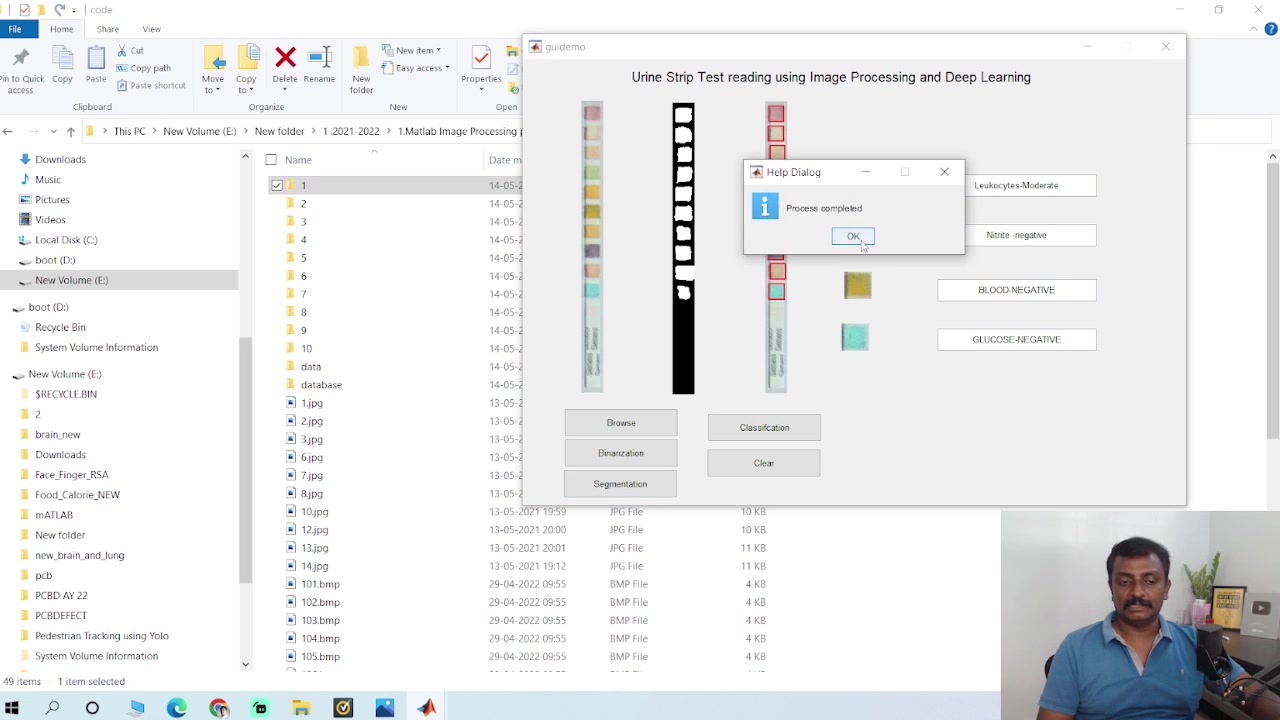
imshow(image);
title('Original Image');
- Convert to Grayscale:
- Convert the image to grayscale to simplify subsequent processing steps. This reduces the color image to a single Channel:
grayImage = rgb2gray(image);
- Apply Noise Reduction:
- Reduce noise in the image using a median filter. This helps to smooth the image while preserving edges:
filteredImage = medfilt2(grayImage, [3 3]);
- Adjust Contrast:
- Improve contrast using histogram equalization to enhance the visibility of details:
adjustedImage = histeq(filteredImage);
- Display the Pre-processed Image:
- Show the pre-processed image to verify the effectiveness of the noise reduction and contrast adjustment steps:
imshow(adjustedImage);
title('Pre-processed Image');
By completing these steps, you ensure that the image is properly loaded and prepared, setting the stage for accurate segmentation and analysis in the following stages.
Binarization and Masking
Binarization and masking are essential techniques for segmenting the urine strip from the background. Here’s how to perform these steps:
- Binarization:
- Convert the pre-processed grayscale image into a binary image using thresholding. This simplifies the image into black and white, making it easier to segment the strip:
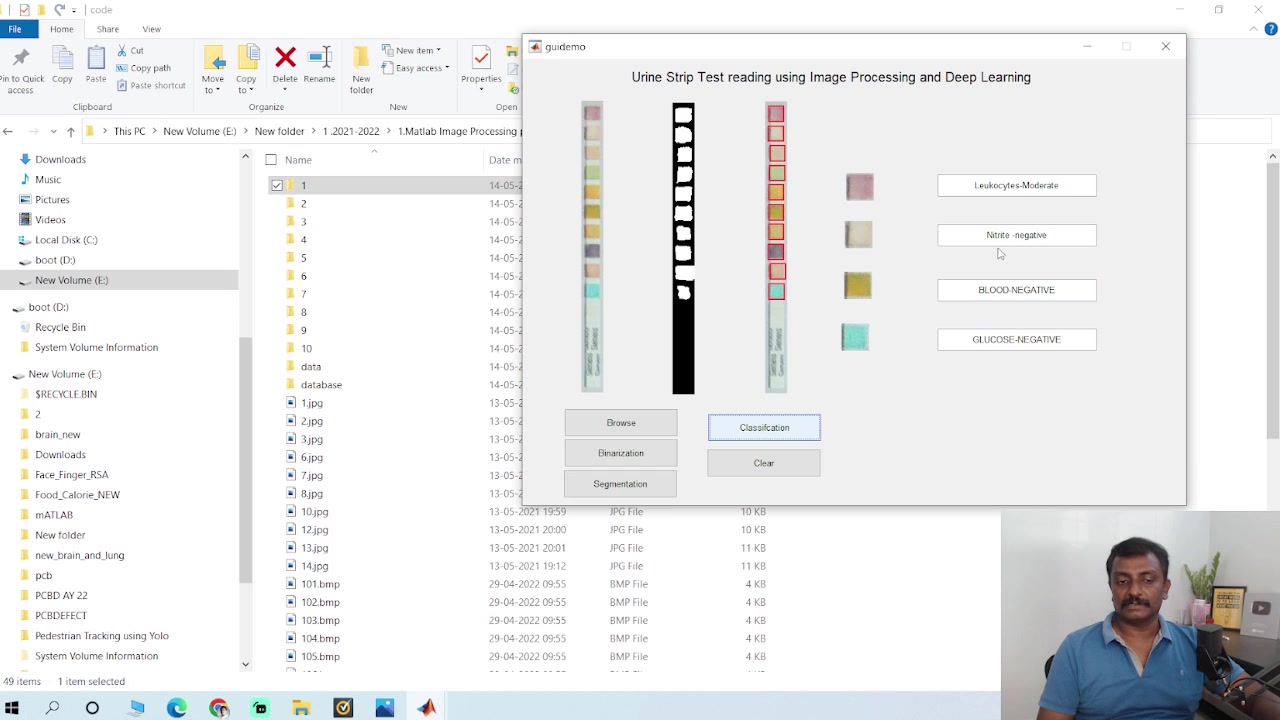
bw = imbinarize(adjustedImage);
- Display the Binary Image:
- Show the binary image to ensure the strip is clearly segmented:
imshow(bw);
title('Binary Image');
- Segmentation Function:
- Call the segmentation function:
segmentation = segmentImage(bw);
- Display the Segmentation:
- Display to check the correct segmentation of all color pads:
imshow(segmentation);
title('Segmentation Image');
By following these steps, you create a clear binary mask that isolates the urine strip, enabling further analysis focused solely on the Relevant areas.
Color Analysis and Classification
After segmenting the pads, the next step is to analyze the color of each pad and classify the results. Here’s how to do it:
- Color Space Conversion:
- Convert the RGB image to the HSV color space, which is more suitable for color analysis. Define the color pad:
padImage = image(rectangle(2):rectangle(4), rectangle(1):rectangle(3),:);
- Average Value:
- Calculate the average RGB and HSV:
rgb_avg = mean(mean(padImage,1),2);
hsv_avg = mean(mean(rgb2hsv(padImage),1),2);
- CNN model:
- Load the trained CNN model to classify the color features:
load('trainedCNNModel.mat', 'net');
- CNN Image Pre-processing:
- Apply CNN pre-processing:
resizedPadImage = imresize(padImage, [224 224]); % CNN input size
- Classification:
- Classify to determine the color:
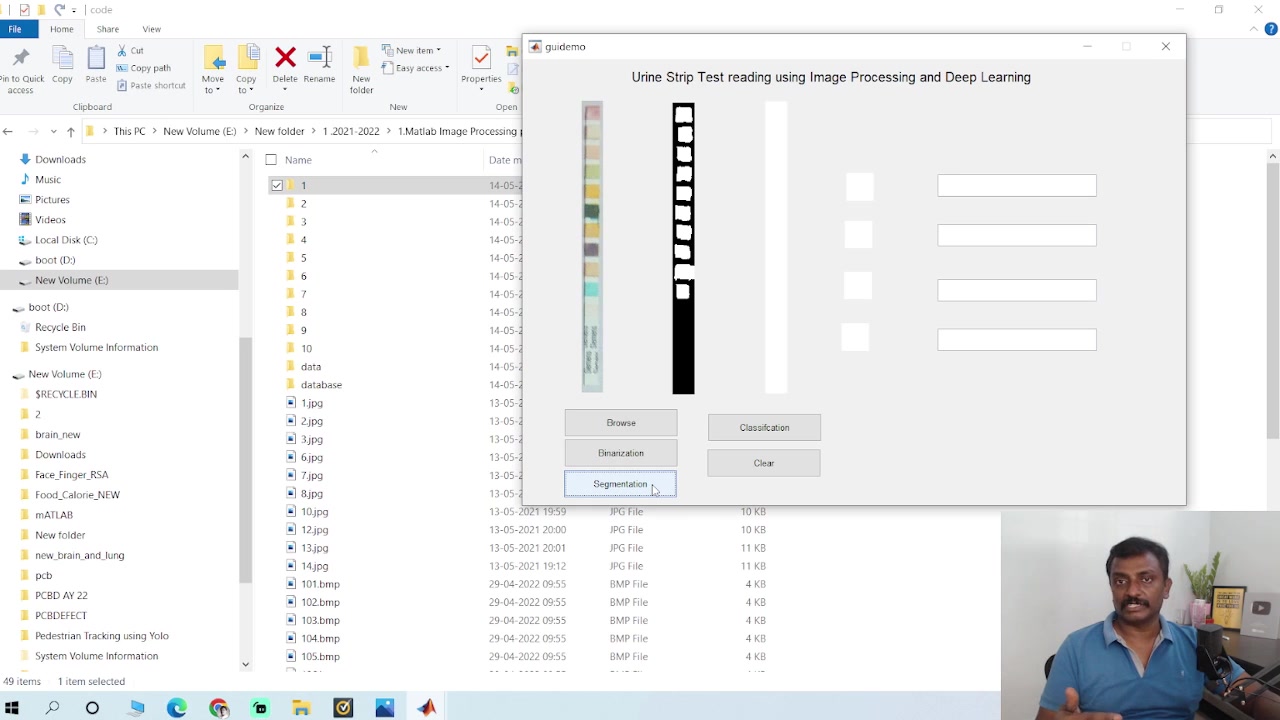
[predictedLabel, classScores] = classify(net, resizedPadImage);
- Data Output:
- Output the average values with the concentration levels determined by the deep learning model.
By integrating these steps, you achieve automated color analysis and classification, providing quantitative results that enhance the objectivity and accuracy of urine strip test interpretation.





Most people like



































Report
Please select a reason for reporting
- 13 Reasons to Switch from Snapchat to Text Messaging
- 7 Powerful Speech to Text Apps to Boost Productivity
- 10 Best Speech to Text Tools for Effortless Transcription
- 13 Free Tools to Easily Transcribe Audio to Text
- 15 Surprising Ways Google's Speech-to-Text Boosts Productivity
- 7 Best Free Online Audio to Text Transcription Tools
- 9 Tips to Transcribe Speech to Text Faster and Better
- 13 Best Speech to Text Software for Windows 10 in 2023
- 7 Tips for Choosing the Best Transcriber for Audio to Text
- 11 Reasons Why Dragon Speech-to-Text Apps are Game-Changers
- 6 Secrets to Enhance Your Speech to Text Transcription
- 6 Brilliant Ways to Boost Productivity with Talk-to-Text on Your MacBook
- 6 Ways Transcription Software Converts Audio to Text
- 8 Tips to Transcribe Speech to Text Like a Pro
- 6 Reasons IBM Watson Speech to Text is a Game-Changer
- 14 Powerful Ways Talk-to-Text Improves Your Workflow
- 12 Top Windows Speech-to-Text Software for Efficient Transcription
- 12 Game-Changing Benefits of Apple's Speech to Text Technology
- 9 Powerful Use Cases for AWS Speech to Text Technology
- 10 Easy Steps to Transcribe YouTube Videos to Text
- transcription audio en texte
- online audio transcription
- free audio file transcription
- free ai audio transcription
- audio transcription service
- audio transcription online free
- audio transcription free online
- audio to transcription software
- audio and transcript
- ai audio transcription free
- voice recording to text converter
- translate voice recording to text
- record voice to text
- audio recording to text converter
- voice recording and transcription
- chatgpt voice to text
- gmail voice to text
- speech to text reader
- speech to text ai free
- speech to talk
- Meshy AI: How to Create 3D Models from Text and Images
- How SEO and Marketing Dashboards Empower Agencies to Drive Results
- How to Use AI Tools to Find Internal Linking Opportunities Across a Business Website
- Discover Your Perfect Haircut with AI Hairstyle Apps
- Free Reputation Calculator Tools: How They're Adapting to Score AI Visibility, Not Just Rankings
- Design Professional Flyers for Free on Your Phone
- Best Free Flyer Maker Apps for Android: Design Like a Pro
- How to Know If Your Business Is Ready for an AI Customer Service Agent
- Revolutionizing Storytelling: From Novels to Screenplays with AI
- Create Engaging Animated Explainer Videos with a Free AI Tool
- Revideo.io: The Future of Reverse Video Search Technology
- Revolutionize Learning: Discover Quizzes AI for Engaging Interactive Quizzes
- Revolutionizing Email Marketing Agency with AI
- Breaking the Character Drift Dilemma: A Practical Test of Smart Shot
- Meshy AI: How to Create 3D Models from Text and Images
- ASOMobile Helps Teams Benchmark App Store Screenshots Against Competitors
- How to Match LMS Software With Your Organization's Training Plan
- How to Convert BTC to HNT
- Unleashing the Power of AI: Cognizant's Roadmap for Transformation
- Frame to Video Review: A Practical Look at Turning Two Still Frames Into Motion

Copyright ©2026 toolify