































Table of Contents
- Key Points
- Understanding XPath Fundamentals
- Advanced XPath Techniques
- Practical Applications of XPath
- Pricing
- XPath: Weighing the Advantages and Disadvantages
- XPath Core Features
- XPath Use Cases
- FAQ
- Related Questions



Understanding XPath Fundamentals
What is XPath?
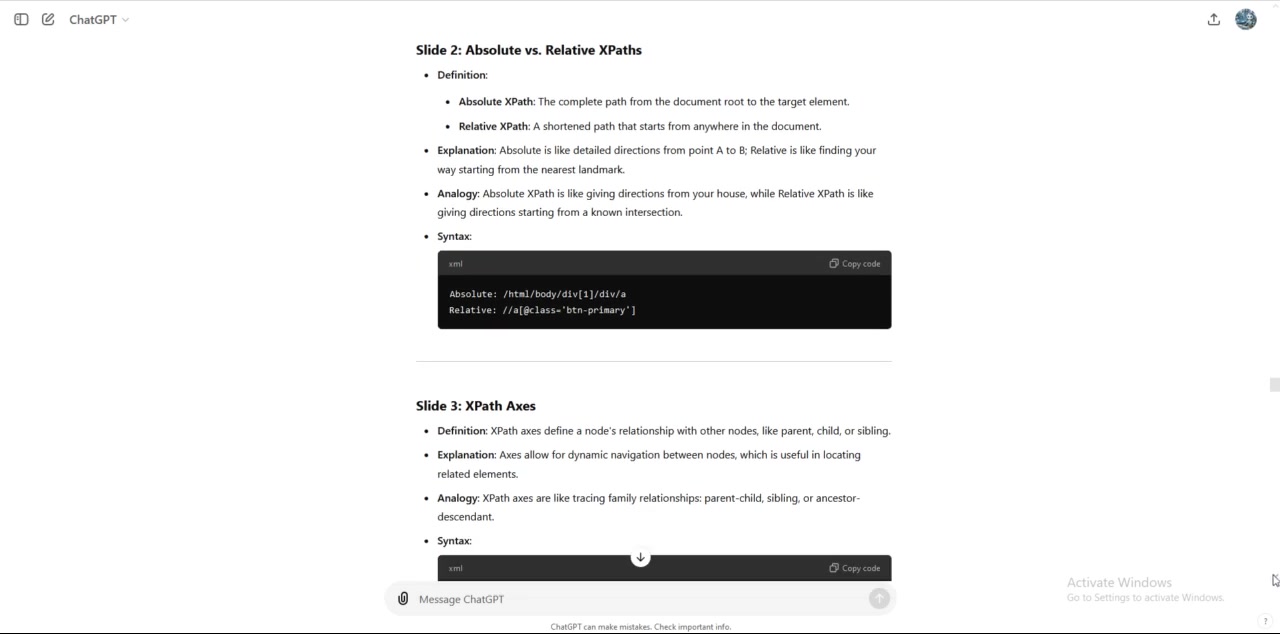
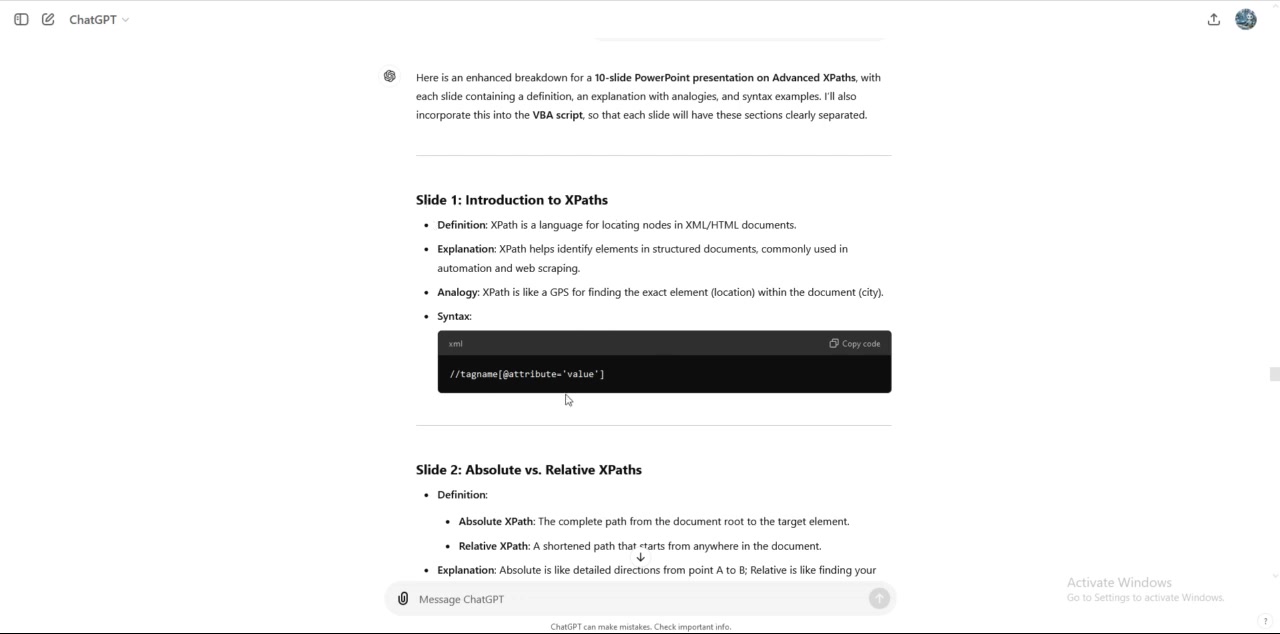
XPath, or XML Path Language, is a query language used to select nodes from an XML or HTML document. It allows you to navigate through the hierarchical structure of a document to locate specific elements or attributes. XPath is essential for tasks such as Web Scraping, Data Extraction, and automated testing.
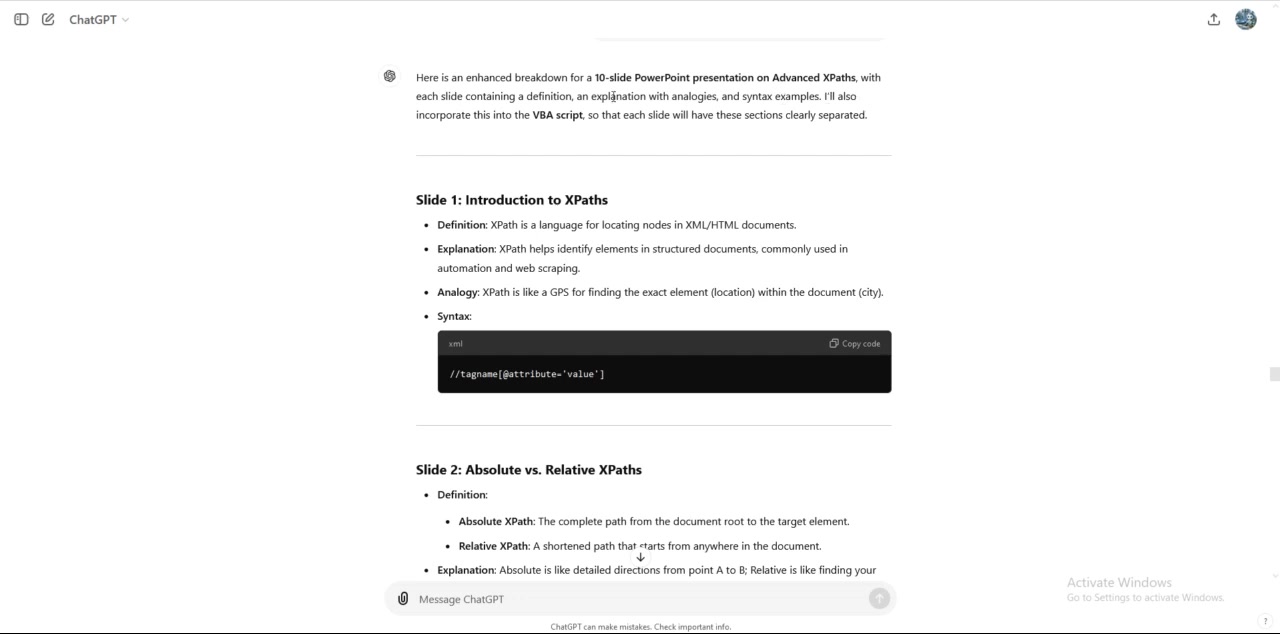
Imagine XPath as a GPS for your data; it helps you pinpoint the exact location you need within a vast document city.
Key Features of XPath:
- Node Selection: XPath allows you to select specific nodes based on their name, attributes, or position within the document.
- Navigation: You can navigate through the document tree using axes, which define the relationship between nodes.
- Functions: XPath includes a variety of functions for manipulating data, such as STRING manipulation, mathematical calculations, and logical comparisons.
- Predicates: Predicates are used to filter nodes based on specific criteria, allowing you to select only the nodes that meet your requirements.
XPath expressions are evaluated against an XML or HTML document, and the result is a set of nodes that match the specified criteria. This makes XPath a powerful tool for extracting data and automating tasks.
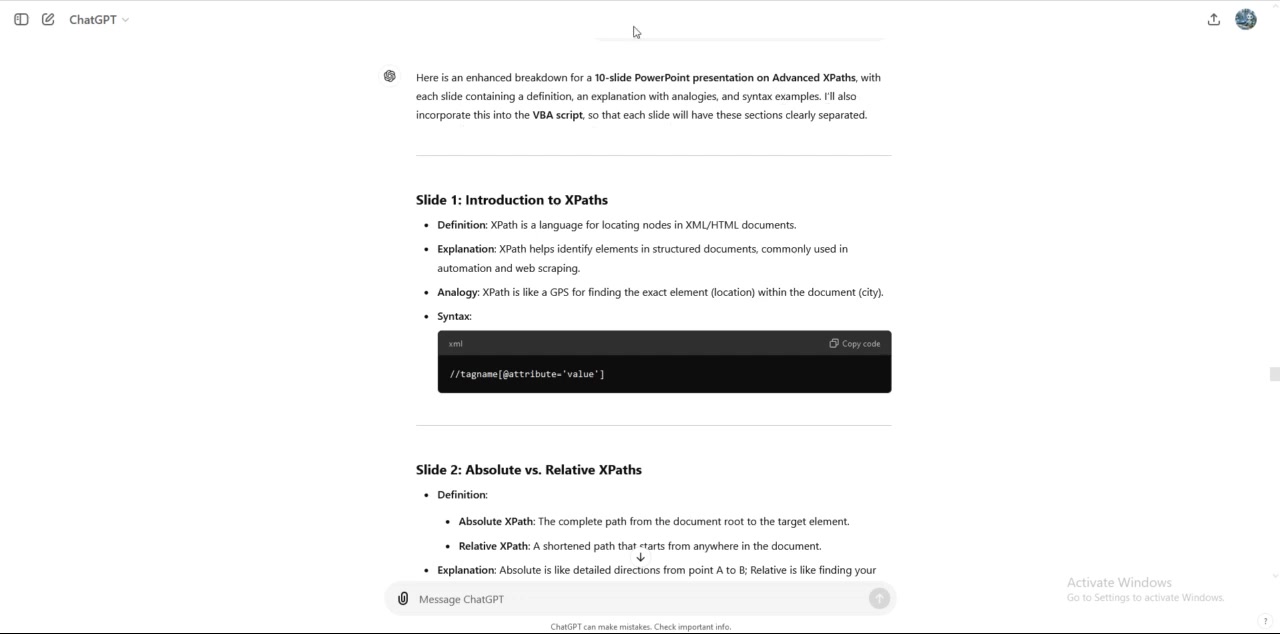
Absolute vs. Relative XPath
XPath expressions can be either absolute or relative, depending on how they specify the path to the desired nodes. Understanding the difference between these two types of XPath is crucial for writing efficient and maintainable expressions.
-
Absolute XPath:
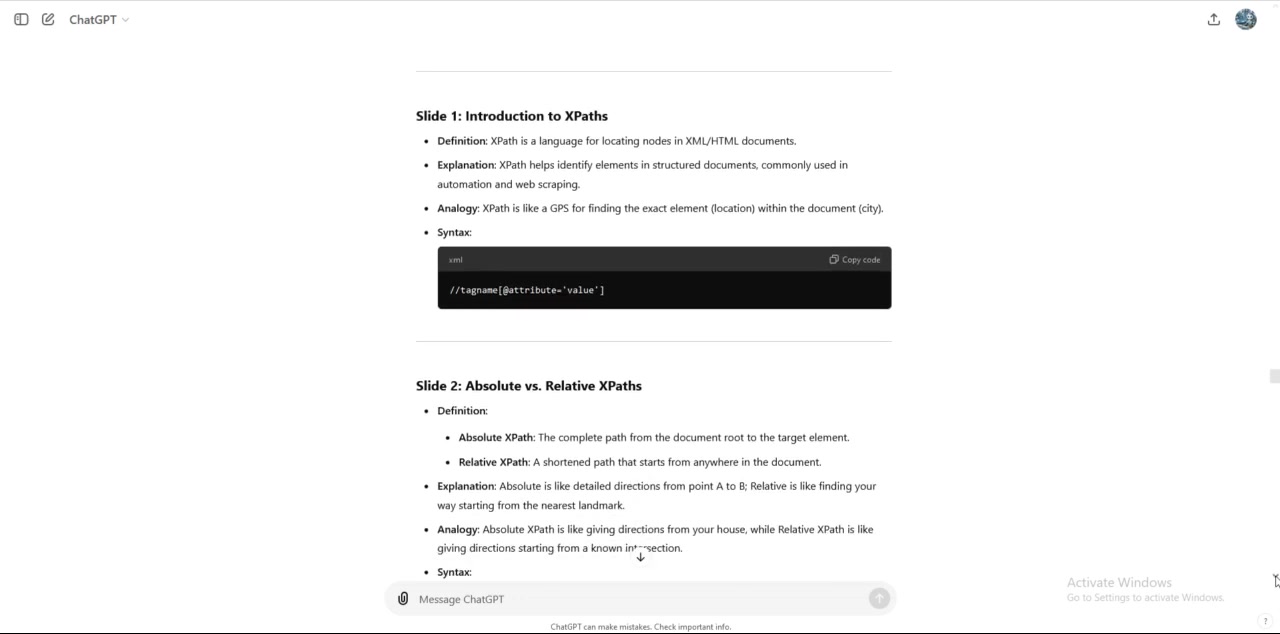
An absolute XPath expression starts from the root node of the document and specifies the complete path to the target element. It begins with a single slash (
/) and provides a direct route from the top to the bottom of the document tree.Example:
/html/body/div[1]/div/h2Analogy: An absolute XPath is like providing turn-by-turn directions from point A to point B. It leaves no room for ambiguity and precisely identifies the target element.
-
Relative XPath: A relative XPath expression starts from the current node or any node within the document. It begins with a double slash (
//) and specifies a path that is relative to the starting point.Example:
//div[@class='container']/pAnalogy: A relative XPath is like giving directions starting from a known intersection. You don't need to know the complete route from the document root; you can start from a point closer to your destination.
Choosing Between Absolute and Relative XPath:
- Use Absolute XPath when:
- You need to ensure the most precise and unambiguous path to an element.
- The structure of the document is unlikely to change.
- Use Relative XPath when:
- You want to create more flexible and maintainable expressions.
- The structure of the document is subject to change.
- You want to locate elements based on their attributes or content, regardless of their exact position in the document.
Advanced XPath Techniques
XPath Axes: Navigating Relationships
XPath axes are fundamental to navigating the relationships between nodes in an XML or HTML document.
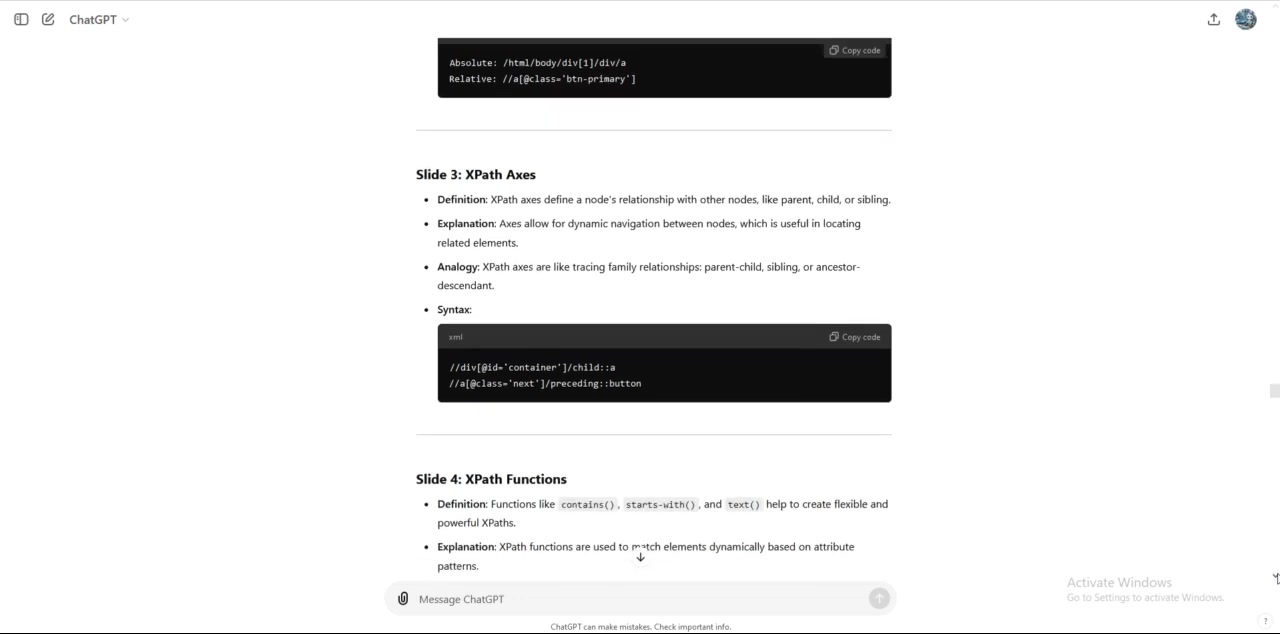
They define the direction in which you traverse the document tree, allowing you to select nodes based on their position relative to the current node. Mastering XPath axes is essential for creating complex and powerful expressions.
Common XPath Axes:
-
child: Selects the children of the current node.
Example:
child::book(selects all book elements that are children of the current node) -
parent: Selects the parent of the current node.
Example:
parent::div(selects the div element that is the parent of the current node) -
ancestor: Selects all ancestors (parent, grandparent, etc.) of the current node.
Example:
ancestor::html(selects the html element that is an ancestor of the current node) -
descendant: Selects all descendants (children, grandchildren, etc.) of the current node.
Example:
descendant::p(selects all p elements that are descendants of the current node) -
following: Selects all nodes in the document that appear after the current node (excluding ancestors, descendants, and attribute nodes).
Example:
following::a(selects all a elements that appear after the current node) -
preceding: Selects all nodes in the document that appear before the current node (excluding ancestors, descendants, and attribute nodes).
Example:
preceding::img(selects all img elements that appear before the current node) -
following-sibling: Selects all siblings that appear after the current node.
Example:
following-sibling::li(selects all li elements that are siblings appearing after the current node) -
preceding-sibling: Selects all siblings that appear before the current node.
Example:
preceding-sibling::li(selects all li elements that are siblings appearing before the current node) -
attribute: Selects the attributes of the current node.
Example:
attribute::hrefor@href(selects the href attribute of the current node) -
self: Selects the current node itself.
Example:
self::node()(selects the current node) -
namespace: Selects the namespace nodes of the current node.
Using Axes in XPath Expressions:
Axes are used in XPath expressions to specify the relationship between nodes. The syntax for using an axis is:
axis::node-test[predicate]Where:
axisis the name of the axis (e.g., child, parent, descendant).node-testis a condition that the node must satisfy (e.g., element name, attribute value).predicateis an optional filter that further refines the selected nodes. For instance, to find the child<a>element of a<div>with anidof “container,” you would use://div[@id='container']/child::a
Understanding and utilizing XPath axes is crucial for navigating complex document structures and extracting the precise data you need.
XPath Functions: Enhancing Expressions
XPath functions are built-in utilities that allow you to perform operations on data within your XPath expressions.
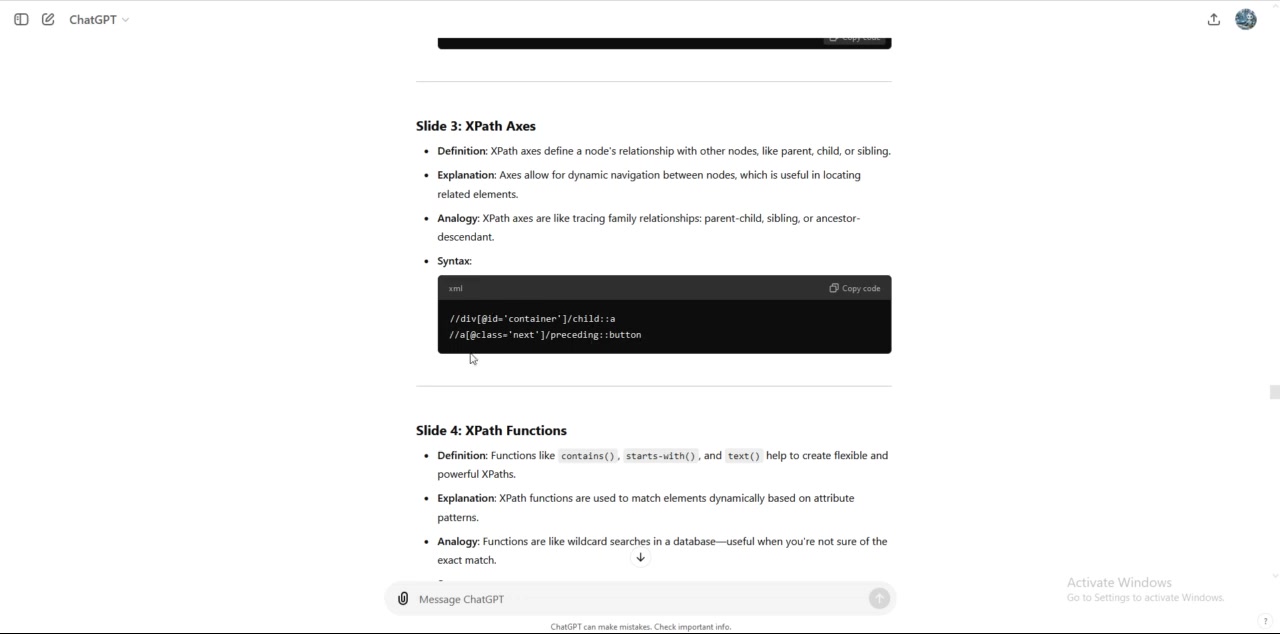
These functions can be used to manipulate strings, perform calculations, and make logical comparisons, significantly expanding the power and flexibility of XPath. Understanding and utilizing these functions is essential for advanced XPath usage.
Common XPath Functions:
- String Functions:
string(object): Converts an object to a string.concat(string1, string2, ...): Concatenates two or more strings.substring(string, start, length): Extracts a substring from a string.string-length(string): Returns the length of a string.contains(string1, string2): Returns true if string1 contains string2.starts-with(string1, string2): Returns true if string1 starts with string2.translate(string, from, to): Replaces characters in a string.normalize-space(string): Removes leading and trailing whitespace from a string.
- Mathematical Functions:
number(object): Converts an object to a number.sum(node-set): Returns the sum of the numeric values of the nodes in a node-set.floor(number): Returns the largest integer less than or equal to the number.ceiling(number): Returns the smallest integer greater than or equal to the number.round(number): Returns the number rounded to the nearest integer.
- Boolean Functions:
boolean(object): Converts an object to a boolean value.not(boolean): Returns the opposite of a boolean value.true(): Returns true.false(): Returns false.
- Node-Set Functions:
last(): Returns the index of the last node in the current node-set.position(): Returns the position of the current node in the current node-set.count(node-set): Returns the number of nodes in a node-set.id(object): Selects elements by their unique ID.
Using Functions in XPath Expressions:
Functions are used within XPath expressions to manipulate data and perform calculations. The syntax for using a function is:

`function-name(argument1, argument2, ...)`

Where:

    *   `function-name` is the name of the function.
    *   `argument1`, `argument2`, etc. are the arguments passed to the function.
For example, to find a link whose text contains the WORD 'Submit', you would use: //a[contains(text(),'Submit')]
Functions like contains(), starts-with(), and text() are critical in creating flexible and powerful XPath expressions that dynamically match elements based on attribute Patterns rather than exact matches.
Handling Dynamic Elements with XPath
Dynamic elements Present a significant challenge in web scraping and test automation.
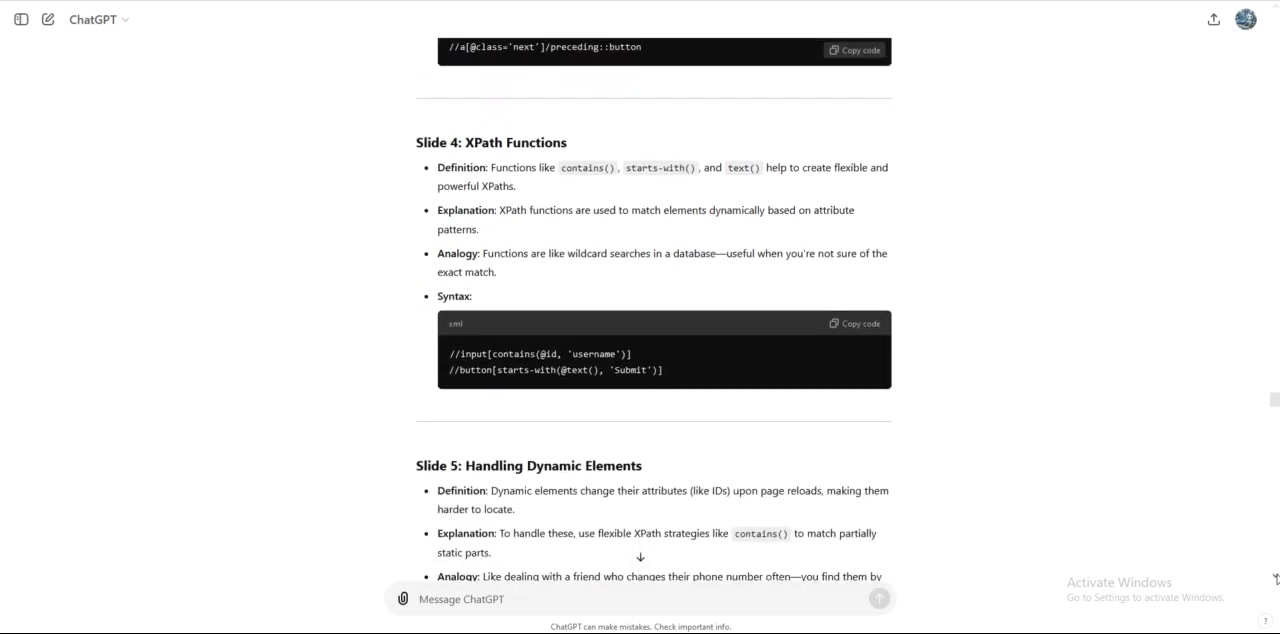
These elements change their attributes or IDs upon page reloads, making them harder to locate with static XPath expressions. To handle this challenge, you need to employ flexible XPath strategies that can adapt to these dynamic changes. Here's how:
Strategies for Handling Dynamic Elements:
-
Using
contains()Function: Thecontains()function is invaluable for matching elements based on partial attribute values. If an attribute, such as an ID, contains a constant part, you can usecontains()to locate the element.Example: If an element's ID is
dynamic_id_123, butdynamic_idremains constant, you can use://div[contains(@id, 'dynamic_id')] -
Using
starts-with()Function: Thestarts-with()function is helpful when an attribute value always begins with a specific string.Example: If an attribute value starts with
prefix_, you can use://input[starts-with(@name, 'prefix_')] -
Using Text Matching: If the text content of an element remains consistent, you can use the
text()function to locate it.Example:
//button[text()='Submit'] -
Combining Attributes and Functions: You can combine multiple attributes and functions to create more robust expressions. For example, you can use
contains()andstarts-with()together. Example://div[contains(@class, 'product') and starts-with(@id, 'item_')] -
Relative XPath: Using relative XPath expressions (
//) can provide more flexibility when the exact location of an element is unknown or subject to change.By combining these techniques, you can create XPath expressions that are resilient to dynamic changes and can reliably locate elements in web pages, making your automation scripts and data extraction tasks more robust.
Debugging XPath Expressions
Debugging XPath expressions is a critical skill for ensuring that your expressions accurately select the intended elements.
Incorrect XPath expressions can lead to script failures, data extraction errors, and wasted time. Fortunately, there are several tools and techniques available to help you debug your XPath expressions effectively.
Tools for Debugging XPath:
- Browser Developer Tools: Most modern web browsers include Developer Tools that allow you to test XPath expressions directly in the browser console. This is a quick and convenient way to validate your expressions against the live DOM.
- Chrome: Open the developer tools (Ctrl+Shift+I), navigate to the "Console" tab, and use the
$x()function to evaluate XPath expressions. For example:$x('//div[@class="product"]') - Firefox: Open the developer tools (Ctrl+Shift+I), navigate to the "Console" tab, and use the
document.evaluate()method. For example:document.evaluate('//div[@class="product"]', document, null, XPathResult.ANY_TYPE, null)
- Chrome: Open the developer tools (Ctrl+Shift+I), navigate to the "Console" tab, and use the
- XPath Testing Websites: Several online websites allow you to paste in your HTML or XML and test your XPath expressions.
- XPath Helper Extensions: Browser extensions like XPath Helper for Chrome can help you write and test XPath expressions directly on web pages.
Debugging Techniques:
- Test in DevTools: Verify accuracy by trying it out in the browser before integrating it into your scripts
- Start Simple: Begin with a simple XPath expression and gradually add complexity. This makes it easier to identify the point at which the expression fails.
- Check for Typos: Typos are a common source of XPath errors. Double-check your expressions for any spelling mistakes or syntax errors.
- Validate Attributes: Ensure that the attribute names and values you are using in your expressions are correct.
- Use Specificity: Make your expressions as specific as possible to avoid selecting unintended elements.
- Inspect the DOM: Use the browser's element inspector to examine the structure of the document and verify that your XPath expressions are targeting the correct nodes.
By using these debugging techniques and tools, you can quickly identify and fix errors in your XPath expressions, ensuring that they accurately select the intended elements.
Practical Applications of XPath
Using XPath in Selenium for Web Automation
XPath is indispensable for web automation with Selenium.
Selenium relies on XPath to locate web elements, enabling precise actions like clicking, typing, and more during automated testing. XPath provides the means to target elements even when IDs or names are unstable or absent. For example, locate an input with id named search, you can write this:
driver.findElement(By.xpath(“//input[@id=‘search’]”)).sendKeys(“XPath”);
Selenium is like a robot performing tasks, and XPath tells it where to go on the webpage to interact with.
XPath in Web Scraping
XPath is a core tool in web scraping for precisely extracting data from web pages.
Web scrapers use XPath expressions to navigate through the HTML structure of a webpage and select the specific pieces of data they need. XPath allows you to extract text, attributes, and even entire HTML fragments from a webpage. Use functions and relative paths to navigate websites and select information.





Most people like




































Report
Please select a reason for reporting
- 13 Reasons to Switch from Snapchat to Text Messaging
- 7 Powerful Speech to Text Apps to Boost Productivity
- 10 Best Speech to Text Tools for Effortless Transcription
- 13 Free Tools to Easily Transcribe Audio to Text
- 15 Surprising Ways Google's Speech-to-Text Boosts Productivity
- 7 Best Free Online Audio to Text Transcription Tools
- 9 Tips to Transcribe Speech to Text Faster and Better
- 13 Best Speech to Text Software for Windows 10 in 2023
- 7 Tips for Choosing the Best Transcriber for Audio to Text
- 11 Reasons Why Dragon Speech-to-Text Apps are Game-Changers
- 6 Secrets to Enhance Your Speech to Text Transcription
- 6 Brilliant Ways to Boost Productivity with Talk-to-Text on Your MacBook
- 6 Ways Transcription Software Converts Audio to Text
- 8 Tips to Transcribe Speech to Text Like a Pro
- 6 Reasons IBM Watson Speech to Text is a Game-Changer
- 14 Powerful Ways Talk-to-Text Improves Your Workflow
- 12 Top Windows Speech-to-Text Software for Efficient Transcription
- 12 Game-Changing Benefits of Apple's Speech to Text Technology
- 9 Powerful Use Cases for AWS Speech to Text Technology
- 10 Easy Steps to Transcribe YouTube Videos to Text
- transcription audio en texte
- online audio transcription
- free audio file transcription
- free ai audio transcription
- audio transcription service
- audio transcription online free
- audio transcription free online
- audio to transcription software
- audio and transcript
- ai audio transcription free
- voice recording to text converter
- translate voice recording to text
- record voice to text
- audio recording to text converter
- voice recording and transcription
- chatgpt voice to text
- gmail voice to text
- speech to text reader
- speech to text ai free
- speech to talk
- How SEO and Marketing Dashboards Empower Agencies to Drive Results
- How to Use AI Tools to Find Internal Linking Opportunities Across a Business Website
- Discover Your Perfect Haircut with AI Hairstyle Apps
- Free Reputation Calculator Tools: How They're Adapting to Score AI Visibility, Not Just Rankings
- Design Professional Flyers for Free on Your Phone
- Best Free Flyer Maker Apps for Android: Design Like a Pro
- How to Know If Your Business Is Ready for an AI Customer Service Agent
- Revolutionizing Storytelling: From Novels to Screenplays with AI
- Create Engaging Animated Explainer Videos with a Free AI Tool
- Stop Multi-Subscribing: Benchmark Top AI Visual Models in One Canvas
- An Objective Look at Modern Web-Based Visual Modifications
- My Honest Experience with VideoAI: The Secret Weapon for Creators Who Need Character Voices
- 5 Data Problems That Stall AI Projects in Financial Compliance
- Master Storyboard Drawing: Expert Tips for Non-artists
- The Future of Smart Glasses: Explained & Assembling Guide
- DeepL Translator: The AI-Powered Translation Tool
- AI Video Upscaling: Top Tools Compared for Enhanced Quality
- Bridging the Gap: How One Indie Developer Solved the "Art Asset Nightmare" Using AI Style Transfer
- How I Direct Consistent AI Clips: A Hands-On Guide to Multi-Model Generation
- My Honest Review of VideoAI: The Ultimate Character Voice Generator I've Been Using Lately

Copyright ©2026 toolify