Aurora3D Barcode Generator: The Easiest Barcode Solution

Updated on Nov 01,2025

Table of Contents

In today's fast-paced business environment, efficient and accurate barcode creation is essential. Aurora3D Barcode Generator provides an intuitive and powerful solution for designing and generating various types of barcodes. This versatile tool simplifies barcode creation, allowing businesses to enhance inventory management, streamline labeling processes, and improve overall operational efficiency. Whether you need QR codes, DataMatrix codes, or traditional barcodes, Aurora3D Barcode Generator offers a comprehensive suite of features to meet your specific needs. This blog post explores the features, benefits, and how-to guide of Aurora3D Barcode Generator, ensuring that you get the most out of this essential tool.

Key Points

Aurora3D Barcode Generator is an easy-to-use and fast tool for creating various barcode types.

The software supports multiple barcode templates including QR Code, DataMatrix, and Code 128.

Users can customize barcode data, properties, colors, and text to meet specific requirements.

The software allows exporting barcodes to various image formats for versatile use.

Batch generation feature enables the creation of multiple barcodes with sequential or constant values.

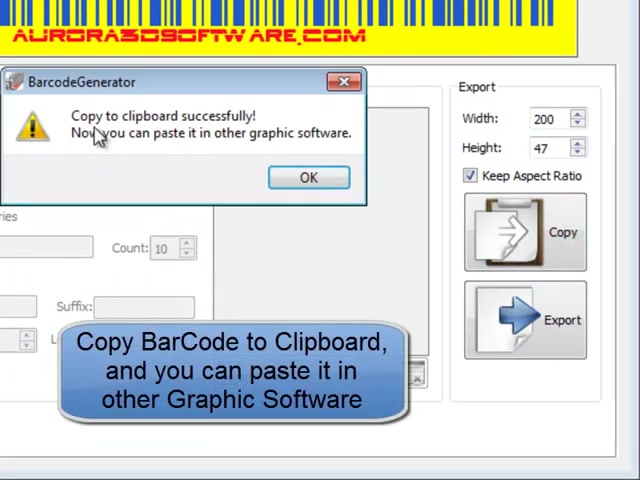
Users can copy barcodes to the clipboard for easy pasting into other graphic software.

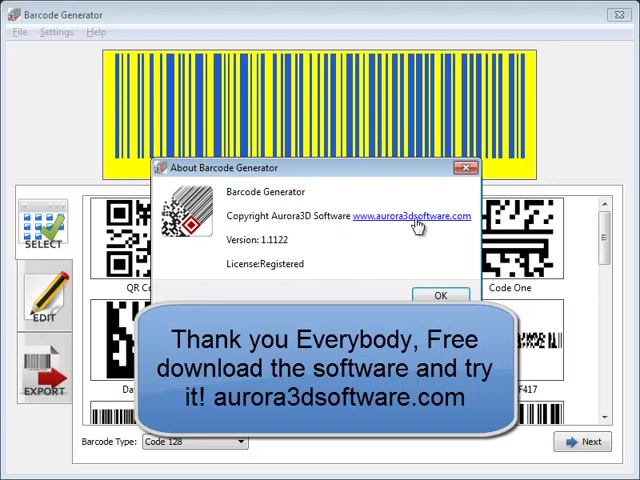
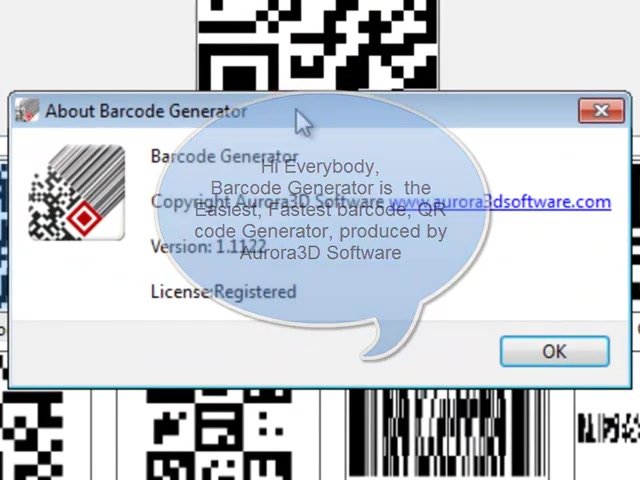
Aurora3D Barcode Generator offers a registered license, ensuring full access to all features.

The software supports various image formats for exporting barcodes like PNG, JPG, SVG etc.

Introduction to Aurora3D Barcode Generator

What is Aurora3D Barcode Generator?

Aurora3D Barcode Generator is a versatile and user-friendly software designed to simplify the creation of barcodes and QR codes. It caters to various business needs, from basic product labeling to complex inventory management systems. The software stands out due to its intuitive interface, comprehensive feature set, and ability to generate a wide array of barcode types. This includes popular options like QR Codes, DataMatrix, Code 128, and more. Its ease of use ensures that even users without prior barcode design experience can quickly create professional-quality barcodes.

With Aurora3D Barcode Generator, you can customize every aspect of your barcodes, from the data encoded to the visual properties. This level of control makes it suitable for diverse applications such as retail, logistics, Healthcare, and manufacturing. By offering flexibility and efficiency, Aurora3D Barcode Generator helps businesses streamline their operations and improve data accuracy.

Key Benefits of Using Aurora3D Barcode Generator

Choosing the right barcode generator can significantly impact your business operations. Aurora3D Barcode Generator provides several key benefits that make it a standout choice:

  • Ease of Use: The intuitive interface ensures a smooth learning curve, allowing users to create barcodes quickly and efficiently.
  • Versatility: Supports a wide range of barcode types, catering to diverse business requirements.
  • Customization: Offers extensive customization options, enabling users to tailor barcodes to their specific needs.
  • Efficiency: Streamlines the barcode creation process, saving time and resources.
  • Accuracy: Reduces the risk of errors associated with manual data entry, improving data accuracy.
  • Cost-Effective: Provides a comprehensive solution at a competitive price point.

By leveraging these benefits, businesses can improve their inventory management, enhance product labeling, and boost overall operational efficiency with Aurora3D Barcode Generator.

Additional Barcode Considerations

Selecting the Right Barcode Scanner

Choosing the appropriate barcode scanner is crucial for efficient barcode scanning and data capture. There are several types of barcode scanners available, each with its own strengths and weaknesses:

  • Handheld Scanners: These are portable scanners that are ideal for retail and warehouse environments. They offer flexibility and ease of use for scanning individual items.
  • Presentation Scanners: These scanners are designed for hands-free scanning and are often used at checkout counters. They provide quick and efficient scanning for high-volume transactions.
  • Fixed-Mount Scanners: These scanners are mounted in a fixed location and are used for automated scanning in manufacturing and logistics settings.
  • Mobile Computers: These devices combine barcode scanning capabilities with mobile computing and communication features, making them ideal for field service and delivery applications.

When selecting a barcode scanner, consider factors such as the type of barcodes you will be scanning, the scanning range, the environment in which the scanner will be used, and the level of durability required.

Feature Handheld Scanners Presentation Scanners Fixed-Mount Scanners Mobile Computers
Portability High Low Low High
Scanning Speed Moderate High High Moderate
Durability Moderate Moderate High High
Environment Retail, Warehouse Retail, Checkout Manufacturing, Logistics Field Service
Use Case Item Scanning High-Volume Scanning Automated Scanning Mobile Computing

Creating Custom Barcodes with Aurora3D Barcode Generator

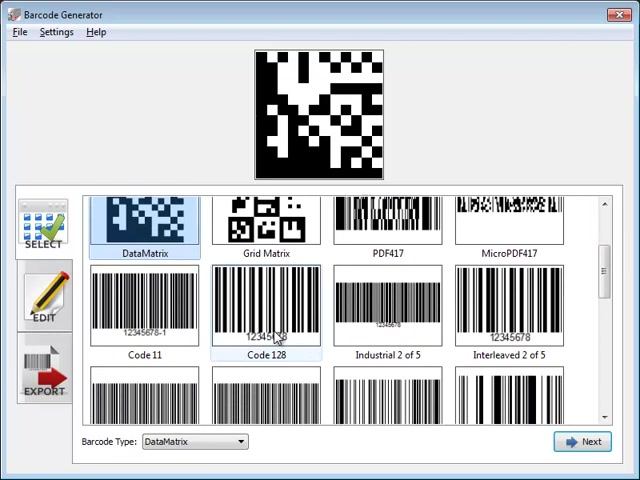
Step 1: Select a Barcode Template

After launching the Aurora3D Barcode Generator, the first step is to select a barcode template that suits your needs. The software offers a variety of templates including QR Code, Micro QR Code, Aztec Code, Code One, DataMatrix, Grid Matrix, PDF417, MicroPDF417, Code 11, Code 128, Industrial 2 of 5, and Interleaved 2 of 5.

Select the appropriate template based on the data you want to encode and the application for which the barcode is intended. For example, if you need to encode a URL, a QR code would be the most suitable option. If encoding product codes, Code 128 is often preferred.

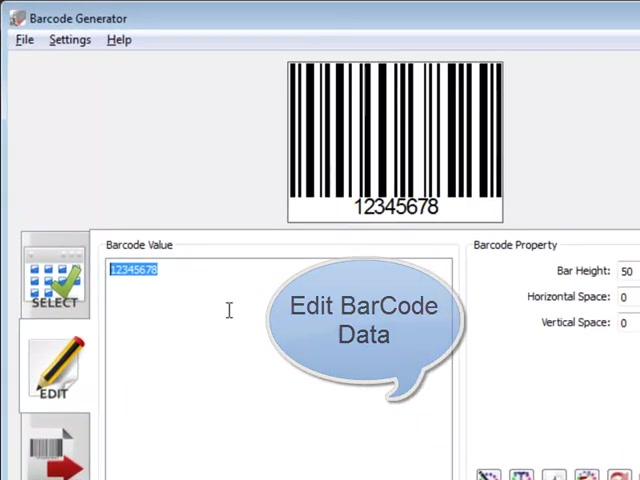
Step 2: Edit Barcode Data

Once you've selected a template, the next step involves editing the barcode data. This is where you enter the information you want the barcode to encode.

You can input data such as product names, URLs, serial numbers, or any other relevant information. The software provides a straightforward interface for entering and modifying this data. To optimize for the Search Engine, consider embedding the primary keyword in the data itself if it's contextually relevant and valuable for users.

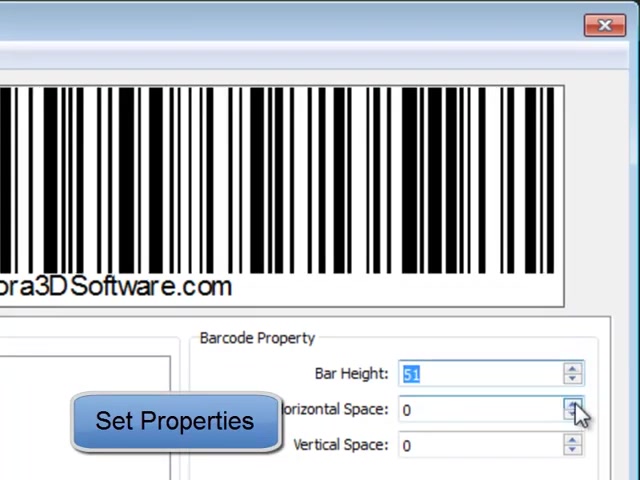
Step 3: Set Barcode Properties

Aurora3D Barcode Generator allows you to customize various properties of the barcode to meet your specific requirements. This includes setting the bar height, horizontal space, and vertical space. Adjusting these properties can affect the readability and aesthetics of the barcode.

Carefully configure these settings to ensure that the barcode is scannable and visually appealing. For instance, you might increase the bar height for better scannability or adjust the spacing for a cleaner look.

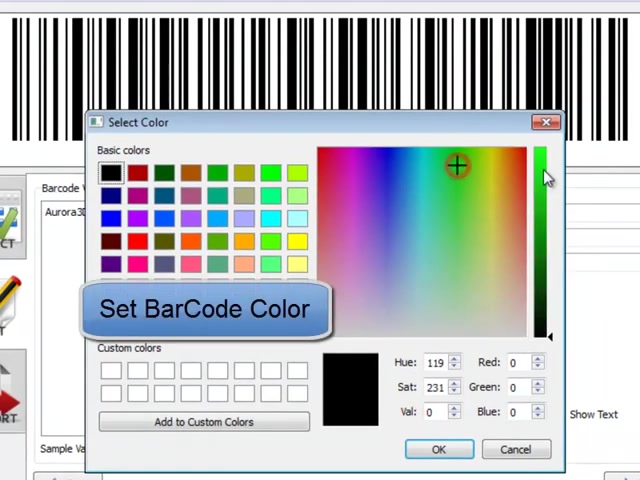
Step 4: Customize Barcode Color

Adding color to your barcodes can make them more visually appealing and easier to identify. Aurora3D Barcode Generator offers a color selection tool that allows you to set the barcode color. You can choose from a range of basic colors or create custom colors using the hue, saturation, and value controls.

Ensure that the color contrast between the barcode and the background is sufficient for easy scanning. For example, using a dark barcode color against a light background is generally a good practice.

Step 5: Customize Text Properties

If you choose to display text below the barcode, you can customize its properties such as Font, color, and size.

The software provides a font selection tool that allows you to choose from a variety of fonts and font styles. Adjusting these properties can improve the readability and aesthetics of the text. Select a font that is easy to read and a color that contrasts well with the background. Remember to optimize font and color selections based on the keyword's context to enhance searchability.

Step 6: Set Background Color

The background color of the barcode can also be customized to improve visibility and branding. Aurora3D Barcode Generator offers a background color selection tool that allows you to set the background color. Choose a background color that contrasts well with the barcode and text colors to ensure readability and scannability.

Using a light background color is generally recommended.

Step 7: Export Barcode

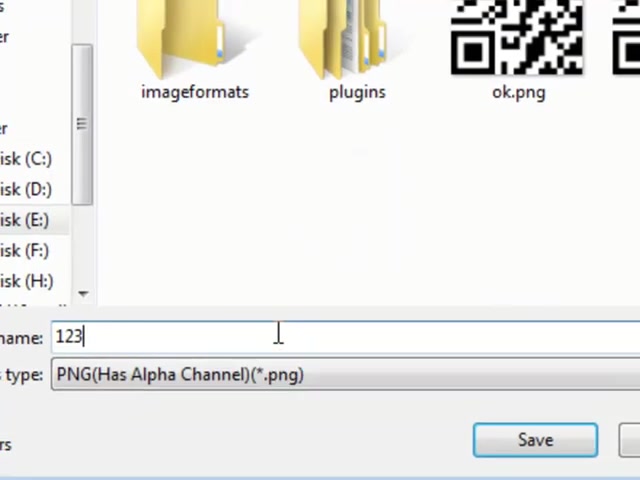
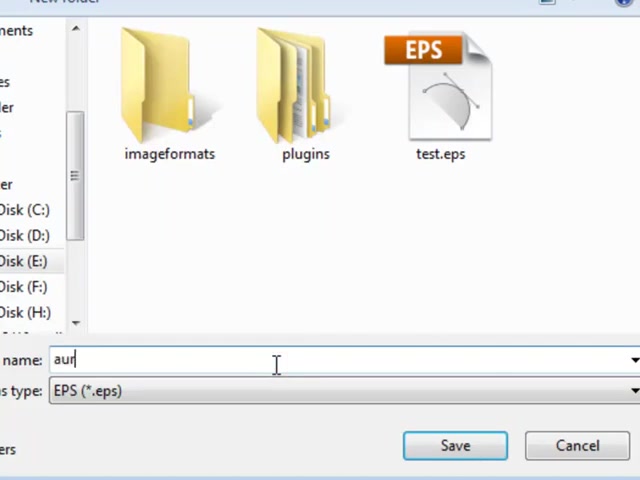
Once you have customized the barcode to your liking, the final step is to export it. Aurora3D Barcode Generator supports various image formats such as PNG, JPG, Tiff, BMP, and SVG. Select the desired image format and specify a file name and location.

Click the “Export” button to save the barcode image to your computer. The exported barcode can then be used in your product labels, inventory management systems, or any other application.

Step 8: Batch Generate Barcodes

For applications that require multiple barcodes, Aurora3D Barcode Generator offers a batch generation feature. This feature allows you to generate a series of barcodes with sequential or constant values. Specify a prefix and suffix for the barcodes and define the range of values.

The software will then generate a list of barcodes based on these settings. This feature is particularly useful for inventory management and product labeling.

Aurora3D Barcode Generator Pricing

Affordable Barcode Generation

Aurora3D Barcode Generator offers a cost-effective solution for businesses of all sizes. While specific pricing details may vary, the software provides a registered license that ensures full access to all features.

This one-time purchase eliminates recurring subscription fees, making it an economical choice for long-term barcode generation needs. Businesses can often find promotional offers or discounts on the Aurora3D Software website. Be sure to check their site for the most current pricing details.

Pros and Cons of Aurora3D Barcode Generator

👍 Pros

User-friendly interface

Supports a wide range of barcode templates

Offers extensive customization options

Includes a batch barcode generation feature

Supports versatile export options

Affordable with a one-time purchase

👎 Cons

May lack advanced features found in more expensive software

Limited support for dynamic data integration

User interface, while intuitive, may seem outdated to some users.

Key Features of Aurora3D Barcode Generator

Comprehensive Barcode Template Support

Aurora3D Barcode Generator supports a wide range of barcode templates, including QR Code, DataMatrix, Code 128, and more. This versatility ensures that you can create barcodes for various applications, from product labeling to inventory management. Each template is designed to meet specific industry standards and data encoding requirements.

Extensive Customization Options

The software offers extensive customization options, allowing you to tailor barcodes to your specific needs. You can adjust properties such as bar height, horizontal space, and vertical space. Additionally, you can customize the barcode color and text properties to improve visibility and branding. These customization options provide the flexibility to create barcodes that meet your exact requirements.

Batch Barcode Generation

Aurora3D Barcode Generator includes a batch barcode generation feature, which allows you to create a series of barcodes with sequential or constant values. This feature is particularly useful for inventory management and product labeling. Specify a prefix and suffix for the barcodes, define the range of values, and the software will generate a list of barcodes based on these settings.

Versatile Export Options

The software supports various image formats for exporting barcodes, including PNG, JPG, Tiff, BMP, and SVG. This versatility ensures that you can use the exported barcodes in a wide range of applications and systems. Select the desired image format and specify a file name and location to save the barcode image to your computer.

User-Friendly Interface

Aurora3D Barcode Generator features an intuitive and user-friendly interface, making it easy to create custom barcodes. The software is designed for users of all skill levels, from beginners to experienced professionals. The straightforward layout and clear instructions ensure a smooth and efficient barcode creation process.

Copy to Clipboard

Aurora3D Barcode Generator offers the convenience to copy the generated barcode directly to the clipboard. This enables users to easily paste the barcode into other graphic software for further editing or integration into designs. This feature simplifies the workflow and enhances flexibility, making it a favorite among designers and marketers who need seamless barcode integration.

Use Cases for Aurora3D Barcode Generator

Product Labeling

Aurora3D Barcode Generator is ideal for creating product labels that include essential information such as product names, SKUs, and pricing. By generating accurate and scannable barcodes, you can streamline the checkout process and reduce the risk of errors.

Inventory Management

The software can be used to generate barcodes for inventory management systems, enabling efficient tracking of products and materials. Batch barcode generation makes it easy to create a series of barcodes for large inventories.

Asset Tracking

Aurora3D Barcode Generator can be used to create barcodes for asset tracking, allowing you to monitor the location and status of valuable assets. This is particularly useful for businesses with large inventories of equipment or supplies.

Healthcare Applications

In the healthcare industry, barcodes are used to track patient records, medications, and medical devices. Aurora3D Barcode Generator can be used to create these barcodes, ensuring accuracy and efficiency in healthcare operations.

Logistics and Supply Chain

Barcodes are essential for managing logistics and supply chain operations, enabling efficient tracking of shipments and deliveries. Aurora3D Barcode Generator can be used to create barcodes for shipping labels and tracking documents.

Frequently Asked Questions about Aurora3D Barcode Generator

What types of barcodes does Aurora3D Barcode Generator support?
Aurora3D Barcode Generator supports a wide range of barcode types, including QR Code, Micro QR Code, Aztec Code, Code One, DataMatrix, Grid Matrix, PDF417, MicroPDF417, Code 11, Code 128, Industrial 2 of 5, and Interleaved 2 of 5. This versatility ensures that you can create barcodes for various applications.
Can I customize the appearance of the barcodes?
Yes, Aurora3D Barcode Generator offers extensive customization options. You can adjust properties such as bar height, horizontal space, and vertical space. Additionally, you can customize the barcode color and text properties to improve visibility and branding.
Is there a batch barcode generation feature?
Yes, Aurora3D Barcode Generator includes a batch barcode generation feature, which allows you to create a series of barcodes with sequential or constant values. This feature is particularly useful for inventory management and product labeling.
What image formats can I export the barcodes to?
The software supports various image formats for exporting barcodes, including PNG, JPG, Tiff, BMP, and SVG. This versatility ensures that you can use the exported barcodes in a wide range of applications and systems.
Is Aurora3D Barcode Generator easy to use?
Yes, Aurora3D Barcode Generator features an intuitive and user-friendly interface, making it easy to create custom barcodes. The software is designed for users of all skill levels, from beginners to experienced professionals.

Related Questions about Barcode Generation

How can I ensure the barcodes I create are scannable?
To ensure that the barcodes you create are scannable, consider the following: Contrast: Ensure there is sufficient contrast between the barcode and the background. Dark barcodes against light backgrounds are generally easiest to scan. Size: Make sure the barcode is large enough to be easily read by scanners. Smaller barcodes can be difficult to scan, especially with handheld devices. Quality: Export the barcode in a high-resolution format to maintain clarity and avoid pixelation. Placement: When applying the barcode to a product or label, ensure it is placed on a flat, smooth surface to avoid distortion. Testing: Always test the barcode with a variety of scanners to ensure compatibility and readability.
What are the best practices for using barcodes in inventory management?
For effective barcode use in inventory management, consider the following best practices: Standardization: Use a standardized barcode system (e.g., EAN, UPC, Code 128) to ensure compatibility across different systems and scanners. Unique Identifiers: Assign unique barcode identifiers to each product or item in your inventory. Data Accuracy: Ensure that the data encoded in the barcode is accurate and up-to-date. Regular Audits: Conduct regular inventory audits to identify and correct any discrepancies. Integration: Integrate your barcode system with your accounting and sales systems to streamline operations.
What are the common errors in barcode generation and how can I avoid them?
Common errors in barcode generation include: Incorrect Data: Encoding incorrect data into the barcode. Low Resolution: Exporting the barcode in a low-resolution format, making it difficult to scan. Poor Contrast: Insufficient contrast between the barcode and the background. Size Issues: Creating barcodes that are too small or too large for the intended application. Incorrect Template: Selecting the wrong barcode template for the type of data being encoded. To avoid these errors, always double-check the data, use high-resolution exports, ensure good contrast, select the appropriate template, and test the barcode with multiple scanners.
How does Aurora3D Barcode Generator compare to other barcode generation tools?
Aurora3D Barcode Generator stands out from other barcode generation tools due to its user-friendly interface, comprehensive feature set, and versatile export options. While other tools may offer similar functionality, Aurora3D Barcode Generator provides a unique combination of ease of use, customization options, and cost-effectiveness. Additionally, its batch barcode generation feature and extensive template support make it a valuable tool for businesses of all sizes.

Most people like