































Table of Contents
- Key Points
- The Power of RPA and NLP Integration
- Building Your Automated Text Summarization Solution
- Step-by-Step: Automating PDF Text Summarization
- Understanding the Costs
- Advantages and Disadvantages
- Key Features of the Solution
- Real-World Applications
- Frequently Asked Questions
- Related Questions


The Power of RPA and NLP Integration
Why Automate Text Summarization?
The modern workplace is inundated with information, often in the form of lengthy documents such as reports, articles, and medical notes. Manually summarizing these documents is time-consuming and prone to error. Automating this process with RPA and NLP can significantly reduce the time spent, improve accuracy, and free up human resources for more strategic tasks. RPA provides the framework to handle the files and processes and NLP provides the ability to understand and summarize the text. The automation helps the organization deal with all of the unstructured data from different sources to deliver better outcomes.
By integrating UiPath with Python and NLTK, you can create a robust solution that handles the entire workflow, from extracting text from PDFs to generating concise summaries. This integration can transform how businesses manage and utilize information, leading to better decision-making and increased productivity.
Key Benefits of Automated Text Summarization:
- Time Savings: Drastically reduce the time spent on manual summarization.
- Accuracy: Minimize human error in summarizing complex information.
- Scalability: Easily process large volumes of documents.
- Resource Optimization: Free up employees for higher-value tasks.
Introducing UiPath and Python NLTK
UiPath is a leading RPA platform that enables businesses to automate repetitive tasks. Its intuitive interface and extensive library of activities make it easy to design and deploy automation workflows. The core strength of UiPath is its ability to interact with different applications, systems, and file types.
Python's Natural Language Toolkit (NLTK) is a powerful library for natural language processing. It provides tools for tasks such as tokenization, stemming, tagging, parsing, and semantic reasoning. NLTK is widely used in academia and industry for text analysis and summarization.
Combining these tools allows users to build a comprehensive solution for automated text summarization. UiPath handles the file processing and Workflow Management, while Python NLTK provides the intelligence to understand and summarize the text. Together, they are a powerful combination.
Building Your Automated Text Summarization Solution
Setting Up the Environment
Before diving into the implementation, you need to set up your environment. This includes installing UiPath, Python, and the necessary NLTK libraries.
Step 1: Install UiPath Studio
Download and install UiPath Studio from the official UiPath website. Follow the installation instructions provided.
Step 2: Install Python
If you don't have Python installed, download and install it from the official Python website. Make sure to add Python to your system's PATH variable during installation.
Step 3: Install NLTK and Required Packages
Open a command Prompt or terminal and install NLTK using pip:
pip install nltkNext, download the necessary NLTK data:
import nltk
nltk.download('punkt')
nltk.download('stopwords')
These commands download the 'punkt' tokenizer and the 'stopwords' corpus, which are essential for text summarization.
Step 4: Install UiPath.Python.Activities Package
Open UiPath Studio and go to Manage Packages. Search for and install the UiPath.Python.Activities package. This package allows UiPath to execute Python scripts.
With the environment set up, you can now start building your automation workflow.
Creating the UiPath Workflow
The UiPath workflow involves several key steps:
**Step 1: Read PDF Text
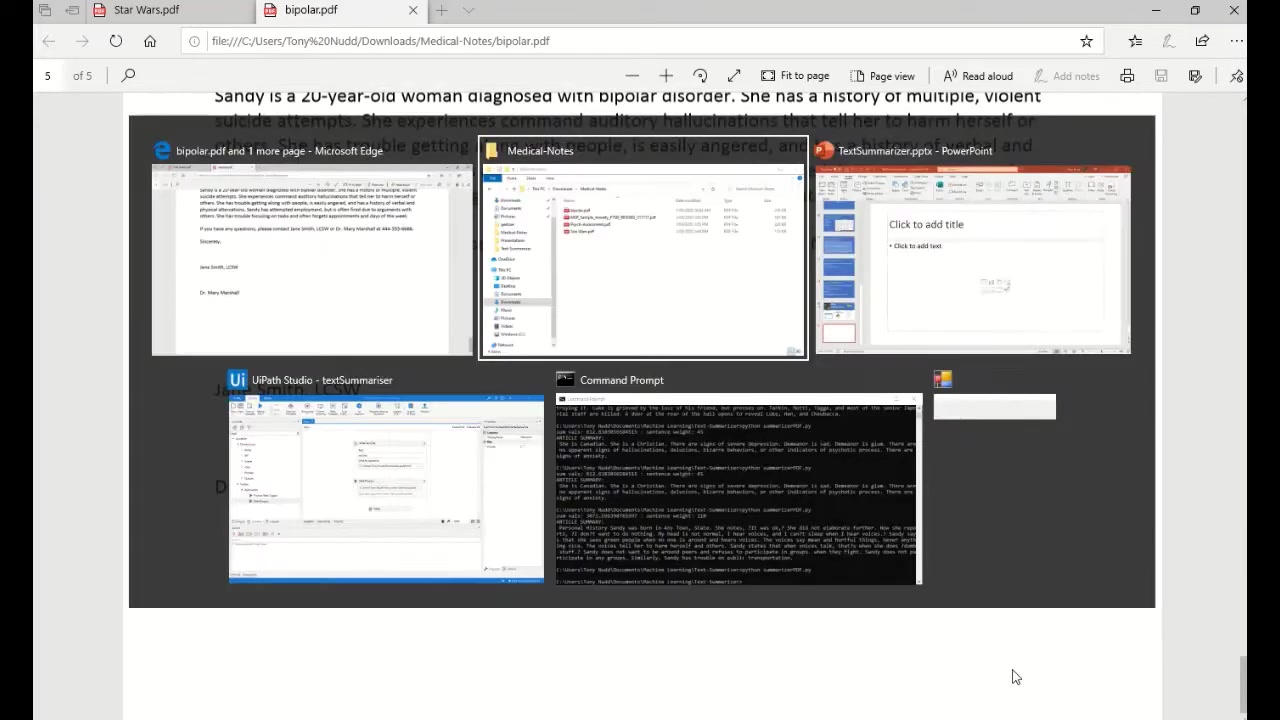
**
Use the 'Read PDF Text' activity to extract text from the PDF document. Configure the activity with the file path of the PDF.
Step 2: Write Text File
Use the 'Write Text File' activity to store the extracted text into a .txt file. This is a good practice because it will remove some of the formatting and prepare the text for analysis.
Step 3: Invoke Python Script
Use the 'Python Scope' and 'Invoke Python Method' activities to execute a Python script that summarizes the text. Configure the activities as follows:
- Python Scope: Set the PythonPath property to the directory where Python is installed. For example,
C:\Users\Tony Nudd\AppData\Local\Programs\Python\Python36. - Invoke Python Method: Specify the Python script file and the method to be invoked. For example,
Summarizer.pyandsummarize_text.
Step 4: Read Text File and Display Summary
Use the 'Read Text File' activity to read the summarized text from the output file generated by the Python script. Use a 'Message Box' activity to display the summary to the user.
By following these steps, you can create a UiPath workflow that automatically summarizes text from PDF documents. This automation not only saves time but also ensures that the summarization process is consistent and accurate.
Writing the Python Summarization Script
The Python script is where the actual text summarization logic resides. Here’s a sample script using NLTK:
import nltk
from nltk.corpus import stopwords
from nltk.tokenize import word_tokenize, sent_tokenize

def summarize_text(text):
    stopWords = set(stopwords.words("english"))
    words = word_tokenize(text)

    freqTable = dict()
    for word in words:
        word = word.lower()
        if word in stopWords:
            continue
        if word in freqTable:
            freqTable[word] += 1
        else:
            freqTable[word] = 1

    sentences = sent_tokenize(text)
    sentenceValue = dict()

    for sentence in sentences:
        for word, freq in freqTable.items():
            if word in sentence.lower():
                if sentence in sentenceValue:
                    sentenceValue[sentence] += freq
                else:
                    sentenceValue[sentence] = freq

    sumValues = 0
    for sentence in sentenceValue:
        sumValues += sentenceValue[sentence]

    average = 0
    if len(sentenceValue) > 0:
        average = sumValues / len(sentenceValue)

    summary = ''
    for sentence in sentences:
        if (sentence in sentenceValue) and (sentenceValue[sentence] > (1.2 * average)):
            summary +=  " " + sentence
    return summary

# Example usage (assuming 'text' variable contains the extracted text)
# summary = summarize_text(text)
# print(summary)
This script performs the following steps:
- Tokenization: Breaks the text into individual words.
- Frequency Analysis: Calculates the frequency of each WORD, excluding stopwords (common words like 'the', 'is', 'in').
- Sentence Scoring: Scores each sentence based on the frequency of its words.
- Summary Generation: Selects the highest-scoring sentences to form the summary.
Save this script to a file, such as summarizer.py, and reference it in your UiPath workflow.
Step-by-Step: Automating PDF Text Summarization
Detailed Instructions
Here is a detailed step-by-step to build a robot that automatically summarizes documents. This is done in UiPath by using the correct actions.
Step 1: Project Initialization
- Open UiPath Studio and create a new project.
- Name the project according to your needs and select a location to save it.
Step 2: PDF Extraction and Preparation
- Drag and drop the 'Read PDF Text' activity into the workflow panel.
- Configure the activity by specifying the path to the PDF file. Set the 'Range' property to 'All' to extract all text. Store the output in a variable (e.g.,
extractedText). - Add a 'Write Text File' activity. Set the file path to a local text file (e.g.,
C:\Users\Tony Nudd\Downloads\useMe.txt). Input the variableextractedTextto write PDF text to the text file.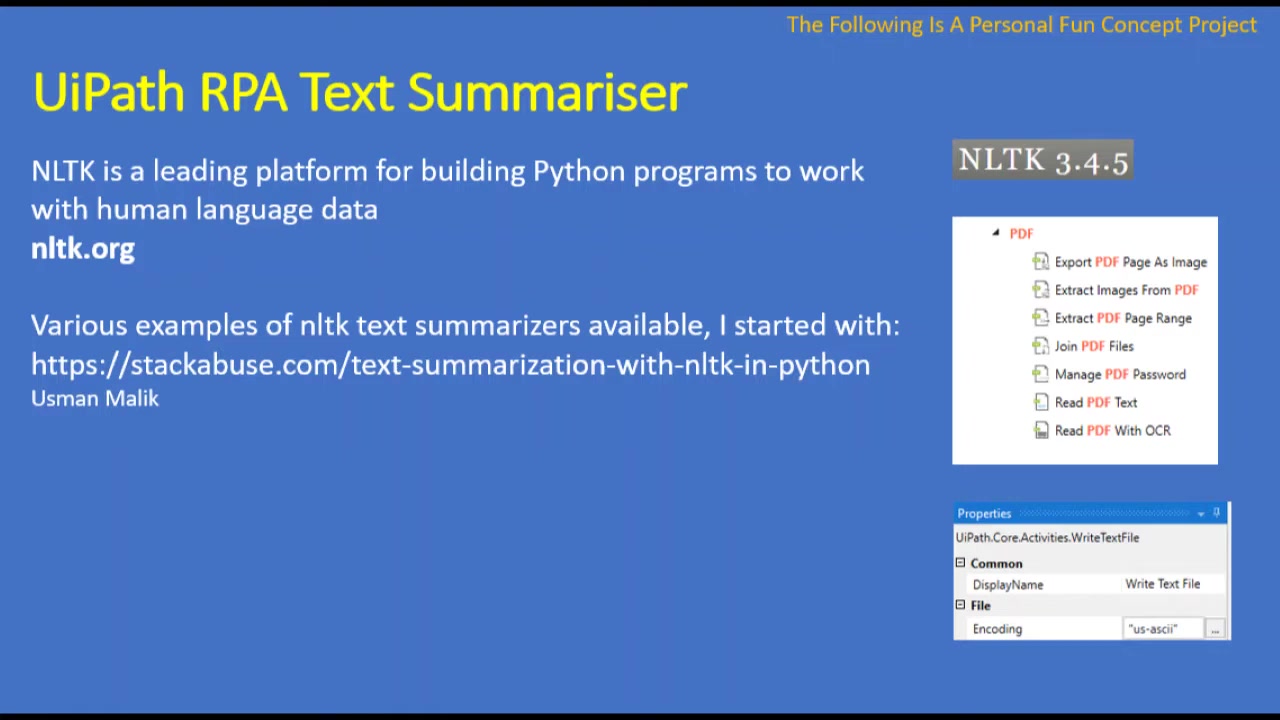
Step 3: Python Integration
- Add a 'Python Scope' activity. Configure the properties:
- PythonPath:
C:\Users\Tony Nudd\AppData\Local\Programs\Python\Python36.
- PythonPath:
- Inside the 'Python Scope', add a 'Load Python Script' activity. Specify the path to your Python script (
summarizer.py). Store the script in a variable (e.g.,pythonScript). - Add an 'Invoke Python Method' activity. Configure the properties:
- Instance:
pythonScript. - MethodName:
summarize_text. - Parameters: Create an input parameter for the extracted text (
extractedText). Store the output in a variable (e.g.,summary).
- Instance:
Step 4: Summary Display and Storage
- Add a 'Message Box' activity to display the summary. Input the
summaryvariable. - Optionally, add a 'Write Text File' activity to save the summary to a file.
Step 5: testing and Debugging
- Run the workflow.
- Check the output message box or text file for the generated summary.
- Debug any errors by checking variable values and activity configurations.
By following these detailed instructions, you can successfully automate the process of summarizing text from PDF documents using UiPath and Python NLTK.
Real-World Applications
Transforming Industries
The automated text summarization solution has a wide range of applications across various industries:
- Healthcare: Summarize medical notes and patient records to improve Healthcare delivery.
- Legal: Summarize legal documents and contracts to facilitate research and analysis.
- Finance: Summarize financial reports and news articles to make informed investment decisions.
- Education: Summarize research Papers and articles to support learning and research.
- Government: Summarize government documents and reports to improve transparency and decision-making.
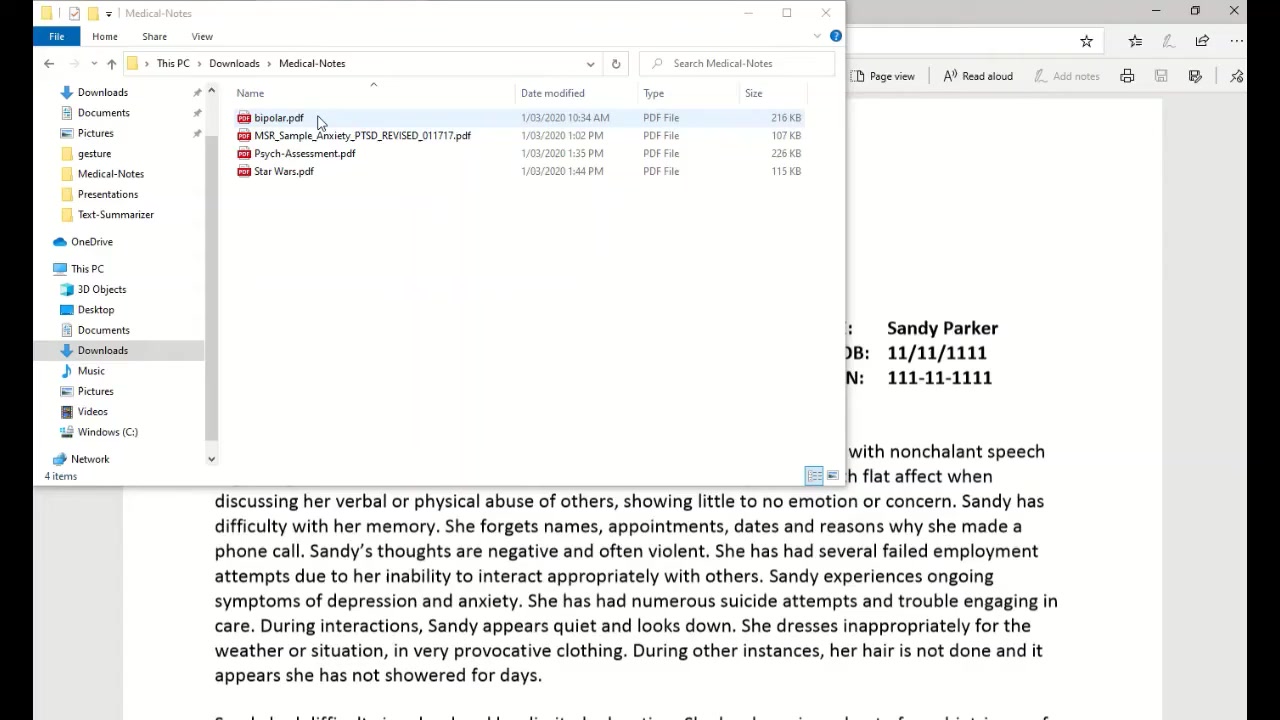
These are just a few examples of how automated text summarization can be used to improve efficiency and productivity in various fields.










Most people like



























Report
Please select a reason for reporting
- 13 Reasons to Switch from Snapchat to Text Messaging
- 7 Powerful Speech to Text Apps to Boost Productivity
- 10 Best Speech to Text Tools for Effortless Transcription
- 13 Free Tools to Easily Transcribe Audio to Text
- 15 Surprising Ways Google's Speech-to-Text Boosts Productivity
- 7 Best Free Online Audio to Text Transcription Tools
- 9 Tips to Transcribe Speech to Text Faster and Better
- 13 Best Speech to Text Software for Windows 10 in 2023
- 7 Tips for Choosing the Best Transcriber for Audio to Text
- 11 Reasons Why Dragon Speech-to-Text Apps are Game-Changers
- 6 Secrets to Enhance Your Speech to Text Transcription
- 6 Brilliant Ways to Boost Productivity with Talk-to-Text on Your MacBook
- 6 Ways Transcription Software Converts Audio to Text
- 8 Tips to Transcribe Speech to Text Like a Pro
- 6 Reasons IBM Watson Speech to Text is a Game-Changer
- 14 Powerful Ways Talk-to-Text Improves Your Workflow
- 12 Top Windows Speech-to-Text Software for Efficient Transcription
- 12 Game-Changing Benefits of Apple's Speech to Text Technology
- 9 Powerful Use Cases for AWS Speech to Text Technology
- 10 Easy Steps to Transcribe YouTube Videos to Text
- transcription audio en texte
- online audio transcription
- free audio file transcription
- free ai audio transcription
- audio transcription service
- audio transcription online free
- audio transcription free online
- audio to transcription software
- audio and transcript
- ai audio transcription free
- voice recording to text converter
- translate voice recording to text
- record voice to text
- audio recording to text converter
- voice recording and transcription
- chatgpt voice to text
- gmail voice to text
- speech to text reader
- speech to text ai free
- speech to talk
- Create Engaging Animated Explainer Videos with a Free AI Tool
- Stop Multi-Subscribing: Benchmark Top AI Visual Models in One Canvas
- Best Seedance 2.5 API Provider: Every Price on the Market, Checked at Source
- AI OnlyFans: How to Generate $30,000/Month (Legally)
- Transform Your Script into an Engaging Video with AI Video Maker!
- AI Marketing Automation: A Comprehensive Guide for Small Businesses
- Midjourney Alternative for Anime Art Creators: Why PixAI May Be Better for Character Workflows
- 10 Things Most People Get Wrong About AI Image Search
- AI Girlfriend Apps: Top Choices Redefining Relationships 2025
- How to Reduce Quoting Errors in Salesforce with AI-Assisted Quote Creation
- Why AI Language Tutors Underperform in Low-Resource Languages (And How to Work Around It)
- Top 5 AI Detector Tools: Ensuring Originality in Your Content
- How to Tell If an AI Study Tool Is Actually Helping You Learn (6 Checks for 2026)
- From Auto-Cuts to Generative Clips: Top 4 AI Video Editor Platforms Tested
- AI Resume Builders: EnhanceCV, ResumeNerd AI, & Teal Compared
- ResumeAI: Crafting ATS-Optimized Resumes with AI
- AI in Resume Writing: A New Era for Job Seekers
- AI Resume Tools: Streamline Your Job Search and Land Your Dream Role
- AI Resume Optimization: The Right Way to Land Interviews
- Crafting a Killer Resume with AI: A Step-by-Step Guide

Copyright ©2026 toolify