































Table of Contents
- Key Points
- Understanding Browser-Use WebUI
- Integrating DeepSeek with Browser-Use WebUI
- Getting Started with Browser-Use WebUI: A Step-by-Step Guide
- Pricing: Free and Open-Source
- Pros and Cons of Browser-Use WebUI
- Core Features of Browser-Use WebUI
- Use Cases: Unleashing the Potential of Browser-Use WebUI
- Frequently Asked Questions
- Related Questions


Understanding Browser-Use WebUI
What is Browser-Use WebUI?
Browser-Use WebUI is a revolutionary tool designed to bring the power of AI automation directly to your web browser.
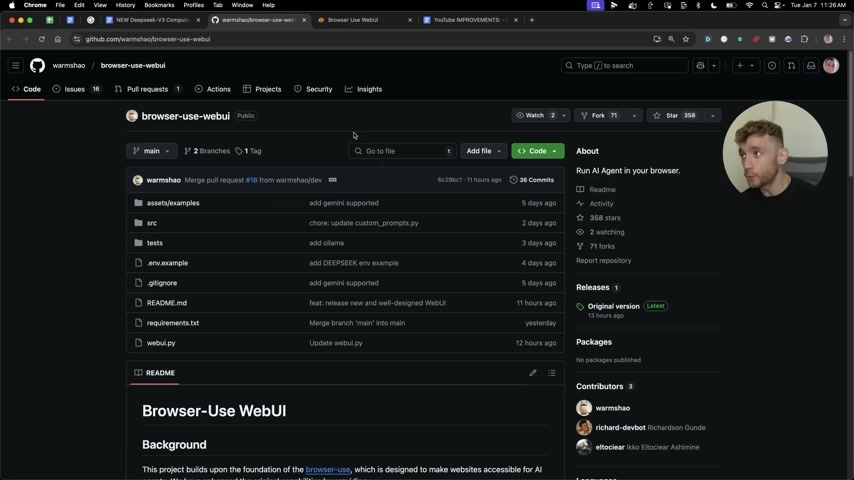
It serves as a customizable AI agent capable of performing a wide range of tasks that you would typically do manually. Imagine having a digital assistant that can navigate websites, fill out forms, extract data, and perform complex workflows – all within the familiar environment of your browser. This tool aims to make AI accessible to everyone, regardless of their technical expertise, by simplifying the setup and configuration process. With Browser-Use WebUI, you can free yourself from repetitive online chores and focus on more strategic and creative endeavors. The key benefit of Browser-Use WebUI lies in its ability to streamline web-based tasks, making it an invaluable asset for professionals, researchers, and anyone who spends a significant amount of time online. By automating these tasks, you not only save time but also reduce the risk of human error, ensuring greater accuracy and consistency in your workflows. Furthermore, the tool's customizable nature allows you to tailor it to your specific needs, making it a versatile solution for a wide range of applications. Browser-Use WebUI empowers users to unlock the full potential of their browsers, turning them into powerful automation hubs. Whether you're a marketer looking to automate social media posting, a researcher gathering data from various sources, or simply someone who wants to streamline their online shopping experience, Browser-Use WebUI provides the tools and flexibility to achieve your goals. As AI technology continues to evolve, Browser-Use WebUI remains at the forefront, offering a user-friendly and accessible way to harness its power. This is not just a tool; it's a gateway to a more efficient and productive digital life, simplifying the complexities of web automation and putting the control back in your hands.
Key Features and Capabilities
Browser-Use WebUI is packed with features designed to make browser automation as seamless and efficient as possible. These features cater to both novice and experienced users, providing a range of customization options to suit different needs. Here are some of the standout features and capabilities:
- Customizable AI Agent:
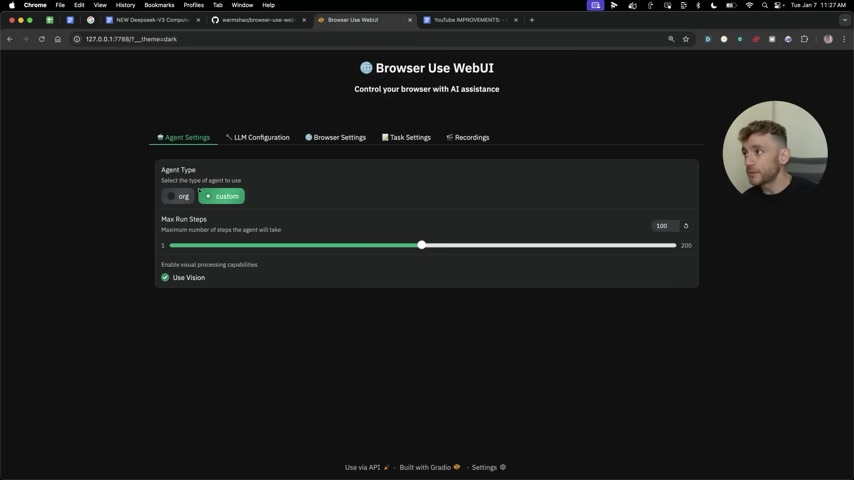
Tailor the AI agent to your specific requirements by selecting the agent type and configuring various parameters.
- Vision Control: Choose whether the AI agent can 'see' your screen, providing flexibility and control over its visual processing capabilities.
- API Integration: Seamlessly integrate with powerful APIs like DeepSeek, Gemini, and others to enhance the AI agent's intelligence and capabilities.
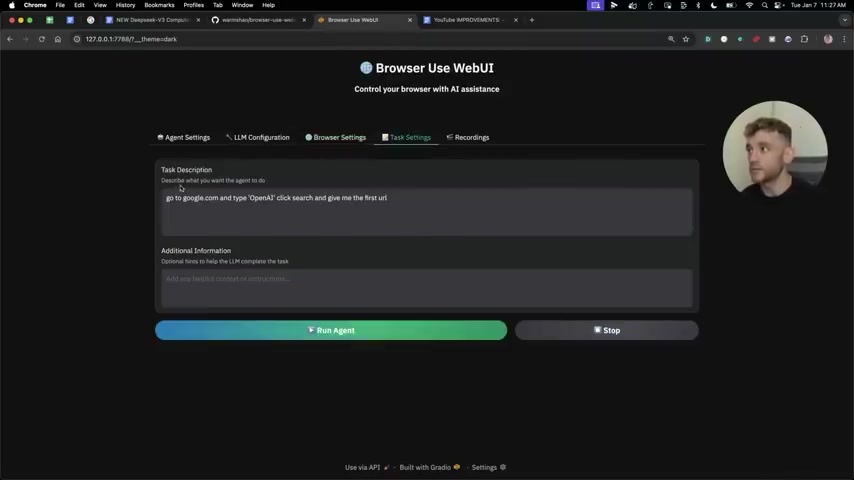
- Task Definition: Easily define tasks for the AI agent by providing clear task descriptions and additional instructions.
- Screen Recording: Record the AI agent's actions to monitor its performance and understand how it executes tasks.
- Browser Instance Control: Choose to use your existing browser instance or let WebUI manage its own browser.
- Headless Mode: Run the AI agent in headless mode for background automation without a visible browser window.
- Security Features: Disable browser security features for specific tasks, providing greater flexibility while maintaining overall security.
These features combine to create a powerful and versatile browser automation tool that can handle a wide range of tasks. Whether you're looking to automate simple data entry or complex web workflows, Browser-Use WebUI provides the tools and flexibility to get the job done. By leveraging these features, you can significantly improve your productivity and streamline your online tasks. The customizable nature of the AI agent ensures that it can adapt to your specific needs, making it an invaluable asset for anyone who wants to harness the power of AI-driven browser automation. With Browser-Use WebUI, you're not just automating tasks; you're empowering yourself to achieve more in less time, transforming the way you interact with the web and unlocking new possibilities for efficiency and productivity.
Integrating DeepSeek with Browser-Use WebUI
DeepSeek: A Game Changer for Browser Automation
DeepSeek is a powerful AI platform that can significantly enhance the capabilities of Browser-Use WebUI.
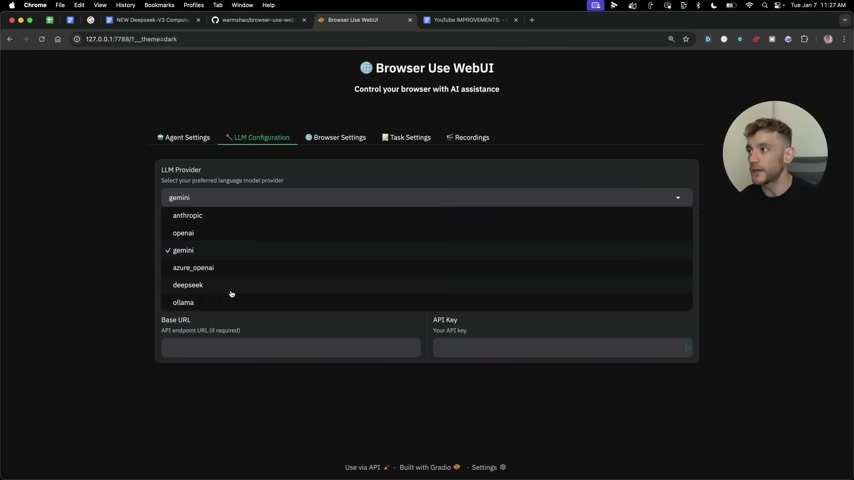
By integrating DeepSeek, you can leverage its advanced language understanding and generation capabilities to improve the accuracy, intelligence, and versatility of the AI agent. DeepSeek offers a wide range of AI services, including natural language processing, machine learning, and computer vision. These services can be used to enhance various aspects of browser automation, such as:
- Task Understanding: DeepSeek can help the AI agent better understand your task descriptions, ensuring that it performs the desired actions correctly.
- Content Generation: DeepSeek can generate content for various purposes, such as creating social media posts or writing product descriptions.
- Data Analysis: DeepSeek can analyze data extracted from websites, providing valuable insights and information.
To integrate DeepSeek with Browser-Use WebUI, you'll need to obtain an API key from DeepSeek and configure it in the LLM configuration settings. Once you've configured the API key, you can start using DeepSeek's services to enhance your browser automation tasks. The integration of DeepSeek with Browser-Use WebUI is a Game changer for browser automation, allowing you to leverage the power of advanced AI to improve the accuracy, intelligence, and versatility of your AI agent. This integration opens up a wide range of new possibilities for automating complex online tasks and workflows. With DeepSeek, Browser-Use WebUI becomes an even more powerful and versatile tool, capable of handling a wide range of browser automation tasks with ease. This integration is a testament to the flexibility and extensibility of Browser-Use WebUI, allowing you to customize it to meet your specific needs and requirements. As AI technology continues to evolve, we can expect to see even more powerful integrations and capabilities, further solidifying Browser-Use WebUI's position as a leader in the field of browser automation.
Getting Started with Browser-Use WebUI: A Step-by-Step Guide
Step 1: Installation
Before you can start automating your browser with Browser-Use WebUI, you'll need to install it. The process is straightforward and can be completed in a few simple steps.
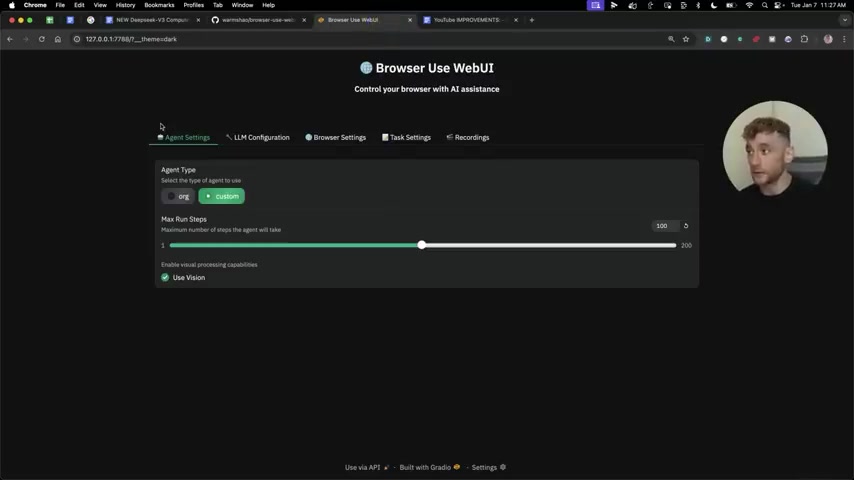
This installation ensures that all the necessary components are in place, allowing you to seamlessly integrate the AI agent into your browser. Make sure you have Python 3.11 or higher installed. This is a prerequisite for running Browser-Use WebUI.
-
Clone the Repository: Begin by cloning the Browser-Use WebUI repository from GitHub. You can do this by running the following command in your terminal:
git clone https://github.com/warmshao/browser-use-webui cd browser-use-webui -
Install Dependencies: Next, install the required dependencies by running the following command:
pip install -r requirements.txtThis command will install all the necessary packages and libraries, ensuring that Browser-Use WebUI runs smoothly.
- Configure Environment Variables: Copy the
.env.examplefile to.envand set your environment variables, including API keys for the LLM (Language Model). This step is crucial for connecting Browser-Use WebUI to the AI models that power its automation capabilities. You will use different API keys based on the LLM provider you choose.
This is a critical step, as it sets up the environment in which Browser-Use WebUI will operate. Without these dependencies, the tool may not function correctly, and you won't be able to take advantage of its full potential. It's also a good idea to keep your environment up-to-date by periodically checking for updates and installing any new dependencies that may be required. Proper environment setup is the foundation for successful browser automation with Browser-Use WebUI.
Step 2: Configuration
Once you've successfully installed Browser-Use WebUI, the next step is to configure it according to your specific needs. This involves setting up the AI agent, selecting the appropriate language model, and defining the browser settings.
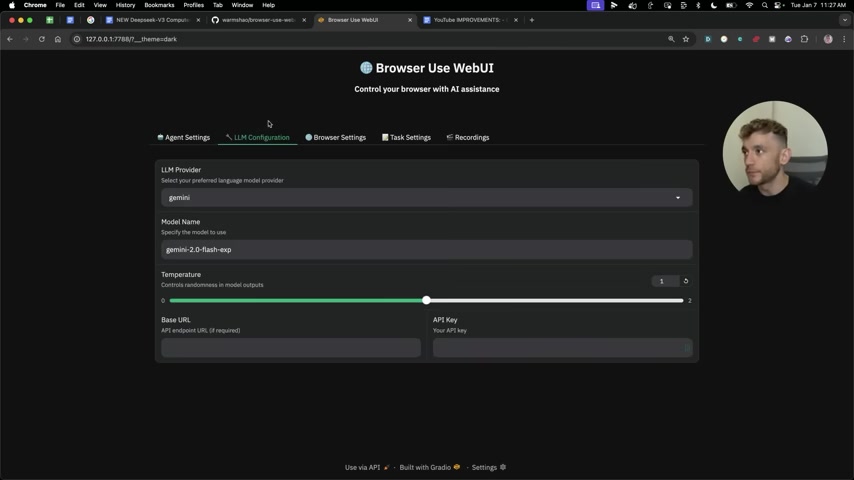
These configurations allow you to tailor Browser-Use WebUI to your specific use case, ensuring that it performs tasks in the way that best suits your requirements. You'll need to configure the LLM to tell Browser-Use WebUI which AI model should be used. Choose from options like OpenAI, Gemini, or DeepSeek.
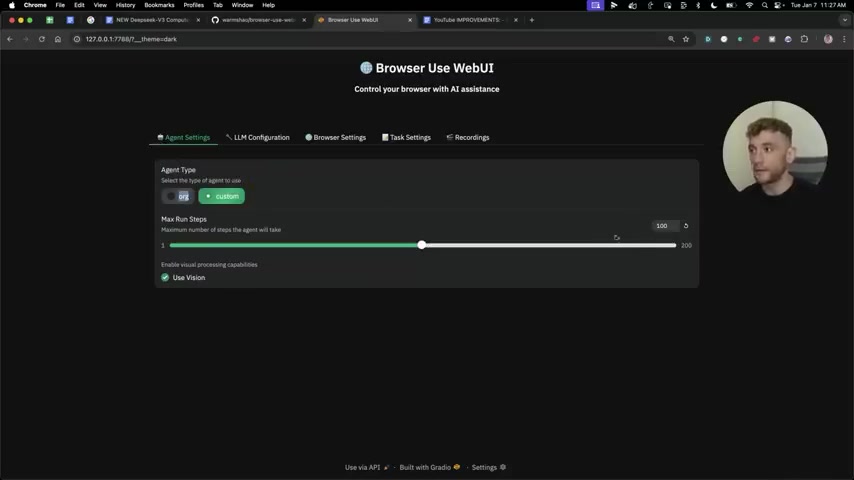
-
Agent Settings:
- Select the agent type (e.g., 'org' or 'custom').
- Define the maximum run steps the agent will take.
- Enable or disable visual processing capabilities ('Use Vision').
-
LLM Configuration:
- Select your preferred language model provider (e.g., Gemini, DeepSeek, OpenAI).
- Specify the model name to use.
- Enter your API key.
-
Browser Settings:
- Choose whether to use your existing browser instance or let WebUI manage its own.
- Configure window width and height.
- Set the recording path for saving browser recordings.
By carefully configuring these settings, you can optimize Browser-Use WebUI for your specific tasks, ensuring that it operates efficiently and effectively. Each setting plays a crucial role in how the AI agent interacts with your browser, so it's important to understand the implications of each choice. Experiment with different configurations to find the optimal setup for your automation needs. With the right configurations, Browser-Use WebUI can become a powerful extension of your browser, seamlessly handling a wide range of tasks and significantly improving your productivity. The configuration process is not just about setting up the tool; it's about customizing it to work for you, aligning it with your specific goals and workflows.
Step 3: Task Definition
The heart of Browser-Use WebUI lies in its ability to execute tasks that you define. Defining tasks is straightforward and involves providing a clear description of what you want the AI agent to do.
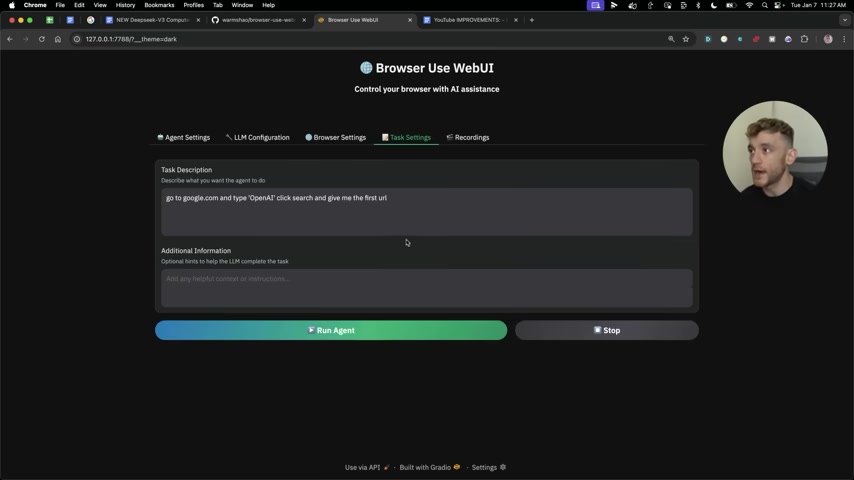
This task description guides the AI agent in navigating websites, interacting with elements, and performing the desired actions. To define a task, simply provide a clear and concise description of what you want the AI agent to do. Here's an example:
```text
Go to google.com and type "OpenAI" click search and give me the first URL
```
You can also provide additional information to help the LLM complete the task. This might include specific instructions, context, or constraints. For example:
```text
Additional Information: Ensure the URL is from the official OpenAI website.
```
Once you've defined the task, click the 'Run Agent' button to start the automation process. Browser-Use WebUI will then execute the task according to your instructions, navigating websites, interacting with elements, and performing the desired actions. The key to effective task definition is clarity. The more precise your instructions, the better the AI agent will be able to understand and execute the task. Experiment with different task descriptions and additional information to find the most effective way to communicate your needs. With well-defined tasks, Browser-Use WebUI can become an invaluable asset, automating repetitive online chores and freeing you to focus on more strategic and creative endeavors. This is where the true power of the tool shines through, allowing you to transform your browser into a versatile automation hub.
Step 4: Monitoring and Recording
Browser-Use WebUI offers powerful monitoring and recording capabilities that allow you to observe the AI agent in action and understand how it executes tasks.
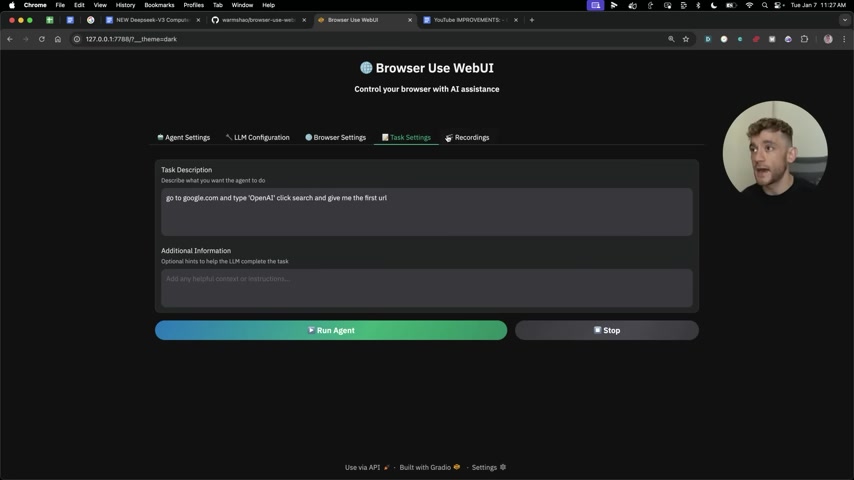
This feature is invaluable for troubleshooting, optimizing performance, and gaining insights into the automation process. When you run a task, Browser-Use WebUI can record the screen, capturing all the actions performed by the AI agent. This recording can be invaluable for:
- Troubleshooting: Identify any issues or errors that occur during task execution.
- Optimization: Analyze the AI agent's actions to identify areas for improvement and optimize its performance.
- Understanding: Gain a deeper understanding of how the AI agent interacts with websites and elements.
After a task is completed, you can review the recording to see exactly what the AI agent did. This can help you identify any problems or areas for improvement. You can also review the final results, model actions, and model thoughts to gain a deeper understanding of the automation process. The monitoring and recording capabilities of Browser-Use WebUI provide a valuable feedback loop, allowing you to continuously refine your task definitions and configurations for optimal performance. This feature not only helps you ensure that the AI agent is performing tasks correctly but also provides valuable insights into the automation process, empowering you to make informed decisions and optimize your workflows. By leveraging these monitoring and recording capabilities, you can transform Browser-Use WebUI from a simple automation tool into a powerful learning platform, constantly improving its performance and adapting it to your evolving needs.
Core Features of Browser-Use WebUI
AI-Powered Browser Automation
The core of Browser-Use WebUI is its ability to automate browser tasks using artificial intelligence.
The AI agent can navigate websites, interact with elements, fill out forms, extract data, and perform complex workflows, all based on your instructions. This AI-powered automation significantly reduces the amount of time and effort required to complete repetitive online tasks. Instead of manually performing these tasks, you can simply define them in Browser-Use WebUI, and the AI agent will take care of the rest. This frees you to focus on more strategic and creative endeavors, improving your productivity and allowing you to achieve more in less time. The AI agent is designed to be intelligent and adaptable, learning from its experiences and continuously improving its performance. It can handle a wide range of websites and elements, and it can adapt to changes in website layouts and designs. This makes it a versatile solution for automating a variety of online tasks. Furthermore, the AI agent can be customized to meet your specific needs, allowing you to tailor it to your specific workflows and requirements. The AI-powered browser automation feature of Browser-Use WebUI is not just about saving time; it's about transforming the way you interact with the web, empowering you to automate repetitive tasks and focus on what matters most.
API Integration for Enhanced Capabilities
Browser-Use WebUI seamlessly integrates with various APIs to enhance its AI capabilities.
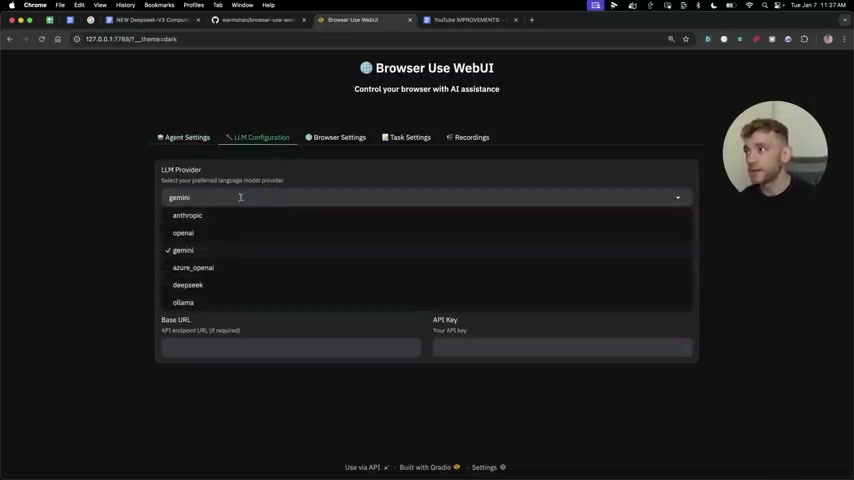
This integration allows you to leverage the power of advanced language models and AI services to improve the accuracy, intelligence, and versatility of the AI agent. Some of the APIs that Browser-Use WebUI supports include:
- DeepSeek: A powerful AI platform that provides advanced language understanding and generation capabilities. DeepSeek is a key integration, allowing Browser-Use WebUI to leverage advanced AI models for enhanced task execution.
- Gemini: Another powerful AI platform that offers a wide range of AI services, including language understanding, Image Recognition, and more.
- OpenAI: A leading AI research and deployment company that provides access to state-of-the-art language models like GPT-3 and GPT-4.
- Azure OpenAI: Microsoft's cloud-based AI platform that offers access to OpenAI's language models and other AI services.
By integrating with these APIs, Browser-Use WebUI can tap into the latest advancements in AI technology, ensuring that the AI agent is always equipped with the best tools for the job. This API integration also provides flexibility, allowing you to choose the APIs that best suit your needs and budget. The ability to seamlessly integrate with various APIs is a key differentiator for Browser-Use WebUI, making it a powerful and versatile browser automation tool. This feature allows you to leverage the power of advanced AI services without having to write complex code or manage intricate integrations.
Vision Control for Enhanced Privacy
Browser-Use WebUI offers a unique vision control feature that allows you to choose whether the AI agent can 'see' your screen.
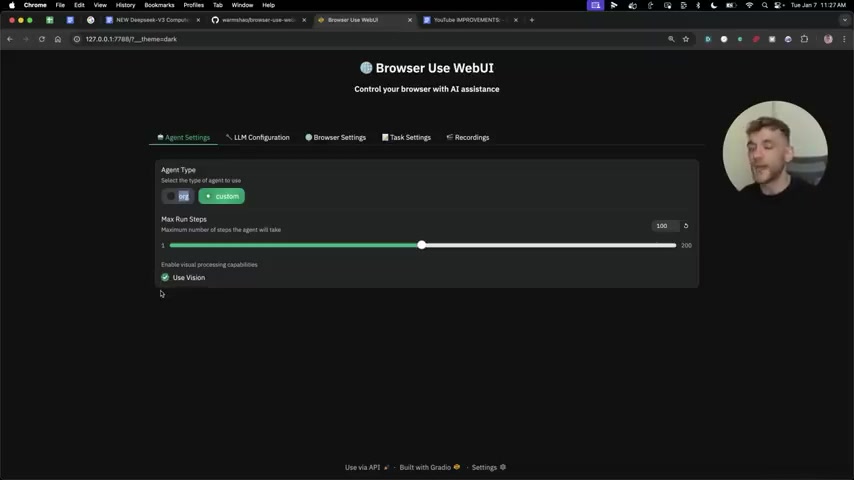
This provides enhanced privacy and control over the AI agent's visual processing capabilities. When vision control is enabled, the AI agent can analyze the content of your screen, identify elements, and interact with them based on your instructions. This is useful for tasks that require visual analysis, such as identifying images, reading text from the screen, or interacting with specific elements. However, there may be situations where you don't want the AI agent to 'see' your screen, such as when you're working with sensitive information or when you simply don't need visual analysis for the task at hand. In these cases, you can disable vision control, preventing the AI agent from accessing the content of your screen. The vision control feature of Browser-Use WebUI provides a valuable balance between functionality and privacy, allowing you to leverage the power of AI-driven browser automation while maintaining control over your data. This feature is particularly important for users who are concerned about privacy or who are working with sensitive information. By offering vision control, Browser-Use WebUI empowers users to make informed decisions about how the AI agent interacts with their browser, ensuring that their privacy is protected.
Use Cases: Unleashing the Potential of Browser-Use WebUI
Data Extraction and Web Scraping
Browser-Use WebUI excels at data extraction and Web Scraping tasks.
It can automatically navigate websites, identify relevant data, and extract it for analysis or other purposes. This is particularly useful for researchers, marketers, and anyone who needs to gather data from various online sources. Imagine you need to collect pricing information from multiple e-commerce websites. With Browser-Use WebUI, you can simply define a task that instructs the AI agent to navigate to each website, identify the pricing element, and extract the data. The AI agent will then automatically perform these steps, saving you hours of manual effort. Browser-Use WebUI can also be used for web scraping tasks, such as collecting product descriptions, customer reviews, or news articles. The AI agent can automatically navigate websites, identify the relevant content, and extract it for further analysis. The data extraction and web scraping capabilities of Browser-Use WebUI can significantly improve your efficiency and productivity, allowing you to gather data from various online sources quickly and easily. This feature is particularly valuable for businesses that need to monitor competitors, track market trends, or gather customer feedback.
Form Filling and Task Automation
Browser-Use WebUI can automate form filling and other repetitive online tasks. It can automatically fill out forms, submit applications, and perform other actions that you would typically do manually. This is particularly useful for tasks that require filling out the same information multiple times, such as applying for jobs or submitting online applications. Imagine you need to fill out the same form on multiple websites. With Browser-Use WebUI, you can simply define a task that instructs the AI agent to fill out the form with your information. The AI agent will then automatically perform these steps, saving you time and effort. Browser-Use WebUI can also automate other repetitive online tasks, such as posting on social media, sending emails, or managing your online accounts. The form filling and task automation capabilities of Browser-Use WebUI can significantly improve your efficiency and productivity, allowing you to automate repetitive online chores and focus on more strategic and creative endeavors. This feature is particularly valuable for individuals who want to streamline their online tasks and free up their time for more important activities.
Content Creation and Social Media Management
Browser-Use WebUI can assist with content creation and social media management tasks. It can automatically generate content, schedule posts, and manage your social media accounts. This is particularly useful for marketers, bloggers, and anyone who needs to create and manage content online. Imagine you need to create a series of social media posts for your business. With Browser-Use WebUI, you can simply define a task that instructs the AI agent to generate content based on a specific topic. The AI agent will then automatically generate content, schedule posts, and manage your social media accounts, saving you time and effort. Browser-Use WebUI can also be used to monitor your social media accounts, track engagement, and respond to comments or messages. The content creation and social media management capabilities of Browser-Use WebUI can significantly improve your efficiency and productivity, allowing you to create and manage content online more effectively. This feature is particularly valuable for businesses that want to improve their online presence and engage with their customers on social media.



Most people like
































Report
Please select a reason for reporting
- 13 Reasons to Switch from Snapchat to Text Messaging
- 7 Powerful Speech to Text Apps to Boost Productivity
- 10 Best Speech to Text Tools for Effortless Transcription
- 13 Free Tools to Easily Transcribe Audio to Text
- 15 Surprising Ways Google's Speech-to-Text Boosts Productivity
- 7 Best Free Online Audio to Text Transcription Tools
- 9 Tips to Transcribe Speech to Text Faster and Better
- 13 Best Speech to Text Software for Windows 10 in 2023
- 7 Tips for Choosing the Best Transcriber for Audio to Text
- 11 Reasons Why Dragon Speech-to-Text Apps are Game-Changers
- 6 Secrets to Enhance Your Speech to Text Transcription
- 6 Brilliant Ways to Boost Productivity with Talk-to-Text on Your MacBook
- 6 Ways Transcription Software Converts Audio to Text
- 8 Tips to Transcribe Speech to Text Like a Pro
- 6 Reasons IBM Watson Speech to Text is a Game-Changer
- 14 Powerful Ways Talk-to-Text Improves Your Workflow
- 12 Top Windows Speech-to-Text Software for Efficient Transcription
- 12 Game-Changing Benefits of Apple's Speech to Text Technology
- 9 Powerful Use Cases for AWS Speech to Text Technology
- 10 Easy Steps to Transcribe YouTube Videos to Text
- transcription audio en texte
- online audio transcription
- free audio file transcription
- free ai audio transcription
- audio transcription service
- audio transcription online free
- audio transcription free online
- audio to transcription software
- audio and transcript
- ai audio transcription free
- voice recording to text converter
- translate voice recording to text
- record voice to text
- audio recording to text converter
- voice recording and transcription
- chatgpt voice to text
- gmail voice to text
- speech to text reader
- speech to text ai free
- speech to talk
- Meshy AI: How to Create 3D Models from Text and Images
- How SEO and Marketing Dashboards Empower Agencies to Drive Results
- How to Use AI Tools to Find Internal Linking Opportunities Across a Business Website
- Discover Your Perfect Haircut with AI Hairstyle Apps
- Free Reputation Calculator Tools: How They're Adapting to Score AI Visibility, Not Just Rankings
- Design Professional Flyers for Free on Your Phone
- Best Free Flyer Maker Apps for Android: Design Like a Pro
- How to Know If Your Business Is Ready for an AI Customer Service Agent
- Revolutionizing Storytelling: From Novels to Screenplays with AI
- Create Engaging Animated Explainer Videos with a Free AI Tool
- Meshy AI: How to Create 3D Models from Text and Images
- ASOMobile Helps Teams Benchmark App Store Screenshots Against Competitors
- How to Match LMS Software With Your Organization's Training Plan
- Revolutionizing Email Marketing Agency with AI
- How to Convert BTC to HNT
- Unleashing the Power of AI: Cognizant's Roadmap for Transformation
- Frame to Video Review: A Practical Look at Turning Two Still Frames Into Motion
- NVIDIA NIM: Revolutionizing Supply Chain Data Analysis with AI
- Top AI Tools That Help Brands Stand Out Offline (Not Just Online)
- Top 5 Cold Email Software: Maximize Your Outreach in 2025

Copyright ©2026 toolify