































Table of Contents
- Key Points
- Leveraging Google Chrome DevTools AI for Software Testing
- Key Software QA Skills
- How to use:
- Chrome DevTools AI: Is It Right for You?
- FAQ
- Related Questions


Leveraging Google Chrome DevTools AI for Software Testing
The Power of AI-Assisted Development Tools
Google Chrome DevTools has evolved into an AI-driven powerhouse, providing software quality engineers with functionalities that significantly enhance their ability to test, debug, and develop software. The beauty of this system lies in its integration; there's no need to juggle multiple applications or transfer code between different platforms. Everything you need is right within the Chrome browser, saving precious time and improving focus.
In this guide, we delve into practical methods for utilizing this AI assistance to create test cases, develop robust test plans, and even automate testing procedures, often in mere seconds. Stay within the Google Chrome DevTools interface and ask the AI assistant for support, streamlining your workflow considerably.
Forget the cumbersome process of copying and pasting code snippets into external AI Tools like ChatGPT. Chrome DevTools AI puts the power of AI at your fingertips within a unified development environment. This efficiency translates directly to faster development cycles and higher-quality software releases.
Unlocking AI in Chrome DevTools: A Step-by-Step Guide
Enabling the AI assistant is straightforward, ensuring you can quickly tap into its capabilities. Here's a breakdown of the activation process:
-
Open Chrome DevTools: Right-click anywhere on a webpage and select 'Inspect'. This opens the DevTools panel.
-
Navigate to Settings: Within DevTools, locate and click the 'Settings' icon (usually represented by a gear).
-
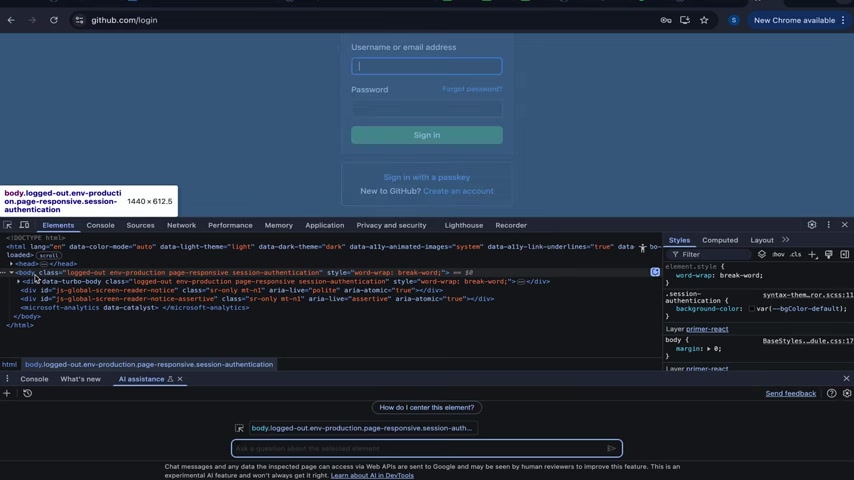
Access AI Innovations: In the Settings menu, find and select 'AI Innovations'.
-
Enable AI Assistance: Scroll down the AI Innovations page and toggle the switch to enable the 'AI assistance' feature.
With AI assistance activated, you can now directly leverage AI for various testing and development tasks within Chrome DevTools. This streamlined activation process minimizes setup time and allows you to focus on what truly matters: creating exceptional software.
keywords: Chrome DevTools, AI assistance, software testing, qa engineer
Creating Test Cases with AI Assistance
With Google Chrome DevTools, creating test cases, crafting test plans, and automating tests are tasks that can now be accomplished with remarkable speed and accuracy. Let's explore how AI transforms the test creation process:
Chrome DevTools offers AI functionalities to guide the software-testing-related prompts directly. Without leaving the environment to consult external tools or transfer code, the AI assistant can quickly offer relevant suggestions, generate code snippets, and pinpoint potential issues or edge cases within the application. Here’s how:
-
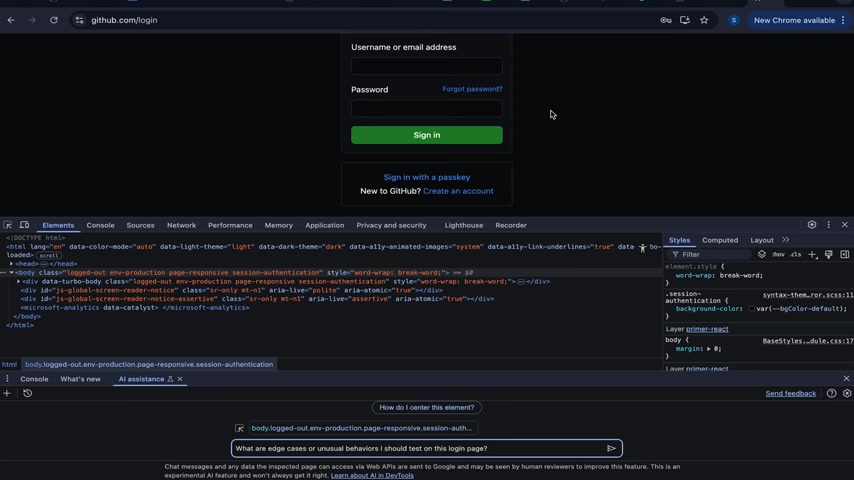
Inspect Element: Inspect the element you want to test by right-clicking it and selecting 'Inspect'.
-
Ask AI: Right-click on the element's code within the 'Elements' tab and choose 'Ask AI'.
-
Enter Your Prompt: Ask a question about the selected element. For example, you might type "What are the edge cases or unusual behaviors I should test on this login page?"
-
Review AI Suggestions: The AI assistant generates a list of potential test cases and unusual behaviors to consider.
By focusing on the specific context of your code, the AI assistant delivers targeted and applicable test case ideas. The AI gives edge cases in a login that you may not have even thought of. You can ask as many questions as you want, and it can deliver you real results in little time.
This streamlined approach helps you create comprehensive test suites more efficiently, ensuring better software quality. Chrome DevTools will revolutionize the creation of testing cases.
Keywords: test cases, test plan, test automation, Chrome DevTools AI
Automating API Tests with Chrome DevTools AI
APIs are the backbone of modern applications, making their reliable testing paramount. Chrome DevTools AI also extends its automation capabilities to API testing, offering a smooth and efficient approach:
-
Navigate to the Network Tab: In DevTools, open the 'Network' tab.
-
Capture API Requests: Perform actions in your application that trigger API calls. The Network tab will record these requests.
-
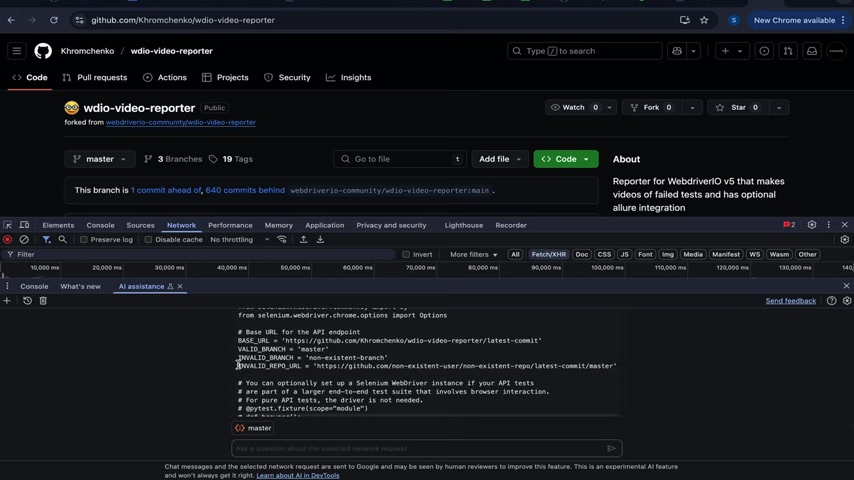
Select an API Request: Right-click on a specific API request you wish to test and choose 'Ask AI'.
-
Ask for Test Cases: Enter a prompt like: "What are the test cases I could use to test this API request?" or "What tests would Playwright look like?”.
-
Implement Test Cases: Use the AI-generated test cases as a foundation to implement and automate your API tests with popular frameworks like Axios, Playwright, or Selenium.
This capability allows you to validate API behavior, response structure, and error handling with relative ease. By automating these checks, you gain continuous feedback on API stability and reliability. Automate the process and improve the software performance.
Here is some example on how to install selenium and request:
pip install selenium requestsKeywords: api testing, automate, Playwright, Selenium, Axios
Key Software QA Skills
Enhance Selenium IDE skills
As a coding bootcamp founder
, there are several resources to make yourself more marketable. Here are some resources to improve those Selenium IDE skills, improve your Selenium IDE skills:
- Selenium IDE Documentation: The official Selenium IDE documentation provides a comprehensive guide to its features, commands, and functionalities.
- Selenium Tutorials: Many online Tutorial platforms, such as Udemy, Coursera, and Test Automation University, offer courses that cover Selenium IDE and its various aspects.
- Selenium Community Forums: The Selenium community is an excellent source for troubleshooting, best practices, and connecting with fellow testers.
Selenium IDE's popularity ensures its enduring relevance as a foundational tool in software testing. Its accessibility and ease of use enable a wider range of stakeholders to participate in the testing process. As a QA Engineer, remember to make Selenium IDE one of your skills.
| Category | Skill | Description |
|---|---|---|
| Core Testing | Test Case Design | Ability to create effective test cases to cover all functional and non-functional requirements. |
| Test Execution and Reporting | Skill in executing test cases, documenting results, and reporting defects in a clear, concise manner. | |
| Automation Tools | Selenium WebDriver | Proficiency in using Selenium WebDriver for automating web applications. |
| Playwright | Expertise in using Playwright for end-to-end testing and cross-browser compatibility. | |
| Cypress | Ability to use Cypress for front-end testing, particularly for JavaScript-based web applications. | |
| API Testing | REST Assured | Skill in testing RESTful APIs and web services using the REST Assured library. |
| Postman | Expertise in using Postman for API testing, documentation, and collaboration. | |
| Programming | JavaScript | Proficiency in JavaScript for web application automation and testing. |
| Python | Ability to use Python for creating test scripts and utilities. | |
| Java | Skill in Java for writing test automation frameworks and performing unit testing. | |
| C# | Proficiency in C# for developing test automation solutions, particularly in .NET environments. | |
| SQL | Skill in writing and executing SQL queries for database testing. |






Most people like
































Report
Please select a reason for reporting
- 13 Reasons to Switch from Snapchat to Text Messaging
- 7 Powerful Speech to Text Apps to Boost Productivity
- 10 Best Speech to Text Tools for Effortless Transcription
- 13 Free Tools to Easily Transcribe Audio to Text
- 15 Surprising Ways Google's Speech-to-Text Boosts Productivity
- 7 Best Free Online Audio to Text Transcription Tools
- 9 Tips to Transcribe Speech to Text Faster and Better
- 13 Best Speech to Text Software for Windows 10 in 2023
- 7 Tips for Choosing the Best Transcriber for Audio to Text
- 11 Reasons Why Dragon Speech-to-Text Apps are Game-Changers
- 6 Secrets to Enhance Your Speech to Text Transcription
- 6 Brilliant Ways to Boost Productivity with Talk-to-Text on Your MacBook
- 6 Ways Transcription Software Converts Audio to Text
- 8 Tips to Transcribe Speech to Text Like a Pro
- 6 Reasons IBM Watson Speech to Text is a Game-Changer
- 14 Powerful Ways Talk-to-Text Improves Your Workflow
- 12 Top Windows Speech-to-Text Software for Efficient Transcription
- 12 Game-Changing Benefits of Apple's Speech to Text Technology
- 9 Powerful Use Cases for AWS Speech to Text Technology
- 10 Easy Steps to Transcribe YouTube Videos to Text
- transcription audio en texte
- online audio transcription
- free audio file transcription
- free ai audio transcription
- audio transcription service
- audio transcription online free
- audio transcription free online
- audio to transcription software
- audio and transcript
- ai audio transcription free
- voice recording to text converter
- translate voice recording to text
- record voice to text
- audio recording to text converter
- voice recording and transcription
- chatgpt voice to text
- gmail voice to text
- speech to text reader
- speech to text ai free
- speech to talk
- How to Use AI Tools to Find Internal Linking Opportunities Across a Business Website
- Discover Your Perfect Haircut with AI Hairstyle Apps
- Free Reputation Calculator Tools: How They're Adapting to Score AI Visibility, Not Just Rankings
- Design Professional Flyers for Free on Your Phone
- Best Free Flyer Maker Apps for Android: Design Like a Pro
- How to Know If Your Business Is Ready for an AI Customer Service Agent
- Revolutionizing Storytelling: From Novels to Screenplays with AI
- Create Engaging Animated Explainer Videos with a Free AI Tool
- Stop Multi-Subscribing: Benchmark Top AI Visual Models in One Canvas
- Best Seedance 2.5 API Provider: Every Price on the Market, Checked at Source
- Top AI Social Media Management Tools: Automate Your Content Strategy
- Free AI Text to Video Generator: Create Stunning Videos from Text
- Discover 17 ChatGPT Alternatives: A Comprehensive Comparison
- Character.AI vs. Janitor AI: Which AI Chat Platform Reigns Supreme?
- Top Virtual Assistant Companies in 2026: Reviews, Pricing, and Plans Compared
- Unveiling FaceCheck.ID: Revolutionizing Reverse Image Searches with AI
- 11 Best AI Dialers in 2026: Features, Pricing, Pros and Cons
- How I Direct Consistent AI Clips: A Hands-On Guide to Multi-Model Generation
- A Realistic Review of the Photo Generator Image Tool
- Playwright MCP Server: Automated Web Testing with Agent Mode

Copyright ©2026 toolify