































Table of Contents
- Key Points
- Project Overview: Math with Gestures
- Step-by-Step Implementation: Building the Math Solver
- Unlocking the Power: Using the AI Math Solver
- Gemini API Pricing: Free Tier Advantages
- Math Gesture Solver: Pros and Cons
- Key Features of the Math Gesture Solver
- Potential Applications: Beyond Problem Solving
- Frequently Asked Questions
- Additional Resources and Extensions


Project Overview: Math with Gestures
The Core Idea of Math With Gestures
The goal is to create an interactive, intuitive math-solving application that lets users input math equations through simple hand gestures. This project combines various technologies to achieve real-time feedback and a seamless user experience. The program uses the CVZone library for hand detection and tracking, allowing the user to ‘draw’ mathematical equations in the air. Then, the magic happens: an AI model, leveraging the capabilities of Google's Gemini, interprets the drawing and computes the solution. Finally, Streamlit is employed to create an interface. This interface visually presents the problem and the solution, making the entire process engaging and user-friendly.
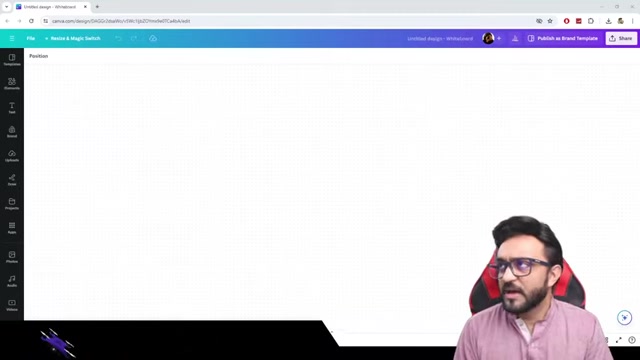
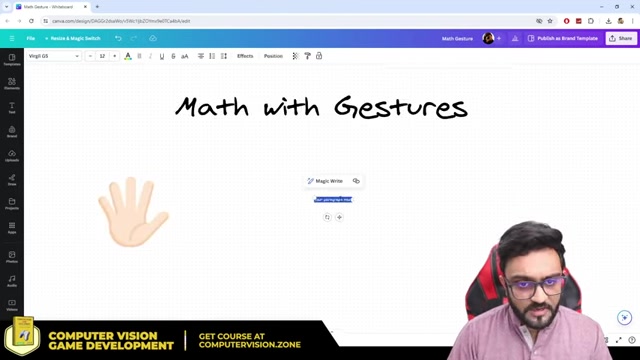
This gesture-based math program could be useful for online math teaching, for example. One of the things that makes this method useful is the ability to see real-time results.
Breaking Down the Project: Key Components
To make development manageable, the project is divided into several key components:
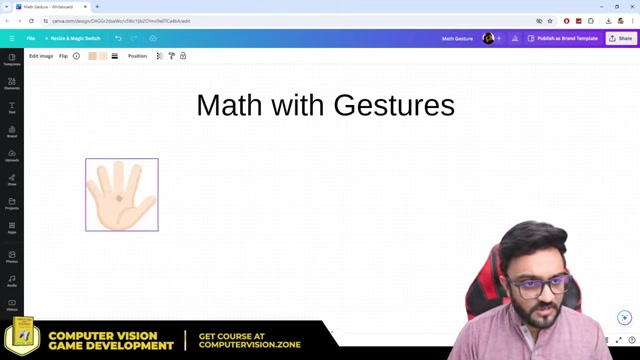
- Hand Detection: This component relies on CVZone to precisely identify and track the user's hand and finger positions. The goal is to accurately Translate hand movements into interpretable drawing data.
- Drawing Implementation: This aspect translates hand movement data into visual drawings on the screen, allowing the user to 'write' the equation in the air.
- AI Model Integration (Gemini): The core intelligence lies in the integration with the Google Gemini AI model. This AI will analyze the drawing, recognize the mathematical equation, solve it, and provide a clear explanation of the solution.
- Streamlit Interface: Streamlit creates the user-facing app that houses the video feed, allows drawing input, and displays the AI’s output. This carefully orchestrated combination of technologies forms the foundation of an interactive and educational mathematical tool.
Tools and Technologies required to run the Math Gesture Program
To successfully create this project, you’ll need to be familiar with the following tools and technologies:
- Python: The primary programming language used to build the application. Make sure you have it installed and configured correctly.
- CVZone: A Computer Vision library is crucial for hand detection. Installation is straightforward using
pip install cvzone. - Google Gemini API: Obtain a free API key from the Google AI for Developers platform to integrate the AI model.
- Streamlit: Streamlit allows you to create an interactive web application. Install it by using
pip install streamlit. - NumPy: Numerical Python is used for drawing the mathematical operations. Use
pip install numpy. - PIL(pillow) This image processing package is required to transfer images to the AI model in a format it can read. Install with
pip install pillow. -
An IDE (e.g., PyCharm): An IDE can make coding a more streamlined and enjoyable experience. The project was created using PyCharm in the Tutorial. Download the Community edition to get started for free.
Key Libraries:
| Library | Purpose |
|---|---|
| CVZone | Hand detection and tracking. |
| Google Gemini API | AI model for math problem-solving. |
| Streamlit | Building the interactive user interface. |
| NumPy | Numerical computations and canvas manipulation |
| PIL (Pillow) | Image format conversions for the AI. |
Make sure that each of these applications is set up before proceeding.
Step-by-Step Implementation: Building the Math Solver
Project Setup
The journey to building a math gesture solver begins with creating a dedicated space for your project. Start by creating a directory, perhaps named “GestureWithMath,” to house all your code and resources. Now, within this folder, the main.py file will house all the key components of this application.
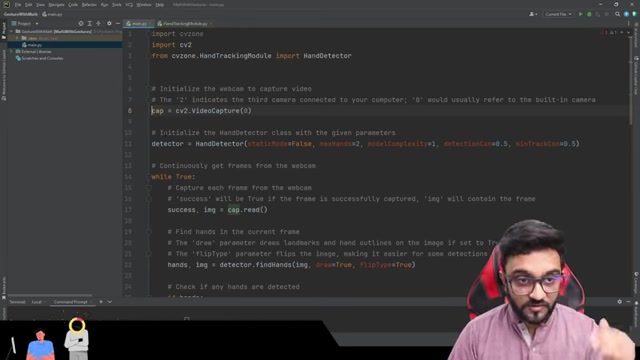
Next you'll import all the different libraries required to make the project work.
import cvzone
import cv2
from cvzone.HandTrackingModule import HandDetector
import numpy as np
from PIL import Image
import streamlit as st
Next, enable webpage to extend into full width.
st.set_page_config(layout="wide")
st.image("MathGestures.png")
Now let’s configure and test the webcam feed.
#setting up webcam
cap = cv2.VideoCapture(1)
cap.set(3, 1280)
cap.set(4, 720)

detector = HandDetector(detectionCon=0.7, maxHands=1)
Finally, test your code to make sure the webcam feed is working properly.
Function-Based Refactoring for Modularity
Let’s encapsulate the complex hand tracking and math solving into smaller blocks using functions. To accomplish this, follow the steps below:
-
Convert the base code into a function:
def getHandInfo(img): hands, img = detector.findHands(img) fingers=[] lmList=[] if hands: hand1 = hands[0] lmList=hand1["lmList"] fingers = detector.fingersUp(hand1) return fingers, lmList else: return None, None - Now call these in the appropriate functions.
- Also refactor the Streamlit display code into two columns to keep the UI elegant.
This promotes reusability and makes the code clearer. To do this, create 2 columns for your page, one for displaying the webcam and the other for displaying the solution.
Integrating Gemini AI for Dynamic Math Solving
The last part of the project is to configure the AI Key and integrate the Generative AI model, with code like this:
import google.generativeai as genai
genai.configure(api_key= "AIzaSyAu7w2TMd4kIAIB-RDMh8yvmrF80q8JpQk")
model = genai.GenerativeModel('gemini-1.5-flash')

if fingers == [1, 1, 1, 1, 0]:
 """ We need to PIL image here for Generative Model"""
 pil_image = Image.fromarray(canvas)
 response = model.generate_content("Solve this Math Problem", pil_image)

 output_text = response.text
 st.subheader(output_text)

   if canvas is None:
 canvas = np.zeros_like(img)
"""
The above code sets up all the parts you need for the AI chatbot and math solver. Now the AI chatbot should be able to guess the answer.





Most people like


































Report
Please select a reason for reporting
- 13 Reasons to Switch from Snapchat to Text Messaging
- 7 Powerful Speech to Text Apps to Boost Productivity
- 10 Best Speech to Text Tools for Effortless Transcription
- 13 Free Tools to Easily Transcribe Audio to Text
- 15 Surprising Ways Google's Speech-to-Text Boosts Productivity
- 7 Best Free Online Audio to Text Transcription Tools
- 9 Tips to Transcribe Speech to Text Faster and Better
- 13 Best Speech to Text Software for Windows 10 in 2023
- 7 Tips for Choosing the Best Transcriber for Audio to Text
- 11 Reasons Why Dragon Speech-to-Text Apps are Game-Changers
- 6 Secrets to Enhance Your Speech to Text Transcription
- 6 Brilliant Ways to Boost Productivity with Talk-to-Text on Your MacBook
- 6 Ways Transcription Software Converts Audio to Text
- 8 Tips to Transcribe Speech to Text Like a Pro
- 6 Reasons IBM Watson Speech to Text is a Game-Changer
- 14 Powerful Ways Talk-to-Text Improves Your Workflow
- 12 Top Windows Speech-to-Text Software for Efficient Transcription
- 12 Game-Changing Benefits of Apple's Speech to Text Technology
- 9 Powerful Use Cases for AWS Speech to Text Technology
- 10 Easy Steps to Transcribe YouTube Videos to Text
- transcription audio en texte
- online audio transcription
- free audio file transcription
- free ai audio transcription
- audio transcription service
- audio transcription online free
- audio transcription free online
- audio to transcription software
- audio and transcript
- ai audio transcription free
- voice recording to text converter
- translate voice recording to text
- record voice to text
- audio recording to text converter
- voice recording and transcription
- chatgpt voice to text
- gmail voice to text
- speech to text reader
- speech to text ai free
- speech to talk
- How to Use AI Tools to Find Internal Linking Opportunities Across a Business Website
- Discover Your Perfect Haircut with AI Hairstyle Apps
- Free Reputation Calculator Tools: How They're Adapting to Score AI Visibility, Not Just Rankings
- Design Professional Flyers for Free on Your Phone
- Best Free Flyer Maker Apps for Android: Design Like a Pro
- How to Know If Your Business Is Ready for an AI Customer Service Agent
- Revolutionizing Storytelling: From Novels to Screenplays with AI
- Create Engaging Animated Explainer Videos with a Free AI Tool
- Stop Multi-Subscribing: Benchmark Top AI Visual Models in One Canvas
- Best Seedance 2.5 API Provider: Every Price on the Market, Checked at Source
- Top AI Social Media Management Tools: Automate Your Content Strategy
- Free AI Text to Video Generator: Create Stunning Videos from Text
- Discover 17 ChatGPT Alternatives: A Comprehensive Comparison
- Character.AI vs. Janitor AI: Which AI Chat Platform Reigns Supreme?
- Top Virtual Assistant Companies in 2026: Reviews, Pricing, and Plans Compared
- Unveiling FaceCheck.ID: Revolutionizing Reverse Image Searches with AI
- 11 Best AI Dialers in 2026: Features, Pricing, Pros and Cons
- How I Direct Consistent AI Clips: A Hands-On Guide to Multi-Model Generation
- A Realistic Review of the Photo Generator Image Tool
- Playwright MCP Server: Automated Web Testing with Agent Mode

Copyright ©2026 toolify