































Table of Contents
- Key Points
- Getting Started with GitHub and Eclipse
- Step-by-Step Guide: Cloning a GitHub Repository into Eclipse
- Understanding HTTPS vs. SSH for Cloning
- FAQ
- Related Questions


Getting Started with GitHub and Eclipse
Why Clone a GitHub Repository into Eclipse?
Cloning a GitHub repository into your Eclipse IDE allows for seamless integration of version control into your development workflow. It enables you to:
-
Collaborate Efficiently: Work with team members on shared projects.
-
Manage Code Versions: Track changes and revert to previous states if necessary.
-
Contribute to Open Source: Easily contribute to projects hosted on GitHub.
-
Simplify Project Management: Keep your local development environment synchronized with the remote repository.
-
Increase efficiency: Instead of switching between multiple tools, use a single IDE to commit code.
Prerequisites: Setting Up Your Environment
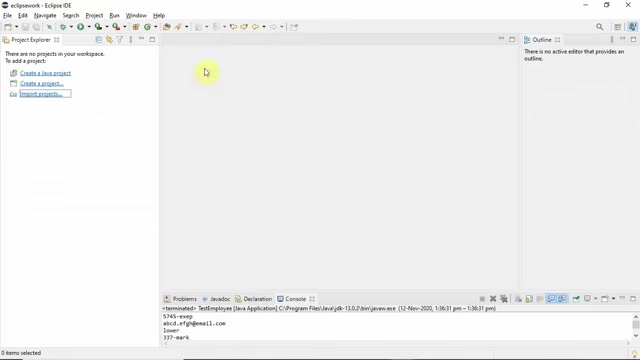
Before you begin, ensure that you have the following prerequisites in place:
-
GitHub Account: You'll need an active GitHub account. If you don't have one, you can sign up for free on the GitHub website.
-
Eclipse IDE: Make sure you have Eclipse IDE installed on your computer. Eclipse IDE for Java Developers is sufficient, but any Eclipse package will work. To verify Eclipse IDE details go to Help -> About Eclipse IDE.
-
Git Installation: Git must be installed on your system. You can download Git from the official Git website. Most modern IDEs like Eclipse can automatically detect your Git installation.
-
EGit Plugin: Eclipse uses the EGit plugin for Git integration. This plugin usually comes pre-installed with Eclipse. If not, you can install it via the Eclipse Marketplace (Help -> Eclipse Marketplace).
Step-by-Step Guide: Cloning a GitHub Repository into Eclipse
Method 1: Using the Git Repository View
This method utilizes Eclipse's Git Repository view to clone the repository.
Step 1: Open the Git Repository View
-
Go to Window > Show View > Other.
-
Type "Git Repositories" in the search box.
-
Select Git Repositories and click Open.
The Git Repositories view will now be visible in your Eclipse IDE.
Step 2: Clone a Git Repository
- In the Git Repositories view, click the Clone a Git Repository button (it looks like two repositories with an arrow).
- Alternatively, you can select Clone Git Repository
Step 3: Enter Repository Details
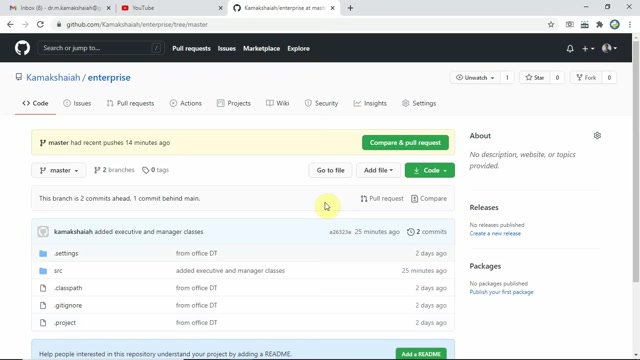
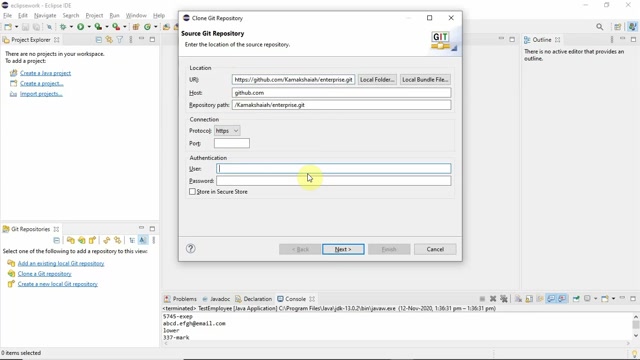
- In the Clone URI field, paste the URL of the GitHub repository you want to clone. You can obtain the URL from the GitHub repository page by clicking the green "Code" button and copying the HTTPS URL. Example:
https://github.com/Kamakshaiah/enterprise - The Host and Repository path fields should auto-populate based on the URL.
- If not using SSH, use the HTTPS protocol
Step 4: Authentication
- Enter your GitHub username and password in the Authentication section. Authentication is mandatory because you will be connecting via https, so you must provide authentication credentials for your github account.
Step 5: Branch Selection
- Select the branches you wish to clone. By default, the master branch is selected. You can choose additional branches as needed. Branches are used in development for separating version code.
Step 6: Local Destination
- Specify the local directory where you want to clone the repository. By default there might be a directory that you do not want. Specify the destination directory that you want, and click save.
Step 7: Import as Project
- There are options to import all eclipse projects. Click Finish to clone the repository and import the projects into your Eclipse workspace.
Eclipse will now clone the repository and import the projects into your workspace.
Method 2: Using the Import Projects Wizard
This method uses the Import Projects wizard to clone and import the project.
Step 1: Open the Import Projects Wizard
- Go to File > Import.
- Expand Git and select Projects from Git. Click Next.
Step 2: Select Repository Source
- Select Clone URI and click Next.
Step 3: Enter Repository Details and Authentication
- Enter the URI of the GitHub repository, along with your GitHub username and password. This step is identical to the previous method. Authentication is mandatory for https connections.
Step 4: Branch Selection and Local Destination
- Select the branches and the local destination directory. This step is identical to the previous method.
Step 5: Select Projects to Import
- Eclipse will scan the cloned repository for available projects. Select the projects you want to import into your workspace.
Step 6: Finish Importing
- Click Finish to import the selected projects into your Eclipse workspace.
Eclipse will now import the projects into your workspace.





Most people like



































Report
Please select a reason for reporting
- 13 Reasons to Switch from Snapchat to Text Messaging
- 7 Powerful Speech to Text Apps to Boost Productivity
- 10 Best Speech to Text Tools for Effortless Transcription
- 13 Free Tools to Easily Transcribe Audio to Text
- 15 Surprising Ways Google's Speech-to-Text Boosts Productivity
- 7 Best Free Online Audio to Text Transcription Tools
- 9 Tips to Transcribe Speech to Text Faster and Better
- 13 Best Speech to Text Software for Windows 10 in 2023
- 7 Tips for Choosing the Best Transcriber for Audio to Text
- 11 Reasons Why Dragon Speech-to-Text Apps are Game-Changers
- 6 Secrets to Enhance Your Speech to Text Transcription
- 6 Brilliant Ways to Boost Productivity with Talk-to-Text on Your MacBook
- 6 Ways Transcription Software Converts Audio to Text
- 8 Tips to Transcribe Speech to Text Like a Pro
- 6 Reasons IBM Watson Speech to Text is a Game-Changer
- 14 Powerful Ways Talk-to-Text Improves Your Workflow
- 12 Top Windows Speech-to-Text Software for Efficient Transcription
- 12 Game-Changing Benefits of Apple's Speech to Text Technology
- 9 Powerful Use Cases for AWS Speech to Text Technology
- 10 Easy Steps to Transcribe YouTube Videos to Text
- transcription audio en texte
- online audio transcription
- free audio file transcription
- free ai audio transcription
- audio transcription service
- audio transcription online free
- audio transcription free online
- audio to transcription software
- audio and transcript
- ai audio transcription free
- voice recording to text converter
- translate voice recording to text
- record voice to text
- audio recording to text converter
- voice recording and transcription
- chatgpt voice to text
- gmail voice to text
- speech to text reader
- speech to text ai free
- speech to talk
- Meshy AI: How to Create 3D Models from Text and Images
- How SEO and Marketing Dashboards Empower Agencies to Drive Results
- How to Use AI Tools to Find Internal Linking Opportunities Across a Business Website
- Discover Your Perfect Haircut with AI Hairstyle Apps
- Free Reputation Calculator Tools: How They're Adapting to Score AI Visibility, Not Just Rankings
- Design Professional Flyers for Free on Your Phone
- Best Free Flyer Maker Apps for Android: Design Like a Pro
- How to Know If Your Business Is Ready for an AI Customer Service Agent
- Revolutionizing Storytelling: From Novels to Screenplays with AI
- Create Engaging Animated Explainer Videos with a Free AI Tool
- Automate Lead Generation: A Comprehensive Guide with AI Agents
- Revideo.io: The Future of Reverse Video Search Technology
- Revolutionizing Email Marketing Agency with AI
- Breaking the Character Drift Dilemma: A Practical Test of Smart Shot
- Meshy AI: How to Create 3D Models from Text and Images
- ASOMobile Helps Teams Benchmark App Store Screenshots Against Competitors
- How to Match LMS Software With Your Organization's Training Plan
- How to Convert BTC to HNT
- Unleashing the Power of AI: Cognizant's Roadmap for Transformation
- Frame to Video Review: A Practical Look at Turning Two Still Frames Into Motion

Copyright ©2026 toolify